
Connecting a device to your smart TV can open up a world of entertainment right in your living room. Whether you want to stream movies, share photos, or play games, knowing how to make the connection is key.
But if you’ve ever felt stuck or unsure where to start, you’re not alone. This guide will walk you through simple steps to connect your device quickly and easily. By the end, you’ll be ready to enjoy all your favorite content on the big screen without any hassle.
Let’s get your devices talking to your smart TV!
Check Your Smart Tv Ports
Before connecting your device to a smart TV, it’s important to check the available ports. Knowing what connections your TV supports helps you avoid compatibility issues and ensures a smooth setup. Take a moment to look closely at the back and sides of your TV to spot these ports.
Identify Hdmi Ports
HDMI ports are the most common way to connect devices like streaming sticks, gaming consoles, and Blu-ray players. They are usually rectangular and labeled “HDMI.” Some TVs have multiple HDMI ports, so you can connect several devices at once.
Look for labels like HDMI 1, HDMI 2, or HDMI ARC (Audio Return Channel). The ARC port lets you send audio back to a soundbar or receiver, which is useful if you want better sound quality.
Locate Usb Connections
USB ports allow you to connect flash drives, external hard drives, or even some cameras directly to your TV. These ports are rectangular and often labeled “USB.” You can use them to play videos, show photos, or update your TV’s software.
Not all USB ports support power delivery, so if you plan to connect a device that needs power, make sure to test the port first. Sometimes, the USB port is hidden behind a cover or on the side panel, so check carefully.
Explore Other Input Options
Your TV might offer additional input options depending on its model and age. Look for ports like:
- Component or Composite Inputs:These are older connections with red, white, and yellow plugs, useful for older devices.
- Optical Audio Out:For connecting to sound systems with digital audio.
- Ethernet Port:For wired internet connection, which can be more stable than Wi-Fi.
Have you ever overlooked a port that could have made your connection easier? Checking every available input might reveal a better way to connect your device.

Credit: www.youtube.com
Prepare Your Device
Preparing your device before connecting it to a smart TV makes the process smooth and fast. Check all necessary items and settings. This step helps avoid interruptions during setup. Proper preparation saves time and reduces frustration.
Gather Necessary Cables
Identify the cables your device needs for connection. Common types include HDMI, USB, and audio cables. Use good quality cables to ensure stable signals. Keep all cables within easy reach before starting the setup.
Ensure Device Compatibility
Check if your device works with the smart TV. Look for supported connection types on both devices. Confirm the device’s output matches the TV’s input options. Compatibility ensures a successful and clear connection.
Update Device Software
Keep your device’s software current before connecting. Updates fix bugs and improve performance. Check settings or the device’s official website for updates. Updated software helps devices communicate better with the TV.
Connect Via Hdmi Cable
Connecting a device to your smart TV using an HDMI cable is one of the simplest and most reliable ways to enjoy high-quality video and audio. This method supports a wide range of devices, including gaming consoles, Blu-ray players, laptops, and streaming devices. The process is straightforward, allowing you to experience sharp images and clear sound without any complicated setup.
Plug In Hdmi To Tv And Device
First, locate the HDMI port on your smart TV. Most modern TVs have multiple HDMI inputs, usually labeled HDMI 1, HDMI 2, etc. Plug one end of the HDMI cable securely into the TV’s HDMI port.
Next, connect the other end of the HDMI cable to the HDMI output port on your device. Ensure both connections are snug to prevent loose signals or interruptions. A loose cable can cause flickering screens or audio dropouts.
Select Hdmi Input On Tv
Once the HDMI cable is connected, turn on your TV and the device. Use your TV remote to access the input or source menu. You’ll see options like HDMI 1, HDMI 2, and so on.
Select the HDMI input that matches the port you plugged the cable into. This step tells your TV to display the signal coming from your device. If the screen stays blank, double-check the cable connections and try switching inputs.
Adjust Display Settings
After selecting the correct HDMI input, check your device’s display settings. You might need to adjust the resolution or aspect ratio for the best picture quality. For example, setting the resolution to 1080p or 4K can provide a clearer image on compatible TVs.
If the screen looks stretched or cut off, try changing the aspect ratio settings on your TV or device. Many devices automatically adjust these settings, but sometimes manual tweaks improve the viewing experience. Have you noticed how a small display tweak can make your favorite shows look much better?
Use Usb Connection
Using a USB connection is one of the simplest ways to connect your device to a smart TV. It allows you to access photos, videos, music, and other files directly on the big screen without needing extra apps or complicated setups. If you have a USB drive or a compatible device, this method can save you time and make your viewing experience more enjoyable.
Connect Device Using Usb Cable
Start by locating the USB port on your smart TV. Most modern TVs have at least one USB slot, usually on the side or back panel.
Then, plug your USB cable into your device—this could be a smartphone, tablet, or external hard drive—and connect the other end to the TV’s USB port.
Your TV might show a notification or automatically switch to the USB input. If not, use the remote to select the USB source manually.
Access Device Content On Tv
Once connected, your TV will display the files stored on your device. You can navigate through folders using your TV remote.
Try opening different file types to see what your TV supports. You might find photos, videos, and music all accessible from the same menu.
Have you ever struggled to find your vacation photos quickly? Using USB connection can make browsing easier and faster right from your couch.
Manage File Formats
Smart TVs support various file formats, but not all. Common video formats like MP4 and AVI usually work well, while some less popular formats might not play.
If a file won’t open, check the TV’s manual or settings for supported formats. Sometimes converting files to a compatible format on your computer is necessary.
Don’t overlook audio and photo formats either. JPEG and MP3 are generally safe bets, but RAW images or certain audio codecs might not be recognized.
Connect Wirelessly
Connecting your device to a smart TV wirelessly offers convenience and flexibility. It allows you to stream videos, display photos, or mirror your screen without tangled cables. Understanding how to set up this connection smoothly will enhance your viewing experience instantly.
Enable Screen Mirroring
Start by activating screen mirroring on your smart TV. This option is usually found in the settings menu under “Network” or “Display.” Enabling it makes your TV discoverable to nearby devices.
On your phone or tablet, look for the “Cast,” “Smart View,” or “Screen Mirroring” option in the quick settings or display menu. Once you select your TV from the list, your device’s screen should appear on the big screen.
Pair Device With Smart Tv
After enabling screen mirroring, pairing your device with the smart TV is the next step. Both devices must be connected to the same Wi-Fi network to communicate effectively.
- Open the wireless connection settings on your device.
- Select your smart TV from the list of available devices.
- Accept the pairing request on your TV if prompted.
This pairing process creates a secure link, ensuring smooth streaming or mirroring. Have you noticed delays or interruptions? It might be time to check your network strength.
Troubleshoot Wireless Issues
Wireless connections can sometimes be unstable or slow. Start troubleshooting by restarting your smart TV and the device you want to connect.
Check your Wi-Fi signal strength; weak signals often cause freezing or disconnections. Moving closer to the router or switching to a less crowded frequency band can help.
If your device doesn’t appear on the TV’s screen mirroring list, confirm that both devices are updated to the latest software versions. Sometimes, compatibility issues arise from outdated firmware.

Credit: stargoldworld.com
Use Streaming Devices
Using streaming devices is one of the easiest ways to connect your favorite gadgets to a smart TV. These devices act as bridges, allowing you to stream content directly from your phone, tablet, or laptop to the big screen. Whether you’re watching a movie, sharing photos, or playing games, streaming devices offer a seamless way to enhance your viewing experience.
Set Up Chromecast Or Similar
Start by plugging your Chromecast or similar streaming device into an available HDMI port on your smart TV. Make sure your TV is set to the correct HDMI input. Next, connect the device to a power source using the provided USB cable or power adapter.
Open the companion app on your smartphone or tablet, such as Google Home for Chromecast. Follow the on-screen instructions to connect the device to your Wi-Fi network. This setup usually takes just a few minutes and gets your streaming device ready to use.
Cast Content From Device
Once your streaming device is connected, you can cast content from your phone, tablet, or laptop. Look for the cast icon in apps like YouTube, Netflix, or Spotify. Tap the icon and select your smart TV or streaming device from the list.
Want to show a slideshow of your vacation photos? You can cast images directly from your device’s gallery or a cloud storage app. It’s a simple way to share moments with friends and family on a larger screen.
Control Playback
Controlling playback is straightforward when using streaming devices. Your phone or tablet acts as a remote, letting you pause, play, rewind, or fast-forward content. Volume control is also available through your device or the TV remote.
Curious about skipping to a specific scene in a movie? Just drag the progress bar on your device’s screen. The changes reflect instantly on your smart TV, giving you full control without needing to reach for the TV remote.
Optimize Connection Settings
Optimizing your connection settings is key to getting the best performance from your smart TV. It’s not just about plugging in your device and hoping for the best. Taking a few moments to adjust settings can dramatically improve picture quality, sound clarity, and overall stability.
Adjust Resolution And Sound
Your device and TV might support different resolutions. Check your TV’s settings and set the resolution to match your device’s output for the sharpest image. Choosing a resolution that’s too high or too low can cause blurry images or lag.
Sound settings are just as important. You can tweak audio output modes like stereo, surround sound, or external speaker options depending on your setup. I once overlooked adjusting sound settings and ended up with muffled audio from my external speakers. Fixing it was as simple as switching from TV speakers to HDMI ARC in the settings.
Update Tv Firmware
Firmware updates often include fixes for bugs and improvements in compatibility. Your smart TV may struggle to connect or maintain a stable link with newer devices if it’s running outdated software. Regularly check for updates in your TV’s system settings.
Some TVs allow automatic updates, but if yours doesn’t, make it a habit to check monthly. Updating firmware once saved me hours of troubleshooting a connection issue that was simply caused by outdated software.
Test Connection Stability
After connecting your device, spend some time testing the connection. Play a video or stream music to see if there’s any lag, buffering, or audio dropouts. If you notice interruptions, try moving your device closer to the TV or router.
Wi-Fi interference from other electronics can cause instability too. Consider switching to a wired Ethernet connection if possible. Have you ever experienced sudden disconnections during an important show? Testing helps avoid that frustration.

Credit: www.youtube.com
Frequently Asked Questions
How To Connect A Device Via Hdmi To Smart Tv?
To connect via HDMI, plug one end of the HDMI cable into the device and the other into your TV’s HDMI port. Ensure your TV input is set to the correct HDMI source. This method provides high-quality audio and video.
Can I Use Bluetooth To Connect Devices To My Smart Tv?
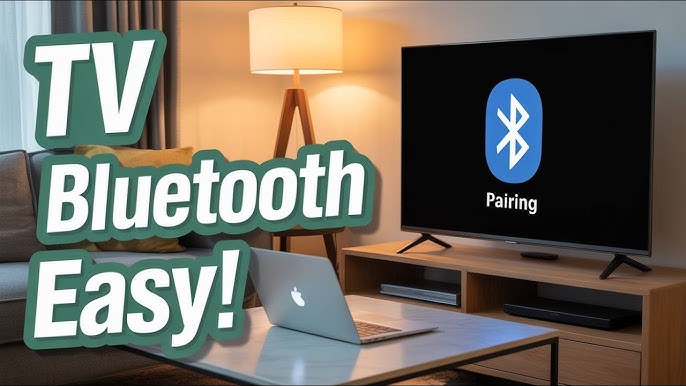
Yes, you can connect devices using Bluetooth. Enable Bluetooth on your TV and device. Search for available devices and select your TV. Pairing may require a code. This is great for connecting headphones or speakers wirelessly.
Is Wi-fi Necessary For Connecting Devices To Smart Tv?
Wi-Fi is not always necessary. HDMI or USB connections don’t require internet. However, Wi-Fi is essential for casting or streaming content from a smartphone or computer. It allows for a wireless connection and access to online content.
What Devices Can Connect To A Smart Tv?
Smart TVs can connect to various devices like smartphones, tablets, laptops, gaming consoles, and streaming devices. Each connection type, such as HDMI, USB, or Bluetooth, has its compatibility. Always check your TV’s manual for supported devices and connection methods.
Conclusion
Connecting a device to a smart TV is easier than it seems. Just follow the simple steps carefully. Choose the right cable or use wireless options. Make sure both devices are powered on. Check the TV input source after connecting.
Adjust settings if the picture or sound is unclear. Enjoy watching your favorite content on the big screen. Keep your devices updated to avoid problems. With a little practice, connecting becomes a quick task. Try it today and see how simple it can be!


