
Imagine you just got a new phone. You’re excited to set it up, but transferring all your data from your old device feels like a daunting task.
You might have heard about Smart Switch, a tool that promises to make this process seamless and stress-free. But here’s the catch: is Smart Switch already on your phone, or do you need to download it yourself? Understanding whether Smart Switch comes pre-installed can save you time and effort.
Knowing this could mean the difference between a smooth setup experience and a frustrating one. So, if you’re curious and want to ensure that your transition to your new device is as smooth as possible, keep reading. Discover how Smart Switch can be your ally in making your phone setup quick and hassle-free.
What Is Smart Switch
Smart Switch is a tool designed to help you move data from one phone to another. It works mainly for Samsung devices but supports other brands as well. The app transfers contacts, photos, messages, and more. It simplifies the process of setting up a new phone.
The tool works wirelessly or with a USB cable. It makes switching phones faster and easier. You don’t need technical skills to use Smart Switch.
How Smart Switch Works
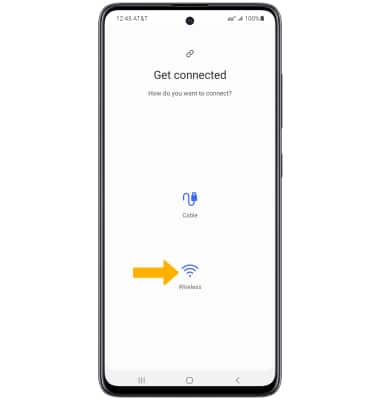
Smart Switch connects two phones either through Wi-Fi or a USB connection. It scans the old device for data you want to transfer. Then, it copies that data to the new phone safely and quickly. It works with most Android phones and even iPhones.
What Data Can Smart Switch Transfer
- Contacts
- Messages
- Photos and videos
- Music and documents
- Call logs
- Settings and apps
Which Phones Support Smart Switch
Smart Switch comes pre-installed on most Samsung Galaxy phones. Some older models might not have it by default. It works on Android devices running certain versions and on iPhones with limited features.
- Easy data transfer without cables
- Supports many types of data
- Safe and secure process
- Works with various phone brands

Credit: www.samsung.com
Phones That Include Smart Switch
Wondering if your phone already has Smart Switch installed? Knowing which phones come with this handy tool can save you time and hassle when switching devices. Smart Switch is designed to make moving your data smooth, but not every phone includes it automatically.
Samsung Phones With Pre-installed Smart Switch
Most Samsung Galaxy phones come with Smart Switch pre-installed. This includes popular models like the Galaxy S and Galaxy Note series. If you have a Samsung phone released in the last few years, chances are Smart Switch is already ready to use.
This means you can start transferring your contacts, photos, and apps right out of the box. No need to download anything extra or hunt for the app in the store.
Other Android Devices And Smart Switch Availability
Smart Switch is primarily a Samsung feature, so most other Android brands do not come with it pre-installed. However, you can usually download the Smart Switch app from the Google Play Store if you want to move data to or from a Samsung device.
Some brands may have their own transfer tools, so check your phone’s settings or app store for alternatives before relying on Smart Switch.
Iphones And Smart Switch Compatibility
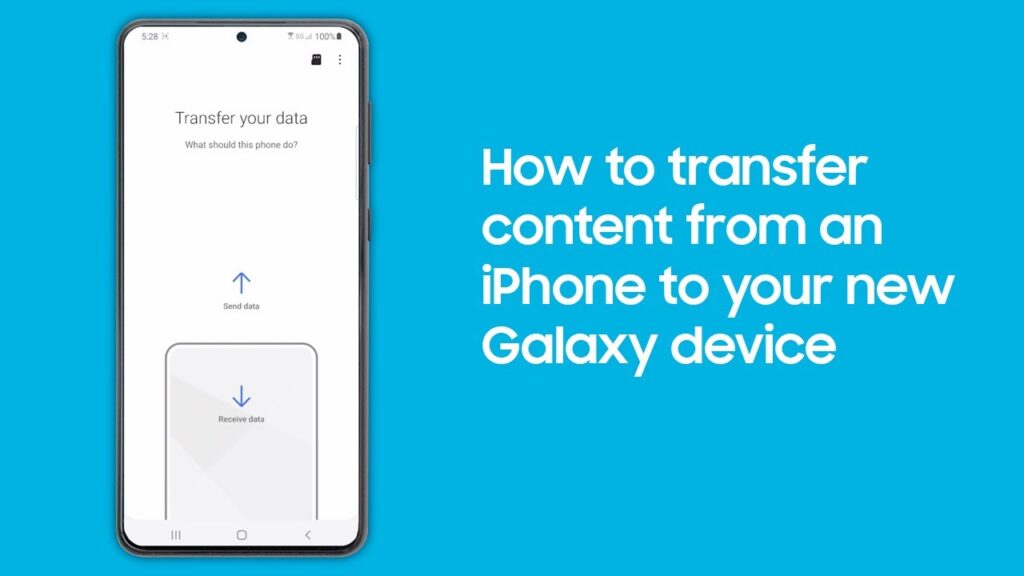
iPhones don’t come with Smart Switch installed, but you can use it to transfer data from an iPhone to a Samsung phone. You just need to install the Smart Switch app on the Samsung device, connect both phones, and follow the prompts.
Have you tried moving data between different operating systems? The process can be a bit tricky, but Smart Switch simplifies it when moving to Samsung.
How To Check If Smart Switch Is Installed
Checking if Smart Switch is installed on your phone is simple. It helps to know this before transferring data between devices. This guide shows easy ways to find the app on your phone.
Look In The App Drawer Or Home Screen
Open your phone’s app drawer or home screen. Scroll through the apps to spot “Smart Switch.” The icon looks like two arrows forming a circle. If you see it, the app is installed and ready to use.
Use The Search Function On Your Phone
Swipe down or open the search bar on your device. Type “Smart Switch” into the search field. If the app appears in the results, it is installed. Tap the app to open and confirm.
Check In The Settings Menu
Go to your phone’s Settings. Find the “Apps” or “Applications” section. Scroll the list for “Smart Switch.” This confirms the app is on your device and shows its version.
Verify Via The Google Play Store Or App Store
Open the Google Play Store or App Store. Search for “Smart Switch.” If the button shows “Open” instead of “Install,” the app is already installed.

Credit: www.youtube.com
Installing Smart Switch Manually
Installing Smart Switch manually is a straightforward process that lets you take control of your device setup. Sometimes, Smart Switch might not come pre-installed, especially on older models or certain carrier versions. Don’t worry—you can add it yourself with just a few easy steps.
How To Download Smart Switch From The Official Website
Start by visiting the official Samsung Smart Switch website on your computer or phone browser. This ensures you get the latest and safest version of the app. Look for the download button that matches your device’s operating system, whether it’s Windows, Mac, Android, or iOS.
Once downloaded, open the file and follow the on-screen instructions to install. It usually takes just a couple of minutes, and you don’t need any technical skills. Have you ever hesitated to download software because of security concerns? Sticking to official sources reduces those risks significantly.
Installing Smart Switch Via The Google Play Store Or Galaxy Store
If you prefer installing directly on your phone, head to the Google Play Store or Samsung Galaxy Store. Type “Smart Switch” in the search bar, then select the official app from Samsung Electronics. Check the app details to confirm you’re downloading the right one.
Tap “Install” and wait for the app to download and set up automatically. The process is seamless, and you’ll be ready to transfer your data in no time. Have you noticed how many apps on your phone you never actually opened? Smart Switch is one you’ll want to use for smoother phone changes.
Troubleshooting Installation Issues
Sometimes, installations don’t go as planned. If the app won’t install, check your device’s storage space first—lack of space is a common hurdle. You might also need to enable installations from unknown sources if you’re installing from a website rather than an app store.
Restarting your device often solves minor glitches that block installation. If problems persist, clearing cache or updating your phone’s software can help. Have you ever found a simple restart fixes what seemed like a big tech problem?
Benefits Of Using Smart Switch
Smart Switch helps you move data from one phone to another easily. It saves time and effort. This tool works with many phone models and supports various data types. Using Smart Switch means less stress during phone upgrades or replacements.
Easy Data Transfer
Smart Switch moves contacts, photos, messages, and apps quickly. You do not need to copy files manually. The process is simple and fast, even for beginners.
Supports Multiple Devices
The app works with Android and iPhone devices. It helps transfer data between different brands smoothly. No worries about compatibility issues during transfer.
Wireless And Wired Options
You can transfer data using Wi-Fi or a USB cable. Choose the method that fits your situation. Both options offer stable and secure transfers.
Safe And Secure
Smart Switch keeps your data private during transfer. It does not share your information with others. Your personal files stay protected throughout the process.
Keeps App Layouts And Settings
The tool transfers app layouts and phone settings. Your new phone looks and works like your old one. Save time setting up your device after transfer.
Common Issues With Smart Switch
Smart Switch is a handy tool for moving data between phones. It usually works well but can have some common problems. These issues may slow down your transfer or stop it completely. Knowing these problems helps you fix them fast.
Compatibility Issues
Smart Switch may not work well with all phone models. Older devices or those from other brands might face connection problems. Check if your phone supports the latest Smart Switch version.
Connection Problems
Data transfer needs a strong connection. Weak Wi-Fi or faulty cables can cause interruptions. Make sure both devices have stable connections during transfer.
Insufficient Storage Space
Smart Switch requires enough space on the new device. Lack of storage can stop data from transferring. Clear some space before starting the process.
App Not Pre-installed
Smart Switch does not always come pre-installed. Some phones require manual installation from the app store. Confirm if you need to download the app before use.
Transfer Failures
Sometimes transfers fail without clear reasons. This can happen due to software glitches or interrupted connections. Restart both devices and try again to resolve this.
Alternatives To Smart Switch
Smart Switch is popular for transferring data between Samsung devices. Not all phones have it pre-installed. Some users prefer other tools to move contacts, photos, and apps. Several alternatives offer easy transfer and extra features. These options work across different phone brands and operating systems.
Mobiletrans
MobileTrans is a simple tool for phone-to-phone data transfer. It supports Android and iOS devices. Users can move contacts, messages, photos, and more. The interface is clear and user-friendly. It works with both wired and wireless connections.
Shareit
ShareIt lets you send files fast without the internet. It works on Android, iOS, and PC. You can share photos, videos, and apps easily. ShareIt uses Wi-Fi Direct to transfer data quickly. No cables or data usage needed.
Google Drive Backup
Google Drive stores your data safely in the cloud. You can back up contacts, photos, and app data. Restoring is simple when you set up a new device. It works with any phone having Google services. Backup happens automatically when connected to Wi-Fi.
Phone Clone By Huawei
Phone Clone transfers data between old and new phones. It supports Android and iOS devices. The app moves contacts, messages, photos, and apps. Connection is via Wi-Fi, so no cables required. It works well for Huawei and non-Huawei phones.
Zapya
Zapya is another app for fast file sharing. It supports Android, iOS, Windows, and Mac. You can transfer multiple files at once. Zapya creates a local Wi-Fi network for sharing. No internet connection is necessary.
Credit: insights.samsung.com
Frequently Asked Questions
Does Smart Switch Come Pre-installed On New Phones?
Smart Switch often comes pre-installed on Samsung devices. New Samsung phones usually include it for easy data transfer. Non-Samsung phones typically don’t have it pre-installed. You can download it manually from app stores if needed.
Can I Install Smart Switch On Any Phone Device?
Smart Switch is mainly designed for Samsung phones. It supports Android, iOS, and Windows devices for transferring data. However, full functionality is best on Samsung models. For other brands, alternative apps may work better.
Is Smart Switch Automatic After Phone Setup?
Smart Switch is not activated automatically after setup. You must open the app and follow prompts to transfer data. It’s optional and requires user initiation to start transferring files and settings.
Does Smart Switch Transfer All Data Types Automatically?
Smart Switch transfers contacts, messages, photos, and apps. Some system settings and passwords may not transfer automatically. You can select what data to transfer during the process for better control.
Conclusion
Smart Switch may come pre-installed on some phones. Many Samsung devices include it by default. Others might need you to download the app. It helps move your data easily from old to new phones. Knowing if it’s installed saves time during setup.
Check your phone’s apps to be sure. This simple step makes switching devices smooth and quick. Keep Smart Switch in mind when upgrading your phone. It’s a useful tool for most Samsung users.


