
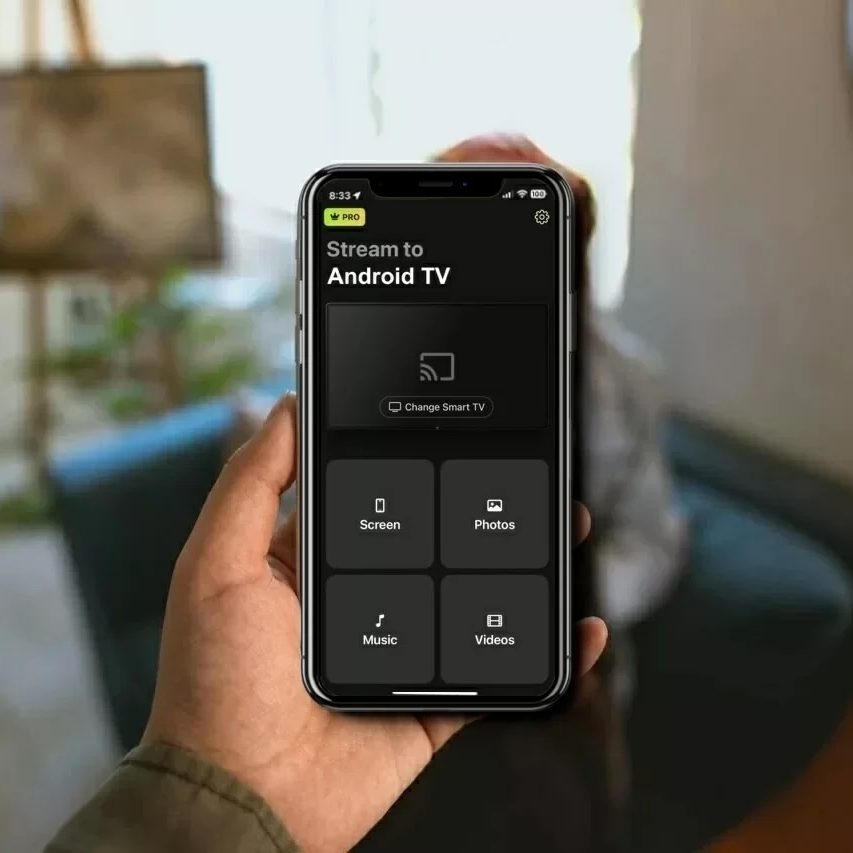
Have you ever found yourself squinting at your Android device’s small screen, wishing you could enjoy your favorite shows or videos on the bigger, vibrant display of your Smart TV? You’re not alone.
The good news is, you can stream from your Android device to your Smart TV, unlocking a whole new level of entertainment. Imagine lounging comfortably on your couch, effortlessly casting your favorite content onto a large screen, creating a mini theater experience right in your living room.
This seamless connection can transform your viewing habits and elevate your tech-savvy skills. Curious to know how to make this magic happen? Let’s dive into the simple steps that will change the way you watch forever.
Stream Options For Android To Tv
Streaming content from your Android device directly to your Smart TV can transform how you enjoy videos, photos, and even games on a bigger screen. There are several ways to do this, each with its own benefits depending on your setup and preferences. Understanding these options helps you choose the easiest and most reliable method for your needs.
Built-in Casting Features
Many Android devices come with built-in casting options like Google Cast or Miracast. These let you mirror your screen or stream media without extra hardware.
To use these features, your TV must support them or be connected to a compatible device like a Chromecast. Just tap the cast icon in supported apps or from your device’s settings to start streaming.
Have you noticed how seamless it feels when your phone automatically detects the TV? This ease is why built-in casting is often the first choice for many users.
Third-party Apps
If your TV or Android device lacks native casting support, third-party apps offer a practical solution. Apps like AllCast, LocalCast, or Plex can connect your device to your TV over Wi-Fi.
These apps often support various file formats and streaming protocols, giving you flexibility. Some even allow streaming from cloud storage or network drives.
Think about whether you want simple screen mirroring or more advanced media management. Your choice of app can make a big difference in your streaming experience.
Using Hdmi Cables
For those who prefer a wired connection, HDMI cables provide a reliable way to stream from Android to TV. Many Android devices support HDMI output via USB-C to HDMI adapters.
This method ensures a stable connection with no lag or buffering, ideal for gaming or high-definition videos. However, it requires you to have the right cable and adapter on hand.
Have you tried plugging your phone directly into your TV? The instant connection often beats wireless methods when you want the simplest setup.
Credit: tv.google
Preparing Your Devices
Streaming from an Android device to a smart TV needs some setup. Preparing both devices is key for smooth casting. Check a few settings before starting to avoid interruptions. This ensures a better viewing experience and fewer connection issues.
Check Network Connection
Both your Android device and smart TV must connect to the same Wi-Fi network. A strong network signal helps prevent buffering and lag. Avoid public or guest networks that may block device communication. Restart your router if the connection seems slow or unstable.
Enable Screen Mirroring On Tv
Smart TVs usually have a screen mirroring or casting option. Find this in your TV’s settings menu under “Network” or “Display.” Turn on screen mirroring to allow your Android device to connect. Some TVs call this feature “Miracast,” “Smart View,” or “Cast Screen.”
Update Software
Keep your Android device and smart TV software up to date. Updates fix bugs and improve compatibility for streaming. Check for updates in your device’s settings under “About Phone” or “System.” On your TV, look for updates in the system or support menu. Updating helps avoid connection problems and enhances performance.
Casting With Google Chromecast
Casting with Google Chromecast lets you stream content from your Android device directly to a Smart TV. It creates a seamless bridge between your phone and TV. This allows easy viewing of videos, photos, and apps on a larger screen.
Chromecast works with many popular Android apps, making it a convenient streaming option. Setting up and using Chromecast is straightforward. Troubleshooting common problems is also simple with the right steps.
Set Up Chromecast
- Plug Chromecast into your TV’s HDMI port.
- Connect Chromecast to a power source using the USB cable.
- Switch your TV input to the HDMI port used by Chromecast.
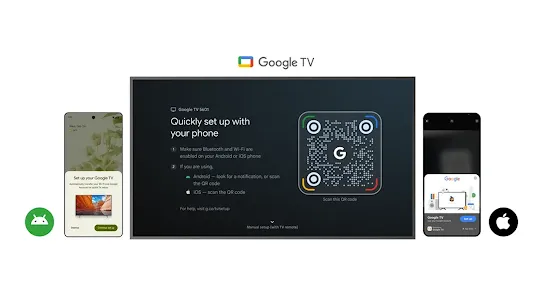
- Download and open the Google Home app on your Android device.
- Follow the app’s instructions to connect Chromecast to your Wi-Fi network.
- Confirm the connection by matching the code on your TV and phone.
Cast From Android Apps
- Open a Chromecast-compatible app on your Android device.
- Look for the cast icon, usually in the top right corner.
- Tap the cast icon and select your Chromecast device from the list.
- Choose the video, music, or photo you want to stream.
- The content will play on your Smart TV through Chromecast.
- Control playback using your phone’s app as a remote.
Troubleshooting Chromecast Issues
- Check that your Android device and Chromecast are on the same Wi-Fi network.
- Restart your Chromecast by unplugging and plugging it back in.
- Restart your Android device to fix minor glitches.
- Update the Google Home app and Chromecast firmware regularly.
- Clear app cache if casting fails from a specific app.
- Reset Chromecast to factory settings if persistent issues occur.
Using Smart View On Samsung Devices
Smart View is a simple tool on Samsung devices for streaming content to your Smart TV. It lets you mirror your phone’s screen or share videos and photos easily. This feature works best with Samsung Smart TVs but can connect with other brands as well.
Using Smart View saves you from small screens. You can watch videos, browse photos, or play games on a bigger display. The process is quick and does not require extra apps.
Activate Smart View
Swipe down from the top of your phone screen to open the Quick Settings panel.
Look for the Smart View icon. It looks like a TV screen with a Wi-Fi signal.
Tap the icon to start the connection process. Your phone will search for nearby devices.
Connect To Tv
Select your Smart TV from the list of available devices.
Make sure your phone and TV are on the same Wi-Fi network for a smooth connection.
Accept the connection request on your TV if prompted. This allows your phone to cast content.
Adjust Settings
- Change screen orientation between portrait and landscape to suit your content.
- Use the volume controls on your phone to adjust the TV sound.
- Tap the disconnect button on Smart View to stop streaming anytime.
Screen Mirroring With Miracast
Screen mirroring with Miracast offers a straightforward way to share your Android device’s screen directly to your smart TV without cables. It creates a wireless connection between your phone and TV, letting you display videos, photos, games, and apps on the big screen instantly. Understanding how Miracast works and how to set it up can save you time and improve your streaming experience.
Check Miracast Support
Before you try to connect, confirm that both your Android device and smart TV support Miracast. Most modern Android phones running Android 4.2 or higher include Miracast, but some manufacturers disable it. Similarly, many smart TVs have Miracast built-in, but it’s not universal.
To check your phone’s support, go to Settings > Display > Cast or Wireless Display and see if Miracast is listed. On your TV, look for “Screen Mirroring,” “Miracast,” or “Wireless Display” options in the menu. If your TV doesn’t support Miracast, you might need an external adapter like a Microsoft Wireless Display Adapter.
Connect Android To Tv
Once you confirm Miracast support, connect your Android device to the TV by enabling screen mirroring on both devices. On your TV, activate the screen mirroring mode to make it discoverable.
On your Android phone, open Settings, then tap Display > Cast. Your phone will search for nearby Miracast-enabled devices. Tap your TV’s name when it appears, and the connection should establish quickly.
After connecting, your phone’s screen will appear on the TV. You can now stream videos, browse photos, or even mirror apps seamlessly. Keep your devices close to each other to avoid connection drops.
Common Problems And Fixes
Sometimes, Miracast connections fail or lag. One common issue is the devices not detecting each other. Make sure both devices are on the same Wi-Fi network and close any apps that might interfere with the connection.
If the screen mirroring starts but shows a black screen or lag, restart both your phone and TV. Updating the software on both devices can also fix compatibility issues.
Another problem is screen resolution mismatches causing distorted images. Adjust the display settings on your TV or phone to match resolutions if possible. If you still face issues, consider resetting your network settings on the phone or using an alternative connection method like Chromecast.
Streaming Via Third-party Apps
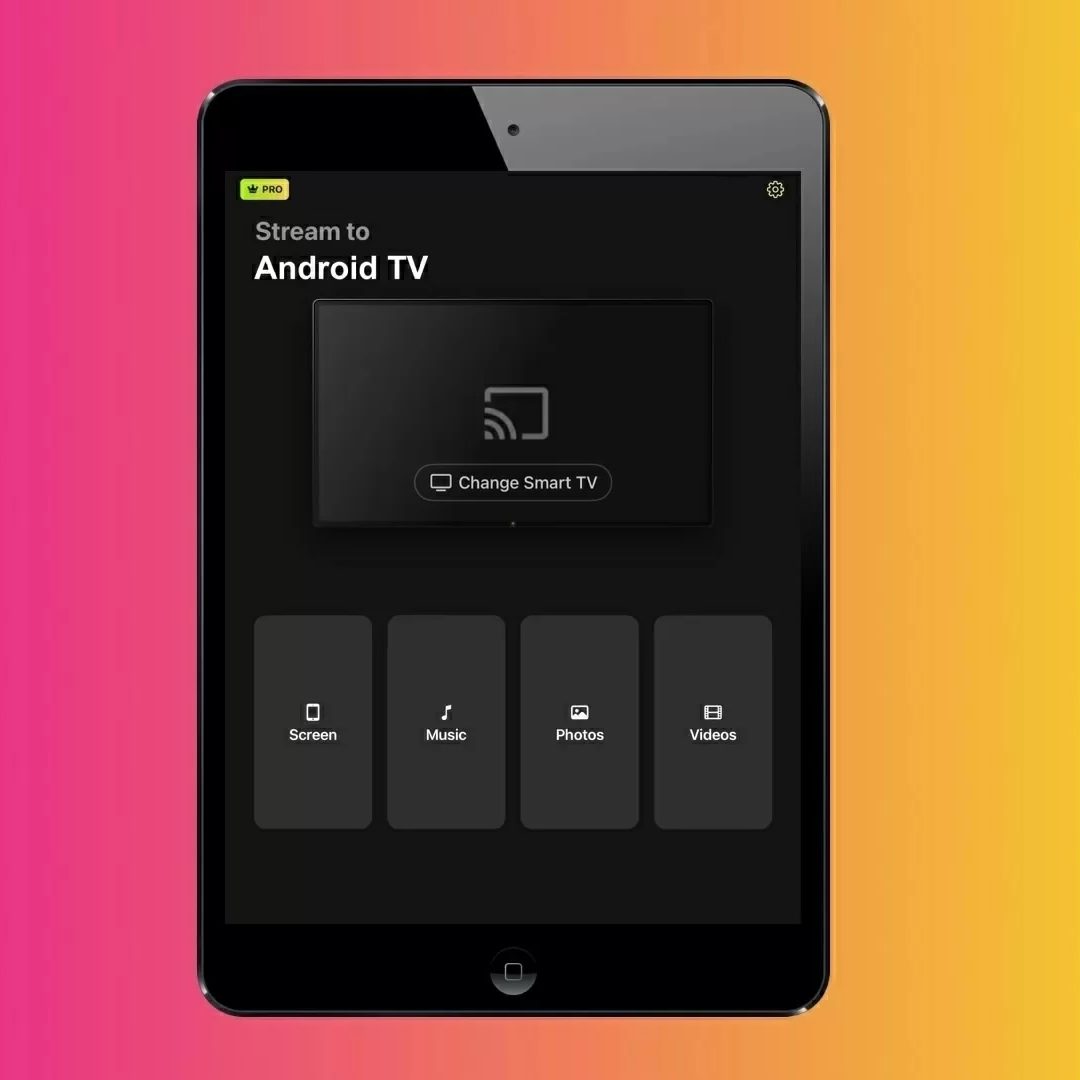
Streaming from an Android device to a smart TV is easy using third-party apps. These apps help connect your phone or tablet to the TV wirelessly. They offer features like screen mirroring, video casting, and media sharing. Many apps support popular video platforms and local files. This section covers popular apps, how to set them up, and some limits you should know.
Popular Streaming Apps
- Google Home: Cast your screen or videos to Chromecast devices.
- AllCast: Stream photos, videos, and music to various smart TVs.
- LocalCast: Supports casting from Android to most smart TVs and streaming devices.
- AirScreen: Allows wireless mirroring from Android to TVs without built-in casting.
- BubbleUPnP: Stream media files to smart TVs over Wi-Fi with easy control.
App Setup Guide
Download the app from the Google Play Store. Open the app and allow necessary permissions. Ensure your Android device and smart TV are on the same Wi-Fi network.
Open the app and find your smart TV in the device list. Select the TV to connect. Choose the media file or app content you want to stream. Tap the cast or play button to start streaming.
Some apps may require you to install a companion app on your TV. Follow on-screen instructions carefully. Adjust volume and playback controls from your Android device.
Limitations To Consider
- Not all smart TVs support every app or streaming protocol.
- Network speed affects video quality and streaming stability.
- Some apps may display ads or have limited features in free versions.
- Latency can cause slight delays between your device and TV display.
- DRM-protected content may not stream due to copyright restrictions.
Using Hdmi And Other Wired Connections
Using HDMI and other wired connections offers a straightforward way to stream content from your Android device to a smart TV. It’s a reliable method that usually provides smooth video quality without worrying about Wi-Fi interruptions. If you want a quick, stable connection, wired options deserve your attention.
Required Cables And Adapters
To connect your Android device to a smart TV using wires, you’ll need the right cables and adapters. Most modern Android phones support video output via USB-C or micro USB ports, but you’ll often need an adapter to convert these to HDMI.
- USB-C to HDMI adapter:Ideal for newer Android devices with USB-C ports.
- MHL (Mobile High-Definition Link) adapter:Works with some micro USB phones to connect to HDMI.
- HDMI cable:Connects the adapter to your TV’s HDMI port.
Check your phone’s specifications to know which adapter fits. Using the wrong cable can lead to no video or poor performance.
Connection Steps
Start by plugging your adapter into the phone’s charging port. Next, connect the HDMI cable from the adapter to your TV’s HDMI input. Finally, switch your TV’s input source to the correct HDMI channel.
Once connected, your phone’s screen should mirror on the TV immediately. If it doesn’t, try restarting your phone or checking the adapter’s compatibility. Have you ever missed a step and wondered why the screen stayed blank? Double-checking connections often solves this.
Pros And Cons
| Pros | Cons |
|---|---|
| Stable and high-quality video without lag | Requires specific adapters, which can be costly |
| Works without internet or Wi-Fi | Less convenient due to cables and limited mobility |
| Simple setup with fewer compatibility issues | Some older devices may not support video output |
Would you prefer the reliability of a wired connection over the flexibility of wireless streaming? It’s worth weighing these pros and cons based on your daily use and tech setup.

Credit: www.amazon.com
Optimizing Streaming Quality
Streaming content from an Android device to a smart TV can offer a great viewing experience. Optimizing the streaming quality ensures smooth playback and clear visuals. Small adjustments can make a big difference in how the video appears on your TV screen.
Improve Wi-fi Performance
Strong Wi-Fi signals help maintain steady streaming. Place your router near the TV and Android device for better coverage. Avoid walls or obstacles that block signals. Use the 5 GHz band if your router supports it. This band is faster and less crowded than 2.4 GHz. Restart your router regularly to clear any connection issues.
Adjust Video Resolution
Lowering the video resolution can reduce buffering and lag. Choose a resolution your TV supports for smooth playback. Streaming apps often let you change video quality in settings. Select 720p or 1080p instead of 4K if your Wi-Fi is slow. This saves bandwidth and prevents interruptions.
Close Background Apps
Background apps consume device resources and slow down streaming. Close all unused apps on your Android device before casting. This frees up memory and processing power. A faster device means better video performance on your smart TV.
Troubleshooting Common Issues
Streaming from your Android device to a smart TV should be smooth, but sometimes issues pop up. These hiccups can be frustrating, especially when you just want to enjoy your favorite show or share photos with friends. Let’s look at some common problems and how you can fix them quickly so you get back to streaming without hassle.
No Connection Detected
If your TV doesn’t recognize your Android device, the first thing to check is whether both devices are on the same Wi-Fi network. Often, smart TVs and phones connect to different networks or one might be on mobile data instead of Wi-Fi.
Try restarting your router and both devices. This simple step can clear network glitches.
- Make sure your TV’s firmware is up to date; outdated software can block connections.
- Check if your TV supports the streaming protocol your phone uses, like Miracast or Chromecast.
- Turn off any VPNs or firewalls that might prevent devices from talking to each other.
Have you ever thought about how many devices your network handles at once? Too many connections can slow or block new ones.
Lag And Buffering
Nothing kills the mood like a freezing screen or constant buffering. Lag usually points to network speed or interference issues.
Try moving closer to your router or switching to a 5GHz Wi-Fi band if available; it offers faster speeds and less interference. If your home network has multiple users streaming or gaming simultaneously, bandwidth might be stretched thin.
- Pause other high-data activities temporarily to improve streaming performance.
- Reduce the streaming quality in your app settings to ease the load on your network.
- Use a wired connection for your TV if possible, which provides more stable speeds than Wi-Fi.
Do you notice if lag happens at certain times of day? Peak usage hours can affect your streaming experience without you realizing it.
Audio Sync Problems
Have you seen the audio lag behind the video or vice versa? This can ruin the viewing experience by making dialogue confusing or funny in the wrong way.
This often happens due to processing delays in your TV or streaming app. Try restarting both your phone and TV to reset the connection.
- Look for audio delay or sync settings in your TV’s sound menu; adjusting these can fix the mismatch.
- Switching the audio output format from surround sound to stereo might also help.
- Update your apps and TV firmware regularly to minimize these glitches.
Have you tried using a different app or streaming method to see if the problem persists? Sometimes the issue lies with the app rather than your devices.
Credit: mac.eltima.com
Frequently Asked Questions
Can I Stream Videos From Android To Smart Tv?
Yes, you can stream videos from an Android device to a Smart TV. Use built-in casting features like Google Cast or Miracast. Both devices must be connected to the same Wi-Fi network for seamless streaming.
Which Apps Allow Android To Smart Tv Streaming?
Popular apps like YouTube, Netflix, and VLC support direct streaming from Android to Smart TVs. Additionally, screen mirroring apps like AllCast and LocalCast offer more streaming options for various media types.
Do I Need Special Cables To Stream Android To Smart Tv?
No, you don’t need special cables if your Smart TV supports wireless casting. However, HDMI adapters can be used for wired connections if wireless options aren’t available or stable.
How To Fix Android To Smart Tv Streaming Issues?
Ensure both devices are on the same Wi-Fi network and updated. Restart your devices and check casting settings. Clearing cache or reinstalling streaming apps can also resolve common problems.
Conclusion
Streaming from an Android device to a smart TV is simple and useful. Many apps and tools make the process quick and smooth. You can watch videos, share photos, or play games on a bigger screen. Just connect both devices to the same Wi-Fi network.
Choose the right method based on your TV and Android model. This way, you enjoy your content without extra cables or hassle. Try it today and see how easy it is to stream from your phone to your TV.


