Why HDR Monitors Are a Game-Changer for Creators
So why are HDR monitors good for creators? Because they show the brightness, color, and shadow detail that modern content actually contains. A standard SDR screen tops out around 100 nits and clips highlights early.
An HDR display pushes past 1,000 nits and tracks the perceptual quantizer (PQ) curve that SMPTE ST 2084 defines.
What stands out in our research is one clear fact. HDR matters for any color-critical work. As of 2026, factory-calibrated HDR monitors with 10-bit depth and 600 nits of sustained brightness are available for under $700.
That shift is why your next monitor deserves a careful look.
Quick Answer
HDR monitors are good for creators because they show highlights, shadows, and color that SDR screens clip. They use the PQ transfer function from SMPTE ST 2084 to display luminance up to 1,000 nits or more. This lets editors grade accurately and photographers see true dynamic range.
A good HDR monitor needs 600+ nits sustained brightness, 90%+ DCI-P3, and true 10-bit color.
Why HDR Monitors Are a Big Deal for Creators
HDR is the difference between editing footage you can see and editing footage you're guessing at. An HDR monitor is a display that reproduces a wider range of luminance than standard dynamic range (SDR) screens. It uses a perceptual quantizer (PQ) transfer function, defined in SMPTE ST 2084, to map brightness values from 0.005 to over 1,000 nits.
In practice, that means highlights stay detailed instead of blowing out and shadows keep their depth instead of crushing to black.
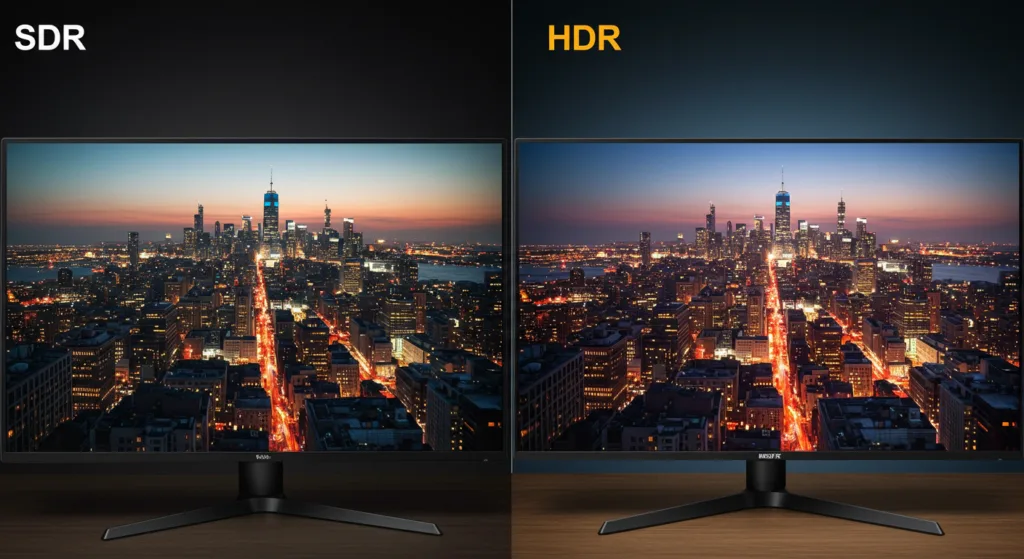
Image source: Bing (Web (fair-use with source credit))
For creators, the core benefit is trustworthy previews. Video editors see true highlight rolloff and skin tones without banding. Photographers can judge high-contrast scenes with actual shadow visibility.
Game artists can build HDR environments on a screen that reflects how players will see them.
What you gain, in concrete terms:
- Highlight detail that SDR clips by default.
- Shadow separation that makes dark scenes readable.
- Color volume that keeps saturation as brightness rises.
If you're deciding whether a laptop can handle this workload, remember that a built-in HDR panel matters as much as the GPU for preview work. Most compact portable monitors still fall short of the specs we cover in a moment. But a desktop HDR display remains the gold standard for grade-critical sessions.
A color-accurate laptop for video work is a solid secondary option.
What HDR Does That Regular Monitors Can't
Standard monitors throw away the brightest parts of your image. HDR environments do not. The reason is luminance range.
SDR video is mastered at 100 nits, while HDR content can reach over 4,000 nits in production.

Image source: Bing (Web (fair-use with source credit))
HDR also changes how colors behave at high brightness. A regular SDR screen loses saturation as pixels get brighter. An HDR display with wide color volume keeps reds, greens, and blues intact even at 1,000 nits.
That's why HDR images feel more lifelike.
Black levels matter just as much. An OLED HDR monitor can turn off individual pixels, producing true black. A good Mini-LED display uses local dimming zones to approximate that effect.
Both approaches reveal shadow detail that an SDR IPS panel simply cannot show.
SDR vs. HDR: What Actually Changes in Your Workflow
The moment you switch from SDR to HDR preview, the entire grading environment changes. Your scopes start reading a much wider luminance range. Your monitor stops being the bottleneck.
| Spec | SDR Monitor | HDR Creator Monitor |
|---|---|---|
| Peak brightness | 100-300 nits | 400-1,600 nits |
| Contrast ratio | ~1,000:1 | 1,000,000:1 (OLED) |
| Color gamut | sRGB / Rec.709 | DCI-P3 or wider |
| Bit depth | 8-bit | 10-bit or higher |
| Transfer function | Gamma 2.2 / 2.4 | PQ (SMPTE ST 2084) |
In a grading workflow, the biggest change is scopes. Your waveform and histogram now show HDR luminance values instead of SDR-limited ones. That means you stop compensating for a display that can't show the full picture.
You grade the actual content, not the monitor's limitations.
If you edit on a laptop rather than a desktop, the same logic applies. A laptop for color work needs a panel that hits at least 500 nits and covers 85% DCI-P3. Otherwise, you're making creative decisions on a display that hides half the image.
The HDR Specs That Make a Monitor Color-Critical
Color-critical HDR is a spec stack, not a single number. Peak brightness gets the marketing attention. Sustained brightness, color gamut, bit depth, and Delta E decide whether a monitor is actually useful for professional work.
Peak Brightness vs. Sustained Brightness
Peak brightness is how bright a screen can get for a short burst. Sustained brightness is what holds across a full screen for minutes. For editing HDR content, sustained brightness matters more.
A monitor that hits 1,000 nits for three seconds then dims to 400 will mislead you constantly.
VESA DisplayHDR tiers give you a baseline. DisplayHDR 400 only promises 400 nits of peak brightness with no local dimming requirement. DisplayHDR 1000, by comparison, is built around serious luminance headroom.
As of 2026, most true creator monitors list both peak and sustained specs on their datasheets.
Color Gamut, Bit Depth, and Delta E
Color gamut is the range of hues a display can reproduce. For HDR editing, aim for 90% or more of DCI-P3. Rec.2020 is the full HDR standard, but even high-end reference monitors only hit around 80% coverage today.
Bit depth is how many color steps a panel can show. True 10-bit panels display 1.07 billion colors versus 16.7 million on an 8-bit screen. 8-bit + FRC can simulate 10-bit, but true 10-bit is better for smooth gradients.
Delta E is a measurement of color accuracy. Under 2 is good, under 1 is excellent for professional work. The International Color Consortium (ICC) publishes display profiles that help color-managed applications talk to your panel correctly.
| Spec | Entry Level | Comfortable | Reference |
|---|---|---|---|
| Peak brightness | 600 nits | 1,000 nits | 1,600 nits |
| DCI-P3 coverage | 90% | 95% | 99% |
| Bit depth | 8-bit + FRC | True 10-bit | True 10-bit |
| Delta E | Under 3 | Under 2 | Under 1 |
Why Many "HDR" Monitors Are Actually a Trap
Not every HDR label on a spec sheet means you're getting HDR. Manufacturers bolt "HDR" onto monitors that lack local dimming, proper bit depth, and real luminance headroom. A 400-nit edge-lit panel can carry an HDR badge, but it reproduces highlights roughly the same as an SDR screen.
VESA created DisplayHDR certification to bring order to this chaos.
Making Sense of VESA DisplayHDR Tiers
The VESA website publishes the full DisplayHDR criteria for free. Use those tiers as a floor, not a finish line.
| Tier | Peak Brightness | Key Requirement | Verdict for Creators |
|---|---|---|---|
| DisplayHDR 400 | 400 nits | No local dimming | Avoid |
| DisplayHDR 600 | 600 nits | Local dimming required | Bare minimum |
| DisplayHDR 1000 | 1,000 nits | Serious HDR headroom | Good for most |
| DisplayHDR True Black 500 | 500 nits | OLED / micro-LED | Great for dark scenes |
As of 2026, VESA also pairs ClearMR with DisplayHDR for motion clarity. For stills and video edits, that's less important than luminance and gamut. Focus on the tier, not the banner.
What to Look For Instead of Marketing Claims
- A DisplayHDR 600 or higher badge.
- A spec sheet listing sustained brightness, not just peak.
- 90%+ DCI-P3 coverage.
- Local dimming zones in the hundreds or a self-emissive OLED panel.
- True 10-bit input over HDMI 2.1 or DisplayPort 1.4.
If you're comparing a 43-inch HDR TV as a monitor, our guide to budget 43-inch TVs explains why cheap HDR TVs often lack the dimming zones needed for accuracy. And if you're shopping during a sale, the best month to buy a TV can save you hundreds on a display that actually meets these specs. Take the time to verify the panel tech, not just the sticker.
OLED vs. Mini-LED vs. Traditional IPS for HDR Work
The panel technology decides how convincing that HDR image actually looks. OLED wins on pure contrast because every pixel dims independently. A 10-bit OLED panel can hit an infinite contrast ratio, which is why dark scenes show incredible depth without halos.
The catch is burn-in risk. Editors who stare at static timelines and toolbars for eight hours a day should treat OLED with care.
Mini-LED is the safer middle ground. It uses local dimming zones, anywhere from 512 to over 2,000 depending on the model, to dim specific regions of the backlight. Good Mini-LED screens hold their own for color work.
They just show a little blooming around bright objects on black backgrounds.
Traditional IPS without FALD is not HDR-capable. A 1,000:1 contrast ratio simply does not reproduce HDR shadow detail. If you want HDR on the road, most portable HDR options rely on IPS panels that only hit DisplayHDR 400, which barely qualifies.
| Panel Type | Contrast | Dimming Method | Burn-in Risk | Best For |
|---|---|---|---|---|
| OLED | Infinite | Per-pixel | Moderate | Colorists, dark scenes |
| Mini-LED | ~10,000:1 | Local zones | Minimal | Video editors, generalists |
| IPS (no FALD) | ~1,000:1 | Edge-lit | None | SDR work only |
HDR Monitor vs. HDR TV as a Replacement Display
Using an HDR TV as your editing monitor is tempting. TVs offer huge screens and high brightness for less money than professional displays. Many 120Hz OLED TVs hit 1,000 nits with beautiful contrast.
But TVs are built for watching, not for color-critical proofing.
The problems start with tone mapping. Consumer TVs aggressively remap the PQ curve to look punchy in a bright living room. That means your highlights and shadows shift from what the actual file contains.
Most TVs also use automatic brightness limiting (ABL), which dims the whole panel during long bright scenes. That is terrible for editing.
Chroma subsampling can ruin text too, especially over HDMI. If you plug a TV in and it only negotiates 4:2:0, your desktop type looks like it has red and green fringing. You need 4:4:4 for clean UI work.
Budget 43-inch sets often fail this test.
A TV can work as a client review display or a secondary reference. We would not master HDR content on one. And if you decide to try, watch for seasonal price drops on quality panels instead of grabbing the cheapest model.
Creative Fields That Benefit Most from HDR
Video editors gain the most. HDR deliverables now run across YouTube, Netflix, and Apple TV. Grading Log footage in a gamma 2.4 space while your audience sees PQ means you are basically working blind.
Photographers see real HDR benefits too. High-contrast scenes like sunsets, city lights at night, and backlit portraits hide details in SDR preview. An HDR display shows the highlight rolloff and shadow texture that your camera captured.
Game developers and 3D artists need HDR previews because modern engines render in high dynamic range by default. Building lighting on an SDR monitor is like mixing audio on laptop speakers. VFX artists also benefit greatly, since matching the luminance of live-action plates demands seeing the full range.
If your main editing machine is a laptop, make sure the panel and GPU support HDR passthrough properly. A color-capable laptop for video grading makes a bigger difference than raw processor speed once you move to HDR files.
How to Set Up and Calibrate an HDR Monitor for Editing
Calibration turns a good HDR monitor into a trustworthy tool. The process is straightforward but takes about 30 minutes.
- Let the monitor warm up for 30 minutes. Backlight stability matters for accurate readings.
- Switch the monitor to its HDR reference preset. Look for names like "DisplayHDR", "PQ", "HLG", or "Dolby Vision".
- Attach a colorimeter, such as the Calibrite ColorChecker Display Pro or X-Rite i1Display Pro. Software like DisplayCAL or Calman walks you through the measurement.
- On Windows, run the Windows HDR Calibration app to adjust brightness, contrast, and saturation. On macOS, enable the "High Dynamic Range" display option in System Settings.
- Export a test clip you know well and check it against a reference monitor. Trust your eyes after calibration.
The International Color Consortium publishes the color profile standards that keep your edits consistent across apps. Use an ICC profile made specifically for your panel model when full HDR profiling is unavailable.
How Much a Quality HDR Creator Monitor Costs
Real HDR costs more than SDR, but the price has dropped sharply. As of 2026, you can find genuine HDR color work under $1,000.
| Price Range | What You Get | Verdict |
|---|---|---|
| $300-$500 | DisplayHDR 400, edge-lit, 8-bit + FRC | Not recommended |
| $600-$1,200 | DisplayHDR 600-1000, FALD, 10-bit or 8-bit + FRC | Entry sweet spot |
| $1,300-$2,800 | OLED or high-end Mini-LED, true 10-bit, 95%+ DCI-P3 | Most professionals |
| $5,000+ | Reference-grade, factory calibrated, SDI input | Mastering and client approval |
The $600-$1,200 range is where the value sits. Screens like the ASUS ProArt PA32UCX and BenQ SW321C deliver solid HDR for color grading. Apple's Pro Display XDR occupies the premium tier, but you pay a heavy premium for the design and ecosystem.
Add the running costs of a large display to your budget too. HDR screens pull more power at sustained brightness, and that shows up on your monthly bill. Consider the energy impact of home electronics before making the leap.
Common HDR Setup Mistakes Creators Should Avoid
The biggest mistake is treating DisplayHDR 400 as real HDR. That tier means 400 nits with no local dimming. For a creator, it behaves almost exactly like an SDR screen.
Another common blunder is leaving HDR mode on for SDR work. Windows and macOS can render the desktop in HDR, but the results are often washed out. You want to switch between SDR and HDR modes depending on what you're editing.
Skipping calibration is the third trap. HDR panels drift over time, especially OLED and Mini-LED. A colorimeter is a one-time investment that protects every project you handle.
If you're tempted to use a budget portable monitor instead, remember that most of them lack genuine HDR backlights. Our coverage of the best portable monitors for laptops explains what you can expect at each price.
The fourth mistake is buying a TV and expecting reference-grade accuracy. Consumer TVs apply aggressive tone mapping and automatic brightness limiting. They look punchy in a store, but they lie to you in a dark editing room.
FAQs About HDR Monitors for Creators
Do you need a true 10-bit panel for HDR editing?
Not always. 8-bit plus FRC can look smooth in many scenes. However, true 10-bit panels avoid banding in sky gradients and dark cinematic shots. Most professional HDR monitors ship with native 10-bit.
Can a MacBook Pro drive an HDR monitor for grading?
Yes. macOS supports HDR through the "High Dynamic Range" display option. You also need a monitor that advertises HDR via EDID and a recent Metal-capable GPU. Check the ICC profile after calibration.
Is HDR worth it for photographers?
It depends on your output. If you deliver high-contrast digital images, an HDR display reveals shadow and highlight detail instantly. For print work, a calibrated SDR monitor in a dim room remains the industry standard.
What's the ideal sustained brightness for HDR editing?
You want at least 600 nits of sustained brightness for reliable grading. Any lower and highlights clip during long sessions. Many editors prefer OLED for perfect black, but Mini-LED gives you high brightness and peace of mind.
Do you need a dedicated HDR monitor for YouTube HDR?
Yes. YouTube accepts HDR10 and HLG formats. An HDR monitor is the only way to verify your highlights, skin tones, and overall brightness before upload.
A TV can work for client review, but not for trusted grading.
The Bottom Line: Is an HDR Monitor Worth It for You?
If you edit video, grade color, or build 3D scenes, an HDR monitor is one of the biggest upgrades you can make. It replaces guesswork with trustworthy previews. The $600 to $1,200 range now delivers genuinely useful HDR performance.
If you only edit text, social media images, or standard SDR photos, an HDR display is a luxury rather than a necessity. A well-calibrated SDR monitor will still serve you well. But as HDR content continues to grow, that window is closing.
When you're ready to buy, upgrade your power plan too. HDR panels draw more electricity at sustained brightness. Our guide to home electronics energy costs helps you budget for the change.