Do Content Creators Need a Daisy Chaining Setup?
Do content creators need daisy chaining setup to run a proper multi-monitor desk? No, but it's one of the cleanest ways to drive two or three displays from a single cable. The catch is that most people can't tell whether their hardware supports it, so they buy cables, plug everything in, and see blank screens.
The real answer comes down to your ports, not your preference.
We compared DisplayPort standards, Thunderbolt specs, and verified user reports to figure out what actually works. As of 2026, the honest answer is that daisy chaining is a nice-to-have, not a must-have. It shines in specific workflows and falls apart in others.
Here's how to tell which camp you're in.
The Quick Answer: Yes, But Only If Your Gear Supports It
The honest answer to "do content creators need daisy chaining setup" is usually no. It's a convenience, not a career requirement. Your hardware decides whether it's even possible.
Check your ports before buying cables. Best case: a Thunderbolt laptop and monitors with DP-out ports.

Image source: Bing (Web (fair-use with source credit))
That sounds simple, but it isn't. Daisy chaining relies on two very different technologies, and they behave differently depending on your operating system. A Windows laptop with DisplayPort MST support can chain two or three monitors without much fuss.
A MacBook, on the other hand, ignores MST entirely, even when the hardware could technically handle it.
For most creators, the practical answer lands in the middle. If you're working from a modern work-from-home laptop with modest monitors, daisy chaining can make your desk dramatically cleaner. You lose some flexibility in resolution and refresh rate, but you gain a tidy, single-cable setup that hides the mess.
Your ports decide whether daisy chaining is even an option.
| You can daisy chain if… | You can't daisy chain if… |
|---|---|
| Your monitor has a DP-out or Thunderbolt-out port | Your monitor only has HDMI and DP-in |
| Your GPU supports DisplayPort MST | You're on macOS without Thunderbolt chaining |
| 1080p or 1440p at 60Hz is enough | You need 4K at 120Hz or higher |
| You want fewer cables behind the desk | You need a dock anyway for ethernet or USB |
What Daisy Chaining Actually Means for a Creator Setup
Daisy chaining is a way to connect multiple monitors to one host port, using each display as a pass-through to the next. Your laptop plugs into monitor one. Monitor one passes the video signal to monitor two.
Monitor two can pass it further down the line.
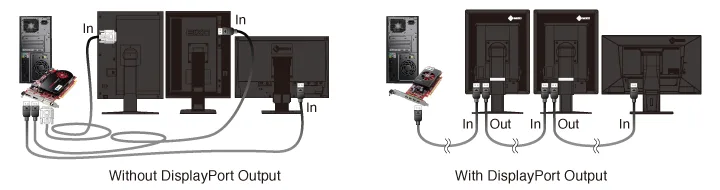
Image source: Bing (Web (fair-use with source credit))
The video side of this relies mostly on DisplayPort Multi-Stream Transport (MST). MST is a feature of the DisplayPort standard that splits one video stream into multiple clean signals. Each monitor in the chain gets its own stream and shows its own image, instead of mirroring the same screen.
There's a second way to chain displays: Thunderbolt. Thunderbolt daisy chaining carries video, data, and power all on the same bus. You can connect high-end studio displays, external drives, and docks in a line.
It's more flexible than MST, but also more bandwidth-hungry.
| DisplayPort MST | Thunderbolt daisy chain | |
|---|---|---|
| Best for | Windows laptops and desktops | Macs and Thunderbolt-native monitors |
| Carries | Video only | Video, data, and power |
| Required monitor port | DP-out | Thunderbolt-out |
| Typical max monitors | 2-4 at 1080p | 2-3, depends on bandwidth |
| Cable needed | Standard DisplayPort | Thunderbolt-certified USB-C |
For a creator, the key difference is what you can attach. With MST, you only chain monitors. With Thunderbolt, you can also chain storage and audio devices.
That makes Thunderbolt a better long-term investment if your budget allows. And if you don't have any compatible monitors at all, a portable USB-C monitor plugged into a second port is a much simpler workaround than building a chain from scratch.
Check Your Ports First: The One Thing That Makes or Breaks It
The biggest mistake people make is assuming any monitor can daisy chain. It can't. The monitor needs a downstream port, usually labelled DP-out or Thunderbolt-out.
If it only has an HDMI port plus a single DisplayPort-in, you're out of luck.
Here's what to check:
- Look for a DP-out port beside the DP-in port on the monitor
- Look for a USB-C port with a Thunderbolt or DP icon
- Open the monitor's OSD and look for an MST or Daisy Chain toggle
- Check the manual for "MST", "DP-out", or "Daisy chain" in the specs
- Take a photo of the rear ports so you can compare with spec sheets online
Without those symbols, the chain simply won't work. Cables alone can't create a downstream port that the hardware never had.
DisplayPort MST Out vs. Thunderbolt Out: Which Path Works for You
These two paths are not interchangeable. DisplayPort MST connects monitors with standard DisplayPort cables. Any monitor with a downstream DP port can participate.
The chain works only as long as your graphics card and cable bandwidth allow.
Thunderbolt chaining is different. It connects monitors with dedicated Thunderbolt cables. The monitor needs both a Thunderbolt-in and a Thunderbolt-out port.
Apple's Studio Display is the most famous example, though its daisy chain support is more limited than the standard allows.
Most Windows laptops from Dell, ASUS, Lenovo, and HP support MST. So do desktop GPUs from NVIDIA and AMD. Check the manufacturer's spec sheet for "MST support" before you trust the ports.
Per Intel's Thunderbolt documentation, Thunderbolt allows up to six devices in a chain, but display bandwidth collapses quickly as you add monitors.
Why macOS Creators Get the Short End of the Stick
Mac hardware has the ports for Thunderbolt, but macOS does not support DisplayPort MST. That limitation kills the most common form of daisy chaining right out of the gate. The only workaround on macOS is chaining Thunderbolt-native displays, which costs far more than a typical dual-monitor setup.
Apple's support documentation confirms the limitation. Each display on a Mac needs its own video stream from the host. Thunderbolt displays can chain in some configurations, but the feature has been inconsistent across models and macOS versions.
If you're a Mac user, a dock or separate cables is usually the smarter route. Or consider a gaming laptop with multiple video outputs if you're shopping for a new machine anyway.
The Bandwidth Math: Why 4K and High Refresh Rates Change Everything
Daisy chaining isn't free. Every monitor in the chain shares the same pipe, and that pipe has hard limits.
DisplayPort 1.2, still common on older monitors, has a total data rate of 17.3 Gbps. That's enough for two 1080p monitors at 60Hz, or one 1440p panel plus one 1080p panel. Push further and the chain fails, or monitors drop to lower refresh rates.
DisplayPort 1.4 bumps that to 25.9 Gbps and adds Display Stream Compression (DSC). DSC squeezes more monitors into the chain, but it's lossy. For color-critical photo work, that compression matters.
Thunderbolt 3 and 4 share 40 Gbps across everything on the bus: displays, drives, audio interfaces, and docks. A 4K monitor at 60Hz uses roughly 12.5 Gbps of that budget. Add a second 4K display and you're at about 25 Gbps before touching storage or network.
Here's what that means for real setups:
| Setup | Max realistic chain | Best for |
|---|---|---|
| 1080p @ 60Hz | 3-4 monitors | Editors, office work, streamers |
| 1440p @ 60Hz | 2 monitors | Photo editing, design |
| 1440p @ 144Hz | 1 monitor | Gaming, motion graphics |
| 4K @ 60Hz | 2 monitors | Video editors who need pixel space |
| 4K @ 120Hz+ | Not recommended | Gamers, high-refresh workflows |
The takeaway: if you're a video editor running multiple 4K panels, daisy chaining might actually hurt performance. Separate cables per monitor or a Thunderbolt dock gives you more headroom. If you're at 1080p or 1440p, daisy chaining is a no-brainer.
Many creators add an inexpensive TV for a third screen over HDMI, which keeps bandwidth free for the chain itself. If you're planning that upgrade, timing matters. Check the best month to buy a TV to lock in the lowest price.
Which Creators Actually Benefit From Daisy Chaining?
Not everyone gains equally. The answer depends on what you do and how many pixels you need.
Video Editors and 3D Artists
Editors live on multi-screen setups. You need a timeline monitor, a preview display, and an asset browser. When your monitors run at 1080p or 1440p, daisy chaining keeps the desk clean and cuts the cable clutter behind it.
For 3D artists, the same math applies. A viewport monitor and a reference monitor cover the essentials. A two-monitor chain at 1440p stays well within DisplayPort 1.4 bandwidth.
Per the Video Electronics Standards Association (VESA), MST supports up to four independent streams from a single source. Two or three monitors is a safe configuration.
The catch: every monitor in a chain runs at the lowest common denominator. If your second monitor tops out at 60Hz, the 120Hz panel earlier in the chain gets throttled down. For editing, that's fine.
For gaming or motion work, it's a dealbreaker.
Streamers and Gamers
Streamers run a lot of screens: game, chat, OBS, and maybe a stream deck. That's a serious bandwidth demand in one place.
At 1080p, daisy chaining works well for this crowd. A separate cable can drive your main 144Hz gaming display, while a daisy-chained pair handles chat and OBS. The clean setup keeps the stream desk looking professional on camera.
But if you're gaming at 1440p or 4K, don't chain the gaming monitor. A single 1440p display at 144Hz uses nearly all the DisplayPort 1.4 bandwidth. Adding a second monitor to the chain will likely drop both screens to 60Hz.
In that case, a laptop with multiple video outputs with separate ports for each monitor is the better play.
Photographers and Designers
Color accuracy is the whole game for this group. And that's where daisy chaining has a hidden flaw. Display Stream Compression, required to fit more monitors into the available bandwidth, is lossy.
It can subtly shift colors compared to a direct cable.
If you're editing photos for print or client color work, we'd skip chaining monitors that rely on DSC. Use a dock or run separate cables from each monitor to your laptop. Calibration stays cleaner that way.
At 1080p with basic sRGB monitors, daisy chaining causes no visible harm. Most modern panels handle it without noticeable quality loss. It's only when you get into wide-gamut or 10-bit workflows that the compression starts to matter.
How to Daisy Chain Monitors: A Step-by-Step Guide
Most daisy chain failures come from skipping the setup checklist. The process is simple once you know the order.
- Confirm your host GPU supports DisplayPort MST or Thunderbolt. NVIDIA and AMD desktop GPUs almost always do.
- Check each monitor for a DP-out or Thunderbolt-out port. No downstream port means no chain.
- Update your graphics drivers before you begin. Older drivers have known MST bugs.
- Turn on the monitor's OSD. Find the Daisy Chain or MST setting and enable it.
- Connect your laptop to monitor one. Use a DisplayPort cable or a USB-C cable that supports DP Alt Mode.
- Connect monitor one's DP-out to monitor two's DP-in. Repeat for a third monitor only if bandwidth allows.
- Open display settings. Arrange monitors in the right physical order.
- Check each monitor's refresh rate. The chain forces all screens to the lowest common setting.
If you see a blank screen, work backward. Swap cables first. Then recheck the OSD setting.
Then test each monitor alone. Most failed setups we've seen in user reviews and forum threads trace back to one of those three steps.
The Setup Mistakes I See Creators Make Most Often
Daisy chaining is forgiving at 1080p, but it punishes small mistakes at higher resolutions. Here's what goes wrong most, based on verified buyer feedback and forum reports:
- Buying cheap cables. A DisplayPort cable rated for 1.2 can't carry a 4K chain reliably. Use certified cables rated for the bandwidth you need.
- Ignoring the MST toggle. Many monitors ship with the MST option disabled. The chain literally won't start until you enable it.
- Mixing resolution too aggressively. Chaining a 4K monitor to a 1080p monitor forces both to align, dragging down your expensive panel.
- Chaining a high-refresh gaming monitor. A 144Hz panel eats nearly the full DisplayPort 1.4 bandwidth. Add a second screen and both drop to 60Hz.
- Forgetting macOS doesn't support MST. Mac users buy the right cables and still see mirrored displays. Thunderbolt-native monitors are the only workaround.
- Using cables over six feet long. Long DisplayPort cables suffer signal degradation, especially in MST chains.
Avoid those, and the setup usually behaves exactly as planned.
What to Do When Daisy Chaining Isn't an Option
If your ports don't line up, don't force it. Three solid alternatives deliver the same multi-monitor experience.
Go With a Thunderbolt or USB-C Dock
A dock turns one laptop port into many video outputs. The CalDigit TS4 and Kensington SD5800T are common picks among creators. They support two or three external displays, plus Ethernet and USB devices.
This is the cleanest fix for MacBook users. macOS treats each dock output as a separate connection, so MST limitations don't apply.
Use a DisplayPort MST Hub
An MST hub is a small box that splits one DisplayPort signal into multiple outputs. It costs less than a Thunderbolt dock. It also removes the need for monitors with DP-out ports.
The catch: your GPU still needs MST support. Most modern NVIDIA and AMD cards have it, but check the spec sheet first.
Just Use One Cable Per Monitor (Seriously)
Honestly, separate cables work fine. Most desktop GPUs have at least three video outputs. Laptops with USB-C ports can drive one monitor per port.
You lose the clean single-cable look, but you gain full bandwidth on every display. For 4K or high-refresh workflows, one cable per monitor is still the most reliable option.
The Final Decision Tree: Walk Through Your Setup
Run through these questions in order. Each one narrows you toward the right answer.
- Do you have a Mac? Skip MST entirely. Use a Thunderbolt dock or one Thunderbolt-native monitor per port.
- Do your monitors have DP-out or Thunderbolt-out? No? Use an MST hub or separate cables.
- Do you need 4K at 120Hz or higher? Then don't chain. Run one cable per monitor for maximum bandwidth.
- Are you working at 1080p or 1440p at 60Hz? Daisy chaining is safe and saves cables.
- Do you value a clean desk more than max refresh rate? Then chaining two 60Hz monitors is a clear win.
The pattern is obvious. Daisy chaining is a convenience feature, not a performance upgrade. It makes sense for editors, designers, and streamers at mainstream resolutions.
It falls apart for anyone chasing high refresh rates or 4K HDR.
Frequently Asked Questions
Can I daisy chain a MacBook to two monitors?
Not through DisplayPort MST. macOS doesn't support MST, so standard daisy chaining won't work. The only exception is chaining Thunderbolt-native displays, which costs significantly more. A Thunderbolt dock is the practical solution for Mac users who need two external monitors.
Does daisy chaining reduce refresh rate?
Sometimes, yes. Displays in a chain share the same bandwidth, so the signal forces every monitor to the lowest common refresh rate. A 144Hz monitor chained to a 60Hz monitor will run at 60Hz.
At 1080p with two 60Hz displays, you won't notice the difference.
Do I need special cables to daisy chain monitors?
Yes. You need DisplayPort cables that support the full bandwidth of your monitors, or certified Thunderbolt cables for Thunderbolt chains. Standard HDMI can't daisy chain at all.
Cheap cables are the most common cause of blank screens and flickering in MST chains.
Can I daisy chain HDMI monitors?
No. HDMI doesn't support multi-stream transport. You can't pass a video signal from one HDMI monitor to another.
HDMI monitors need an external MST hub or a separate cable for each screen.
What's the maximum number of monitors I can daisy chain?
Most setups max out at two or three monitors. The limit depends on resolution, refresh rate, and cable bandwidth. Per VESA, DisplayPort MST can theoretically support up to four streams, but real-world usage at 1080p usually allows three or four if your GPU driver supports it.