Does Samsung Smart Tv Support Dlna Devices: Ultimate Compatibility Guide
Are you wondering if your Samsung Smart TV can connect with DLNA devices? You’re not alone.
Many people want to stream videos, music, or photos from their phones or computers directly to their TV without any hassle. Knowing whether your Samsung Smart TV supports DLNA can save you time and frustration. You’ll discover how to make the most of your TV’s features and enjoy seamless streaming.
Keep reading to find out exactly what you need to know and how to set it up effortlessly.

Credit: apps.apple.com
Samsung Smart Tv And Dlna Basics
Understanding the basics of Samsung Smart TVs and DLNA helps you enjoy seamless media streaming. This section explains what DLNA is and how Samsung Smart TVs work with it. It clarifies whether your TV supports devices using DLNA for easy content sharing.
What Is Dlna?
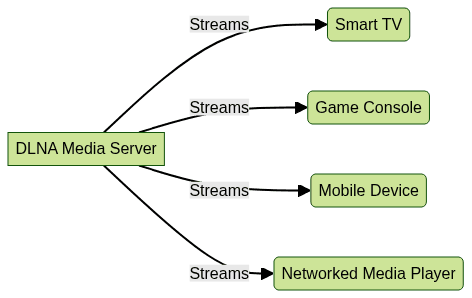
DLNA stands for Digital Living Network Alliance. It is a technology standard for sharing media between devices over a home network. DLNA allows devices like smartphones, computers, and TVs to communicate and share videos, photos, and music. It works without complicated setup, making media sharing simple and fast.
Devices certified with DLNA can discover each other automatically. This means you can stream content from one device to another without wires. The technology supports various media formats, ensuring compatibility across different brands and devices.
Dlna And Samsung Smart Tvs
Samsung Smart TVs support DLNA, enabling them to connect with other DLNA devices. This allows users to stream media stored on their smartphones or computers directly to the TV screen. The TV acts as a DLNA renderer, receiving and playing content from other devices.
To use DLNA on a Samsung Smart TV, both the TV and the source device must be connected to the same Wi-Fi network. Samsung’s built-in media player makes it easy to browse and play shared content. This feature enhances the viewing experience by providing more content options without extra cables or apps.
Dlna Compatibility Across Samsung Models
Samsung Smart TVs offer varying levels of DLNA support across different models. DLNA compatibility depends on the TV series and its software capabilities. Not all Samsung TVs support DLNA, so understanding model specifics is essential.
DLNA allows devices to share media like videos, music, and photos over a home network. Samsung integrates this feature in many of its Smart TVs, but the extent of support changes with the series and firmware updates.
Supported Samsung Tv Series
Most Samsung Smart TVs released from 2012 onward support DLNA. Here are some common series that typically include DLNA functionality:
- Samsung QLED TVs (Q60, Q70, Q80, Q90 series)
- Samsung UHD TVs (RU7000, RU8000 series)
- Samsung Smart LED TVs (MU6100, MU8000 series)
- Older models in the H, J, and K series from recent years
Some older or basic models may lack full DLNA support or have limited media playback options. Checking the user manual or product specifications helps confirm DLNA capability.
Firmware And Software Requirements
DLNA works best with the latest Samsung TV firmware. Updates improve stability and add new features. Samsung regularly releases software updates for Smart TVs through the settings menu.
- Ensure your TV runs the latest firmware version for best DLNA performance.
- Use the built-in Samsung Media Player app to access DLNA devices.
- Older firmware may not recognize all DLNA servers or file formats.
- Network settings must allow device discovery within the same Wi-Fi network.
Updating firmware is simple and helps maintain smooth DLNA connectivity across devices.
Setting Up Dlna On Samsung Smart Tvs
Setting up DLNA on your Samsung Smart TV lets you stream videos, music, and photos directly from other devices on your home network. This feature makes it easy to enjoy content stored on your computer, smartphone, or NAS without juggling cables or external drives. Let’s walk through how you can enable and connect DLNA devices to your Samsung TV for smooth media sharing.
Enabling Dlna Features
First, make sure your Samsung Smart TV supports DLNA. Most models from the last several years have this feature built-in under different names like “AllShare” or “Samsung Link.”
To activate DLNA:
- Go to the TV’s Settings menu.
- Navigate to the Network or Connection section.
- Look for options like “Media Sharing,” “AllShare,” or “DLNA” and turn them on.
Enabling media sharing lets your TV detect DLNA devices connected to the same Wi-Fi network. Have you checked if your TV firmware is updated? Older software versions might limit DLNA functionality or cause connection issues.
Connecting Dlna Devices
Next, connect your DLNA-enabled device, such as a PC or smartphone, to the same Wi-Fi network as your Samsung TV. This step is crucial because DLNA works over your home network, not via Bluetooth or direct cables.
On your device, you might need to enable media sharing or DLNA server features:
- On Windows, turn on “Media Streaming” in the Network and Sharing Center.
- For Android, apps like BubbleUPnP or built-in sharing options work well.
- On Mac, third-party apps like Serviio or Plex can serve as DLNA servers.
Once your device is ready, use your Samsung TV’s media player or source input to browse the connected DLNA device’s content. You can play videos, view photos, or listen to music directly on the big screen without transferring files.
Have you ever struggled with buffering or slow loading? Try placing your router closer to both devices or using a wired Ethernet connection to improve streaming quality. Simple adjustments often make a big difference.
Common Issues With Dlna On Samsung Tvs
Many users enjoy streaming content from their devices to Samsung Smart TVs using DLNA. However, this convenience can sometimes be interrupted by common issues that interfere with smooth playback and connectivity. Understanding these problems can help you quickly get back to enjoying your media without frustration.
Connection Problems
One frequent challenge is the Samsung TV not recognizing DLNA devices on the network. This usually happens because of network configuration issues or incompatible software versions. Have you checked if both your TV and device are connected to the same Wi-Fi network? Even a slight difference, like one being on 2.4 GHz and the other on 5 GHz, can cause visibility problems.
Another factor could be firewall settings or router restrictions blocking the communication between devices. Sometimes, simply restarting your router and TV can resolve these connection hiccups. But if the problem persists, verifying network permissions on your devices is crucial.
Playback Errors
Even after establishing a connection, playback errors can spoil your viewing experience. You might notice videos freezing, audio out of sync, or formats not supported by your TV. Samsung Smart TVs support a range of formats, but if your media file uses an uncommon codec, it won’t play correctly.
Buffering issues can also arise from network congestion or slow Wi-Fi speeds. Have you tried playing the same file directly from a USB drive to rule out network problems? This simple test can pinpoint whether the issue is with the file or the streaming process.
Troubleshooting Tips
- Ensure all devices are on the same network band.Check your router settings to avoid cross-band conflicts.
- Update firmware on your Samsung TV and DLNA devices.Manufacturers often fix bugs that cause connectivity issues.
- Restart your devices regularly.A quick reboot can clear temporary glitches affecting DLNA performance.
- Use compatible file formats.Convert unsupported files to MP4 or MKV for better playback success.
- Disable VPNs and firewalls temporarily.These can interfere with device discovery and streaming.
- Try third-party DLNA server apps.Sometimes native apps lack features or compatibility.
Have you noticed a pattern in when these issues occur? Pinpointing specific triggers can help you avoid downtime and improve your streaming setup. What small change could make your DLNA experience flawless?
Alternative Streaming Options
Samsung Smart TVs offer more than just built-in DLNA support. Several alternative streaming options allow seamless media sharing. These options provide flexibility for users with different devices and preferences. They enhance the viewing experience without extra hassle.
Using Samsung Smart View
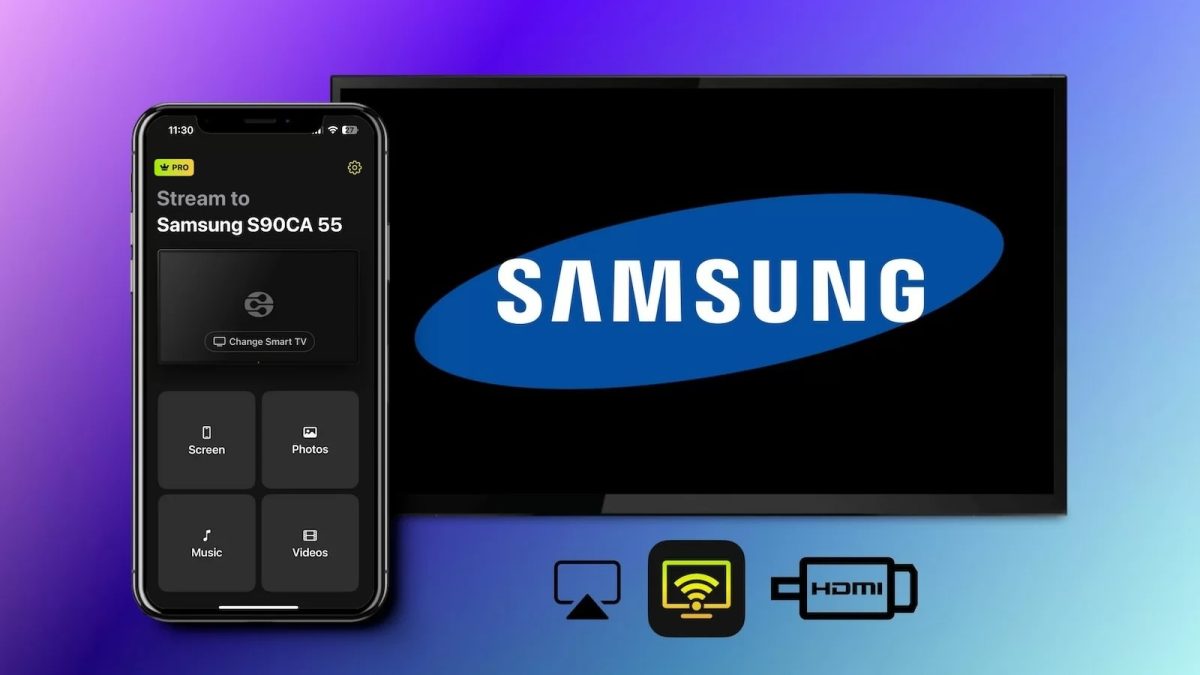
Samsung Smart View lets you stream content directly from your phone or tablet to the TV. It works with both Android and iOS devices. The app connects via Wi-Fi, creating a smooth media sharing experience. You can browse photos, videos, and music stored on your device. Control playback easily from the mobile screen. No need for complicated setups or cables.
Third-party Apps For Media Sharing
Several third-party apps support media sharing with Samsung Smart TVs. These apps use Wi-Fi or Bluetooth to connect devices. Popular choices include Plex, BubbleUPnP, and LocalCast. They offer features like streaming from cloud storage and transcoding files. Some apps support multiple formats for videos and music. These tools expand your options beyond native DLNA support. They bring more convenience and compatibility to your streaming setup.

Credit: apps.apple.com
Optimizing Dlna Performance
Optimizing DLNA performance on your Samsung Smart TV can transform your viewing experience. Ensuring smooth streaming and quick access to your media files depends on a few key factors. Let’s look at practical tips that can help you get the most out of your DLNA setup.
Network Setup Recommendations
Your network plays a crucial role in DLNA performance. Use a wired Ethernet connection if possible, as it provides a more stable and faster link than Wi-Fi. If Wi-Fi is your only option, position your router close to the TV to reduce signal interference.
Check your router settings to prioritize media streaming traffic. Some routers offer Quality of Service (QoS) features that let you assign higher priority to DLNA device communication. This reduces buffering and lag.
Also, avoid overcrowding your network with multiple high-bandwidth devices while streaming. Have you noticed how your video stalls when too many devices are active? Managing network load can prevent this.
Media Format Compatibility
Samsung Smart TVs support a wide range of media formats but not all. Common video formats like MP4, MKV, and AVI usually work well, but some codecs inside these containers might not be supported. Knowing which formats your TV handles can save you frustration.
Audio formats such as MP3 and AAC are generally safe bets, but formats like FLAC or DTS may cause playback issues. If you encounter problems, converting files to supported formats with free tools can help.
Ever tried streaming a video only to find it won’t play? Checking your media format first avoids this. Keep a list of compatible formats handy, or test files before streaming to your TV.
Credit: www.videosdk.live
Frequently Asked Questions
What Is Dlna In Samsung Smart Tv?
DLNA, or Digital Living Network Alliance, allows sharing media across devices. Samsung Smart TVs support DLNA, enabling seamless streaming from compatible devices. This feature enhances multimedia experience by allowing users to access photos, videos, and music stored on DLNA-enabled devices directly on their TV.
How To Connect Dlna Devices To Samsung Tv?
To connect DLNA devices, ensure both TV and device are on the same network. Use the TV’s menu to access the ‘Source’ or ‘Network’ option. Select your DLNA device from the list. This setup allows streaming of media content directly from the device to your Samsung Smart TV.
Can Samsung Tv Stream From A Dlna Server?
Yes, Samsung Smart TVs can stream from a DLNA server. Once connected to the same network, the TV can access and stream media content stored on a DLNA server. This feature simplifies media sharing, providing a seamless multimedia experience across devices.
Do All Samsung Smart Tvs Support Dlna?
Most Samsung Smart TVs come with DLNA support, but it’s advisable to check your model’s specifications. DLNA support facilitates easy media sharing between devices. Ensure your TV model supports DLNA by consulting the user manual or Samsung’s official website.
Conclusion
Samsung Smart TVs do support DLNA devices for easy media sharing. You can stream videos, music, and photos from your phone or computer. Setting up DLNA is simple and takes only a few steps. This feature helps you enjoy your content on a bigger screen without extra cables.
Most Samsung Smart TVs work well with popular DLNA apps. Keep your devices connected to the same network for smooth streaming. DLNA support makes Samsung TVs versatile and user-friendly for home entertainment. Explore your media library with ease and enjoy seamless playback today.