How to Do System Maintenance on a Mac: Essential Tips & Tricks
Is your Mac starting to slow down or act up? You might be surprised how a little regular system maintenance can make a huge difference in keeping your Mac running smoothly and quickly.
In this guide, you’ll learn simple, effective steps you can take right now to boost your Mac’s performance and prevent future issues. Whether you’re a beginner or just looking for easy ways to care for your device, this article will give you clear, practical tips that anyone can follow.
Keep reading to unlock the secrets to a healthier, faster Mac.
Prepare Your Mac For Maintenance
Before diving into system maintenance on your Mac, it’s crucial to prepare it properly. Skipping this step can lead to lost data or interrupted processes, which can turn a simple cleanup into a frustrating task. Preparing your Mac ensures everything runs smoothly and your valuable information stays safe.
Backup Your Data
Backing up your data is the most important step you can take before any maintenance. You never know when something might go wrong, and having a backup gives you peace of mind.
Use Time Machine, Apple’s built-in backup feature, to create automatic backups to an external drive. You can also copy important files to cloud services like iCloud, Google Drive, or Dropbox.
Ask yourself: When was the last time you backed up your Mac? If it’s been a while, take a few minutes now to set it up. This simple action can save hours of stress later.
Close Unnecessary Applications
Running many applications at once can slow your Mac down and interfere with maintenance tasks. Closing apps frees up system resources and helps the maintenance tools work more efficiently.
Look at your Dock or use the Activity Monitor to see what’s currently running. Close anything you don’t need open, especially heavy apps like video editors or web browsers with many tabs.
Try this: After closing apps, restart your Mac before starting maintenance. This clears temporary files and resets system processes, giving your Mac a fresh start.
Credit: macpaw.com
Clean Up Storage Space
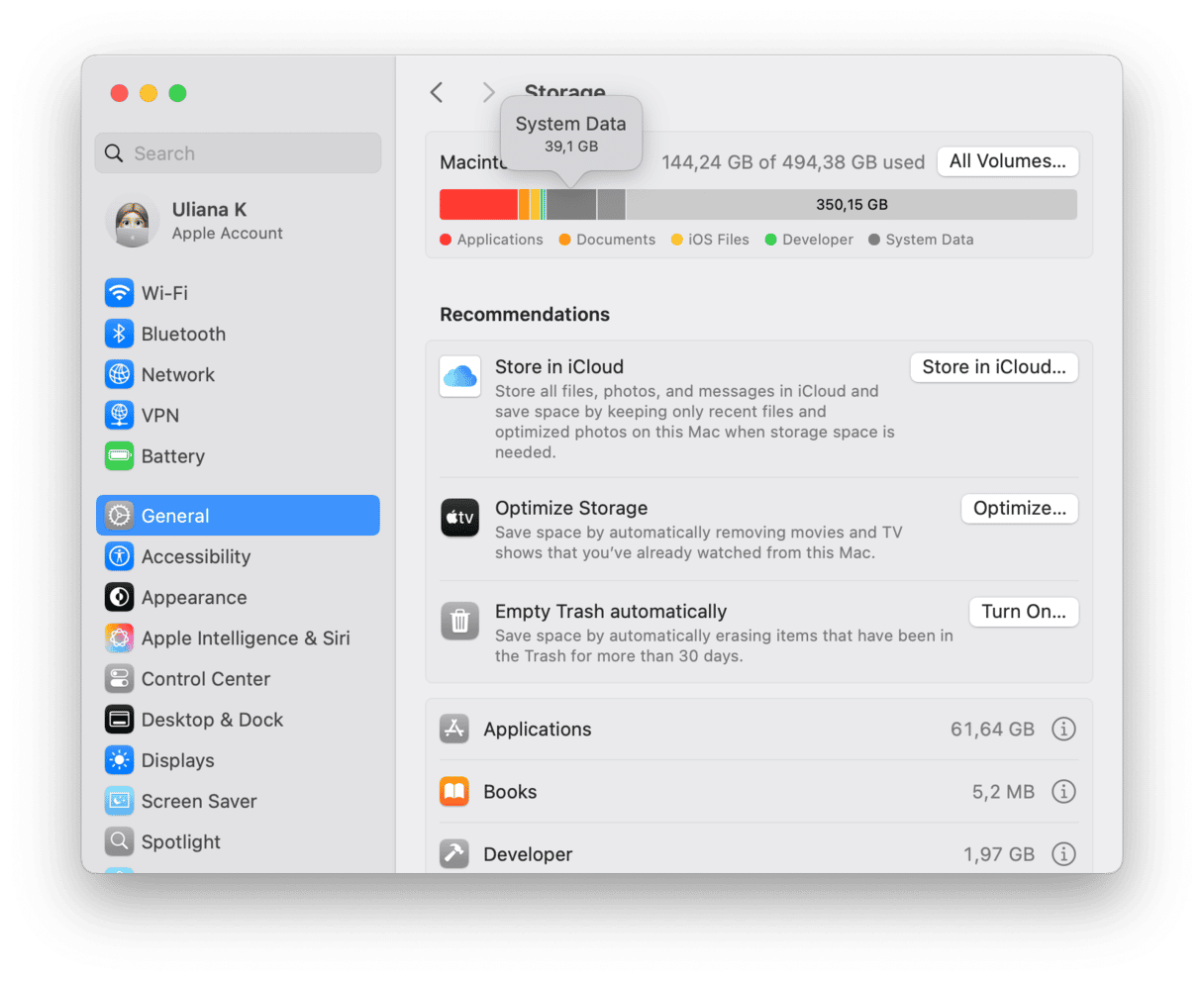
Keeping your Mac’s storage space clean is essential for smooth performance. Over time, your hard drive can fill up with files and apps you no longer need. Taking time to clear out unnecessary data can free up space and speed up your system.
Delete Unused Files And Apps
Start by going through your documents, downloads, and desktop folders. Look for files you haven’t opened in months or duplicates that serve no purpose. Removing these files can instantly free up significant storage.
Applications also take up space, especially if you installed some for one-time use. You can uninstall them by dragging the app to the Trash or using the Launchpad for a cleaner removal. Ask yourself: when was the last time you used this app? If it’s been ages, consider deleting it.
Empty Trash And Downloads
Deleting files isn’t enough if they still sit in your Trash folder. Make sure to empty the Trash regularly to permanently remove those files from your Mac. It’s easy to forget this step, but it can free up a surprising amount of space.
Your Downloads folder often holds forgotten files like installers or PDFs. Review and clear out anything you no longer need. Keeping this folder tidy prevents your storage from filling up with random clutter.
Manage Large Files
Large files can consume your storage quickly without you realizing it. Use the built-in storage management tool on your Mac by clicking the Apple menu > About This Mac > Storage > Manage. It shows you a list of big files sorted by size.
Look for videos, disk images, or archives that you no longer need. Moving them to an external drive or deleting them can create ample free space. Have you checked your largest files recently? You might be surprised what’s taking up room.
Optimize System Performance
Optimizing system performance keeps your Mac running smoothly and fast. Regular maintenance helps avoid slowdowns and crashes. It improves your computer’s efficiency and extends its lifespan.
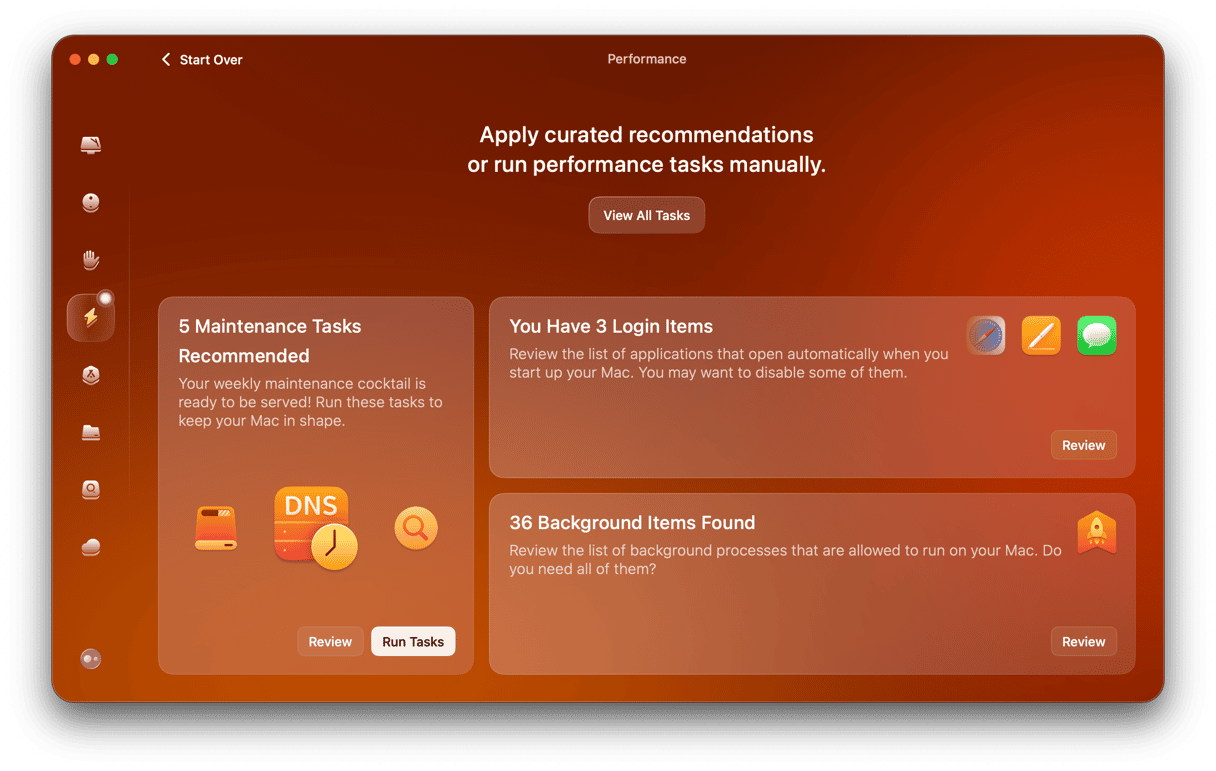
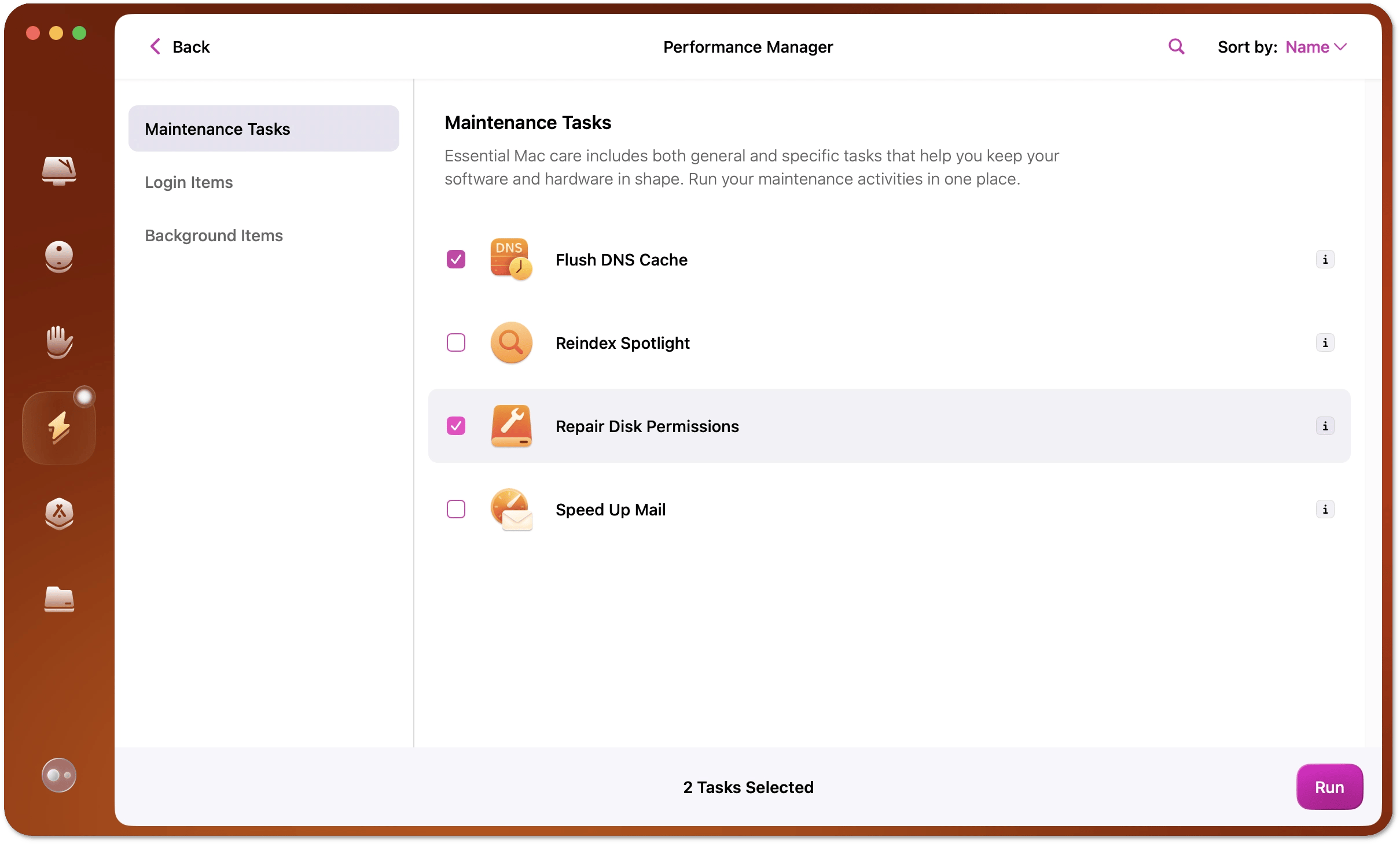
Small tasks like clearing cache, managing startup items, and updating software make a big difference. These steps free up space, reduce load time, and fix bugs. Follow simple tips to keep your Mac in top shape.
Clear Cache And Temporary Files
Cache files store data for quick access but can build up over time. Too many cache files slow down your Mac and use extra storage. Deleting them frees space and can fix glitches.
- Open Finder and press Shift + Command + G.
- Type ~/Library/Caches and press Enter.
- Delete files inside each folder carefully.
- Empty the Trash to remove files permanently.
Temporary files from apps also take space. Use tools like Disk Utility or third-party apps to clear these safely.
Manage Startup Items
Startup items launch automatically when you turn on your Mac. Too many apps starting up slow down boot time. Removing unnecessary items speeds up startup and saves memory.
- Go to System Settings or System Preferences.
- Select Users & Groups.
- Choose your user account.
- Click on Login Items.
- Remove apps you don’t need at startup.
Update Macos And Apps
Updates fix bugs and improve system performance. Using the latest macOS version keeps your Mac secure and fast. App updates add new features and fix errors.
- Open System Settings or System Preferences.
- Click Software Update to check for macOS updates.
- Go to the App Store and update all apps.
- Enable automatic updates to stay current.
Credit: macpaw.com
Check And Repair Disk Health
Checking and repairing your Mac’s disk health is essential to keep your system running smoothly. Over time, your disk can develop errors that slow down your Mac or cause data loss. Regularly inspecting your disk helps catch problems early and prevents bigger issues.
Use Disk Utility
Disk Utility is a built-in Mac tool designed to manage your drives. You can find it easily by searching in Spotlight or navigating to Applications > Utilities.
Once opened, Disk Utility displays all connected drives and volumes. This overview helps you see if any disk appears unmounted or greyed out, which could indicate a problem.
Have you ever noticed your Mac suddenly freezing or apps crashing? Often, disk errors might be the hidden culprit, and Disk Utility can help spot those issues.
Run First Aid
First Aid is a feature inside Disk Utility that checks and repairs disk errors automatically. Select your disk or volume and click the “First Aid” button to start the process.
The tool scans the file system for inconsistencies and attempts to fix them. It might take a few minutes, so be patient and avoid interrupting the scan.
If First Aid reports errors it can’t fix, consider backing up your data immediately. Persistent disk issues can lead to data loss, so staying proactive is crucial.
Maintain Security And Privacy
Maintaining your Mac’s security and privacy isn’t just a one-time task—it’s an ongoing commitment. Keeping these aspects in check helps protect your personal data and prevents unauthorized access. Let’s dive into practical ways you can safeguard your Mac easily and effectively.
Enable Firewall
Your Mac’s firewall acts like a shield against unwanted network connections. Turning it on blocks many potential threats before they reach your system. Go to System Preferences > Security & Privacy > Firewalland click “Turn On Firewall.”
Consider customizing the firewall settings to allow only trusted apps to communicate over the internet. This way, you reduce the risk of malicious programs sneaking in. Have you checked if your firewall is already active today?
Review Privacy Settings
Privacy settings control what apps can access on your Mac, from your location to your camera. Regularly reviewing these permissions ensures apps don’t collect more data than necessary. Head to System Preferences > Security & Privacy > Privacyto see which apps have access to your sensitive information.
Remove permissions for apps you no longer use or trust. It’s surprising how many apps quietly request access they don’t really need. What apps have you granted access that might not actually require it?
Scan For Malware
Malware can hide in unexpected places and cause serious damage. While macOS has built-in security features, running a reliable malware scanner adds an extra layer of protection. Choose a reputable app and schedule regular scans to catch threats early.
Don’t ignore warning signs like sluggish performance or strange pop-ups—they could indicate infection. Taking a few minutes to scan your system can save you hours of frustration later. When did you last run a malware scan on your Mac?
Monitor System Resources
Keeping an eye on your Mac’s system resources is essential for smooth performance. Monitoring helps you spot problems before they slow you down or cause crashes. It’s a simple habit that can save you from frustrating slowdowns and unexpected shutdowns.
Use Activity Monitor
Activity Monitor is your Mac’s built-in tool for checking how apps and processes use your system’s resources. You can find it in the Utilities folder inside Applications. Launch it anytime to see what’s running and how much power each task consumes.
Activity Monitor breaks down resource use into categories like CPU, Memory, Energy, Disk, and Network. This helps you understand where your Mac is spending its energy. Have you ever noticed your Mac fan spinning loudly? Activity Monitor can tell you which app is causing the heat.
Track Cpu And Memory Usage
CPU and memory are the two most important resources to watch. High CPU usage means your processor is working hard, which can slow down other tasks. Memory usage shows how much RAM your apps are using, which affects your Mac’s ability to multitask smoothly.
In Activity Monitor, check the CPU tab to see which processes use the most power. If an app constantly uses over 80% CPU, it might be worth closing or updating. The Memory tab reveals if your system is running low on RAM, which can cause sluggishness or app crashes.
Try to notice patterns: Does a particular app spike CPU or memory after you open it? Tracking this helps you decide if you need to quit apps, clear caches, or even upgrade your hardware. What apps are silently draining your Mac’s strength right now?
Automate Regular Maintenance
Automating regular maintenance on your Mac saves time and prevents small issues from becoming big problems. By setting up automatic tasks, you ensure your system stays clean, backed up, and efficient without you needing to remember every detail. This approach lets you focus on using your Mac rather than managing it.
Schedule Backups
Backing up your data is crucial, but it’s easy to forget. Automate this by using Time Machine, the built-in macOS backup tool. Connect an external drive and set Time Machine to back up your Mac hourly, daily, or weekly depending on your needs.
You can also use cloud backup services like iCloud or third-party apps such as Backblaze. These options run in the background and keep your files safe without interrupting your work. Ask yourself: when was the last time you lost important data? Automating backups can give you peace of mind and save you from costly recovery efforts.
Set Reminders For Cleanup
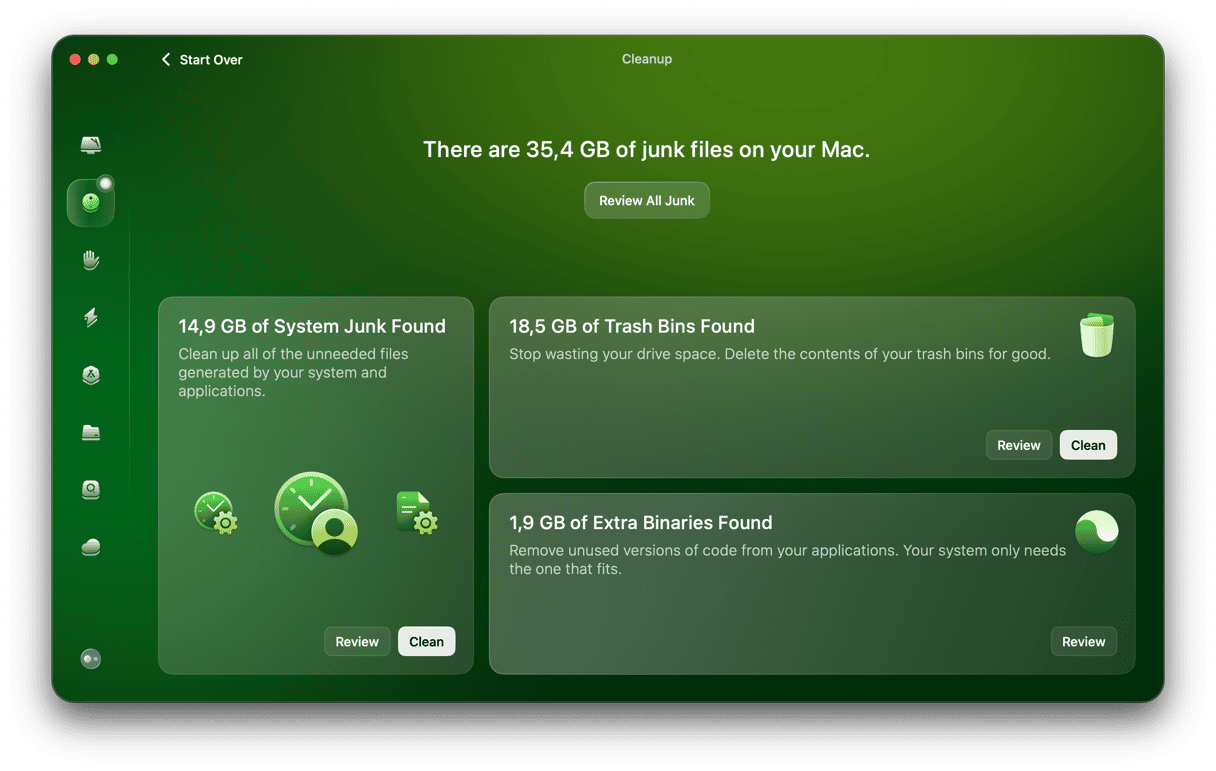
Macs tend to accumulate junk files over time, which slow down performance. Setting reminders for regular cleanup helps you stay on top of this task. Use the macOS Calendar or a reminder app to schedule monthly alerts for disk cleanup and software updates.
When your reminder goes off, clear caches, delete old downloads, and uninstall apps you no longer use. Doing this regularly keeps your Mac running smoothly. Imagine how much faster your Mac could be if you consistently remove unnecessary clutter—what tasks could you accomplish with that extra speed?
Credit: macpaw.com
Frequently Asked Questions
What Are The First Steps For Mac System Maintenance?
Start by backing up your data using Time Machine. Next, update macOS and all apps. Clear cache files and remove unused apps. Finally, restart your Mac to apply changes and improve performance.
How Often Should I Perform Mac System Maintenance?
Perform basic maintenance tasks monthly for optimal performance. Deep cleaning and backups are recommended every three to six months. Regular maintenance prevents slowdowns and extends your Mac’s lifespan.
Can I Use Third-party Apps For Mac Maintenance?
Yes, trusted apps like CleanMyMac or OnyX can help. They automate cleaning, optimize storage, and monitor system health. Always download apps from official sources to avoid security risks.
How Do I Check My Mac’s Storage And Memory Usage?
Open “About This Mac” and select the “Storage” tab. Use Activity Monitor to view memory and CPU usage. Regularly monitoring helps identify apps consuming excessive resources.
Conclusion
Maintaining your Mac keeps it running smoothly and efficiently. Regular checks and updates help prevent issues. Clean unnecessary files to free up space. Keep your software up-to-date for security and performance. Backup your data to avoid losing important files. Use built-in tools like Disk Utility for repairs.
Set a maintenance schedule to stay organized. A well-maintained Mac saves you time and stress. So, take a few minutes each month for upkeep. Your Mac will thank you with better performance. And you’ll enjoy a smoother computing experience. Happy computing!