What Does Windows System Maintenance Do: Boost Your PC Performance
Have you ever wondered what happens behind the scenes when your Windows system runs maintenance? You might notice your computer working slower or some automatic tasks running without you even clicking a button.
But what does Windows System Maintenance actually do, and why is it important for your PC’s health? Understanding this can help you keep your computer running smoothly and avoid frustrating slowdowns. You’ll discover the key functions of Windows System Maintenance and how it works quietly to protect and optimize your device.
Keep reading to unlock the secrets that can make your computer faster and more reliable.
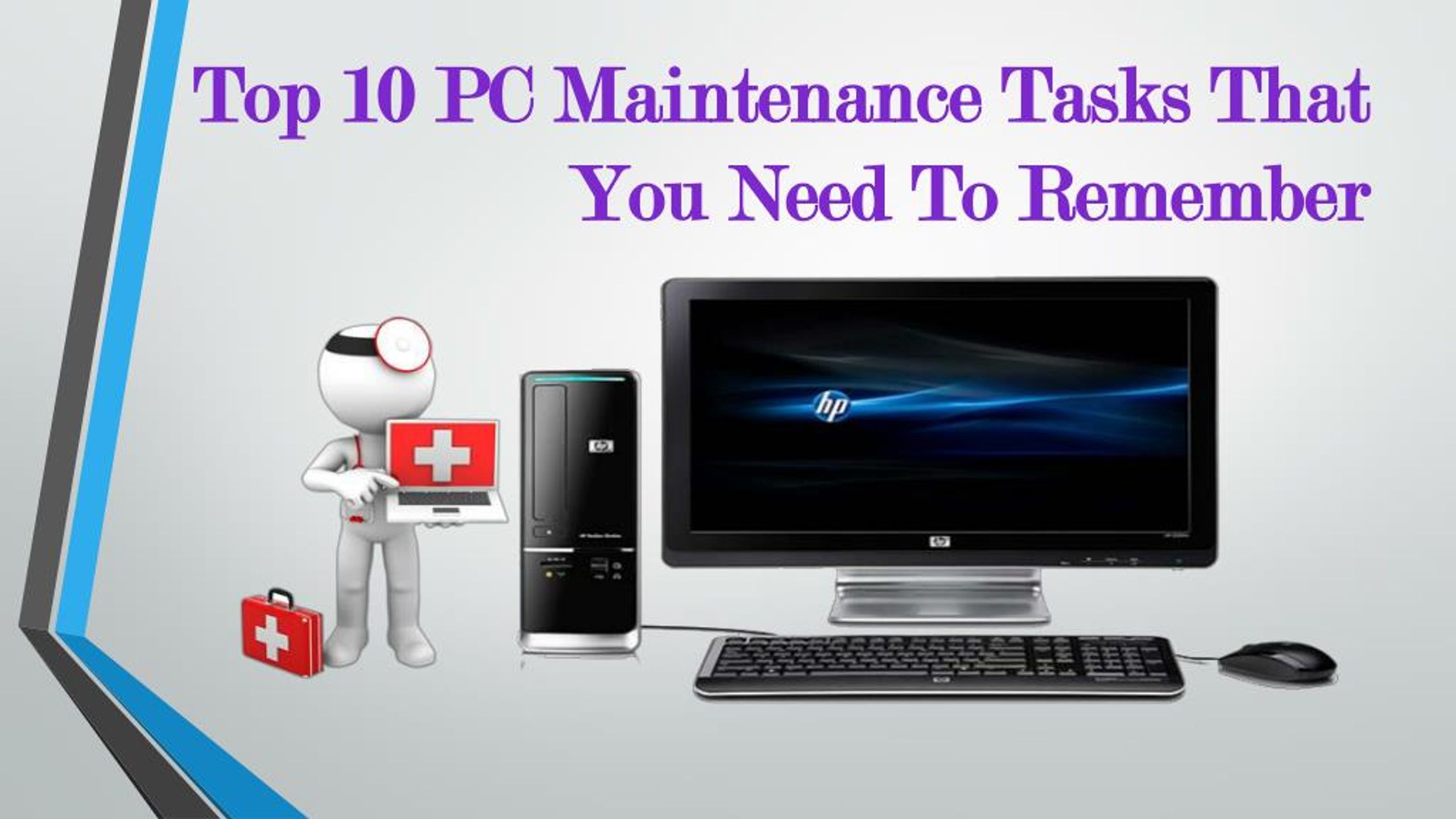
Credit: www.slideserve.com
Key Tasks In System Maintenance
System maintenance involves a series of essential tasks that keep your Windows computer running smoothly. These key tasks address common issues like slow performance, software glitches, and security risks. Understanding what each task does helps you take control of your system’s health and avoid frustrating downtime.
Disk Cleanup And Optimization
Disk cleanup removes unnecessary files like temporary data, system caches, and leftover installation files. Clearing these frees up space and reduces clutter, helping your computer run faster. Optimization goes a step further by reorganizing data on your hard drive, which speeds up file access and overall system responsiveness.
Have you ever noticed your PC lagging after months of use? Running disk cleanup and optimization can often fix that sluggish feeling immediately.
Registry Cleaning
The Windows registry stores settings and options for your system and installed programs. Over time, it can accumulate invalid or outdated entries that slow down your computer or cause errors. Cleaning the registry removes these unnecessary entries, improving stability and performance.
Be cautious—using trusted tools is key because incorrect registry edits can cause serious problems. Do you know how often you check your registry health?
Software Updates
Keeping your software up to date patches security vulnerabilities and fixes bugs that could disrupt your system. Updates also add new features and improve compatibility with other software and hardware. Regularly installing updates ensures your computer stays secure and efficient.
Ignoring updates might leave your system exposed to threats or cause apps to crash unexpectedly. How regularly do you check for updates?
Driver Management
Drivers act as translators between your operating system and hardware components like printers, graphics cards, and keyboards. Outdated or missing drivers can cause devices to malfunction or underperform. Managing drivers by updating or reinstalling them ensures your hardware works as intended.
Have you ever struggled with a device that suddenly stopped working? Updating drivers often resolves these frustrating issues.
Malware Scanning
Malware scanning detects and removes malicious software that can harm your system or steal your data. Running regular scans helps catch threats early before they cause damage or slow down your computer. Combining scans with real-time protection offers the best defense against cyber attacks.
Imagine your personal files being locked by ransomware—wouldn’t regular malware scanning be a lifesaver? How often do you run these scans?

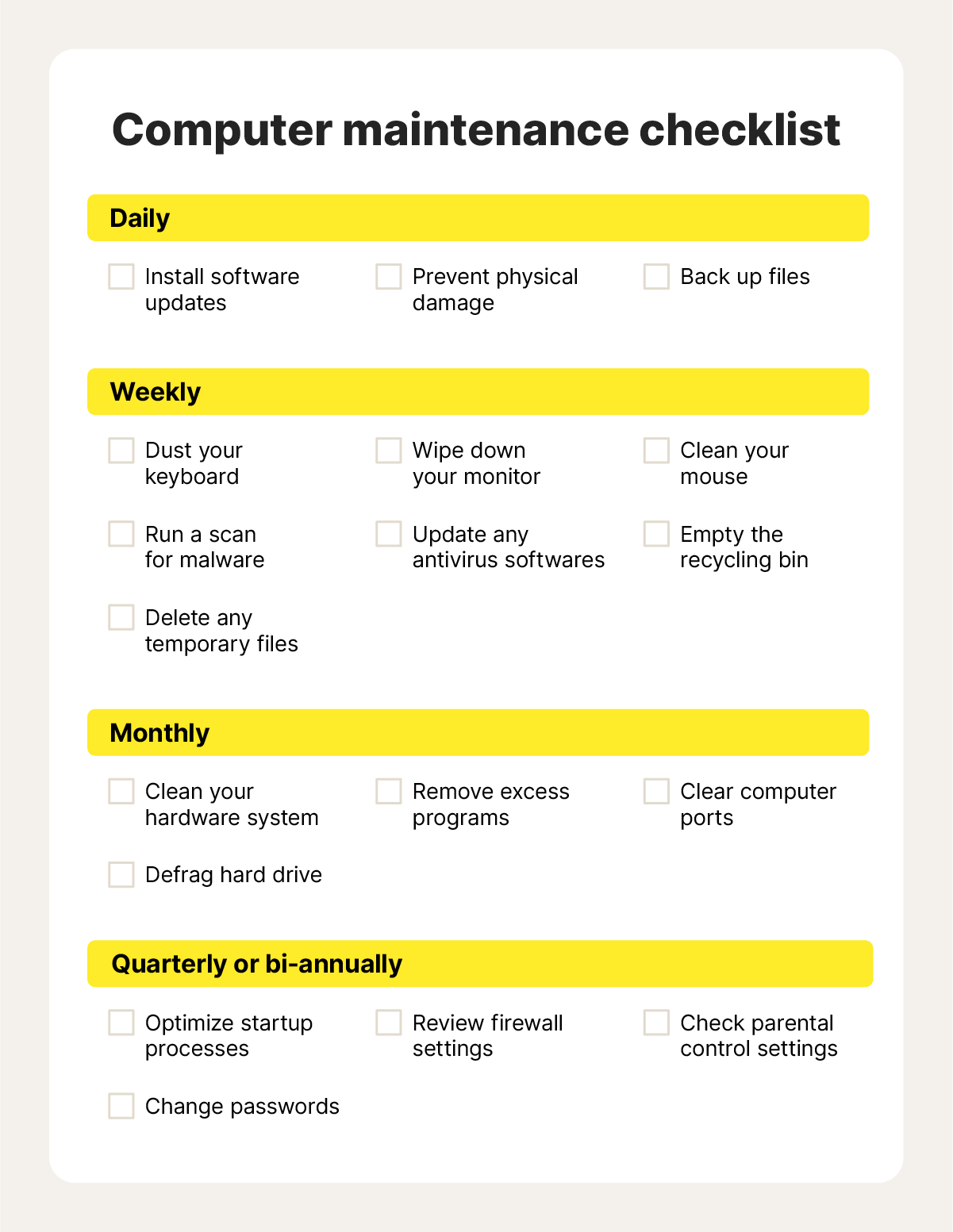
Credit: medium.com
Impact On Pc Speed And Stability
Windows system maintenance plays a key role in keeping your PC fast and stable. It regularly cleans up unnecessary files, fixes errors, and optimizes settings. These tasks help your computer run smoother and prevent slowdowns or crashes. A well-maintained system boosts both speed and reliability.
Reducing Startup Time
System maintenance removes unwanted programs from starting automatically. This cuts down the time your PC takes to boot up. It also cleans temporary files and optimizes system settings. The result is a quicker, smoother start every time you turn on your computer.
Preventing System Crashes
Maintenance scans for corrupted files and fixes system errors. It also updates drivers and software to avoid conflicts. These actions reduce the chances of sudden crashes or freezes. A stable system means less frustration and more productivity.
Improving Application Performance
Cleaning up junk files frees up disk space for programs to run better. Maintenance also defragments your hard drive, speeding up data access. Optimized system resources allow apps to open faster and work without lag. This keeps your favorite software responsive and reliable.
Built-in Windows Maintenance Tools
Windows includes several built-in tools to keep your system running smoothly. These tools perform routine tasks automatically. They help maintain system health, improve performance, and protect against threats. Understanding these tools gives insight into how Windows manages system upkeep.
Task Scheduler
The Task Scheduler runs tasks at set times or events. It automates maintenance tasks like disk cleanup and system scans. This tool works quietly in the background. It helps keep the computer optimized without user intervention.
Disk Defragmenter
Disk Defragmenter organizes files on the hard drive. It reduces file fragmentation, making data access faster. The tool rearranges file pieces into contiguous blocks. This improves overall system speed and responsiveness, especially on traditional hard drives.
Windows Update
Windows Update downloads and installs system updates automatically. Updates fix bugs, patch security holes, and add new features. Keeping Windows updated protects the system from vulnerabilities. It ensures your computer runs efficiently and safely.
Security And Maintenance Center
This center monitors system health and security. It alerts users about issues like antivirus status and backup problems. The tool provides quick access to troubleshooting and repair options. It helps maintain a secure and stable computer environment.
Third-party Maintenance Software
Third-party maintenance software offers an alternative to the built-in Windows system maintenance tools. These programs often promise more features, deeper cleaning, and easier management of your PC’s health. But are they really better for your system? Understanding what these utilities do can help you decide if they’re worth the extra install.
Popular Maintenance Utilities
Several third-party tools have gained popularity for keeping Windows running smoothly. Here are a few well-known options:
- CCleaner:Widely used for cleaning junk files, managing startup programs, and fixing registry errors.
- Advanced SystemCare:Offers one-click optimization, malware removal, and privacy protection.
- Glary Utilities:Provides a toolkit with disk cleanup, registry repair, and performance boosters.
- Wise Care 365:Focuses on speed-up features, privacy protection, and system monitoring.
Each of these tools has its own strengths, but they all share the goal of simplifying system maintenance for users who want more control or convenience than Windows offers by default.
Pros And Cons Compared To Built-in Tools
Third-party software often comes with a more user-friendly interface and additional features that Windows tools don’t provide. You might find automatic scheduling, deeper scans, and bundled utilities that cover everything from disk cleanup to malware scanning.
However, these benefits come with some risks. Installing extra software can introduce compatibility issues or even security vulnerabilities if the tool is not well maintained. Some programs may also push unnecessary upgrades or ads, which can be distracting.
Think about your needs: Do you want more customization and automation, or do you prefer the simplicity and safety of Windows’ own tools? Sometimes, using built-in options alongside careful manual tweaks gives you better control without the clutter.
Scheduling And Automating Maintenance
Scheduling and automating maintenance keeps Windows running smoothly without manual effort. It helps fix issues, update software, and improve performance regularly. This process runs in the background, so users can focus on their tasks. Setting up automatic maintenance ensures your system stays healthy and secure.
Setting Up Automatic Maintenance
Windows includes a built-in automatic maintenance feature. It runs tasks like disk cleanup, updates, and system diagnostics. To set it up:
- Open Control Panel and go to Security and Maintenance.
- Click on Maintenance, then choose Change maintenance settings.
- Select the best time to run the tasks, usually when the PC is idle.
- Ensure the box for allowing scheduled maintenance is checked.
This setup lets Windows handle routine care without interrupting your work.
Best Practices For Regular Checks
Regular system checks prevent problems from growing. Follow these tips:
- Run manual scans occasionally to catch missed issues.
- Keep your system updated with the latest patches.
- Schedule maintenance during low-usage times.
- Check system logs to review maintenance results.
- Restart your computer after maintenance tasks complete.
Consistent checks help maintain speed and security on your Windows PC.
Credit: us.norton.com
Troubleshooting Common Issues
Windows system maintenance usually runs smoothly in the background, keeping your PC in good shape. But what happens when things don’t go as planned? Troubleshooting common issues can help you regain control and keep your system running efficiently.
When Maintenance Fails
Sometimes, Windows maintenance tasks don’t complete successfully. You might notice error messages or your system slowing down without clear reasons.
One common cause is conflicting software or corrupted system files. Another issue could be that your PC is turned off or in sleep mode when maintenance tries to run.
Have you ever wondered why your computer suddenly feels sluggish even after maintenance? It might be because these tasks didn’t finish properly.
Manual Fixes For Persistent Problems
If automated maintenance fails, you can step in manually to fix persistent problems.
- Run the System Maintenance Troubleshooter:Open Control Panel, search for ‘Troubleshooting,’ and select ‘System Maintenance’ to find and fix issues.
- Check Disk for Errors:Use the command prompt to run
chkdsk /f. This scans and repairs hard drive errors that might block maintenance tasks. - SFC Scan:Run
sfc /scannowin the command prompt to repair corrupted system files. - Review Task Scheduler:Ensure maintenance tasks are enabled and set to run at appropriate times when your PC is active.
These manual steps helped me fix a PC that stopped running maintenance quietly. Instead of waiting for automatic fixes, taking direct action made a noticeable difference.
What small checks can you perform today to prevent bigger maintenance headaches tomorrow?
Frequently Asked Questions
What Is Windows System Maintenance?
Windows System Maintenance automatically fixes common issues. It cleans up unused files, updates software, and checks for errors. This helps keep your PC running smoothly and improves overall performance without manual intervention.
How Often Does Windows System Maintenance Run?
Windows System Maintenance usually runs weekly. It schedules tasks during idle times to avoid interrupting your work. You can also trigger it manually through the Control Panel or Task Scheduler.
Can Windows System Maintenance Improve Pc Speed?
Yes, it boosts PC speed by removing junk files and fixing system errors. Regular maintenance prevents slowdowns and crashes, ensuring your system remains responsive and efficient.
Does Windows System Maintenance Affect Personal Files?
No, it does not delete personal files. The maintenance focuses on system files, temporary data, and performance optimization. Your documents, photos, and other personal data remain safe.
Conclusion
Windows System Maintenance keeps your computer running smooth. It cleans up unnecessary files and fixes small issues fast. Regular maintenance helps prevent crashes and speeds up your PC. It also checks for updates and improves security. Running these tasks saves time and avoids big problems later.
Simple steps can protect your files and system health. Trust these tools to keep your computer in good shape. Taking care of your PC is easier than you think. Small actions lead to a better computer experience.