
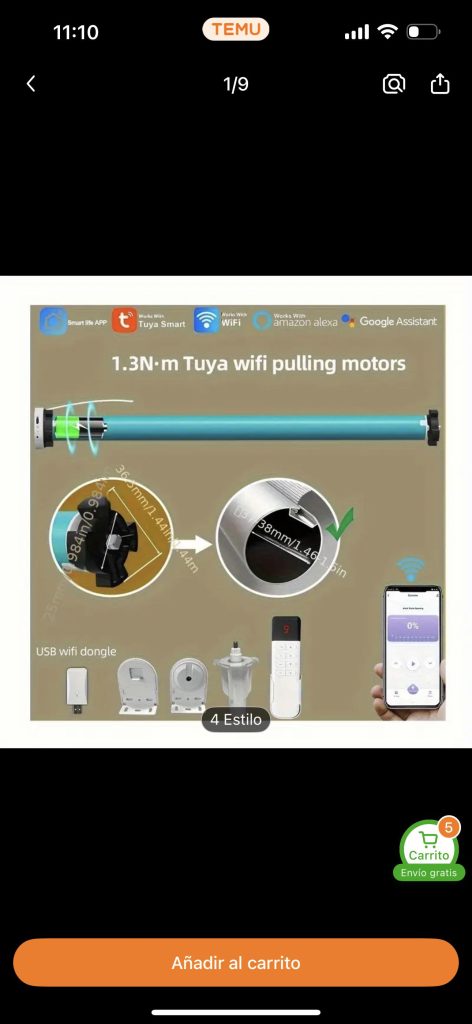
Are you wondering how to delete devices on your Smart Life app? Maybe you’ve added gadgets you no longer use, or you want to tidy up your smart home setup.
Whatever the reason, removing devices can seem tricky if you don’t know where to start. You’ll discover simple, step-by-step instructions to quickly delete unwanted devices. By the end, managing your Smart Life app will feel easier and more organized than ever.
Keep reading to take full control of your smart home today!
Accessing The Smart Life App
Accessing the Smart Life App is the first step to managing your smart devices. This app lets you control and customize devices easily. Getting started is simple and quick. Follow the steps below to have the app ready on your phone.
Downloading And Installing
Find the Smart Life App on your phone’s app store. It is available for both Android and iOS devices. Search for “Smart Life” in Google Play or the Apple App Store. Look for the app with the developer named “Tuya Inc.” or “Smart Life.” Tap the download or install button. Wait a few moments for the app to finish downloading and installing.
Logging Into Your Account
Open the Smart Life App after installation. You will see options to log in or create a new account. Use your email address or phone number to log in. Enter your password carefully. If you do not have an account, follow the on-screen instructions to sign up. Once logged in, you will have access to your smart devices and settings.

Credit: www.reddit.com
Navigating To Your Device List
Navigating to your device list in the Smart Life app is the first step to managing your smart home effectively. Knowing exactly where to find your connected devices helps you stay organized and quickly make changes like deleting devices you no longer use. Let’s take a closer look at how you can access and view your devices with ease.
Locating The Device Management Section
Open the Smart Life app and look at the main interface. You’ll find a menu icon, often represented by three lines or dots, usually at the top or bottom of the screen.
Tap this menu to reveal options. Among these, you should see something like “My Devices” or “Device Management.” Selecting this will take you to the heart of your smart home control.
Sometimes, the app updates its layout. If you don’t see these exact terms, look for anything related to devices or settings. The goal is to reach the section where all your smart devices are listed.
Viewing Connected Devices
Once inside the device management section, you’ll see a list of all smart devices linked to your account. This list displays names, device types, and often their current status, such as online or offline.
Take a moment to scan through and identify devices you recognize. This visual overview helps you decide which devices might need to be deleted or updated.
Do you notice any unfamiliar devices? This could be a sign to review your network security or to remove devices you no longer want connected. Keeping this list tidy is key to smooth smart home operation.
Steps To Delete A Device
Removing a device from your Smart Life app is a straightforward process that you can complete in just a few taps. Knowing exactly how to delete a device helps keep your app organized and ensures you only control devices you currently use. Let’s break down the steps so you can manage your smart home setup with ease.
Selecting The Device To Remove
Open your Smart Life app and navigate to the main dashboard where all your connected devices are listed. Scroll through the list to find the device you want to delete. If you have many devices, use the search bar at the top to quickly locate the one you’re looking to remove.
Once you’ve found the device, tap on it to open its detailed settings page. This page usually shows status, controls, and other options for the device. Look for the settings icon or menu button, often represented by three dots or a gear symbol.
Confirming The Deletion
After tapping the settings or menu icon, you will see an option to delete or remove the device. Select this option to proceed. The app will then ask you to confirm your choice to prevent accidental removal.
Confirm by tapping “Delete” or “Remove” on the confirmation prompt. The device will disappear from your device list, and you will no longer be able to control it through the app unless you add it again. This final step is crucial—are you sure you want to remove this device permanently?

Credit: www.reddit.com
Troubleshooting Device Removal
Removing devices from the Smart Life app should be simple. Sometimes, problems block the removal process. Troubleshooting helps fix these issues. It saves time and frustration. Below are tips to solve common device removal problems.
Common Issues And Fixes
- Device still shows after removal attempt. Try refreshing the app or waiting a few minutes.
- Device removal option is greyed out. Check if the device is connected or in use.
- App crashes or freezes during removal. Clear the app cache or update the app to the latest version.
- Device reconnects automatically after deletion. Remove device from all linked accounts and reset the device.
- Network issues prevent removal. Ensure a stable internet connection before trying again.
When To Restart The App
Restarting the app can fix many minor glitches. Close the app completely before reopening it. This clears temporary data and refreshes the connection.
Restart the app if:
- Device removal fails repeatedly.
- The app behaves slowly or lags.
- Changes do not show after removing a device.
Restarting is a quick, easy step. It often solves problems without extra effort.
Managing Devices For Better Control
Managing devices in the Smart Life app gives you more control and clarity over your smart home setup. Instead of scrolling through a long list of generic device names, you can organize and customize them to match your daily routine. This makes it easier to find, operate, and even troubleshoot devices when needed.
Renaming Devices
Renaming devices helps you identify each gadget quickly. Instead of a device labeled “Smart Plug 1,” you can rename it to “Living Room Lamp” or “Coffee Maker.” This small change saves time and reduces confusion, especially if you have multiple similar devices.
To rename a device, tap on it, select settings, and enter a new name that makes sense to you. Think about how you use the device and what name will instantly remind you of its function. Have you ever accidentally turned off the wrong light because the names were unclear? Renaming prevents that.
Grouping Devices
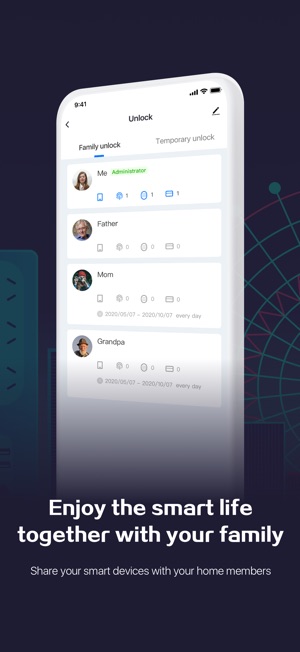
Grouping devices allows you to control multiple gadgets at once. For example, you can group all the lights in your living room to switch them on or off together. This feature is perfect for saving time and managing your home more efficiently.
Groups can be based on rooms, device types, or any custom setup you prefer. You might have a “Morning Routine” group that turns on the coffee maker, lights, and thermostat simultaneously. How much easier would your daily routine be if you could control multiple devices with a single tap?
- Create groups for each room or activity.
- Add or remove devices as needed.
- Use groups to automate tasks and save effort.
Credit: apps.apple.com
Frequently Asked Questions
How Can I Remove A Device From Smart Life App?
To remove a device, open the Smart Life App. Navigate to the device list and select the device you wish to delete. Tap on the device, then choose “Remove Device” from the options. Confirm your choice, and the device will be removed from your app.
Why Can’t I Delete A Device On Smart Life?
If you can’t delete a device, ensure your app is up-to-date. Check your internet connection and restart the app. If issues persist, try restarting your smartphone. Additionally, verify that you have the necessary permissions to remove devices from the app.
What Happens After Deleting A Device On Smart Life?
Once a device is deleted, it will no longer appear in your app. You will lose any custom settings related to that device. To reconnect, you’ll need to go through the pairing process again. Ensure you have backed up any important configurations before deleting.
Can I Re-add A Deleted Device To Smart Life?
Yes, you can re-add a deleted device by following the initial setup process. Open the Smart Life App and tap on “Add Device. ” Follow the on-screen instructions to pair your device again. Ensure the device is in pairing mode before starting the process.
Conclusion
Deleting devices on the Smart Life app is quick and simple. Just follow the steps carefully to avoid mistakes. Removing unused devices helps keep your app organized and easy to use. It also improves app performance and saves space. Remember to double-check before deleting to avoid losing important devices.
Stay in control of your smart home devices with these easy tips. Managing your devices has never been easier. Try it today and enjoy a cleaner app experience.


