Can’T See Connected Device in Smart Life App: Easy Fixes Revealed
You’ve just set up a brand-new smart device, and you’re excited to see it in action. But wait—when you open the Smart Life app, your device is nowhere to be found.
Frustrating, right? You’re not alone. Many users face this issue, and the solution might be simpler than you think. Imagine the relief of solving this problem quickly, allowing you to enjoy your smart home without a hitch. You’ll discover straightforward steps to make your device visible and connected, turning your smart home dreams into reality.
Ready to troubleshoot and reclaim control of your technology? Let’s dive in and get your devices talking!

Credit: www.reddit.com
Common Causes Of Device Visibility Issues
Devices not showing in the Smart Life app is a common problem. Several reasons can cause this issue. Understanding these helps fix it quickly. Here are common causes of device visibility issues.
Network Connectivity Problems
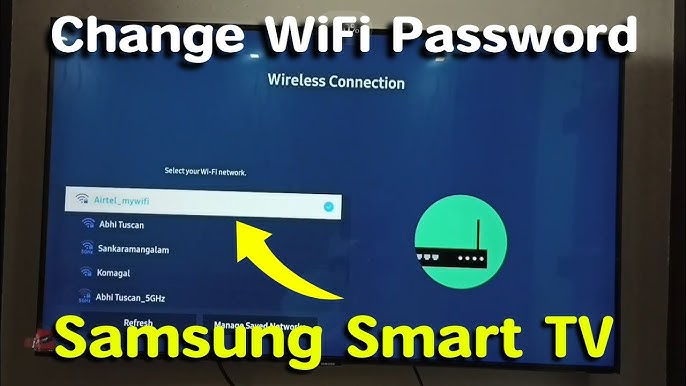
Smart devices rely on a stable Wi-Fi connection. Weak or unstable Wi-Fi can prevent devices from appearing. Router settings may block device connections. Devices on different networks or frequencies may not connect.
- Check if your phone and device use the same Wi-Fi network.
- Restart your router and smart device to refresh connections.
- Ensure your router supports 2.4 GHz, as many smart devices need it.
App Permissions And Settings
The Smart Life app needs proper permissions to detect devices. Missing permissions can block device visibility. Background data restrictions or battery saver modes may interfere.
- Allow location and network permissions for the app.
- Disable battery saver or data restrictions for Smart Life.
- Make sure the app runs in the background.
Device Compatibility
Not all devices work with the Smart Life app. Device models may not support the app or certain features. Some devices require a different app or hub for connection.
- Verify your device supports Smart Life before setup.
- Check the device manual or website for compatibility details.
- Use the recommended app if Smart Life is unsupported.
Firmware And App Updates
Outdated firmware or app versions cause connection problems. Updates fix bugs and improve compatibility. Running old versions may hide your device from the app.
- Update the Smart Life app from your app store.
- Check for firmware updates for your smart device.
- Restart devices after updates to apply changes.

Credit: www.reddit.com
Quick Troubleshooting Steps
Quick troubleshooting steps help fix the issue fast. They cover basic checks and simple fixes. These steps often solve common problems without extra tools. Follow them carefully to restore your device connection in the Smart Life app.
Restarting Devices And App
Turn off your smart device first. Wait 10 seconds, then power it back on. Close the Smart Life app fully. Open the app again to refresh its connection. This simple restart can clear minor glitches.
Checking Wi-fi Connection
Ensure your phone connects to the right Wi-Fi network. Check if the Wi-Fi is stable and working well. Smart Life devices need a strong 2.4 GHz network. Switch off mobile data to avoid conflicts with Wi-Fi.
Re-logging Into Smart Life App
Log out of your Smart Life account in the app. Close the app completely. Open it again and log in with your credentials. This can fix sync issues between the app and devices.
Adjusting App And Device Settings
Adjusting app and device settings can fix visibility issues in the Smart Life app. Often, small tweaks help your device appear correctly. Check permissions, reset devices, and reconnect for smoother operation.
Enabling Necessary Permissions
The Smart Life app needs certain permissions to work properly. Allow access to location, storage, and network on your phone. Without these, the app cannot detect connected devices. Open your phone settings, find the Smart Life app, and enable all required permissions.
Ensure background data usage is allowed. This helps the app stay updated with device status. Also, disable any battery saver or app restrictor that may block the app’s functions.
Resetting Device To Factory Settings
Resetting the device clears previous connections and errors. Locate the reset button on your smart device. Press and hold it for the time suggested in the manual. The device will restart and return to factory settings.
This step removes old Wi-Fi settings and prepares the device for a fresh connection. Make sure to reset before trying to reconnect to the app again.
Re-adding Device To The App
After resetting, open the Smart Life app and start adding the device again. Follow the on-screen instructions carefully. Select the correct device type from the list.
Connect your phone to the same Wi-Fi network that the device will use. Enter the network password accurately. Wait for the app to detect the device and complete the setup.
Check the device appears in your device list after adding. This confirms the connection is successful and ready to use.

Credit: community.homey.app
Advanced Solutions
If your Smart Life app isn’t showing connected devices, basic fixes might not cut it. Sometimes, the issue runs deeper and requires a more technical approach. These advanced solutions can help you regain control and visibility of your smart devices quickly.
Clearing App Cache And Data
Cache files can pile up and cause glitches in how your app displays connected devices. Clearing the cache removes temporary files without affecting your saved data, often fixing display problems.
If clearing the cache doesn’t work, try clearing app data. This resets the app to its default state, so you’ll need to log in again. It’s like giving the app a fresh start, which can solve stubborn connection issues.
Switching Between 2.4ghz And 5ghz Wi-fi
Smart Life devices typically connect to 2.4GHz Wi-Fi networks, not 5GHz. If your phone is on a 5GHz network, the app might not detect your device properly. Switching your phone’s Wi-Fi to 2.4GHz can reveal missing devices instantly.
Some routers offer combined SSIDs for both bands. Separating these can give you better control and prevent conflicts. Have you checked if your router is set up to broadcast both bands separately? This small change often makes a big difference.
Using Vpn Or Proxy Settings
VPNs and proxy servers can interfere with device discovery in the Smart Life app. If you use a VPN, try disabling it and see if your devices appear. Sometimes, the app can’t connect to your home network properly through these services.
On the other hand, if you’re in a region where the app or devices are restricted, a VPN might help by routing your connection through a different location. Testing both scenarios helps you understand how network settings impact device visibility.
Preventive Tips For Smooth Connectivity
Keeping your Smart Life app connected to your devices without interruptions can save you a lot of frustration. Preventing connectivity issues is often easier than fixing them after they occur. By taking a few simple steps regularly, you can enjoy seamless control over your smart devices.
Regularly Updating Firmware And App
Outdated firmware or app versions often cause compatibility problems. Check for updates frequently and install them as soon as they become available. Updates not only fix bugs but also improve security and add new features that enhance device performance.
I once ignored an update for weeks, only to find my smart bulbs disappearing from the app. After updating both the app and device firmware, the problem vanished immediately. Have you checked your app and device firmware versions recently?
Maintaining Stable Network Environment
Your smart devices rely heavily on a stable Wi-Fi connection. Ensure your router is placed in an open area free from physical obstructions. Avoid switching between multiple networks or frequently changing your Wi-Fi password, as this can disconnect your devices.
Try to keep your router’s firmware updated as well, since it affects overall network stability. If your connection drops often, consider using a Wi-Fi extender or mesh network to cover dead zones. How reliable is your home Wi-Fi where your smart devices are located?
Avoiding Interference From Other Devices
Many household gadgets emit signals that can interfere with your Wi-Fi or smart devices. Microwaves, cordless phones, and baby monitors often operate on similar frequencies, causing disruptions. Keep your smart devices and router away from such equipment whenever possible.
Switching your router’s frequency band from 2.4 GHz to 5 GHz, if supported, can reduce interference. Also, limit the number of active devices connected to the same network during critical smart device usage. Have you noticed any patterns in connectivity problems when certain devices are active?
When To Contact Support
Knowing when to reach out for support can save you hours of frustration with the Smart Life app. If your connected device remains invisible despite troubleshooting, it’s time to consider professional help. Recognizing the right moment to contact support ensures you get the issue resolved efficiently and avoid unnecessary downtime.
Identifying Persistent Issues
If you have tried reconnecting the device, restarted your phone, and checked your Wi-Fi without success, the problem might be deeper. Persistent issues include devices that never appear in the app or disconnect frequently without reason. Ask yourself: has the problem lasted more than a day despite all basic fixes?
Sometimes, intermittent connection loss can signal firmware bugs or hardware faults. If the device is crucial for your daily routine and you constantly struggle with it, support can help diagnose underlying problems. Don’t wait until the device completely fails—early contact can save you trouble.
Gathering Information For Support
Before contacting support, collect all the relevant details to speed up the process. This includes:
- Device model and serial number
- App version and your smartphone’s OS version
- Exact error messages or symptoms
- Steps you already took to fix the issue
- Your Wi-Fi network type and signal strength
Having this information ready helps the support team understand your problem quickly. It also shows you have tried to solve the issue, making the conversation more productive.
Exploring Warranty And Replacement Options
If support confirms a hardware defect, ask about your warranty status immediately. Most smart devices come with a limited warranty covering manufacturing faults. Knowing your warranty terms can help you decide between repair, replacement, or refund.
Sometimes, replacement might be the best solution, especially if the device is out of date or repeatedly fails. Don’t hesitate to request a replacement if you feel the product isn’t performing as promised. After all, your smart home devices should make life easier, not harder.
Frequently Asked Questions
Why Can’t I See My Device In Smart Life App?
This often happens due to network issues or incorrect device setup. Check Wi-Fi connection and ensure the device is powered on. Also, confirm the device is linked to the same account used in the Smart Life app.
How To Fix Smart Life App Not Showing Devices?
Restart the app and your phone first. Clear the app cache and update it to the latest version. Re-login to your account and try reconnecting the device to the Wi-Fi network.
Is My Device Compatible With Smart Life App?
Not all smart devices support the Smart Life app. Verify your device model and firmware version are compatible. Check the manufacturer’s website or app description for compatibility details.
Can Wi-fi Issues Cause Smart Life Device Visibility Problems?
Yes, Wi-Fi problems can prevent device detection. Ensure your phone and device are on the same 2. 4GHz Wi-Fi network. Avoid using 5GHz networks as many Smart Life devices do not support them.
Conclusion
Troubles with the Smart Life app can be frustrating. Check your internet and device settings first. Restart your phone and the smart device. Ensure the app has permission to access your network. Try removing and re-adding the device carefully. These steps often solve connection issues quickly.
Stay patient and follow each tip slowly. Your device should show up soon. Enjoy using your smart home with ease again.