How to Handle Electronics for Home Desk Setup: Expert Tips Revealed
Are you tired of tangled cables and cluttered gadgets on your home desk? Imagine a workspace where everything is neatly organized, within reach, and perfectly functional.
Handling electronics for your home desk setup doesn’t have to be a daunting task. With the right tips and tricks, you can transform your desk into a productive and inspiring environment. In this guide, we’ll walk you through simple yet effective strategies to manage your electronic devices.
You’ll discover how easy it is to create a seamless and efficient workspace that boosts your focus and creativity. Stick around, because by the end of this article, you’ll feel empowered and ready to tackle your desk setup like a pro.
Choosing The Right Electronics
Choosing the right electronics for a home desk setup is crucial for comfort and productivity. The devices must fit your work style and space. Picking suitable tools helps avoid frustration and increases efficiency.
Essential Devices For Productivity
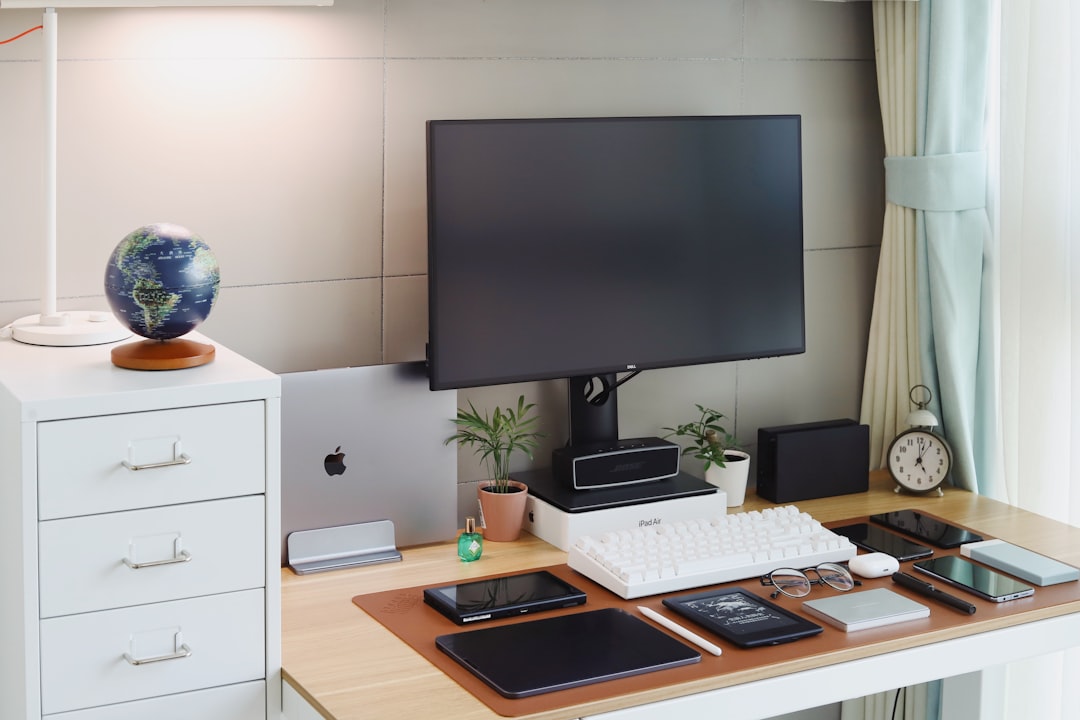
Start with a reliable computer or laptop. It should handle your daily tasks smoothly. A good monitor reduces eye strain and shows clear images. Keyboards and mice must be responsive and comfortable to use. Consider a printer if you often need hard copies.
Balancing Performance And Budget
High performance does not always mean high cost. Focus on devices that meet your needs without overspending. Compare features and prices before buying. Look for reviews to understand product reliability. Sometimes mid-range electronics offer the best value.
Ergonomic Accessories
Ergonomic tools protect your health during long hours. Choose a chair that supports your back well. A keyboard with wrist support prevents strain. Use a mouse designed for comfort. Adjustable monitor stands help keep your neck straight. Small changes make a big difference.
Organizing Cables And Power Management
Organizing cables and managing power effectively can transform your home desk setup from chaotic to clean and efficient. Tangled wires not only look messy but also create safety hazards and make it difficult to find the right cord when you need it. Taking control of your cables and power sources helps you maintain a clutter-free workspace and keeps your electronics running smoothly.
Cable Management Techniques
Start by sorting cables based on their function—charging, data transfer, or power supply. Use cable ties, Velcro straps, or reusable twist ties to bundle cables together. Labeling each bundle or individual cable can save you time when unplugging or troubleshooting devices later.
Consider using cable sleeves or cable trays to hide and guide wires along the edges of your desk. If your desk has holes or grommets, route cables through them to keep cords off the surface. Have you tried mounting power bricks under the desk to free up space and reduce visible clutter?
Power Strips And Surge Protectors
Power strips multiply your outlet capacity but choose one with surge protection to guard your devices against voltage spikes. Look for strips with individual switches to control power to specific devices, helping you save energy. Mounting your power strip under the desk or behind it keeps outlets accessible but out of sight.
Some power strips come with USB ports, which can reduce the number of adapters you need. Think about your device needs and select a strip that fits without overcrowding. How often do you unplug devices that stay powered unnecessarily? Using a power strip can make this habit easier.
Minimizing Clutter
Limiting the number of devices on your desk reduces cable congestion. Keep only essential electronics within reach and store extras away. Wireless options for keyboards, mice, and headphones can significantly cut down the number of cables.
Regularly inspect your setup and remove unused cables or accessories. A clutter-free desk not only looks better but can boost your productivity and focus. What small changes can you make today to reduce the cable mess around your workspace?
Setting Up Monitors And Displays
Setting up your monitors and displays correctly can transform your home desk setup from cluttered to comfortable. Proper arrangement not only boosts productivity but also reduces eye strain and physical discomfort. Let’s dive into key tips that help you get the most out of your screens.
Optimal Monitor Placement
Position your monitor so the top of the screen is at or slightly below eye level. This keeps your neck in a natural, relaxed posture. Keep the screen about an arm’s length away to avoid leaning in or squinting.
Consider the lighting in your room. Avoid placing monitors directly opposite windows or bright lights to minimize glare. If you notice reflections, reposition your screen or use an anti-glare filter.
Multiple Monitor Configurations
If you use more than one monitor, align them horizontally with no more than a 30-degree angle between screens. This setup helps your eyes move smoothly across displays without strain.
- Place your primary monitor directly in front of you.
- Use secondary monitors for supporting tasks like email, chat, or research.
- Experiment with vertical stacking if your desk space is limited.
Ask yourself: which tasks require your focus? Arrange monitors to match your workflow rather than just filling space.
Adjusting Brightness And Resolution
Set your monitor brightness to match your room’s ambient light. Too bright or too dim screens cause eye fatigue faster. Most modern monitors allow easy brightness adjustments through on-screen menus.
Choose the highest resolution your monitor supports for clear text and sharp images. If text looks blurry, tweak the scaling settings in your operating system to improve readability.
Remember, small changes in brightness and resolution can make long hours at your desk much more comfortable. What adjustments have you found most helpful for your eyes?
Maintaining Electronics For Longevity
Maintaining your home desk electronics is key to keeping them running smoothly for years. Simple habits can prevent damage and improve performance, saving you money and frustration. Let’s look at practical ways you can care for your devices every day.
Cleaning And Dust Prevention
Dust and dirt can easily build up on your electronics, causing overheating and malfunction. Use a soft, dry microfiber cloth to gently wipe screens and keyboards regularly. Avoid spraying cleaners directly on devices; instead, apply them to the cloth first.
Consider using compressed air to blow out dust from vents and ports. This keeps airflow unobstructed and prevents heat damage. Have you noticed your laptop or monitor getting warmer than usual? Cleaning might be the fix you need.
Regular Software Updates
Keeping your software up to date is crucial for security and performance. Updates often include patches that protect your electronics from viruses and bugs. Enable automatic updates on your operating system and applications if possible.
Ignoring updates can slow down your device or cause crashes. It’s like giving your electronics a tune-up. Have you checked for updates on your devices this week?
Safe Handling Practices
How you handle your electronics affects their lifespan. Always unplug devices by holding the plug, not the cord, to avoid internal wire damage. Avoid eating or drinking near your desk setup to prevent spills and sticky keys.
Use surge protectors to shield your devices from power spikes. When moving equipment, handle it with care and avoid placing heavy items on top. What small habit can you change today to protect your electronics better?
Enhancing Connectivity And Speed
Improving connectivity and speed in your home desk setup can make a noticeable difference in productivity and overall experience. Slow internet or weak signals can disrupt your workflow and cause frustration. Taking the right steps to enhance your network ensures smooth video calls, fast downloads, and seamless multitasking.
Choosing The Right Router
Your router is the heart of your home network. Picking one that matches your space and usage needs is crucial.
- Dual-band or tri-band routersoffer multiple frequency options, reducing interference and improving speed.
- Look for routers with MU-MIMO technologyto handle multiple devices efficiently.
- Consider routers that support the latest Wi-Fi standards, such as Wi-Fi 6, for better performance and future-proofing.
When I upgraded to a Wi-Fi 6 router, my video calls became crystal clear, and file transfers sped up dramatically. Have you checked if your router matches your internet plan speed?
Optimizing Wi-fi Signals
Wi-Fi signals can be tricky; walls, furniture, and other electronics can weaken them. Position your router in an open, central location rather than tucked away in a corner.
- Avoid placing routers near microwaves or cordless phones, which cause interference.
- Use a Wi-Fi analyzer app to find the best channel with the least congestion.
- Consider adding Wi-Fi extenders or mesh systems if your workspace is far from the router.
Once I moved my router off the floor and away from metal shelves, my internet speed improved without any extra cost. Could a small change in placement boost your connection too?
Using Wired Connections
For tasks that demand maximum speed and stability, wired connections are unbeatable. Ethernet cables provide a direct link to your router, eliminating interference.
- Use Cat6 or higher cables for faster data transfer and future-proofing.
- Keep cables organized to avoid clutter and accidental disconnections.
- Consider a USB to Ethernet adapter if your laptop lacks an Ethernet port.
I always connect my desktop via Ethernet during important meetings to avoid any surprises. Have you tried switching to wired for critical tasks?
Incorporating Smart Devices
Adding smart devices to your home desk setup can make your workspace more efficient and enjoyable. These gadgets help you control your environment with ease and can reduce distractions. Let’s look at some practical ways to bring smart technology into your daily workflow.
Voice Assistants Integration
Voice assistants like Amazon Alexa, Google Assistant, or Apple’s Siri can act as your hands-free helpers. You can ask them to set reminders, check your schedule, or even control other smart devices without interrupting your work.
Connecting a voice assistant to your desk setup means you don’t have to stop typing or searching for your phone to get simple tasks done. Have you tried asking your assistant to play your favorite focus playlist while you work?
Smart Lighting Options
Smart lights allow you to adjust brightness and color temperature with a simple app or voice command. This helps reduce eye strain and creates the right mood for different tasks, like brainstorming or video calls.
Some smart bulbs even sync with your computer or music to change colors dynamically. Experimenting with these options can make your desk feel more personal and comfortable.
Automating Desk Setup
You can automate your desk setup to save time and keep your space organized. For example, use smart plugs to turn off devices automatically at the end of your workday.
Automation routines can also adjust lighting, start your computer, or launch apps as soon as you sit down. What small task could you automate to make your work start smoother?
Frequently Asked Questions
How Can I Organize Cables For A Home Desk Setup?
Use cable clips, ties, or sleeves to bundle cables neatly. Label each cable for easy identification. Keep power strips within reach but out of sight to reduce clutter.
What Electronics Are Essential For An Ergonomic Desk Setup?
A good monitor, keyboard, mouse, and adjustable desk lamp are essential. Ergonomic accessories like wrist rests and monitor stands improve comfort and productivity.
How Do I Prevent Electronics From Overheating On My Desk?
Ensure proper ventilation around devices. Avoid stacking electronics directly on top of each other. Use cooling pads or fans if necessary to maintain safe temperatures.
What’s The Best Way To Manage Power Outlets For Desk Electronics?
Use a surge protector with multiple outlets. Place it under or beside your desk. This protects devices from power spikes and keeps cords organized.
Conclusion
Handling electronics for your home desk setup keeps your space neat and safe. Organize cables to avoid clutter and accidents. Choose the right power strips and chargers for efficiency. Keep devices clean to ensure they work well longer. Simple steps make your workspace more comfortable and productive.
Small changes create big benefits for daily use. Start with easy fixes and build from there. A tidy desk helps focus and reduces stress.