Are Ultrawide Monitors Worth It For Stock Trading?
Is an ultrawide monitor good for stock trading? That depends on your trading style and desk setup. A wide display can remove the bezel gap that splits a dual-monitor array.
But it also changes how much vertical data you see.
In our research, a 34-inch ultrawide with a 21:9 aspect ratio offers roughly 33% more horizontal screen space than a 27-inch 16:9 monitor. This extra width lets you place three charts side by side without overlapping windows. You do lose vertical space, which can matter when scanning long lists of trades.
This guide compares ultrawides, dual monitors, and single 4K displays so you can choose the right setup.
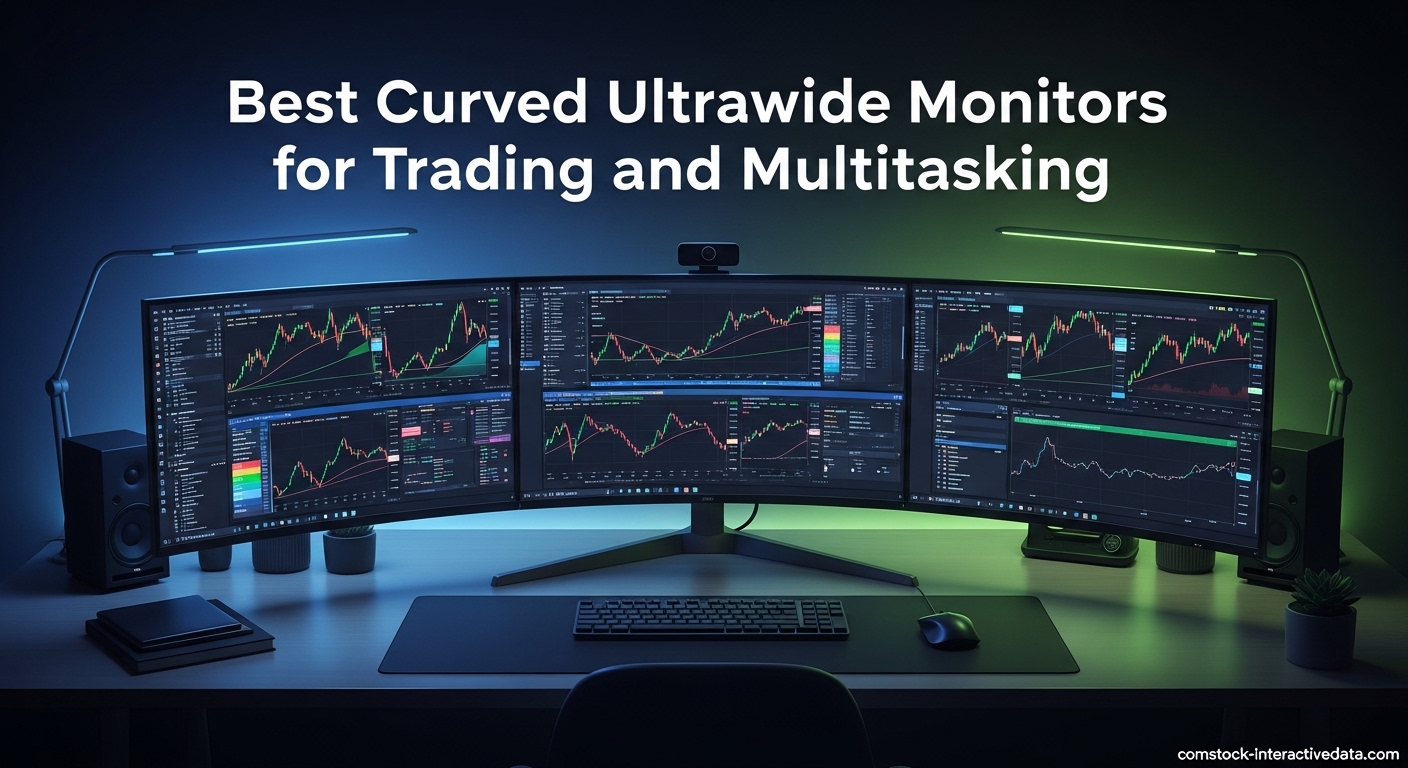
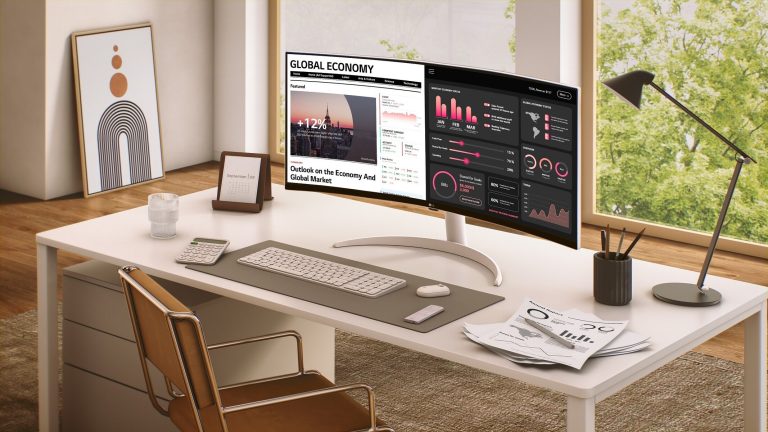
Image source: Web (Bing) / comstock-interactivedata.com (Web image (fair-use with source credit))
Quick Answer
Ultrawide monitors work well for trading if you want a seamless view. They display multiple charts without a center bezel. A 34-inch ultrawide is a popular middle ground.
They provide less vertical space than a 16:9 monitor. Dual monitors offer more task separation. Your trading style and desk size should guide your choice.
The Screen Real Estate Problem: Why Trading Setups Hit a Wall
Active day traders often juggle four to eight charts at once. They also need a news feed, Level 2 quotes, time and sales, and a trade execution window. A single 16:9 monitor forces constant alt-tabbing or squinting at tiny, overlapping panels.
This is where the screen real estate problem starts.
The human eye can only take in so much information at once. When windows are crammed together, missed signals become more likely. Traders turn to multiple monitors to spread out their workspace.
A dual-monitor setup is the classic fix, but it introduces a new issue: the center bezel. That black gap can split a chart right in the middle, which is annoying when you are tracking a fast-moving stock.
Some traders add a portable monitor to a laptop setup for a quick second screen. This works in a pinch, but small screens still limit how much you can see. A powerful laptop can drive an external display, but you still need enough screen real estate to keep your workflow smooth.
Running multiple displays can nudge your monthly electricity usage, though modern LED monitors are efficient. The core problem is finding a balance between width, vertical space, and desk clutter.
The Quick Verdict: When Ultrawides Win (and When They Don't)
Ultrawide monitors win for traders who hate bezels and want a clean desk. They are excellent if you run three to five charts in a row. A 34-inch ultrawide with a 3440×1440 resolution is the sweet spot for most home offices.
It gives you the screen area of roughly two 24-inch monitors side by side, without the gap.
They do not win for traders who rely on tall, vertical lists. If your strategy depends on scanning a long watchlist or reading a deep order book, a 16:9 monitor of the same size shows more rows. Some trading platforms also struggle with ultrawide scaling, leaving you with tiny fonts or stretched charts.
As of 2026, most charting software handles 21:9 resolutions natively, but it is worth checking your specific platform.
In a typical trading desk, you might have a laptop, a monitor, and a smartphone all active. That is a lot of devices. An ultrawide simplifies the setup by reducing the number of screens you need to manage.
It also looks less cluttered on video calls if you share your screen with a team. The verdict comes down to whether you value seamless width over vertical depth.
Option 1: The Ultrawide Monitor (21:9 and 32:9)
Seamless canvas and curve ergonomics
An ultrawide monitor stretches to a 21:9 or 32:9 aspect ratio. A 34-inch model with a 3440×1440 resolution is the most common choice. The wider field of view lets you tile charts horizontally without a bezel cutting through your analysis.
Many models use a curved panel, with a 1500R or 1800R radius, to keep the edges at a comfortable viewing distance. This curvature reduces eye strain during long sessions.
The extra width also helps with multitasking. You can keep a chart on the left, a news ticker in the middle, and a trading journal on the right. Some ultrawides support Picture-by-Picture mode, letting you connect two devices and view them side by side.
This is useful if you trade on a laptop and a desktop simultaneously. As of 2026, IPS panels are standard for color accuracy, while OLED variants offer deeper blacks and faster response times.
The trade-off: Vertical space and scaling quirks
The main downside is vertical space. A 34-inch ultrawide is roughly the same height as a 27-inch 16:9 monitor. That means fewer candlestick rows visible at default scaling.
Traders who need to see 50 rows of a watchlist will feel cramped. You can lower the resolution to make text bigger, but that defeats the purpose of the extra pixels.
Some older trading platforms do not handle ultrawide resolutions well. You might see blurry fonts or misaligned UI elements. A few platforms require you to manually adjust window positions every time you launch them.
Third-party window management tools like Microsoft PowerToys FancyZones can help, but they add a layer of setup. The table below breaks down common ultrawide sizes and their trade-offs.
| Size & Resolution | Aspect Ratio | Curvature | Best For | Main Drawback |
|---|---|---|---|---|
| 34" UWQHD (3440×1440) | 21:9 | 1500R or 1800R | Most traders, 3-chart layouts | Less vertical space than 27" 4K |
| 38" WQHD+ (3840×1600) | 21:9 | 2300R | Wider charts, extra vertical pixels | Larger desk footprint, higher price |
| 49" DQHD (5120×1440) | 32:9 | 1000R or 1800R | Replacing dual 27" monitors | Can require excessive head turning |
Option 2: The Classic Dual Monitor Setup
Mental separation and flexible positioning
Two monitors let you dedicate each screen to a specific task. You might keep your main charts on the primary display and your order execution platform on the secondary one. This mental separation can reduce errors during fast trades.
You can also angle the screens slightly inward, creating a subtle curve that feels natural. Dual 24-inch or 27-inch monitors are affordable and easy to replace if one fails.
The flexibility is a big plus. You can mix a high-refresh-rate panel for charts with a cheaper IPS panel for static data. If you upgrade later, you can replace one monitor at a time.
Many traders start with a single monitor and add a second when their budget allows. This gradual approach works well if you are still refining your trading style.
The trade-off: Bezel gaps and desk clutter
The center bezel is the obvious drawback. A chart that spans both screens will have a black bar through the middle. You can work around this by keeping each chart on a single screen, but that limits how you arrange your layout.
Bezels have gotten thinner over the years, but they are still visible. Desk clutter also increases with two stands, two power cables, and two video cables.
A dual setup demands more from your graphics card and your desk space. You need enough depth to place two monitors at a comfortable distance. Cable management becomes a chore unless you use a monitor arm with built-in channels.
The table below compares popular dual monitor configurations.
| Configuration | Total Resolution | Typical Use | Pros | Cons |
|---|---|---|---|---|
| Dual 24" FHD (1920×1080) | 3840×1080 combined | Budget setup, simple charts | Affordable, easy to drive | Low pixel density, small text |
| Dual 27" QHD (2560×1440) | 5120×1440 combined | Active day trading | Sharp image, flexible layout | Bezel gap, more desk space |
| Dual 27" 4K (3840×2160) | 7680×2160 combined | Professional traders | Maximum detail, huge workspace | Requires powerful GPU, expensive |
Option 3: Single Large 4K (16:9)
Pixel density and traditional aspect ratios
A 32-inch 4K monitor gives you a 3840×2160 resolution in a classic 16:9 frame. That is a pixel density of about 138 PPI, which makes text and chart lines extremely crisp. You can see more vertical rows than on a 34-inch ultrawide, which is a real advantage for watchlist-heavy traders.
The 16:9 aspect ratio is universally supported by software, so you rarely run into scaling issues.
This setup feels familiar and works well if you already own a 4K monitor for other tasks. You can run a 2×2 grid of charts with plenty of room for indicators and data windows. Color accuracy tends to be strong on high-end 4K IPS panels, which helps if you analyze volume profiles or heat maps.
A single 4K screen also consumes less power than two monitors, which can save a small amount on your electricity bill over time.
The trade-off: Limited horizontal span without tiling software
The main limitation is horizontal space. A 32-inch 4K screen is wide, but not wide enough to place three full-size charts side by side without shrinking them. You will likely use window management tools to create custom zones.
FancyZones or DisplayFusion can split your screen into three vertical columns, but that reduces each chart to a narrow strip. For some traders, this is a fair trade for the extra vertical data.
If you need more width, you can add a secondary monitor in portrait mode. A 24-inch 1080p screen turned sideways makes an excellent watchlist or chat window. This hybrid approach combines the sharpness of 4K with the flexibility of a dual setup.
Just be aware that mixing different resolutions can cause cursor jumping as you move between screens. The table below outlines single 4K monitor options.
| Size | Resolution | Pixel Density | Best For | Main Drawback |
|---|---|---|---|---|
| 27" 4K (3840×2160) | 163 PPI | Small desks, sharp text | Small physical width for charts | |
| 32" 4K (3840×2160) | 138 PPI | Most traders, balanced size | Still less horizontal room than ultrawide | |
| 43" 4K (3840×2160) | 103 PPI | Living room-style command center | Requires deep desk, heavy |
Head-to-Head: Side-by-Side Comparison
Bezel interference, chart visibility, and eye strain
When you put these setups side by side, the differences become clear. An ultrawide gives you a single, unbroken canvas. A dual-monitor array splits your view with a black bar.
A single 4K screen offers the most vertical data but limits horizontal spread. The right choice depends on what you value most during a trading session.
Bezel interference is the most common complaint with dual monitors. Even thin bezels create a visual gap that can hide chart details. You can avoid this by keeping each chart on one screen, but that reduces your layout flexibility.
An ultrawide eliminates this problem entirely. The trade-off is that you lose the mental separation that two distinct screens provide.
Eye strain varies by setup. A curved ultrawide keeps the edges at a consistent focal distance, which can reduce fatigue. Dual monitors require more head turning, especially if they are not angled properly.
A single 4K screen is the most static, but you may lean in to read small text if scaling is not set correctly. The table below summarizes the key differences.
| Factor | Ultrawide (34") | Dual 27" QHD | Single 32" 4K |
|---|---|---|---|
| Bezel gap | None | Visible center bezel | None |
| Vertical space | Moderate (similar to 27" 16:9) | High (two screens) | Highest (16:9 at 32") |
| Horizontal span | Excellent | Excellent (with gap) | Good |
| Eye strain | Low (curved) | Moderate (head turning) | Low (static view) |
| Desk space | Moderate | High | Low |
| Cost | $400–$1,200 | $300–$800 | $300–$700 |
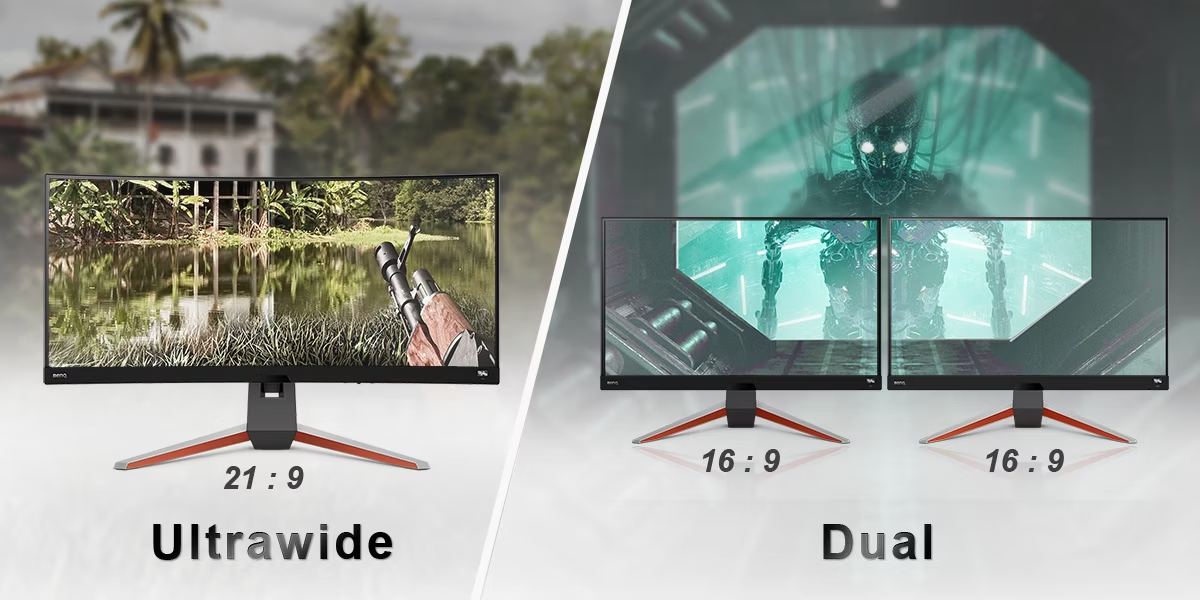
Image source: Bing (Web (fair-use with source credit))
Best Fit: Which Setup Matches Your Trading Style
Day traders and scalpers vs. swing and position traders
Day traders and scalpers need to see multiple timeframes and order books at once. An ultrawide or dual-monitor setup works best here. The extra width lets you keep a 1-minute chart, a 5-minute chart, and a Level 2 window open simultaneously.
Speed matters, so a single screen that requires window switching can slow you down.
Swing and position traders often work with daily or weekly charts. They do not need as many windows open at once. A single 4K monitor can be ideal because it shows more candlestick rows clearly.
You can keep your main chart large and your watchlist visible without feeling cramped. The higher pixel density also makes text easier to read during long analysis sessions.
Multi-asset and news-driven traders
If you trade stocks, forex, and crypto at the same time, screen real estate becomes critical. A super ultrawide (32:9) or a dual-monitor setup lets you dedicate one area to each market. You can watch a forex chart on the left, a stock chart in the middle, and a crypto chart on the right.
This layout reduces the risk of missing a move in one market while focused on another.
News-driven traders often keep a live news feed or TV stream open. A dual-monitor setup works well here because you can put the news on a secondary screen and keep your charts untouched. An ultrawide can also handle this with Picture-by-Picture mode, but you sacrifice chart width.
The key is to match your setup to the number of data sources you monitor at once.
Common Trading Monitor Mistakes to Avoid
Ignoring vertical space and poor ergonomic positioning
The biggest mistake is choosing a monitor based on width alone. A 34-inch ultrawide sounds impressive, but it is only about 13 inches tall. That is less vertical space than a 27-inch 16:9 screen.
If your strategy relies on scanning long watchlists or reading deep order books, you will feel cramped. Always check the physical height of the display, not just the diagonal measurement.
Poor ergonomic positioning is another common error. Placing a large monitor too close forces excessive eye movement. Placing it too far makes text hard to read.
The general rule is to sit at a distance equal to about 1.5 times the diagonal size. For a 34-inch ultrawide, that is roughly 4 feet. Your eyes should naturally hit the center of the screen when looking straight ahead.
Ignoring scaling settings is a third mistake. Running a 3440×1440 ultrawide at 100% scaling makes everything tiny. Running it at 150% scaling reduces your effective workspace.
Most traders find a sweet spot between 110% and 125%, depending on their eyesight and desk distance. Take the time to adjust this before committing to a layout.
Pro Tips for Optimizing Your Trading Layout
Window management tools and display calibration
Window management software is essential for any multi-chart setup. Microsoft PowerToys FancyZones lets you create custom grid layouts that snap into place. DisplayFusion offers more advanced features, including taskbar splitting and monitor-specific wallpapers.
These tools let you define exactly where each window opens, saving time during market hours.
Display calibration matters more than most traders realize. A monitor with poor color accuracy can make volume profiles or heat maps hard to read. Look for a panel with a Delta E rating below 2 for accurate colors.
Many professional monitors come factory-calibrated with a report. If yours does not, a basic calibration tool can make a noticeable difference.
Cable management is often overlooked but affects your daily experience. A single ultrawide reduces cable clutter compared to dual monitors. If you go with two screens, use a monitor arm with built-in cable channels.
This keeps your desk clean and makes it easier to adjust positioning. A clean workspace can help you stay focused during volatile market conditions.
Real Scenarios: How Traders Actually Use Ultrawides
The clean-desk home office vs. the multi-screen command center
In a typical home office, space is limited. A trader might have a laptop, a monitor, and a smartphone all competing for desk room. An ultrawide simplifies this by replacing two monitors with one.
You can keep your laptop open to the side for chat or email while your charts dominate the main display. This setup looks professional on video calls and reduces visual clutter.
In a dedicated trading room, the approach often differs. Professional traders sometimes prefer a multi-screen command center with four or more monitors. Each screen has a dedicated purpose: charts, order execution, news, and account management.
An ultrawide can serve as the centerpiece, flanked by two smaller screens in portrait mode. This hybrid approach gives you the best of both worlds.
Some traders use a super ultrawide as a complete replacement for dual 27-inch monitors. The 49-inch 32:9 format provides the same screen area without a center bezel. It does require more head turning to see the edges, so it works best on a deep desk.
The key is to test your preferred layout before committing to a large purchase.
Pricing, Specs, and Data Breakdown
Entry-level 34-inch ultrawides start around $300. Mid-range models cost $500, $800. Premium OLED versions exceed $1,200.
Dual 27-inch QHD monitors often total $400, $600.
Key specs include resolution, panel type, and curvature. A 3440×1440 IPS panel with 1500R curvature is standard. Brightness of 300 nits or higher ensures visibility.
Frequently Asked Questions
Is a curved monitor better for trading?
Curved monitors reduce eye strain on ultrawides viewed from 2, 3 feet. Flat panels work fine for dual angled screens.
Do I need a powerful graphics card?
Modern integrated GPUs handle 3440×1440 for trading. Dedicated graphics help with multiple monitors.
Can I use an ultrawide with a laptop?
Yes, most laptops with HDMI or DisplayPort can connect. Check your laptop's maximum resolution first.
Final Verdict: Making Your Choice
Choose an ultrawide for a clean, bezel-free workspace. Pick dual monitors for mental separation. Go with single 4K for vertical space and text clarity.
Your trading style, desk size, and budget should guide you.