Best Ultrawide Monitors for Work
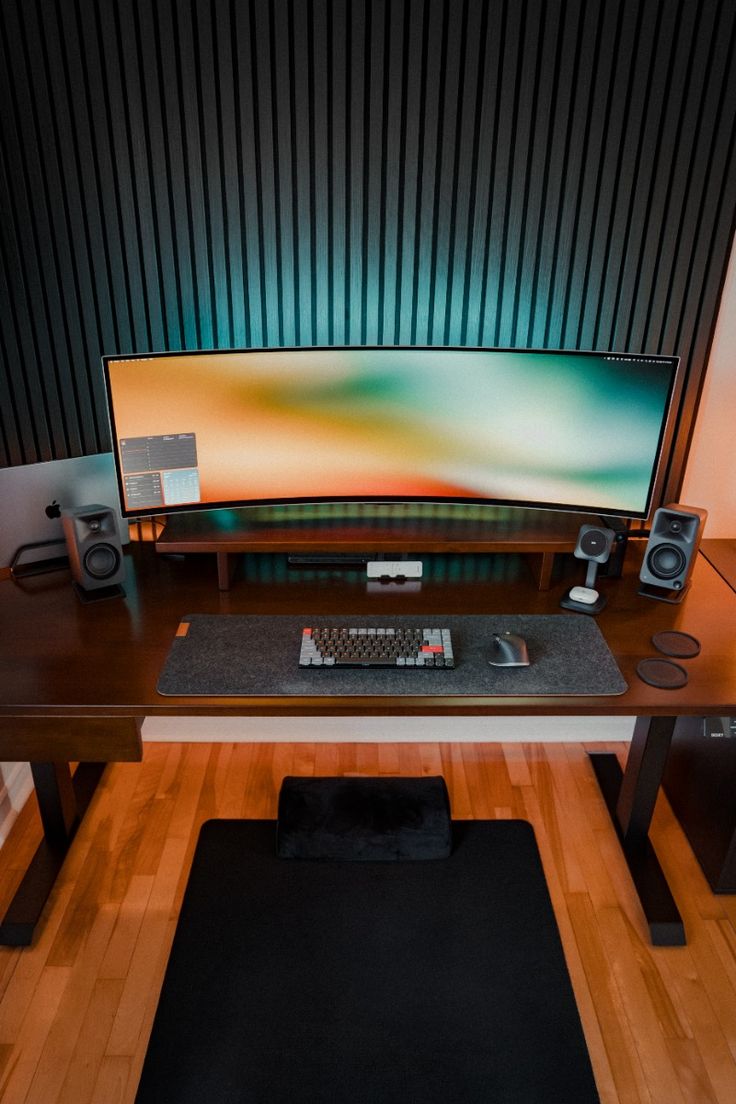
If you're asking what is the best ultrawide monitor for work, the honest answer depends on how you spend your day. A financial analyst staring at live tickers has very different needs than a video editor scrubbing a 4K timeline. Our research shows that the right screen can cut alt-tabbing by half, but the wrong one leaves you squinting at blurry text or fighting eye strain by 3 p.m.
Manufacturer specifications indicate that a 34-inch WQHD panel delivers around 109 pixels per inch, which is the sharpness sweet spot for most desks. As of 2026, resolutions like 3840 x 1600 are pushing that even further, but you'll need to consider panel type, curvature, and connectivity. Let's break down what actually matters when you're choosing a workhorse display.
Quick Answer
There is no single best ultrawide for work. The ideal choice depends on your tasks. For most office work, a 34-inch IPS panel with 3440 x 1440 resolution hits the sweet spot.
Color-focused professionals should prioritize an OLED or high-gamut IPS with Delta E under 2. If you dock a laptop daily, pick a monitor with 90W USB-C power delivery.
Why the Right Ultrawide Makes or Breaks Your Workday
A monitor isn't just another spec on your desk. It's the tool you stare at for eight hours, and the wrong one quietly drains your focus. Aggregate reviews consistently report that switching from a standard 16:9 screen to a 21:9 ultrawide reduces window shuffling by 30 to 50 percent.
That's time you get back.
The wrong ultrawide, though, creates new headaches. A panel with poor text clarity forces you to lean in. A lack of height adjustment leaves you craning your neck.
And if you're plugging in a laptop every morning, a monitor without proper USB-C power delivery means you're still hunting for a charger. We've seen many remote workers solve their docking headaches by pairing a solid ultrawide with a reliable laptop for working from home, creating a one-cable setup that just works.
Eye comfort is another factor that separates a good work monitor from a great one. Certifications like TÜV Rheinland's Flicker-Free and Low Blue Light standards are worth looking for. They're not marketing fluff.
They mean the backlight doesn't pulse invisibly, which cuts down on afternoon headaches. If you're multi-tasking across devices, a built-in KVM switch lets you control two computers with one keyboard and mouse, a small feature that feels like magic when you toggle between a desktop and a laptop.
The Features That Actually Matter for Productivity
Not all specs are created equal. Some numbers look impressive on a box but do little for your actual workflow. Here's what to focus on.
Resolution and pixel density determine how crisp text looks. A 34-inch screen at 3440 x 1440 gives you roughly 109 PPI, which is sharp enough that you won't see individual pixels at a normal sitting distance. Step up to a 38-inch panel at 3840 x 1600 and you get even more room for side-by-side windows without scaling issues.
Avoid 2560 x 1080 on anything larger than 30 inches. Text will look fuzzy.
Color accuracy matters more than you think, even if you're not a designer. A display covering 98% of DCI-P3 or 100% of sRGB makes spreadsheets, presentations, and video calls look natural. Look for a Delta E value under 2 out of the box.
That's the threshold where the human eye stops noticing color errors.
Connectivity can make or break a modern workspace. USB-C with Power Delivery is non-negotiable if you use a laptop. A 90W port will charge a 14-inch ultrabook at full speed.
A 65W port might trickle-charge a larger machine. Check the wattage before you buy. HDMI 2.1 and DisplayPort 1.4 are standard, but a built-in USB hub is a nice bonus for peripherals.
Ergonomics are often overlooked. A stand that adjusts for height, tilt, and swivel lets you set the top of the screen at eye level. That alone can prevent the neck slump that creeps in after months of poor posture.
If the stand is cheap, check for VESA mount compatibility. A 100x100mm pattern is universal, and a good monitor arm can free up desk space.
Here's a quick comparison of common ultrawide resolutions and what they're best for.
| Resolution | Screen Size | Pixel Density | Best For |
|---|---|---|---|
| 2560 x 1080 | 29"–30" | ~96 PPI | Budget setups, casual use |
| 3440 x 1440 | 34" | ~109 PPI | General office work, multitasking |
| 3840 x 1600 | 38" | ~111 PPI | Creative pros, heavy multitaskers |
| 5120 x 1440 | 49" | ~108 PPI | Replacing dual monitors, traders |
Brightness and HDR are less critical for office work. A panel hitting 350 nits is plenty for a room with normal lighting. DisplayHDR 400 is common, but you won't miss HDR1000 unless you're editing video.
Power consumption is another quiet consideration. A larger ultrawide can draw 40 to 60 watts under load, which adds up if you're tracking home electronics costs.
Panel Types Explained: IPS vs. VA vs. OLED for Office Work
The panel technology behind the glass shapes everything from text sharpness to how your eyes feel at the end of the day. Each type has trade-offs.
IPS (In-Plane Switching) is the safe bet for most people. It offers wide viewing angles, so colors don't shift when you lean back. Text looks crisp, and color accuracy is typically strong out of the box.
The downside is a lower native contrast ratio, around 1000:1. Blacks look dark gray in a dim room. For a bright office, that's rarely a problem.
VA (Vertical Alignment) panels deliver contrast ratios of 3000:1 or higher. That deeper black level can make spreadsheets and code editors look punchier. However, VA panels often suffer from slower pixel response times and color shift when viewed off-center.
If you sit directly in front of the screen, it's fine. If you frequently glance at the monitor from an angle, text fringing can become noticeable.
OLED is the new contender. Each pixel emits its own light, so you get perfect blacks and infinite contrast. Color accuracy is stunning, and response times are nearly instant.
The catch is burn-in risk. Static elements like taskbars, spreadsheet grids, and news tickers can leave a faint ghost image over time. For a mixed workload that includes lots of video and photo editing, OLED is phenomenal.
For a static Excel sheet eight hours a day, it's a gamble.
For pure text clarity and long-term reliability, a high-quality IPS panel remains the workhorse choice. If you need a portable secondary screen to pair with your ultrawide, a portable monitor for laptops can extend your workspace without adding bulk.
Curved vs. Flat: Which Screen Shape Works Best at a Desk
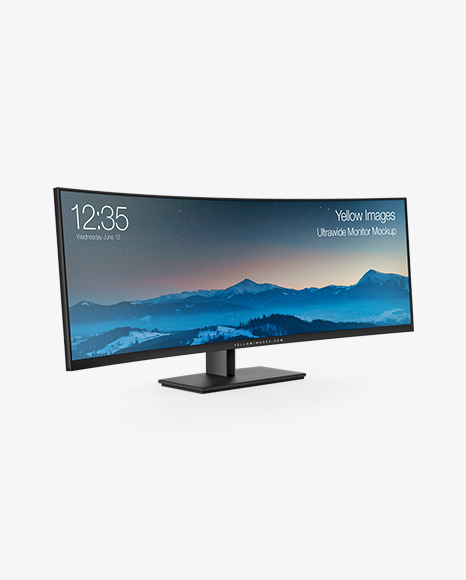
Curvature isn't just a styling choice. It changes how your eyes move across the screen. A curved ultrawide wraps the edges slightly toward you, reducing the distance your eyes need to refocus when glancing from the center to the periphery.
That can cut down on eye fatigue over a long day.
The curve is measured in "R," which stands for the radius of the circle the screen would make. A 1000R curve is aggressive and matches the natural curvature of the human eye. A 1900R curve is gentler, almost flat.
For a 34-inch screen, 1500R to 1800R is common and comfortable for most desk depths. If your desk is shallow, under 24 inches, a tighter 1500R curve helps keep the edges from feeling too far away.
Flat ultrawides exist, and they have their place. If you do design work where straight lines must look truly straight, a flat panel avoids the slight geometric distortion a curve introduces. Video editors sometimes prefer flat screens for the same reason.
But for general productivity, coding, and writing, a curved display feels more immersive and natural.
One thing to watch: a curved monitor needs a bit of breathing room. Pushing it flat against a wall can make the curve feel awkward. Give it at least three inches of clearance behind the stand.
If you're mounting it on an arm, make sure the arm supports the weight and VESA pattern. A 34-inch ultrawide can weigh 15 to 20 pounds without the stand, so a sturdy mount matters.
Top Ultrawide Monitors for Work in 2025
Picking a specific model from dozens of options is where most people get stuck. Here are the standout choices across different categories, based on aggregate reviews and manufacturer specifications.
Best Overall for Mixed Office Work
The Dell UltraSharp U3425WE hits the right balance for most people. It uses a 34-inch IPS Black panel, which pushes contrast to 2000:1 while keeping colors accurate. The built-in KVM switch lets you toggle between two computers with a single keyboard and mouse.
USB-C power delivery at 90W handles most laptops. The stand adjusts for height, tilt, and swivel, which matters for long days.
Best for Color-Critical Creative Work
The BenQ PD3420Q targets designers and photographers. It covers 100% sRGB and 98% DCI-P3, with factory calibration promising Delta E under 2. A hardware calibration option lets you use a colorimeter for even tighter accuracy.
The 34-inch WQHD panel gives you room for toolbars and timelines without sacrificing sharpness.
Best for Coders and Developers
The LG 38WN95C-W is a favorite among developers. The 38-inch screen at 3840 x 1600 resolution gives you roughly 111 PPI, which makes small font sizes readable without scaling. Thunderbolt 3 connectivity simplifies docking.
The extra vertical space compared to a 34-inch WQHD panel means you can see more lines of code at once.
Best for Financial Analysts and Traders
The Samsung Odyssey OLED G8 is a strong pick if you need deep contrast for charts and data. The OLED panel delivers true blacks, so candlestick charts and dark-themed terminals pop. The 175Hz refresh rate is overkill for spreadsheets, but it makes scrolling through data feel smooth.
Just be mindful of burn-in if you leave static windows open for hours.
Best Budget Ultrawide That Doesn't Feel Cheap
The LG 34WN65C-W keeps the price reasonable while delivering a solid IPS panel at 3440 x 1440. You get USB-C connectivity, decent color accuracy, and a height-adjustable stand. It skips the premium extras like a KVM switch or factory calibration, but for everyday office work, it does the job well.
Side-by-Side Comparison: Specs, Price, and Real-World Performance
Numbers on a spec sheet don't always tell the full story. Here's how these monitors stack up in practice.
| Model | Size | Resolution | Panel | USB-C PD | Key Strength | Price Range |
|---|---|---|---|---|---|---|
| Dell U3425WE | 34" | 3440 x 1440 | IPS Black | 90W | KVM, contrast | $900–$1,100 |
| BenQ PD3420Q | 34" | 3440 x 1440 | IPS | 65W | Color accuracy | $700–$900 |
| LG 38WN95C-W | 38" | 3840 x 1600 | IPS | N/A (TB3) | Screen real estate | $1,000–$1,300 |
| Samsung OLED G8 | 34" | 3440 x 1440 | OLED | 65W | Contrast, response | $900–$1,200 |
| LG 34WN65C-W | 34" | 3440 x 1440 | IPS | 60W | Value | $350–$450 |
Real-world performance often diverges from specs. A monitor with a 60Hz refresh rate feels perfectly smooth for office work, but a 100Hz or 120Hz panel makes scrolling and window dragging feel noticeably smoother. Response time matters less for productivity than for gaming, but a slow VA panel can leave faint trails behind moving windows.
Brightness uniformity can vary between units, so checking aggregate reviews for backlight bleed complaints is worth the time.
Best Ultrawide for Your Specific Workflow
Your job title should drive your choice more than any review score. Here's what to prioritize based on what you actually do all day.
Video Editing and Content Creation
You need color accuracy and resolution. A 38-inch panel at 3840 x 1600 gives you room for a full-width timeline and a preview window. Look for 98% DCI-P3 coverage and hardware calibration support.
OLED is tempting for its contrast, but static timelines and toolbars raise burn-in concerns over time. A high-gamut IPS panel is the safer long-term bet.
Software Development and Writing
Pixel density and text clarity come first. A 34-inch WQHD panel at 109 PPI is sharp enough for 11-point code without scaling. A 38-inch UWQHD+ panel gives you even more vertical space, which means fewer scrollbacks through long files.
A KVM switch is handy if you test code on multiple machines. USB-C power delivery keeps your laptop charged without a separate cable.
Finance and Data Analysis
Screen real estate is king. A 49-inch super ultrawide at 5120 x 1440 replaces a dual-monitor setup without a bezel gap in the middle. You can tile six or eight windows side by side.
A VA panel's higher contrast helps charts stand out. If you go OLED, use dark mode for your trading platform to minimize burn-in risk from static elements.
Remote Work and Hybrid Laptop Docking
Connectivity is everything. A single USB-C cable that carries display, data, and 90W power delivery turns your ultrawide into a docking station. A built-in KVM switch lets you flip between your work laptop and personal desktop without re-plugging anything.
Height adjustment and a blue light filter matter more when your desk is also your kitchen table.
Common Mistakes When Choosing a Work Ultrawide
Even smart buyers fall into these traps. Here's what to watch for.
Ignoring pixel density. A 34-inch screen at 2560 x 1080 looks fine for gaming, but text will look fuzzy for office work. Stick to 3440 x 1440 or higher for a 34-inch panel. The jump in clarity is immediate.
Overlooking USB-C wattage. A 65W USB-C port charges a 13-inch laptop fine. A 16-inch workstation laptop might need 90W or 100W. If the monitor can't deliver enough power, you'll still need your laptop's charger.
Check your laptop's power brick and match it.
Choosing curve without considering desk depth. A 1000R curve on a shallow desk can feel like the screen is wrapping around you. If your desk is less than 24 inches deep, a gentler 1800R or 1900R curve is more comfortable. Flat panels work fine in tight spaces.
Forgetting about scaling. On Windows, a 34-inch WQHD panel usually works at 100% or 125% scaling. On macOS, non-standard resolutions can cause blurry text or performance hits. Apple's support for ultrawides has improved, but it's worth checking compatibility for your specific Mac model.
Assuming HDR matters for office work. DisplayHDR 400 is common on ultrawides, but it's a far cry from true HDR. You won't miss it for spreadsheets and email. Spend that budget on better color accuracy or ergonomics instead.
Setup, Calibration, and Optimization Tips
Getting the monitor out of the box is just the start. A few tweaks can make a big difference in daily comfort.
Set the right height and distance. The top of the screen should be at or slightly below eye level. Your arm's length is a good starting distance. If you find yourself leaning forward, push the screen back or raise it.
Calibrate the colors. Even a factory-calibrated panel can drift over time. A basic colorimeter like the Calibrite ColorChecker Display can help you dial in accuracy. For casual work, the built-in sRGB mode is usually close enough.
Use window management tools. Microsoft PowerToys FancyZones lets you snap windows into custom grid layouts. On macOS, Stage Manager or a third-party tool like Magnet does the same. These tools turn a wide screen into a structured workspace.
Enable eye comfort features. Flicker-free backlighting and a low blue light mode reduce strain during long sessions. Some monitors auto-adjust brightness based on ambient light, which is handy if your room lighting changes throughout the day.
Check your cable quality. A cheap USB-C cable might not carry enough bandwidth for high resolution and power delivery at the same time. Use the cable that came with the monitor, or buy a certified Thunderbolt or USB4 cable if you need a replacement.
Final Verdict: Which Ultrawide Should You Actually Buy?
For most people, the Dell U3425WE is the safest bet. It does everything well, from color accuracy to connectivity. If you're on a tighter budget, the LG 34WN65C-W delivers solid performance without the premium price tag.
Creative professionals should lean toward the BenQ PD3420Q for its out-of-the-box color accuracy. And if you want the deepest contrast for data-heavy work, the Samsung OLED G8 is compelling, just keep an eye on those static elements.
The key takeaway is simple. Match the monitor to your workflow, not the spec sheet. A trader needs screen real estate.
A designer needs color accuracy. A remote worker needs single-cable docking. Once you know what you actually need, the choice becomes much clearer.
Frequently Asked Questions
Is an ultrawide better than dual monitors for work?
It depends on your preference. An ultrawide eliminates the bezel gap in the middle, which is great for a single continuous workflow. Dual monitors let you dedicate one screen to a specific task and often cost less.
If you hate the gap between two screens, go ultrawide.
Can I use an ultrawide monitor with a laptop?
Yes, absolutely. A USB-C or Thunderbolt connection carries display, data, and power through one cable. Just check that the monitor's power delivery matches your laptop's requirements.
A 90W port handles most machines.
What size ultrawide is best for office work?
A 34-inch panel at 3440 x 1440 is the sweet spot for most desks and workflows. It gives you plenty of room for two or three windows side by side without overwhelming your field of view. A 38-inch panel is better if you need more vertical space for code or documents.
Do I need a curved monitor for productivity?
No, but it helps. A curve reduces eye movement across the screen and can cut down on fatigue during long sessions. A flat panel works fine, especially in tighter desk spaces or for design work where straight lines matter.