What Size Ultrawide Monitor Should You Buy?
If you're wondering what is the best size for an ultrawide monitor, you're not alone. The answer isn't one-size-fits-all. It hinges on how deep your desk is and what you actually do with your screen.
A 34-inch model might be perfect for a compact setup, while a 49-inch super ultrawide could overwhelm the same space.
Manufacturer specifications and ergonomic guidelines, like those from VESA, suggest a minimum viewing distance of about 20 inches for a 34-inch display. That number climbs to 30 inches or more for a 49-inch panel. Getting this wrong leads to neck strain and a wasted investment.
Let's break down which size fits your real-world setup.
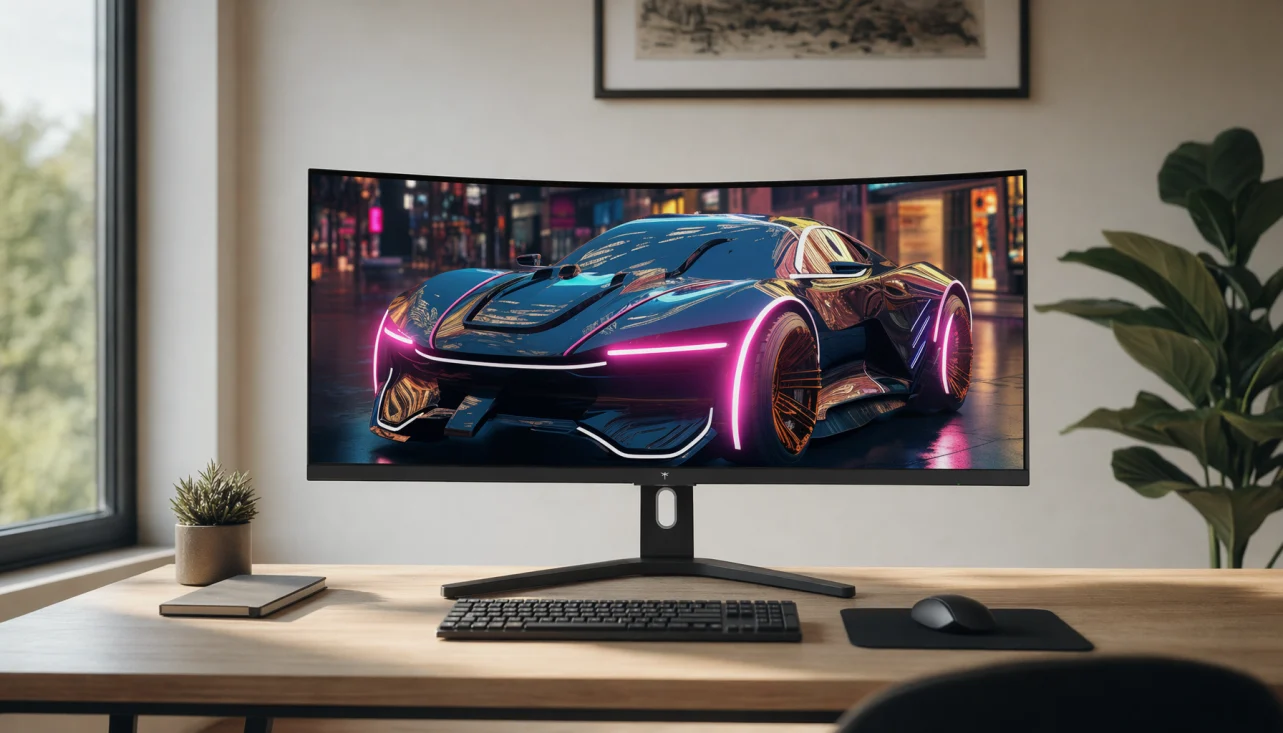
Image source: Bing (Web (fair-use with source credit))
The Short Answer: Best Ultrawide Size by Desk Depth and Use Case
Your desk depth is the single biggest factor. Measure from the wall to the front edge of your desk. Then match it to these ranges.
| Desk Depth | Recommended Size | Why It Works |
|---|---|---|
| 20–24 inches | 34-inch | Fits comfortably at arm's length. No head turning needed. |
| 24–28 inches | 38-inch | Extra vertical space for timelines and documents. Still manageable. |
| 28–32 inches | 49-inch | Replaces dual 27-inch monitors. Requires a deep desk. |
| 32+ inches | 57-inch | Niche use. Needs a very deep desk and a powerful GPU. |
Use case matters too. A 34-inch 3440×1440 panel is the sweet spot for mixed gaming and productivity. A 38-inch 3840×1600 gives video editors more timeline room.
A 49-inch 5120×1440 is a dual-monitor replacement for traders and coders. A 57-inch 7680×2160 is a specialty item for simulation enthusiasts.
Why Ultrawide Size Actually Matters More Than You Think
Size directly affects pixel density, curvature, and how your neck feels after a long day. A larger screen with the same resolution spreads pixels over a bigger area. That lowers pixels per inch (PPI).
Text looks softer. Fine details in photos lose crispness.
Curvature radius changes with size. A 34-inch panel often uses a 1800R or 1900R curve. A 49-inch screen might use a 1000R curve to wrap the image around you.
The tighter the curve, the more desk depth you need to keep the edges from feeling distorted.
Ergonomic standards from VESA display standards recommend keeping the screen at a distance where your eye can focus without strain. If you sit too close to a large ultrawide, you'll constantly turn your head. That leads to fatigue.
A smaller screen on a shallow desk can be just as uncomfortable if you're too far back and squinting.
Power draw also scales with size. A 49-inch super ultrawide can pull 60 to 100 watts under load. That adds to your monthly energy costs.
A 34-inch model typically sips 30 to 45 watts. Over a year, the difference is noticeable.
The Main Contenders: 34-Inch, 38-Inch, 49-Inch, and 57-Inch Explained
Each size occupies a distinct niche. Here's what you need to know before you buy.
34-Inch (3440×1440) — The Sweet Spot for Most Desks
The 34-inch ultrawide is the default recommendation for good reason. It fits on desks as shallow as 20 inches. The 3440×1440 resolution delivers around 109 PPI.
Text is sharp enough for long coding sessions. Games look immersive without overwhelming your peripheral vision.
Most 34-inch models use an IPS panel with a 1800R or 1900R curve. That gentle curve reduces glare and keeps the corners from feeling far away. Refresh rates range from 60Hz for office work to 180Hz for gaming.
Prices start around $350 for budget options and climb to $1,200 for premium OLED variants.
If your desk is tight, you can always add a portable secondary display for extra screen real estate. That's a cheaper fix than jumping to a larger ultrawide.
38-Inch (3840×1600) — The Productivity Power-Up
The 38-inch size adds vertical space. The 3840×1600 resolution gives you the same width as a 34-inch but with 160 extra vertical pixels. That means more lines of code, longer spreadsheet rows, and a taller timeline in video editors.
Pixel density sits around 111 PPI. It's a small bump over 34-inch, but the extra height makes a bigger difference in daily use. These monitors often use a 2300R curve, which is flatter than smaller ultrawides.
That makes them better for design work where straight lines matter.
You'll need at least 24 inches of desk depth. The stand on a 38-inch model is deep. A monitor arm can reclaim some space.
Pair it with a reliable work-from-home laptop and you have a clean, single-cable docking setup.
49-Inch (5120×1440) — The Dual-Monitor Replacement
A 49-inch super ultrawide is essentially two 27-inch 1440p monitors fused together without a bezel. The 5120×1440 resolution matches that dual setup pixel for pixel. PPI is around 111, identical to a 27-inch 1440p screen.
This size demands a desk at least 28 inches deep. The curve is usually 1000R or 1800R. A 1000R curve matches the natural curvature of the human eye.
It pulls you into the image. But it also means the screen wraps far around you. You'll need to turn your head to see the far edges.
Game support is mixed. Many modern titles handle 32:9 beautifully. Older games and some competitive shooters stretch the image or crop the UI.
Check your favorite games before committing.
57-Inch (7680×2160) — The Niche Beast for Immersion
The 57-inch ultrawide is a rare animal. It packs a 7680×2160 resolution, which is two 4K screens side by side. PPI hits around 140.
That's sharper than a 32-inch 4K monitor. Text is incredibly crisp.
You need a massive desk, at least 32 inches deep. The weight can exceed 30 pounds. A heavy-duty monitor arm is almost mandatory.
These panels are typically IPS or VA with a 1500R curve. They're aimed at flight simmers, day traders with many charts, and developers who want an entire IDE visible at once.
Prices start above $2,000. You'll also need a top-tier GPU to drive that resolution in games. For most people, a 49-inch or a dual 4K setup is more practical.
Side-by-Size Comparison: Desk Depth, PPI, and Real-World Fit
Here's a direct comparison to help you visualize the differences.
| Size | Resolution | PPI | Min Desk Depth | Weight (with stand) | Price Range (2026) |
|---|---|---|---|---|---|
| 34-inch | 3440×1440 | 109 | 20 inches | 12–18 lbs | $350–$1,200 |
| 38-inch | 3840×1600 | 111 | 24 inches | 15–22 lbs | $700–$1,500 |
| 49-inch | 5120×1440 | 111 | 28 inches | 20–30 lbs | $900–$2,200 |
| 57-inch | 7680×2160 | 140 | 32 inches | 25–35 lbs | $2,000–$3,500 |
The diagram below shows how each size sits on a standard 60-inch-wide desk. Notice how the 49-inch and 57-inch models extend far back. You need to push them to the very edge to achieve a comfortable viewing distance.

Image source: Web (Bing) / theworkspacehero.com (Web image (fair-use with source credit))
OSHA's computer workstation guidelines recommend keeping the monitor at a distance where you can read the screen without leaning forward. For a 34-inch, that's roughly 20 to 24 inches. For a 49-inch, it's 28 to 32 inches.
If your desk is shallower than these minimums, you'll end up sitting too close.
Timing your purchase can save money. The best time to buy a display often aligns with holiday sales and new model releases. Ultrawide monitors follow similar pricing patterns to TVs.
Best Size for Gaming: Immersion vs. Competitive Edge
For pure immersion, a 34-inch or 49-inch ultrawide is hard to beat. The wide field of view pulls you into racing games, flight sims, and open-world adventures. A 34-inch 3440×1440 panel with a 144Hz or 165Hz refresh rate is the most popular choice.
It balances visual impact with performance demands.
A 49-inch super ultrawide takes immersion further. The 32:9 aspect ratio fills your peripheral vision. But not all games support it natively.
Some stretch the 16:9 image. Others crop the top and bottom. Check community forums for your favorite titles before buying.
Competitive gamers often avoid ultrawides. A 27-inch 16:9 monitor with a 240Hz or 360Hz refresh rate is faster and easier to scan. You don't need to move your head to see the minimap.
If you play a lot of esports titles, a standard 27-inch might serve you better.
Driving a 49-inch 1440p display at high frame rates requires serious graphics power. You'll want a gaming-capable laptop or a desktop with at least an RTX 4070-class GPU. A 34-inch is easier to drive.
Even mid-range cards can push high frame rates at 3440×1440.
Curvature also affects gaming feel. A 1000R curve on a 49-inch screen wraps the action around you. It's incredible for sim racing.
But in fast-paced shooters, the curve can distort crosshair placement at the edges. A gentler 1800R curve on a 34-inch is less distracting.
Best Size for Productivity: Coding, Trading, and Spreadsheets
For coding and software development, a 38-inch 3840×1600 panel is the current favorite. The extra vertical resolution shows more lines of code without scrolling. You can have your IDE, terminal, and browser visible side by side.
A 34-inch works, but you'll find yourself alt-tabbing more often.
Day traders and financial analysts lean toward 49-inch super ultrawides. The 32:9 aspect ratio lets you tile multiple chart windows and data feeds. You can watch a full Bloomberg terminal layout without bezel interruptions.
Some traders even run a 57-inch for an entire wall of market data.
Spreadsheet warriors benefit from the same logic. A 49-inch screen shows an entire wide spreadsheet without horizontal scrolling. If you work with massive Excel files, the extra width pays for itself in reduced scrolling time.
Window management software becomes essential at these sizes. Microsoft PowerToys FancyZones, DisplayFusion, or Magnet let you snap windows into custom zones. Without it, you'll waste time manually resizing windows.
A 34-inch is more forgiving. You can get away with basic snap-to-edge tools.
If you're managing multiple connected devices in your workspace, consider how the monitor's USB hub integrates. Many ultrawides include a built-in KVM switch. That lets you toggle between your desktop and laptop with a single button.
It's a cleaner solution than juggling separate peripherals.
Best Size for Creative Work: Video Editing, Photo, and Design
Video editors need vertical space for timelines. A 38-inch 3840×1600 panel gives you a tall preview window with room for tracks below. A 34-inch forces you to stack the timeline and preview horizontally.
That cramps both. A 49-inch is overkill unless you're editing 8K footage with massive timelines.
Photo editors should prioritize pixel density over raw size. A 34-inch 3440×1440 panel at 109 PPI is decent. But a 57-inch 7680×2160 at 140 PPI is sharper. The catch is that 57-inch panels are rare and expensive. Most photo editors settle for a 38-inch or a high-PPI 34-inch with factory calibration.
Graphic designers and illustrators face a unique challenge. Curved screens distort straight lines. A flat 34-inch or 38-inch is better for layout work.
If you go curved, choose a gentle 1900R or 2300R radius. Avoid 1000R curves for design work. The distortion at the edges makes it hard to judge alignment.
Color accuracy matters more than size for creative work. Look for panels covering 98% DCI-P3 or 100% sRGB. Factory calibration with a Delta E below 2 is ideal.
Many ultrawides ship with decent out-of-box accuracy. But a hardware calibrator is still worth the investment for professional work.
The Curvature Factor: How Radius Changes the Size Experience
Curvature radius is measured in millimeters. A 1000R curve means the screen forms a circle with a 1000mm radius. The lower the number, the tighter the curve.
A 1800R curve is gentler. A flat panel has no curve at all.
Size and curvature are linked. A 34-inch panel with a 1000R curve would feel like looking through a peephole. That's why smaller ultrawides use gentler curves.
A 49-inch panel with 1800R would look almost flat at that width. The curve wouldn't wrap around you effectively.
The right curvature reduces eye strain. Your eyes don't have to refocus when looking at the edges. A 1000R curve matches the natural curvature of the human eye.
That's why many 49-inch super ultrawides use it. But it also means you need to sit centered. Off-axis viewing distorts the image.
For mixed work and gaming, a 1800R or 1900R curve is the sweet spot. It provides immersion without distortion. A 34-inch 1800R panel is comfortable for eight-hour work sessions.
A 49-inch 1000R panel is thrilling for racing games but tiring for spreadsheets.
Flat ultrawides exist but are rare. They're preferred by photographers and designers who need straight lines. If you do precision work, a flat 34-inch or 38-inch is worth seeking out.
You'll sacrifice some immersion for accuracy.
Common Mistakes When Choosing an Ultrawide Size
The biggest mistake is buying based on specs alone. A 49-inch monitor looks impressive on paper. But if your desk is only 22 inches deep, you'll hate it.
Always measure your desk depth before shopping.
Another mistake is ignoring pixel density. A 49-inch 5120×1440 panel has the same PPI as a 27-inch 1440p screen. That's fine if you sit at a normal distance.
But if you push it close for gaming, text looks soft. A 34-inch 3440×1440 panel is sharper at typical viewing distances.
Game compatibility catches many buyers off guard. Not all titles support 21:9 or 32:9. Some stretch the image.
Others crop the UI. Competitive shooters often lock the field of view. Check your game library before committing to a super ultrawide.
Underestimating GPU requirements is another pitfall. Driving 5120×1440 at high refresh rates demands serious graphics power. A mid-range card might handle 3440×1440.
But 5120×1440 or 7680×2160 needs a flagship GPU. Factor that into your budget.
People also forget about VESA mount compatibility. A 49-inch monitor can weigh 30 pounds. Your monitor arm needs to support that weight.
Check the VESA pattern and weight capacity before buying. A sagging arm ruins the setup.
Finally, don't overlook power and surge protection. A premium ultrawide is a significant investment. A quality surge protector or UPS safeguards it from electrical spikes.
Expert Tips: Viewing Distance, PPI, and Neck Strain
The optimal viewing distance is roughly 1.5 times the screen diagonal. For a 34-inch, that's about 42 inches. For a 49-inch, it's about 61 inches.
If your desk is too shallow, you'll sit closer than ideal. That increases eye fatigue.
Pixel density targets depend on your work. For text-heavy tasks, aim for at least 100 PPI. A 34-inch 3440×1440 panel hits 109 PPI.
A 49-inch 5120×1440 panel hits 111 PPI. Both are sharp enough. A 29-inch 2560×1080 panel drops to 81 PPI.
That's noticeably softer.
Neck strain comes from excessive head turning. A 34-inch panel sits within your natural field of view. You can see the whole screen with minimal head movement.
A 49-inch panel requires turning your head to see the far edges. Over a full workday, that adds up.
Monitor arms help tremendously. They let you push the screen back and adjust the height. A 34-inch on an arm can sit at the back of a shallow desk.
A 49-inch on an arm can be pulled closer for gaming and pushed back for work. The flexibility is worth the cost.
Blue light and flicker matter for long sessions. Look for TÜV Rheinland certification for flicker-free and low blue light. Many ultrawides now include these features.
They reduce eye strain during extended use.
If you're using smart home devices in your office, consider how the monitor's built-in USB hub integrates. Some ultrawides include a KVM switch. That lets you share peripherals between your desktop and laptop.
It's a cleaner setup than separate docks.
Final Decision Guide: Which Size Should You Actually Buy?
Here's a straightforward decision framework based on your situation.
Choose a 34-inch if:
- Your desk is 20 to 24 inches deep
- You want a balance of gaming and productivity
- You prefer sharper text at typical viewing distances
- You're on a moderate budget
Choose a 38-inch if:
- Your desk is 24 to 28 inches deep
- You need extra vertical space for timelines or code
- You want a premium productivity panel
- You do mixed creative and office work
Choose a 49-inch if:
- Your desk is 28 to 32 inches deep
- You want to replace a dual-monitor setup
- You're a trader, coder, or sim gamer
- You have a powerful GPU
Choose a 57-inch if:
- Your desk is 32+ inches deep
- You need maximum immersion for simulation work
- You want the sharpest text possible
- Budget is not a primary concern
If you're still unsure, start with a 34-inch. It's the most versatile size. You can always upgrade later.
A 34-inch 3440×1440 panel handles gaming, productivity, and creative work well. It's the safest bet for most people.
Remember that monitor technology evolves fast. OLED ultrawides are becoming more common. They offer perfect blacks and faster response times.
But they're still expensive. If you can wait, the market will offer more options at lower prices.
Frequently Asked Questions About Ultrawide Monitor Sizes
Is a 34-inch ultrawide big enough for gaming?
Yes, for most people. A 34-inch 3440×1440 panel provides an immersive field of view without overwhelming your peripheral vision. It fits on standard desks and doesn't require a top-tier GPU.
Competitive players might prefer a faster 27-inch 16:9 panel, but for immersive single-player games, 34 inches is ideal.
Can I use a 49-inch ultrawide for office work?
Absolutely. A 49-inch super ultrawide replaces a dual 27-inch setup. You can tile multiple windows side by side.
It's excellent for spreadsheets, coding, and trading. Just make sure your desk is at least 28 inches deep. Otherwise, you'll sit too close and strain your eyes.
What's the difference between 1000R and 1800R curvature?
1000R is a tighter curve that matches the natural curvature of the human eye. It wraps the image around you more aggressively. 1800R is gentler and better for mixed work. A 1000R curve on a 49-inch panel is immersive for gaming.
A 1800R curve on a 34-inch panel is more comfortable for productivity.
Do ultrawides work well with laptops?
Yes, but check your laptop's output capabilities. Driving 3440×1440 requires DisplayPort 1.2 or HDMI 2.0. For 5120×1440, you need DisplayPort 1.4 or HDMI 2.1.
Many modern laptops support these. A single USB-C cable with DisplayPort Alt Mode and power delivery is the cleanest solution.
How much desk depth do I need for a 38-inch ultrawide?
You need at least 24 inches of desk depth. The stand on a 38-inch model is deep. A monitor arm can reclaim some space.
If your desk is shallower than 24 inches, consider a 34-inch instead. You'll avoid neck strain from sitting too close.
Is a 57-inch ultrawide worth the price?
Only for specific use cases. If you're a flight simmer, day trader, or developer who wants an entire IDE visible, it's incredible. For general use, it's overkill.
The price is high, and you need a powerful GPU to drive 7680×2160. Most people are better served by a 49-inch or dual 4K setup.