Can You Transfer Data on Multiple Devices Using Smart Switch? Discover How!
Are you wondering if you can transfer your important data to multiple devices at once using Smart Switch? Managing files, contacts, and photos across several gadgets can be tricky and time-consuming.
Imagine a simple way to move everything you need quickly and securely without juggling cables or apps. You’ll discover exactly how Smart Switch works when it comes to multiple devices—and whether it’s the solution you’ve been searching for. Keep reading to find out how to make your data transfer smoother than ever.
What Is Smart Switch?
Smart Switch is a tool designed to help transfer data between devices easily. It is mainly used to move contacts, photos, messages, and more. The tool supports quick and safe data transfer without losing any information.
Many people use Smart Switch when switching to a new phone. It works with different devices and helps keep data organized. The process is simple and does not require technical skills.
How Does Smart Switch Work?
Smart Switch connects two devices using Wi-Fi, USB cable, or computer software. It detects the data on the old device and copies it to the new one. The transfer happens fast and keeps the original files intact.
Supported Devices And Data Types
- Smartphones from various brands
- Contacts and call logs
- Photos and videos
- Messages and calendar events
- Apps and settings
Benefits Of Using Smart Switch
- Simple and user-friendly interface
- Supports wireless and wired transfers
- Works with both Android and iOS devices
- Helps keep data safe during transfer
- Reduces setup time on new devices
Compatibility Across Devices
Smart Switch offers a smooth way to transfer data across multiple devices. Its compatibility plays a big role in how well it works. Understanding which devices and operating systems support Smart Switch helps users avoid problems. It also ensures a quick and easy data transfer process.
Supported Devices
Smart Switch supports a wide range of devices. Most Samsung Galaxy phones and tablets are compatible. Older Samsung models work too, but some features may be limited. Other Android phones can use Smart Switch, but with fewer functions.
It also supports transferring data from iPhones. Contacts, messages, photos, and other files move easily to Samsung devices. Compatibility depends on the model and software version of the devices involved.
Operating System Requirements
- Android devices need at least version 4.3 or higher.
- iOS devices require iOS 5.0 or newer for data transfer.
- Windows PCs should have Windows 7 or later for the desktop app.
- Mac computers need macOS 10.6 or later to use Smart Switch.
Meeting these requirements ensures a smooth connection and transfer. Devices outside these limits may face issues or fail to connect. Keeping devices updated improves compatibility and transfer speed.
Data Transfer Capabilities
Smart Switch offers powerful data transfer capabilities that let you move your important information between devices with ease. Whether you’re upgrading your phone or managing multiple devices, understanding what data you can transfer and how quickly it happens is crucial. Let’s look at the details that make Smart Switch a reliable tool for your digital life.
Types Of Data Transferable
Smart Switch supports a wide range of data types. You can transfer contacts, messages, call logs, photos, videos, music, and even app data. This means you don’t have to worry about losing your essential files or settings when switching devices.
It also handles calendar events and documents, which is great if you use your phone for work or planning. If you’ve ever manually moved files one by one, you’ll appreciate how Smart Switch bundles everything together.
Are there specific types of data you find hardest to transfer? Knowing what Smart Switch covers can save you time and frustration.
Speed And Efficiency
Smart Switch uses a fast wireless connection or a USB cable to transfer data, depending on your preference. Using a cable usually speeds up the process, especially for large files like videos and apps.
In my experience, transferring over Wi-Fi took just a few minutes for typical data amounts. However, very large transfers can take longer, so patience might be necessary if you have tons of content.
Smart Switch also minimizes interruptions by allowing you to continue using your device during transfer. This efficiency is a big plus if you can’t afford downtime.

Credit: www.youtube.com
Setting Up Smart Switch
Setting up Smart Switch is the first crucial step to smoothly transfer data between multiple devices. This tool makes moving your contacts, photos, messages, and other important files easier than ever. Understanding how to get started ensures you avoid common pitfalls and save time during the transfer process.
Initial Setup Steps
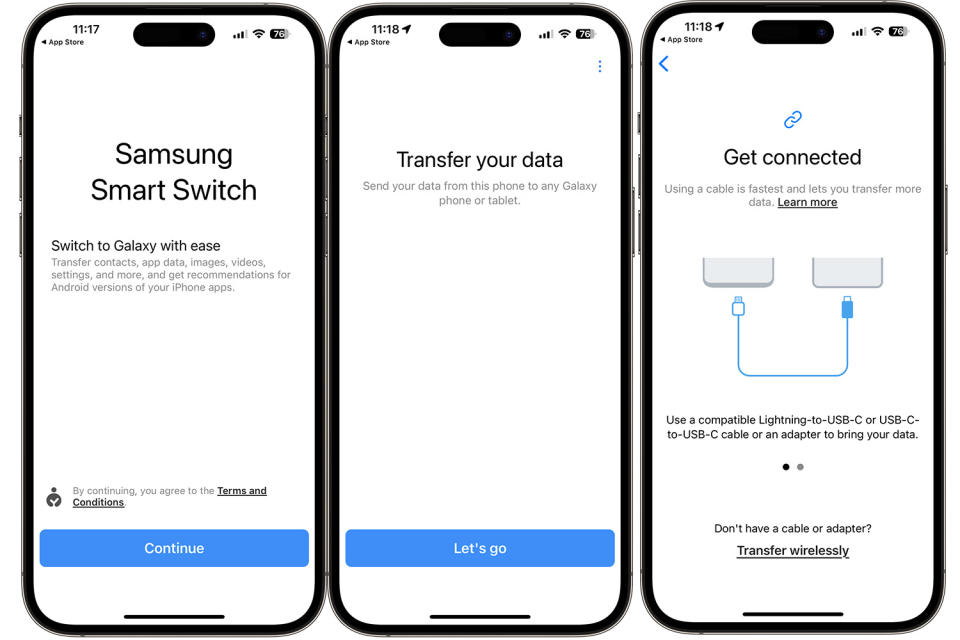
Begin by downloading the Smart Switch app on both your old and new devices. It’s available on the Google Play Store and Samsung Galaxy Store, depending on your device. Once installed, open the app and grant the necessary permissions it requests to access your data.
Next, decide whether you want to transfer data wirelessly or through a cable connection. The app will guide you through connecting the devices, either by detecting nearby devices or prompting you to plug in a cable. Keep your devices close together if you choose wireless transfer to maintain a stable connection.
Have you checked that both devices have enough battery? A power interruption during data transfer can cause failures or partial data loss. Plugging in your devices or ensuring they’re sufficiently charged before starting is a smart move.
Wi-fi And Cable Options
Smart Switch supports both Wi-Fi and USB cable options for data transfer, each with its benefits. Wireless transfers offer convenience, allowing you to move data without extra cables. However, they can be slower and more prone to interruptions if your Wi-Fi signal fluctuates.
Using a USB cable typically results in faster and more reliable transfers. If you have a compatible USB-C or micro-USB cable, connecting your devices directly is a straightforward way to avoid potential wireless hiccups. This method is especially helpful if you’re transferring large files or lots of data.
Think about your environment and what’s available—Do you have a steady Wi-Fi connection, or is a cable within reach? Your choice impacts how smoothly your transfer will go. Testing both methods on smaller data sets first can help you decide which works best for you.
Transferring Data Between Phones
Transferring data between phones is essential when upgrading devices or sharing information. Smart Switch simplifies this process, allowing smooth transfer of contacts, messages, photos, and more. It supports various devices and connection methods to fit user needs.
Phone To Phone Transfer
Smart Switch enables direct transfer from one phone to another. Connect devices via Wi-Fi or USB cable for faster, secure sharing. It moves important data like:
- Contacts
- Messages
- Photos and videos
- Apps and settings
This method avoids manual copying and saves time. The transfer happens quickly and safely without data loss.
Old To New Device Migration
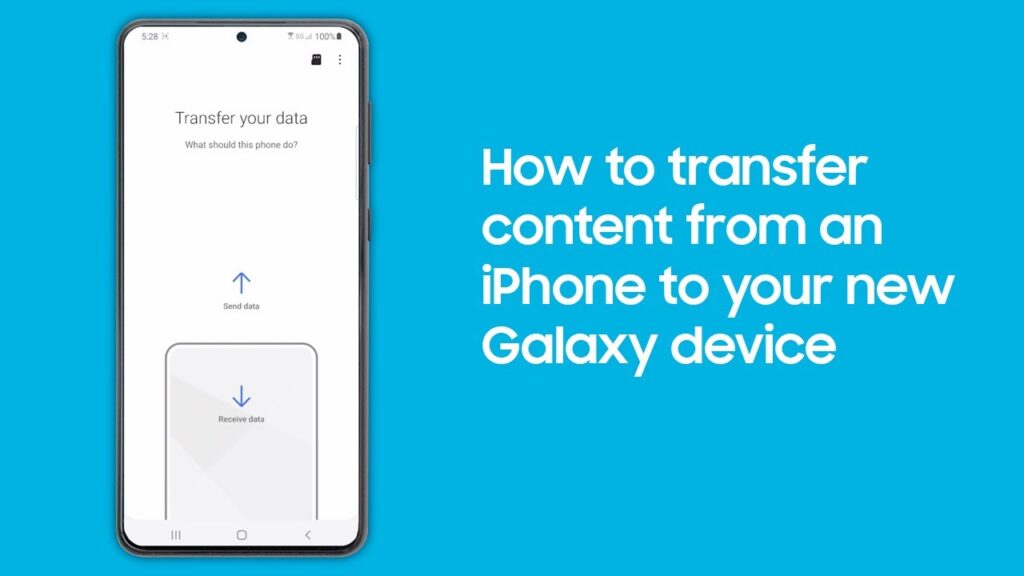
Switching to a new phone becomes easy with Smart Switch. It migrates data from the old device automatically. Follow simple steps to start the migration and keep your data intact.
- Back up the old phone data
- Connect to the new device
- Choose data to transfer
- Begin the migration process
This process helps users start fresh without losing personal files or settings. It works across different phone brands and models, making it versatile.
Credit: insights.samsung.com
Using Smart Switch With Tablets
Using Smart Switch with tablets opens up convenient ways to manage and transfer your data. Whether you’re upgrading to a new tablet or simply want to sync information between devices, Smart Switch offers a seamless experience. Understanding how to use this tool effectively can save you time and avoid data loss.
Compatibility Of Smart Switch With Different Tablets
Smart Switch works primarily with Samsung tablets, but it also supports data transfer from other Android and iOS devices. You can move contacts, photos, messages, and even app data depending on the tablet’s model and operating system. Checking your tablet’s compatibility beforehand ensures a smooth transfer without unexpected issues.
How To Transfer Data Between Tablets Using Smart Switch
Start by installing Smart Switch on both tablets. Connect them via Wi-Fi or a USB cable, depending on what’s available and convenient for you. You’ll be guided through selecting the data types you want to transfer, making it easy to customize what moves over.
Limitations And Tips For Tablet Data Transfers
Not all data types transfer perfectly, especially apps and certain system settings. It’s best to double-check after the transfer to ensure important files are intact. If you encounter issues, restarting both tablets or trying a different connection method often helps.
Practical Uses For Smart Switch On Tablets
- Switching to a new tablet without losing your files
- Backing up data before a system update
- Sharing photos and contacts quickly between family devices
Have you ever needed to move data between tablets last minute? Smart Switch can be a lifesaver when you’re in a rush but want to keep everything organized.
Troubleshooting Common Issues
Transferring data on multiple devices using Smart Switch can be a smooth process, but sometimes issues pop up that slow you down. Knowing how to troubleshoot common problems helps you save time and avoid frustration. Let’s look at some typical challenges and practical ways to fix them.
Connectivity Problems
One of the most frequent issues is connectivity trouble between devices. This can happen if the Wi-Fi or USB connection is unstable or not set up correctly.
- Make sure both devices are connected to the same Wi-Fi network if using wireless transfer.
- Check USB cables for damage and use original or high-quality replacements.
- Restart both devices to refresh their network settings.
- Turn off any VPNs or firewalls that might block the connection.
Have you ever tried to transfer data only to find the devices won’t recognize each other? Often, a quick restart or switching from wireless to wired connection resolves this instantly.
Data Transfer Interruptions
Transfers can stop unexpectedly, leaving you wondering if your data is safe or if you need to start over. Interruptions usually come from low battery, app crashes, or unstable connections.
- Keep your devices fully charged or plugged in during the transfer.
- Close other apps running in the background that might interfere with Smart Switch.
- Try transferring smaller batches of data if the interruption keeps happening.
- Update Smart Switch to the latest version for improved stability.
Have you noticed interruptions mostly happening with large files or numerous photos? Splitting your data into smaller groups can make the process more reliable and less stressful.
Credit: www.yahoo.com
Tips For A Smooth Transfer
Transferring data between multiple devices using Smart Switch can be quick and easy. Certain steps help avoid common issues and make the process smooth. Careful preparation and proper backup methods reduce the chance of data loss. Follow simple tips to keep your data safe and ensure a fast transfer.
Preparing Devices
- Charge both devices to at least 50% before starting.
- Install the latest version of Smart Switch on all devices.
- Turn off any apps running in the background to save power.
- Connect devices to a stable Wi-Fi network or use a USB cable.
- Clear unnecessary files to free up storage space.
- Restart devices to refresh system memory and improve speed.
Backup And Restore Tips
- Create a full backup of your old device before transfer.
- Use Smart Switch’s backup feature to save contacts, photos, and messages.
- Verify the backup file size to ensure all data is saved.
- Restore data in small batches if transferring large files.
- Keep devices close during the transfer to avoid interruptions.
- Check data after transfer to confirm everything moved correctly.
Frequently Asked Questions
Can Smart Switch Transfer Data To Multiple Devices Simultaneously?
No, Smart Switch transfers data between two devices at a time. You must repeat the process for each device separately.
Which Data Types Can Smart Switch Transfer Between Devices?
Smart Switch transfers contacts, messages, photos, videos, apps, and settings. It supports most essential data for seamless device migration.
Is Smart Switch Compatible With All Device Brands?
Smart Switch primarily supports Samsung devices but also transfers data from Android and iOS devices to Samsung phones.
How Long Does Data Transfer Take Using Smart Switch?
Transfer time varies based on data size and connection type. Small transfers take minutes; large files may take longer.
Conclusion
Smart Switch helps move data between devices quickly and simply. You can transfer photos, contacts, and messages with ease. It supports many Samsung models and works across different devices. Using it saves time and avoids manual copying. Just follow clear steps to connect and transfer your files.
This tool fits well for anyone changing phones or backing up data. Keep your important information safe and ready on all devices. Smart Switch offers a straightforward way to manage your digital life. Simple, fast, and reliable.