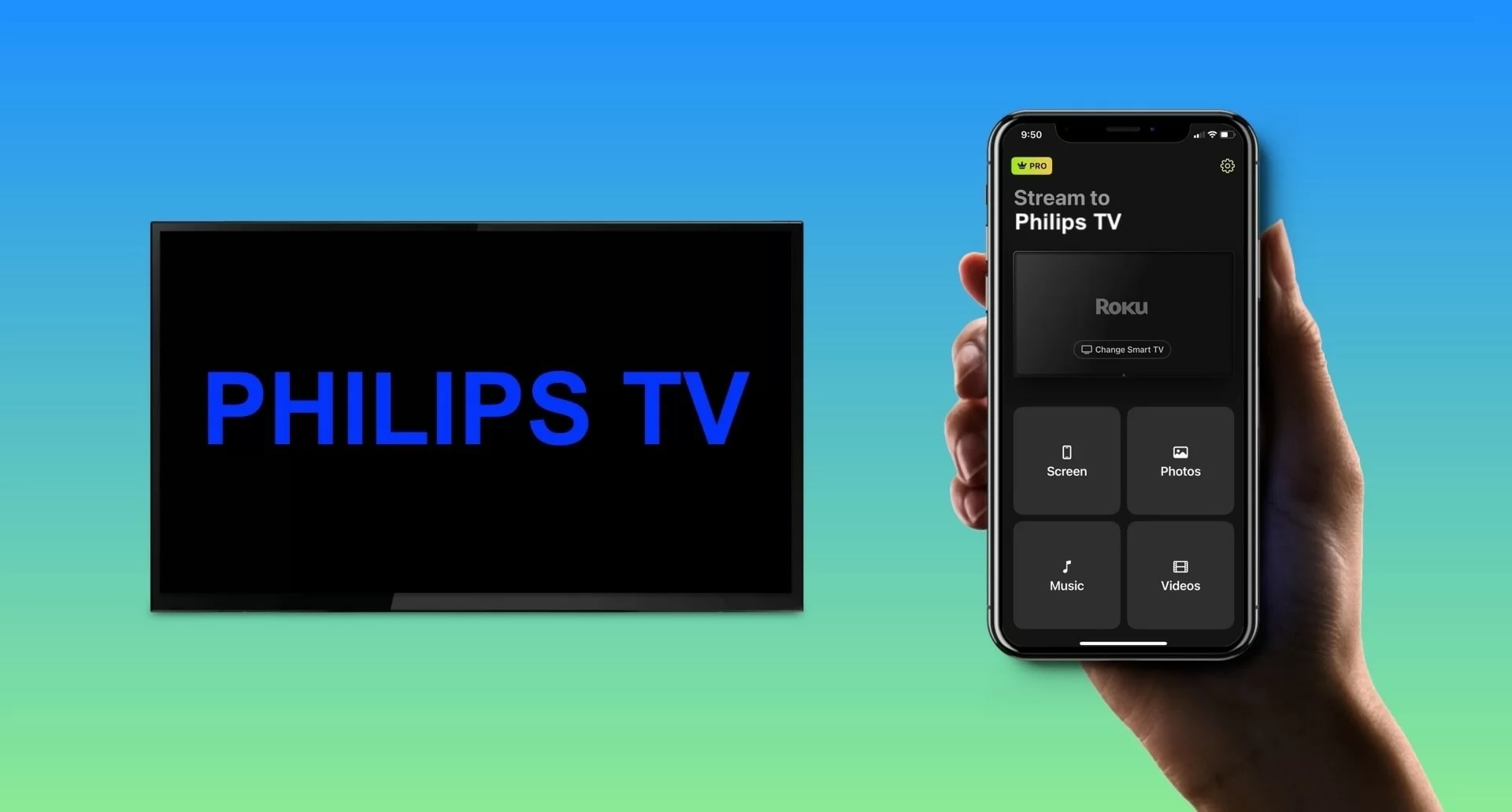
Can You Mirror from Smart Tv to Devices: Ultimate Guide & Tips
Have you ever wished you could share what’s playing on your smart TV with your phone, tablet, or laptop? Imagine watching your favorite show or sharing a family video on any device you want, without fuss or complicated setups.
If you’ve asked yourself, “Can you mirror from smart TV to devices? ” you’re in the right place. This guide will show you exactly how to make it happen, unlocking new ways to enjoy your content anywhere. Ready to discover the simple steps and tips that will change how you connect your devices?
Let’s dive in.
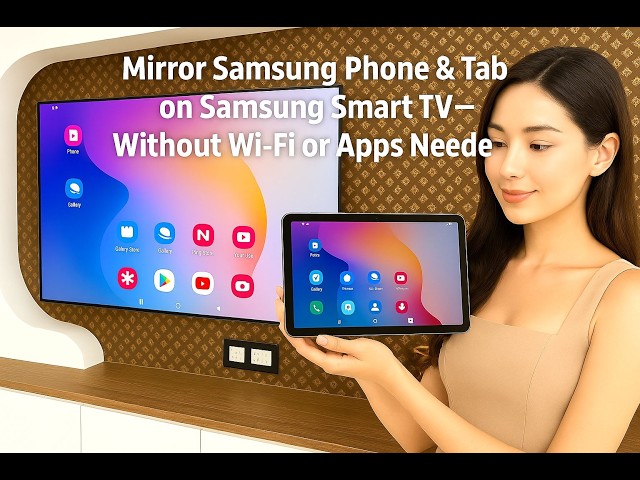
Credit: www.youtube.com
Types Of Screen Mirroring
Screen mirroring lets you share your Smart TV’s display with other devices easily. Understanding the types of screen mirroring can help you choose the best way to connect your TV with your gadgets. Whether you want to show photos on your phone or watch a movie from your laptop, each device type offers unique options and challenges.
Mirroring To Smartphones
Mirroring your Smart TV to a smartphone is popular for sharing videos and apps on the go. Many Smart TVs support Miracast or Chromecast, which work well with Android phones. iPhones usually use AirPlay for smooth screen sharing with compatible TVs.
Have you tried mirroring your favorite game from your phone to a bigger screen? It’s a great way to enjoy mobile gaming with friends. Just ensure both devices are on the same Wi-Fi network for the best experience.
Mirroring To Tablets
Tablets offer a bigger screen than phones, making them ideal for presentations or browsing. Like smartphones, tablets use similar technologies like AirPlay, Miracast, or Chromecast. Some apps even support direct casting, simplifying the connection process.
Think about using your tablet as a second screen by mirroring content from your TV. It could boost productivity or make watching tutorials much easier. The key is checking compatibility between your tablet and Smart TV before starting.
Mirroring To Laptops And Pcs
Mirroring your Smart TV to a laptop or PC opens up many possibilities, such as streaming, gaming, or sharing work presentations. Windows devices typically use Miracast or HDMI cables, while Macs rely on AirPlay for wireless connections.
Have you noticed how seamless it feels to switch between your laptop and TV screen during a video call or movie night? This flexibility can improve your entertainment and work setup. Remember, a stable network or direct cable connection often makes a big difference in quality.
Compatibility Requirements
Understanding the compatibility requirements is essential before you try to mirror your Smart TV to other devices. Not every TV or device supports every mirroring method, so knowing what works together can save you time and frustration. Let’s break down the key compatibility factors to ensure a smooth mirroring experience.
Supported Tv Models
Not all Smart TVs come with built-in mirroring capabilities. Brands like Samsung, LG, Sony, and Vizio often include screen mirroring features, but the availability depends on the model and the year it was released.
For instance, Samsung Smart TVs with Miracast support allow easy mirroring from compatible devices. Older TVs might lack this support, requiring additional hardware like Chromecast or streaming sticks.
Check your TV’s manual or manufacturer website to confirm if your model supports screen mirroring or casting. This step prevents wasted effort trying to mirror when the TV itself isn’t ready.
Device Operating Systems
Your device’s operating system plays a big role in whether mirroring will work seamlessly. Android devices often use Miracast or Chromecast for mirroring, while Apple devices rely on AirPlay.
Windows laptops support Miracast, but MacBooks do not—they use AirPlay instead. This means a MacBook won’t mirror directly to a Miracast-enabled TV without extra software.
Ask yourself: Does your device and TV speak the same ‘language’? If not, you might need apps or additional devices to bridge the gap.
Network And Connectivity Needs
Most mirroring methods require both your TV and device to be on the same Wi-Fi network. This shared network ensures the devices can communicate without interruptions.
However, some technologies like Miracast create a direct Wi-Fi connection, so they don’t always need a traditional network. This can be handy in places with poor or no Wi-Fi.
Slow or unstable networks cause lag and buffering, ruining the mirroring experience. Before mirroring, test your connection speed and consider using a 5GHz band for better performance.
Methods To Mirror From Smart Tv
Mirroring from a Smart TV to other devices can enhance your viewing experience by sharing content seamlessly across screens. There are several ways to do this, each with its own advantages depending on your devices and preferences. Understanding these options helps you choose the easiest and most reliable method for your setup.
Using Built-in Casting Features
Most Smart TVs come with built-in casting features like Google Cast, AirPlay, or Miracast. These allow you to mirror your phone, tablet, or laptop screen directly to the TV without extra hardware.
For example, if you have an Android phone and a Chromecast-enabled TV, you can tap the cast button to share your screen instantly. Apple users can use AirPlay to mirror their iPhone or MacBook to an Apple TV or compatible smart TV.
Have you tried using these features? You might find them quick to set up, but sometimes network issues can cause lag or disconnects. Ensuring both devices are on the same Wi-Fi network usually fixes this.
Third-party Apps And Software
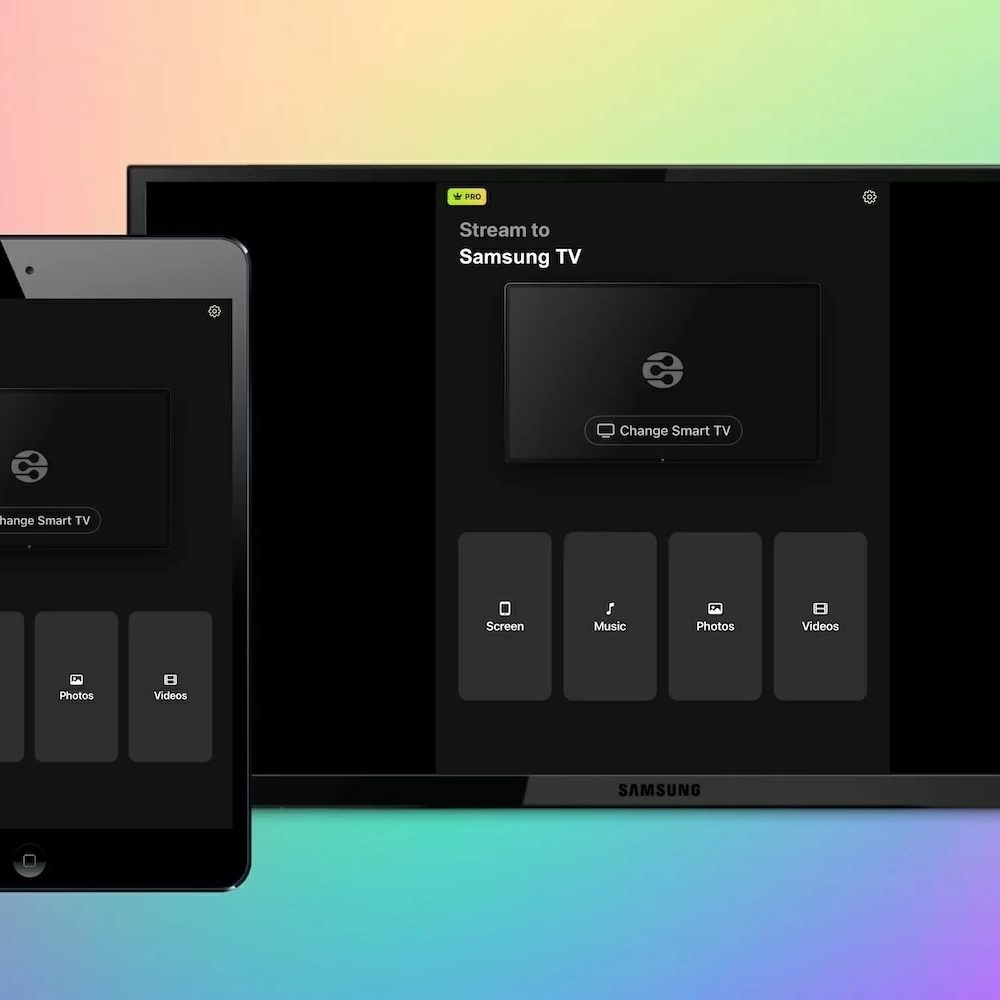
If your devices don’t support built-in casting, third-party apps can fill the gap. Apps like Reflector, ApowerMirror, or AirScreen offer cross-platform mirroring capabilities.
These apps often provide extra features like recording the mirrored screen or controlling the TV from your device. But keep in mind, some apps may require a purchase or have limitations in their free versions.
Think about your exact needs—do you want just simple mirroring, or additional control and recording? Trying out a free version can help you decide if an app is worth it for your use.
Wired Connections
Sometimes, a wired connection is the most stable way to mirror your screen. Using HDMI cables or adapters, you can connect your laptop, phone, or tablet directly to your Smart TV.
This method avoids Wi-Fi issues and provides a smooth, lag-free experience. However, it requires compatible ports and the right cables—like an HDMI to USB-C adapter for some smartphones.
Consider if you prefer mobility or reliability—wired connections mean staying close to your TV, but they often deliver the best picture quality without interruptions.
Credit: deskin.io
Step-by-step Mirroring Setup
Mirroring your Smart TV screen to other devices lets you share videos, photos, and apps easily. This process is simple and quick. Follow clear steps to set it up right. Here is how to do it step-by-step.
Preparing Your Smart Tv
- Turn on your Smart TV and connect it to Wi-Fi.
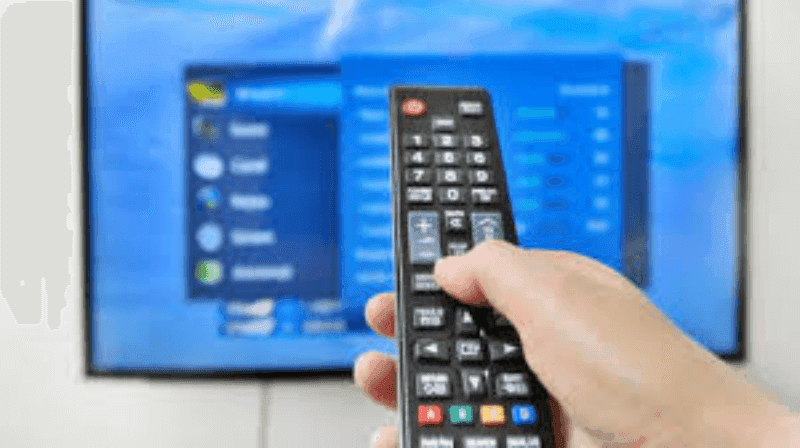
- Check your TV settings for screen mirroring options.
- Enable the screen mirroring feature if it is off.
- Keep your TV’s software updated for best performance.
- Note the device name shown on the TV for connection.
Configuring Your Device
- Open the settings on your smartphone, tablet, or laptop.
- Find the screen mirroring or casting option.
- Make sure your device is on the same Wi-Fi network as the TV.
- Turn on the mirroring feature to search for nearby devices.
- Check for compatibility with your Smart TV model.
Establishing The Connection
- Select your Smart TV’s name from the list of available devices.
- Confirm the connection on your TV if prompted.
- Wait a few seconds for the devices to sync.
- Once connected, your device screen will appear on the TV.
- Adjust volume and display settings as needed.
Troubleshooting Common Issues
Mirroring content from a Smart TV to other devices can sometimes face issues. These common problems might stop your streaming or cause poor experience. Troubleshooting helps fix these quickly. Understanding the causes makes it easier to solve them.
Connection Failures
Connection failures are the main cause of mirroring problems. The devices may fail to detect each other. Wi-Fi interference or weak signals often cause this. Ensure both devices connect to the same network. Restarting the router and devices can clear temporary glitches. Check device compatibility and update software regularly.
Lag And Latency Problems
Lag and latency make streaming slow and choppy. They occur due to slow Wi-Fi or heavy network use. Close other apps using the internet on both devices. Move devices closer to the router for a stronger signal. Lower the video quality to reduce data load. Updating device firmware can improve performance.
Audio And Video Sync Issues
Audio and video out of sync spoils the viewing experience. This happens when the devices process signals at different speeds. Restart both devices to reset connections. Use wired connections if possible to reduce delay. Adjust audio delay settings in your Smart TV menu. Keep software updated to fix bugs causing sync issues.
Credit: mac.eltima.com
Tips For Better Mirroring Experience
Getting the most out of your mirroring experience from a Smart TV to other devices depends largely on a few key factors. Small adjustments can make a big difference in smoothness and clarity. Below are some practical tips to help you enjoy seamless mirroring every time.
Optimizing Network Settings
A strong and stable Wi-Fi connection is essential for smooth mirroring. If your network is slow or unstable, you’ll notice lag or buffering. Try placing your router closer to your devices or use a 5 GHz band to reduce interference.
Switch off other devices that consume a lot of bandwidth while mirroring. This simple step can free up network resources and prevent interruptions. Have you checked if your router’s firmware is up to date? Updates often improve network performance and security.
Choosing The Right Mirroring Method
Different devices support various mirroring technologies like Miracast, Chromecast, or AirPlay. Pick the method that best fits your device ecosystem to avoid compatibility issues. For example, AirPlay works smoothly if you’re using Apple devices, while Chromecast is a better choice for Android users.
Sometimes, wired connections like HDMI adapters provide a more reliable experience than wireless mirroring. If your setup allows, consider this option to reduce lag and improve picture quality. Have you tried switching methods to see which feels faster and easier for you?
Maintaining Device Compatibility
Check that both your Smart TV and the device you’re mirroring to support the same mirroring protocols. Outdated software or hardware can cause connection failures or poor display quality. Regularly update your devices to keep them compatible.
Keep in mind that some apps or content may restrict mirroring due to DRM protections. Testing with different apps can help you identify what works best. Have you noticed certain apps perform better than others during mirroring on your devices?
Security And Privacy Considerations
Mirroring your smart TV to other devices can be useful and fun. It lets you share videos, photos, and apps easily. Still, security and privacy need careful thought. Your personal data and network safety matter a lot. Taking simple steps helps protect your information and devices.
Protecting Your Network
Keep your Wi-Fi network safe with a strong password. Use WPA3 or WPA2 encryption for better security. Change default router settings to avoid easy hacking. Regularly update your router’s firmware to fix security holes. Disable features like WPS that can be vulnerable to attacks.
Managing Permissions
Control which devices can connect to your smart TV. Use the TV’s settings to approve or block devices. Limit access to trusted devices only. Turn off screen mirroring when not in use. Check app permissions on your TV for data sharing limits.
Avoiding Unauthorized Access
Monitor your network for unknown devices regularly. Use guest networks for visitors to keep your main network safe. Set up two-factor authentication when available on apps or devices. Log out of accounts on shared devices after use. Avoid connecting to public Wi-Fi when mirroring sensitive content.
Frequently Asked Questions
How Do I Mirror My Smart Tv To Devices?
To mirror your Smart TV to devices, ensure both are on the same Wi-Fi network. Use the TV’s screen mirroring feature or apps like Chromecast or AirPlay. Follow on-screen instructions to connect. This allows your TV content to display on other devices seamlessly.
Can All Smart Tvs Mirror To Devices?
Not all Smart TVs have built-in mirroring capabilities. Most modern Smart TVs support it, but older models might not. Check your TV’s manual or settings for screen mirroring options. Alternatively, external devices like Chromecast or Fire Stick can enable mirroring on unsupported TVs.
What Devices Can I Mirror My Smart Tv To?
You can mirror your Smart TV to smartphones, tablets, and computers. Compatible devices include iPhones, Android phones, iPads, and Windows or Mac computers. Ensure both devices support mirroring technology like Chromecast, AirPlay, or Miracast for a smooth connection.
Is There A Free App For Smart Tv Mirroring?
Yes, several free apps enable Smart TV mirroring. Popular choices include Google Home for Chromecast, Apple’s AirPlay, and Miracast for Windows devices. These apps help connect your Smart TV and devices easily. Always download apps from official stores to ensure security and functionality.
Conclusion
Mirroring from a smart TV to other devices is simple and useful. Most smart TVs support easy connection methods like Wi-Fi or Bluetooth. This helps you share videos, photos, and apps quickly. Knowing your device’s compatibility saves time and frustration.
Try different options to find what works best for you. Sharing your screen can make watching and working more fun and flexible. Keep your devices updated for smooth mirroring. Enjoy the convenience of connecting screens anytime you want.