Can You Use an Ultrawide Monitor Vertically?
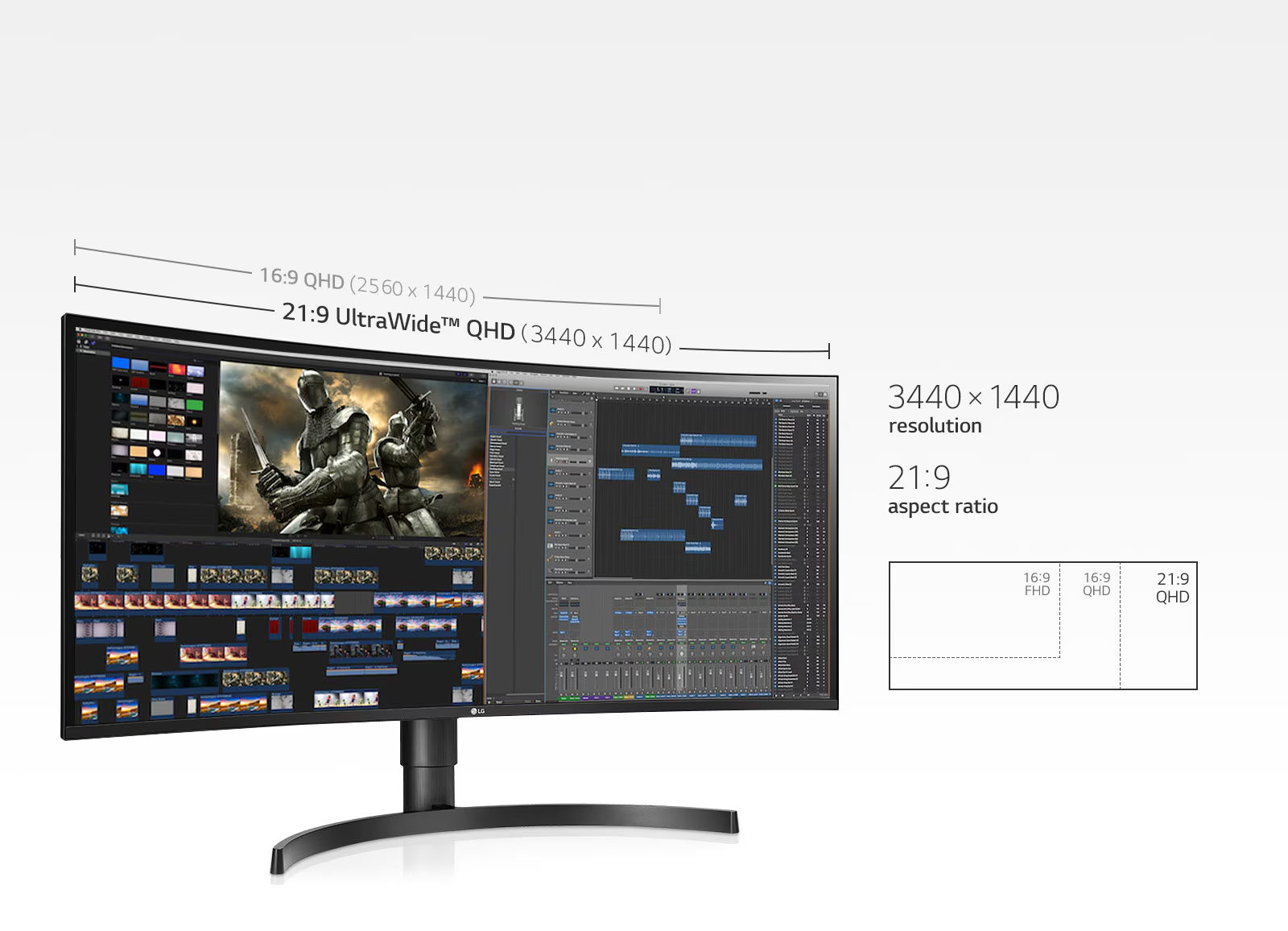
Image source: Bing (Web (fair-use with source credit))
Can ultrawide monitors be used vertically? The short answer is yes, but the real answer depends on your specific hardware, your mount, and what you expect to gain from the setup. Many people assume a simple stand twist is all it takes, then end up with a screen that looks impressive but feels awkward to use every day.
The core issue is that ultrawide panels were engineered for horizontal immersion. A 34-inch 21:9 display becomes a 15-inch wide by 32-inch tall column in portrait mode. That extreme 9:21 aspect ratio creates usability hurdles most buyers don't anticipate.
Before you start unscrewing stands, let's walk through the conditions that make this work or fail.
Quick Answer
Yes, you can rotate an ultrawide monitor vertically. You need a stand or arm that supports 90-degree pivot. The VESA mount pattern must be accessible and rated for the screen's weight.
Panel type matters because VA screens shift color at steep vertical angles. A 32:9 super-ultrawide becomes absurdly narrow in portrait. Most users find a standard 16:9 monitor in portrait far more practical.
The Short Answer: Yes, But It’s Complicated
The physical act of rotating an ultrawide is straightforward if your stand supports pivot. The problem is what happens after you turn it. A 34-inch LG 34WL75C-B, for example, has a native resolution of 3440×1440.
In portrait mode, that becomes 1440×3440. You get a tall, narrow column of pixels that excels at displaying long documents or code. You lose the sweeping horizontal workspace that made you buy an ultrawide in the first place.
Manufacturer specifications confirm that most ultrawide stands omit pivot entirely. Dell's UltraSharp U3423WE includes height, tilt, and swivel, but not rotation. Samsung's Odyssey G9 series has no pivot function.
You're almost always looking at a third-party VESA arm solution. That adds cost and complexity, and not every arm can handle the weight and depth of a curved 49-inch panel.
Why Most Ultrawides Aren’t Designed for Portrait
Ultrawide monitors prioritize horizontal screen real estate for multitasking, immersive gaming, and video editing. The entire industrial design follows that goal. Stands are wide and heavy to prevent tipping across a broad base.
That same base rarely includes a rotation mechanism because the target buyer wants side-by-side windows, not a single tall viewport.
Panel technology also works against vertical use. VA panels, common in curved ultrawides for their high contrast, suffer from gamma and color shift when viewed off-axis. In portrait mode, your eyes scan vertically across the screen.
The top and bottom edges fall outside the optimal viewing cone. Colors wash out or darken noticeably. IPS panels handle this better, but many ultrawides still use VA for deeper blacks.
The extreme aspect ratio is the biggest hurdle. A 21:9 screen in portrait yields a 9:21 ratio. A 32:9 super-ultrawide becomes 9:32.
That's narrower than a standard 24-inch 16:9 monitor turned sideways. You end up with a viewable width of roughly 12 to 14 inches. Modern websites, spreadsheets, and creative apps are designed for wider viewports.
You'll spend a lot of time scrolling horizontally or squinting at cramped interfaces.
| Factor | Horizontal Use | Portrait Use |
|---|---|---|
| Aspect Ratio | 21:9 or 32:9 | 9:21 or 9:32 |
| Typical Width | 30-45 inches | 12-17 inches |
| Panel Viewing Angle | Optimal head-on | Steep vertical angles |
| Stand Support | Standard | Rarely included |
| Best For | Multitasking, media | Long documents, code |
The Decision Tree: Should You Actually Do This?
The answer changes based on your specific situation. Work through these five conditions to decide if a vertical ultrawide makes sense for you.
Condition 1: Does Your Stand Support Pivot?
Check your monitor's stand specifications. Look for "pivot" or "rotation" in the feature list. If the stand only offers height, tilt, and swivel, you cannot rotate the screen without removing it from the stand entirely.
Most ultrawide stands, including those from LG, Samsung, and Dell, do not include pivot. A few business-focused models like the Dell P-series do, but they're rare in the ultrawide category.
Condition 2: Are You Willing to Use a VESA Arm?
If your stand lacks pivot, a VESA monitor arm is the only reliable path. You need an arm rated for your monitor's weight and VESA pattern. A 34-inch ultrawide typically weighs 7 to 10 kilograms.
A 49-inch super-ultrawide can exceed 12 kilograms. The arm must support that weight while holding the screen steady in a vertical orientation. Gas-spring arms with a 90-degree rotation joint work best.
Budget arms often sag or drift over time.
Condition 3: What Panel Type Do You Have? (VA vs IPS)
VA panels show noticeable color and brightness shift when viewed from above or below. In portrait mode, the top of the screen is far from your eye level, and the bottom is close. This exaggerates the shift.
IPS panels maintain color accuracy across wider viewing angles, making them more suitable for vertical use. If you have a VA panel, test the viewing angles before committing. Tilt the monitor vertically temporarily and look for gamma changes at the extremes.
Condition 4: What’s Your Aspect Ratio? (21:9 vs 32:9)
A 21:9 ultrawide in portrait gives you a 9:21 ratio. That's tall and narrow, but still usable for reading long articles or coding. A 32:9 super-ultrawide becomes 9:32.
That's narrower than a standard 24-inch monitor in portrait. The usable width shrinks to about 12 inches. Most web pages and applications will feel cramped.
Unless you have a very specific need for an extremely tall, narrow display, a 32:9 panel is a poor candidate for vertical mounting.
Condition 5: What’s Your Actual Use Case?
Be honest about why you want this setup. If you're a software developer reading long code files, a vertical ultrawide can replace a dual-monitor stack. If you're a day trader watching tall order books or chart stacks, the extra vertical pixels help.
If you're a writer or researcher working with long PDFs, the single tall viewport reduces scrolling. But if you're a gamer, video editor, or general multitasker, you'll likely regret losing the horizontal workspace. A standard 27-inch 16:9 monitor in portrait often serves these needs better and costs less.
Step-by-Step: How to Mount an Ultrawide Vertically
Once you've confirmed your hardware can handle it, the physical setup is methodical. Follow these steps to avoid damaging your monitor or desk.
Check VESA compatibility. Look at the back of your monitor for a square pattern of screw holes. Most ultrawides use a 100x100mm VESA pattern. Some larger models use 200x100mm or 200x200mm. Verify the pattern and ensure the mounting area isn't blocked by the built-in stand or a recessed cavity.
Remove the existing stand. Lay the monitor face down on a soft, clean surface. Unscrew the stand from the VESA mount. Keep the screws in case you revert later. Some stands release with a quick-release button. Consult your manual if you're unsure.
Select a compatible VESA arm. Choose an arm rated for your monitor's weight and VESA pattern. The arm must support 90-degree rotation. Look for a gas-spring mechanism with a tension adjustment. Arms designed for ultrawides often have a higher weight capacity and a longer reach. The VESA Flat Display Mounting Interface standard defines the mounting patterns and load limits. You can find the full specifications on the VESA organization's website.
Attach the VESA plate to the monitor. Use the screws that came with the arm or the monitor's original VESA screws if they fit. Tighten them firmly but don't overtighten. The plate should sit flush against the back of the monitor with no wobble.
Mount the arm to your desk. Most arms clamp to the desk edge or bolt through a grommet hole. Ensure your desk is thick enough for the clamp, typically 1 to 3 centimeters. Position the arm so the monitor will be at a comfortable height when vertical. Remember, a 34-inch ultrawide in portrait will be over 76 centimeters tall. Your desk depth must accommodate that without the screen hitting the wall.
Hang the monitor on the arm. With a helper if the monitor is heavy, lift the screen and hook it onto the arm's mounting bracket. Secure any safety screws. Adjust the arm's tension so the screen holds position at any height without drifting up or down.
Rotate the monitor 90 degrees. Most VESA arms allow rotation once the screen is mounted. Loosen the rotation mechanism, turn the monitor clockwise or counterclockwise, and tighten it. The screen should now be in portrait orientation.
Route the cables. Use cable clips or the arm's built-in cable management to secure the power, DisplayPort, and HDMI cables. Leave enough slack for the monitor to rotate and move without pulling. A strained cable can damage the port or cause signal dropouts.
Configure your operating system. In Windows, right-click the desktop, select Display Settings, and choose Portrait under Display orientation. On macOS, go to System Settings > Displays and set the rotation to 90 degrees. Linux users can use xrandr or the display settings in their desktop environment. The screen will flicker and reorient.
Adjust scaling and resolution. A vertical ultrawide may need scaling tweaks. Text and UI elements can appear too small or too large. Experiment with scaling percentages in your OS settings until the display feels comfortable for your viewing distance.

Image source: Web (Bing) / bewiserdesign.com (Web image (fair-use with source credit))
Mistakes That Will Ruin Your Experience
Even with the right hardware, a few common errors can turn a vertical ultrawide into a frustrating paperweight.
Ignoring panel viewing angles. If you have a VA panel and mount it vertically without testing, you'll likely see a bright bottom half and a dim, discolored top half. This is especially bad for photo editing or color-critical work. Always test the panel's vertical viewing angles before committing to a permanent mount.
Using an undersized VESA arm. A cheap arm rated for 5 kilograms will sag under a 9-kilogram ultrawide. The screen will slowly drift downward, and you'll constantly readjust. Invest in an arm with at least a 20 percent higher weight capacity than your monitor.
Check reviews from verified buyers to confirm real-world performance.
Forgetting about desk depth. A 34-inch ultrawide in portrait stands about 76 centimeters tall. If your desk is shallow, the top of the screen may be above your eye level, forcing you to tilt your head back. That causes neck strain within minutes.
Measure the vertical clearance before you mount anything.
Overlooking cable strain. When you rotate the monitor, cables that were neatly routed can twist and pull. A DisplayPort cable under tension can loosen or damage the port. Use a cable management sleeve and leave a service loop.
Consider a monitor arm with a built-in cable channel to keep things tidy.
Assuming all software handles rotation well. Some older applications and games don't respond gracefully to a portrait resolution. You might get black bars, stretched interfaces, or crashes. Test your critical apps after rotation.
If a program you rely on breaks, you may need to keep the monitor horizontal for that task.
Neglecting ergonomics. The top of a vertical ultrawide can be well above your natural line of sight. You want the top third of the screen at or slightly below eye level. If the monitor is too high, you'll crane your neck.
If it's too low, you'll hunch. Adjust the arm height so your gaze falls naturally on the upper portion of the display.
If you're exploring other display configurations, you might find our guide to the best portable monitor for laptops useful for secondary screen ideas. For those curious about how many connected devices a typical household manages, our article on how many smart devices are active offers a data-driven look. And if you're weighing the broader role of screens in daily life, the piece on why wearable technology is good provides useful context on display trends.
Better Alternatives to a Vertical Ultrawide
Before you spend money on a VESA arm and rewire your desk, consider whether a different setup actually serves you better.
A standard 27-inch 16:9 monitor in portrait mode gives you a 9:16 aspect ratio. That's far more practical than a 9:21 ultrawide. The screen is wider in portrait, so web pages and documents render naturally.
You can buy a dedicated pivot stand for a fraction of the cost of a heavy-duty ultrawide arm.
Dual monitors offer more flexibility. Use one screen horizontal for your main work and one vertical for reference material. You get the best of both worlds without fighting extreme aspect ratios.
Many developers and writers find this split more productive than a single tall viewport.
Stacked monitors, one above the other, also work well. A 34-inch ultrawide on the bottom and a 24-inch portrait on top gives you horizontal space and vertical space. The portrait monitor handles chat, email, or documentation.
The ultrawide stays horizontal where it excels.
If portability matters, a secondary tablet or portable monitor in portrait mode might solve the problem entirely. Our guide to the best portable monitor for laptops covers compact options that pair nicely with an ultrawide setup.
| Alternative | Pros | Cons |
|---|---|---|
| 27" 16:9 in portrait | Affordable, practical width | Less total vertical space |
| Dual monitor setup | Flexible layout | More desk space needed |
| Stacked monitors | Combines horizontal and vertical | Complex mounting |
| Tablet/portable screen | Portable, touchscreen | Smaller size |
Final Verdict: Who Should Actually Try This
A vertical ultrawide works for a narrow set of users. If you're a software developer who reads long code files, it can replace a dual-screen stack. If you're a day trader scanning tall chart layouts, the extra vertical pixels justify the awkward width.
If you're a writer or academic working with long manuscripts, a single tall viewport reduces scrolling fatigue.
For everyone else, the trade-offs outweigh the benefits. You lose the multitasking advantage that defines the ultrawide category. You add cost and complexity with a VESA arm.
You deal with panel viewing angle issues and cramped application layouts.
If you already own an ultrawide and want to experiment, a VESA arm is a reversible investment. Try it for a week. If the tall, narrow view doesn't click, rotate it back.
Just make sure your arm can handle the weight before you commit.
Frequently Asked Questions
Can any ultrawide monitor be rotated vertically?
Only if the stand supports pivot or you use a VESA arm. Most ultrawide stands do not include rotation. You need to check the manufacturer's specifications for pivot support.
Without it, a third-party VESA arm is the only option.
Does rotating an ultrawide void the warranty?
Using a VESA mount generally does not void the warranty unless you damage the monitor during installation. However, some manufacturers may not cover damage caused by third-party mounts. Check your warranty terms before making modifications.
What size VESA arm do I need for a 34-inch ultrawide?
You need an arm rated for at least the monitor's weight, typically 7 to 10 kilograms for a 34-inch model. Look for a gas-spring arm with a 90-degree rotation joint. A higher weight capacity than your monitor's actual weight gives you a safety margin and prevents sagging.
Will a curved ultrawide look weird in portrait mode?
A curved screen in portrait mode can feel unusual. The curve is designed for horizontal viewing. In portrait, the curve may make the top and bottom edges feel further away.
Flat panels are generally more comfortable in vertical orientation.
Can I use a vertical ultrawide for gaming?
Most games are designed for horizontal aspect ratios. A vertical ultrawide will show black bars on the sides or a severely cropped field of view. Some retro arcade games benefit from portrait mode, but modern titles rarely support it well.
Is a 32:9 super-ultrawide worth using vertically?
Almost never. A 32:9 screen in portrait yields a 9:32 aspect ratio. That's narrower than a standard 24-inch monitor turned sideways.
The extreme narrowness makes most applications impractical. Stick with a 21:9 ultrawide if you want a vertical setup.