Does Smart Switch Come Automatically Installed in Your Phone Device? Find Out Now!
Have you ever wondered if Smart Switch is already set up on your phone? If you’re planning to switch devices or back up your data, knowing whether this handy tool comes pre-installed can save you time and frustration.
Imagine moving all your important files, contacts, and apps seamlessly without hunting for the right app. You’ll discover exactly what Smart Switch is, whether it’s on your phone right now, and how to make the most of it. Keep reading to find out how to simplify your phone experience starting today.
What Is Smart Switch
Smart Switch is a handy tool designed to make transferring data between phones easier. It helps you move your contacts, photos, messages, and even apps from an old device to a new one. This app is especially useful if you’re switching to a Samsung phone, but it also supports transfers from other brands.
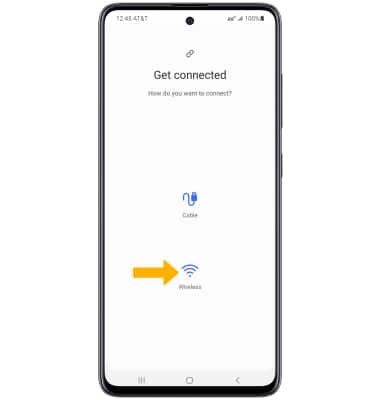
Imagine upgrading your phone and worrying about losing all your important files. Smart Switch solves that by automating much of the process. It works through a cable connection, Wi-Fi, or even via a PC, giving you flexibility based on what’s convenient.
How Smart Switch Works
The app connects your old phone to your new device and guides you through selecting the data you want to transfer. It supports various data types, including contacts, photos, calendars, messages, and even some app data.
Once connected, the transfer usually completes within minutes, depending on the amount of data. The process is designed to be simple, even if you’re not tech-savvy.
Devices Compatible With Smart Switch
Smart Switch works best with Samsung smartphones but also supports Android and iOS devices. If your old phone is an iPhone or an Android device from another brand, you can still use Smart Switch to move your data.
Checking compatibility before starting a transfer saves time and avoids frustration. You can find a list of supported devices on Samsung’s official website.
Why You Might Need Smart Switch
Switching phones can be stressful. Losing contacts or important memories is a real concern. Smart Switch takes away that stress by making data transfer quick and reliable.
If you’ve ever manually moved files or reinstalled apps one by one, you know how time-consuming it can be. This tool simplifies the process, letting you focus on setting up your new phone just the way you like it.

Credit: www.samsung.com
Phones That Have Smart Switch Preinstalled
Smart Switch is a handy tool for transferring data between phones. Some phones come with Smart Switch already installed. This saves time and effort during setup. Knowing which phones have it helps users prepare for a smooth transition.
Samsung Galaxy Series
Most Samsung Galaxy phones have Smart Switch preinstalled. This includes popular models like Galaxy S, Note, and A series. Samsung ensures easy data transfer for their users with this app ready to use.
Samsung Foldable Phones
The Galaxy Z Fold and Z Flip series also include Smart Switch. These innovative devices come with the app to help users move data quickly. It supports a smooth setup for these unique phones.
Samsung Tablets
Many Samsung tablets feature Smart Switch as well. Tablets like the Galaxy Tab series come preloaded with the app. This allows users to transfer files and settings from other devices easily.
Non-samsung Phones
Smart Switch is mainly a Samsung app. Most non-Samsung phones do not have it installed by default. Users may need to download it manually from app stores if they want to use it.
How To Check If Smart Switch Is On Your Device
Smart Switch is a popular app for transferring data between devices. Checking if it is already on your phone is simple. This helps save time when setting up a new phone or backing up data.
Different phone brands handle Smart Switch differently. Some phones come with it pre-installed, while others do not. Knowing where to find the app is important before trying to install or use it.
Locating The App On Android
Open your app drawer by swiping up on the home screen. Scroll through the list of apps to find Smart Switch. The app icon looks like two arrows forming a circle. If you do not see it, check your phone settings or search bar.
Finding Smart Switch On Samsung Devices
Samsung phones usually have Smart Switch pre-installed. Check the Samsung folder in the app drawer. The app may also be under Settings > Accounts and backup. Use the search function in Settings and type “Smart Switch” to locate it quickly.
Checking On Iphones
Smart Switch is not available on iPhones as an app. Instead, use the Move to iOS app when switching from Android to iPhone. Open the App Store and search for Move to iOS if you need it. Apple devices do not support Samsung Smart Switch directly.
Manual Installation Of Smart Switch
Manual installation of Smart Switch allows you to add the app anytime. It is helpful when the app is not pre-installed on your device. This process ensures you have the latest version and all features available.
Downloading From Official Sources
Get Smart Switch only from trusted websites to avoid security risks. The official Samsung website is the safest place. You can also use the Google Play Store for Android devices or the App Store for iPhones.
- Visit the Samsung official site or app store.
- Search for “Smart Switch”.
- Check the developer name to confirm authenticity.
- Download the app to your device.
Installation Steps
After downloading, the installation starts automatically. Follow the on-screen instructions to complete the process. Accept any prompts that appear to proceed smoothly.
- Open the downloaded file if it does not start.
- Tap “Install” to begin.
- Wait for the installation to finish.
- Launch the app after installation.
Permissions Required
Smart Switch needs permissions to work correctly. It requires access to contacts, storage, and sometimes location. These permissions allow data transfer between devices.
- Access to contacts for transferring phonebook data.
- Storage access to move files and media.
- Optional location permission for device discovery.
- Grant all needed permissions during setup.
Benefits Of Using Smart Switch
Smart Switch offers many benefits that simplify moving data between phones. It helps users save time and avoid confusion during phone upgrades. The tool supports quick and smooth transfers of contacts, photos, messages, and more. It also provides options to back up and restore data securely. These features make Smart Switch a useful app for many users.
Easy Data Transfer
Smart Switch makes moving data easy. It transfers files quickly without needing cables or extra tools. You can send contacts, photos, music, and apps in just a few taps. The process is clear and simple to follow. This saves time and reduces stress when changing phones.
Cross-platform Compatibility
Smart Switch works with different phone brands. It supports transfers between Android and iPhone devices. This flexibility helps users switch phones without losing important data. You can move files even if your new phone uses a different operating system.
Backup And Restore Features
Smart Switch allows you to back up your data safely. You can save files to a computer or cloud storage. The app also helps restore backups to your phone anytime. This protects your important information from loss or damage.
Common Issues With Smart Switch
Smart Switch is a popular tool for moving data between devices. Despite its ease of use, some users face common problems. These issues can affect the installation, connection, and data transfer. Understanding these problems helps in finding solutions faster.
Installation Problems
Smart Switch may not install automatically on all devices. Some phones require a manual download from the app store. Installation might fail due to low storage space or outdated system software. Users often see error messages or the app stops during setup. Restarting the phone or clearing storage can help fix these issues.
Connectivity Errors
Connecting devices is vital for Smart Switch to work. Connection errors happen if Wi-Fi or Bluetooth is weak or turned off. Using different connection methods, like USB cable or wireless transfer, can cause confusion. Sometimes the devices do not recognize each other. Ensuring both phones are close and have stable connections improves success rates.
Data Transfer Failures
Data transfer may stop or fail midway. Large files or incompatible formats can cause this. Interruptions like low battery or loss of connection also disrupt the process. Some apps or settings might not transfer correctly. Checking device compatibility and using the latest Smart Switch version reduces failures.
Alternatives To Smart Switch
Smart Switch is a popular tool for moving data between phones. Still, some devices do not have it pre-installed. Many users seek other ways to transfer their data safely and quickly. Several options exist beyond Smart Switch. These alternatives can fit different needs and phone types.
Other Data Transfer Apps
Many apps help move contacts, photos, and files across devices. Some work on both Android and iPhone. Others focus only on one system but offer fast transfers. Popular apps include:
- Google Drive for backing up and restoring data
- ShareIt for wireless file sharing between devices
- Send Anywhere which uses a simple code for transfers
- Xender for quick sharing without internet
These apps often require an internet connection or Wi-Fi. They usually have easy-to-use interfaces. Users can choose based on what fits their device and data type.
Manual Transfer Methods
Manual methods offer control and do not depend on apps. Users can move files using USB cables or memory cards. Connecting the phone to a computer allows direct file copying.
Manual methods include:
- Copying photos, videos, and documents to a PC
- Using microSD cards to transfer media files
- Syncing contacts through email accounts like Gmail
- Exporting and importing contacts via vCard files
These ways can be slower but reliable. They work well if internet access is limited or apps are unavailable. Manual transfers also give users full control over what moves.
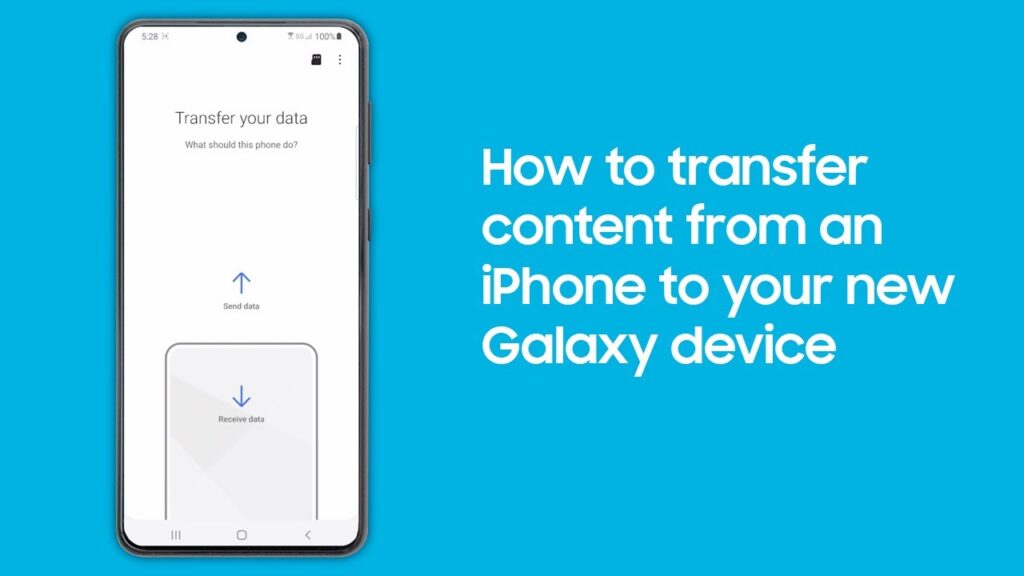
Credit: insights.samsung.com

Credit: www.youtube.com
Frequently Asked Questions
Is Smart Switch Pre-installed On All Android Phones?
Smart Switch is not pre-installed on all Android phones. It typically comes pre-installed on Samsung devices. For other brands, users may need to download it from the Google Play Store. Always check your device’s app list to confirm its presence before attempting any data transfers.
How To Check If Smart Switch Is Installed?
To check if Smart Switch is installed, open your app drawer. Search for the Smart Switch app icon. Alternatively, you can visit your device’s settings and look under applications. If it’s not there, consider downloading it from the Google Play Store.
Can I Install Smart Switch Manually?
Yes, you can install Smart Switch manually. If it’s not pre-installed, visit the Google Play Store. Search for “Smart Switch” and download the app. Ensure your device meets the app’s system requirements before installation. This will enable seamless data transfer between devices.
What Devices Support Smart Switch?
Smart Switch is primarily supported by Samsung devices. However, it can be downloaded and used on other Android devices. It facilitates data transfer from Android, iOS, and Windows phones. For optimal performance, ensure your device meets the app’s compatibility requirements.
Conclusion
Smart Switch may come pre-installed on some phones. Many Samsung devices include it by default. Others might need you to download it from the app store. Using this app makes moving data easier and faster. It helps transfer contacts, photos, and more.
Always check your phone before starting the switch process. Having Smart Switch ready can save time later. It keeps your important files safe during the move. Simple, quick, and useful for phone upgrades. Consider this app as a helpful tool for phone setup.