Are Ultrawide Monitors Good for Productivity?
If you’ve ever wondered are ultrawide monitors good for productivity, you’re not alone. The promise of a seamless, bezel-free workspace sounds great, but it’s not a universal upgrade. Plenty of buyers discover that what looks impressive on paper doesn’t always translate to smoother workflows.
A standard 34-inch 21:9 ultrawide packs roughly 4.9 million pixels, while a pair of 27-inch 1440p monitors delivers around 7.3 million. That gap in raw screen space matters less than you might think, though, because how you use those pixels matters more. We’ll compare the two approaches side by side, so you can match the hardware to your actual work.
Quick Answer
Yes, for specific workflows. Ultrawides excel at timeline-based tasks like video editing. They reduce cable clutter and bezel distraction.
However, they offer less total screen space than dual monitors. Choose based on how you split your windows.
Why This Comparison Matters Right Now
The shift to hybrid and remote work has forced a lot of people to rethink their desk setups. A sprawling dual monitor rig that felt natural in an office suddenly eats up an entire kitchen table. At the same time, ultrawide panels have matured.
As of 2026, most 34-inch models offer USB-C power delivery up to 90 watts, built-in KVM switches, and factory-calibrated color. The technology is finally catching up to the productivity hype.
Yet the dual monitor setup isn’t standing still either. Thin-bezel 27-inch 1440p screens have dropped in price, and docking stations make connecting two displays to a laptop effortless. Some people now even add a portable secondary screen for on-the-go flexibility.
The decision between one wide canvas and two separate screens has become a genuine fork in the road. It’s no longer about which one looks cooler. It’s about which one fits the way you actually spend your workday.
The Ultrawide Monitor Breakdown
What You Get with a Standard 34-Inch 21:9 Display
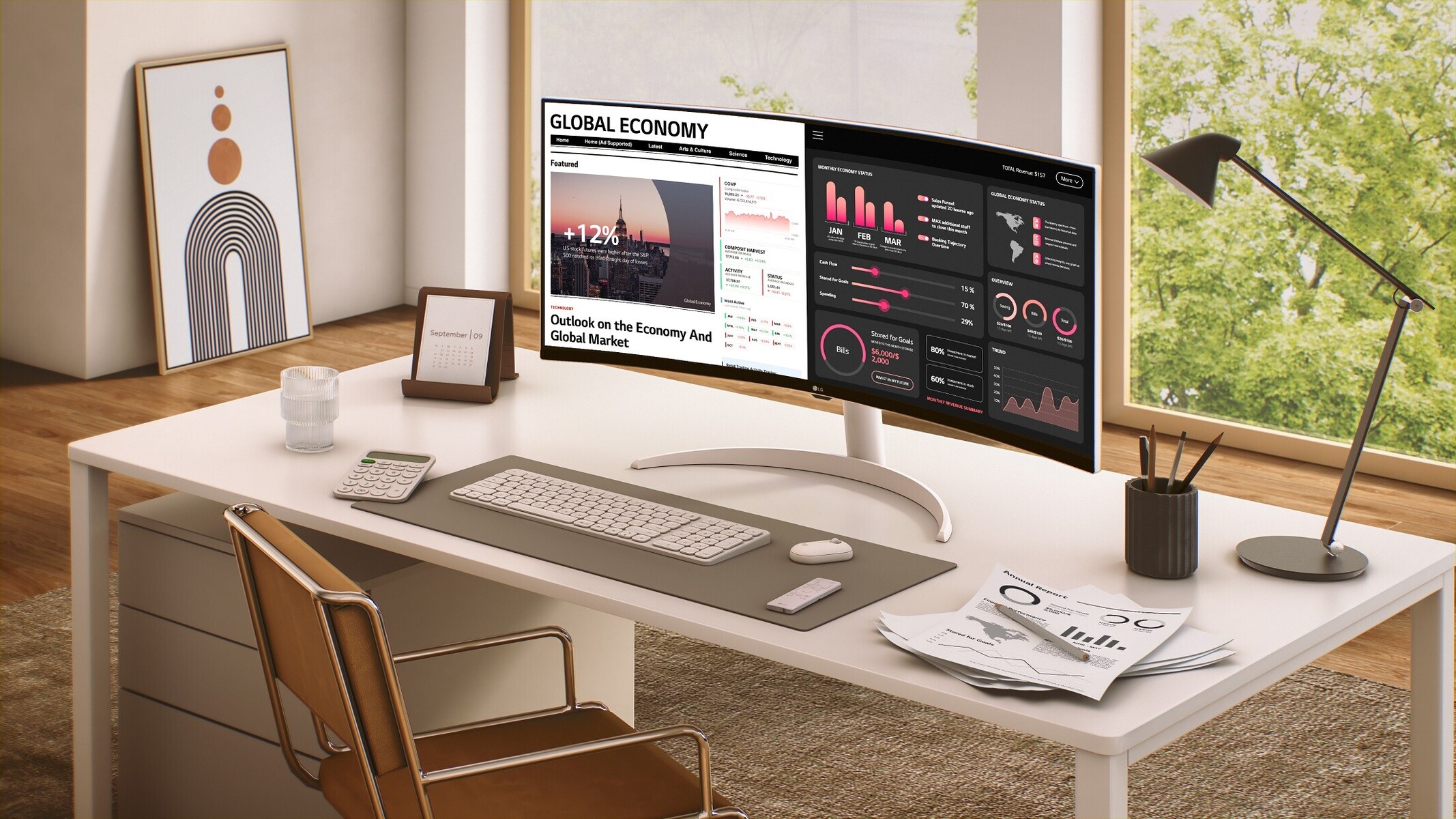
The 34-inch 21:9 ultrawide is the sweet spot for most productivity seekers. Its native resolution of 3440×1440, often called UWQHD, gives you a noticeable step up from a standard 27-inch 1440p display without the scaling headaches of 4K. You get a single, uninterrupted horizontal canvas that’s about 33% wider than a 16:9 screen.
That extra width lets you place two full-sized windows side by side with room to spare. Think a document on the left and a browser on the right, or a timeline stretching across the bottom of your screen in video editing software.
One cable often handles video, data, and charging. Many models now feature USB-C with 65 to 100 watts of power delivery, so you can connect a laptop and power it with a single tether. That simplicity cuts down on cable clutter and makes docking and undocking a one-step process.
The lack of a bezel in the middle eliminates the visual break you get with dual monitors, which feels more immersive when you’re working on a single wide spreadsheet or a long timeline.
Super Ultrawides: The 32:9 Two-Monitor-in-One Option
Super ultrawide monitors take the 21:9 concept and stretch it even further. A 49-inch 32:9 panel like the Samsung Odyssey G9 essentially crams two 27-inch 1440p displays side by side with no gap. You get a native resolution of 5120×1440, which matches the pixel count of dual 1440p screens but on one curved slab.
The appeal is obvious for traders, streamers, and anyone who wants to see massive amounts of data at once. You can tile three or four windows without overlap. The downside is that you lose the physical separation a bezel provides.
Full-screen apps stretch across the entire width unless you use window management software. These panels also demand a deep desk. You typically need at least 30 to 32 inches of depth to sit at a comfortable distance, otherwise you’ll be turning your head constantly.
Curved vs Flat Ultrawides: Does the Curve Help Productivity?
The curve on an ultrawide isn’t just a gimmick. A gentle 1800R or 1900R curve brings the edges of the screen closer to your eyes. This reduces the amount of eye movement and refocusing needed when you glance from one side to the other.
For long work sessions, that can mean less fatigue. It also helps maintain consistent color and brightness across the panel, since your eyes strike the screen at a more uniform angle.
Flat ultrawides exist, and they can work well if you sit close and don’t mind the edges feeling farther away. For productivity, the curve tends to win out on screens wider than 34 inches. If you’re considering a super ultrawide, a more aggressive 1000R curve is practically mandatory.
Without it, the far edges feel distorted and your neck will notice. Just remember that a curved screen can make straight lines in design work look slightly off, so color-critical professionals often prefer flat panels.
The Dual Monitor Setup Breakdown
Why Two 27-Inch 1440p Monitors Still Win for Some People
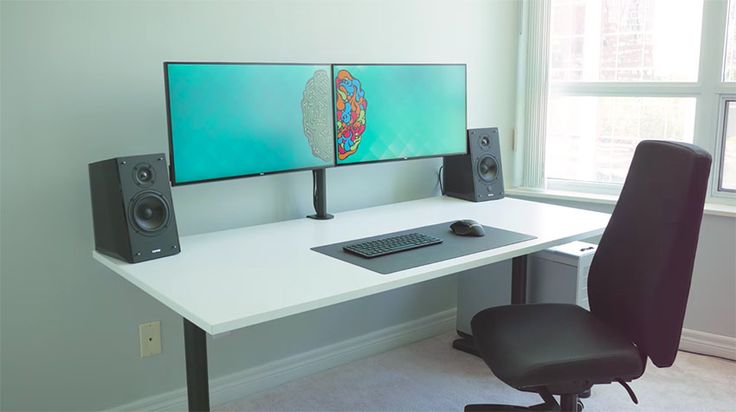
A pair of 27-inch 1440p monitors remains the productivity workhorse for good reason. You get a combined resolution of 5120×1440, which actually edges out a standard 34-inch ultrawide in total pixel count. More importantly, the physical bezel between the screens acts as a natural anchor.
You can maximize an application on one display without it bleeding over into the other. That separation is genuinely useful when you need full-screen focus on a task, like a video call on one side and a document on the other.
Dual setups also offer flexibility you can’t get from a single panel. You can angle each screen slightly inward, which can feel more ergonomic than staring at one long flat or curved surface. If one monitor fails, you still have a screen to work on while you sort out a replacement.
And you can mix and match sizes or orientations, pairing a landscape primary display with a portrait secondary for reading long documents or code.
The Physical Bezel Gap: Obvious or Unnoticeable?
The bezel gap is the most debated aspect of dual monitor productivity. Some people find it distracting, especially when dragging a window across the split. Others barely notice it after a day or two.
The actual gap is usually around 5 to 10 millimeters with modern thin-bezel monitors. On a full-screen spreadsheet, that sliver of black can interrupt the flow of data. On the other hand, it creates a hard visual boundary that helps your brain treat each screen as a separate workspace.
If you primarily work with two distinct tasks, the bezel becomes a feature. If you rely on a single ultra-wide canvas like a timeline or a massive code editor, it becomes an annoyance. This is where your specific workflow dictates the winner.
Dual 4K Monitors: The High-Resolution Alternative
Stepping up to dual 32-inch 4K monitors gives you a staggering amount of screen real estate. That’s over 16 million pixels total, which is more than three times what a 34-inch ultrawide offers. Text looks razor-sharp, and you can fit an enormous number of windows without sacrificing readability.
The catch is that driving two 4K displays requires a capable GPU and often a Thunderbolt or DisplayPort connection for each. You’ll also likely need to use scaling at 125% or 150% to keep interface elements at a comfortable size, which can introduce minor compatibility hiccups with older software.
Cost is another factor. Two good 32-inch 4K IPS monitors with decent color accuracy will usually run you more than a single high-end ultrawide. If your work involves detailed photo editing, 3D modeling, or reading fine print all day, the clarity payoff can be worth it.
For general office tasks, though, the pixel density of 27-inch 1440p screens hits a sweet spot between sharpness and manageable scaling.
Side-by-Side Comparison: Screen Space, Workflow, and Real-World Use
Here’s a quick look at how the two approaches stack up across the factors that matter most for daily productivity.
| Factor | 34-inch Ultrawide (21:9) | Dual 27-inch 1440p | Super Ultrawide (32:9) |
|---|---|---|---|
| Total pixels | 4.9 million | 7.3 million | 7.3 million |
| Bezel gap | None | Visible | None |
| Ideal desk depth | 28-32 inches | 24-28 inches | 30-36 inches |
| Window management | Requires software for snapping | Native OS separation | Requires software |
| Best for | Timelines, wide spreadsheets | Full-screen multitasking | Trading, monitoring |
| Cable clutter | Minimal | Moderate | Minimal |
| Failure risk | Single point | Redundant | Single point |
The numbers don’t tell the whole story, though. A dual 27-inch setup gives you more raw pixels, but you lose some usable space to the bezel and the physical footprint. An ultrawide provides a seamless canvas that feels more immersive for wide timelines or side-by-side document comparisons.
The super ultrawide tries to be both, but it demands a lot of desk room and often third-party window management tools to really shine.
Ergonomics play a big role here. According to OSHA’s computer workstation guidelines, you should position the top of the screen at or slightly below eye level and keep a comfortable viewing distance. With a 34-inch ultrawide, that usually means pushing the monitor back about 28 to 32 inches.
A dual setup can be arranged in a shallow arc that keeps each screen closer to your natural line of sight. If your desk is shallow, dual monitors might be the more comfortable choice.
Mounting flexibility also differs. Most ultrawides support VESA mounting standards, so you can use an arm to adjust height and tilt. A dual monitor arm gives you even more granular control over each screen’s position.
If you’re tight on space, a single ultrawide on an arm can free up desk area that two stands would occupy.
When it comes to the actual workflow, consider how you split your windows. If you typically run a full-screen app on one display and reference material on the other, dual monitors feel more natural. If you like to see three or four windows tiled horizontally, an ultrawide or super ultrawide will serve you better.
Some users even find that a combination of a capable work-from-home machine and a single ultrawide offers the best balance of simplicity and screen space.
If you’re still on the fence about timing your purchase, it helps to know that monitor prices often follow the same seasonal patterns as TVs. Planning around the best month to buy a TV can sometimes land you a deal on a high-end ultrawide or a matched pair of displays. Just remember that the productivity gain from either setup is real, but only if it matches how you actually work.
Best Setup for Your Specific Work Style
Video Editing and Timeline-Based Work
If you spend most of your day in Premiere Pro, DaVinci Resolve, or Final Cut, an ultrawide almost always wins. The 21:9 canvas lets you stretch a timeline across the full width while keeping your preview and bins visible. You don't have to constantly zoom in and out to see where you are in a project.
A 34-inch 3440×1440 display gives you roughly 50% more horizontal timeline room than a single 27-inch 1440p screen.
Super ultrawides take this even further. Some editors use the full 49-inch 32:9 width to show an entire feature-length timeline at once. That's a real workflow shift.
Dual monitors can work for editing too, but you'll likely end up putting the timeline on one screen and the preview on the other, which limits how much timeline you can see at once. If editing is your main job, go ultrawide without hesitation.
Coding and Software Development
Developers tend to split into two camps. Those who prefer a single large workspace love the ultrawide for running an IDE, terminal, and browser side by side. You can have your code in the center, documentation on one side, and a live preview on the other.
It mimics having a large laptop display but with more room to breathe.
The dual monitor camp likes the hard separation. A primary display for the IDE and a secondary for reference material, chat apps, or a running application keeps the main coding screen uncluttered. If you frequently run full-screen demos or test responsive layouts on a separate display, dual screens feel more natural.
The bezel becomes a useful boundary rather than a distraction.
Trading, Finance, and Heavy Multitasking
Financial professionals monitoring multiple data streams, charts, and news feeds are the poster children for super ultrawides. A 49-inch 32:9 panel can show four 1080p-equivalent windows without overlap. That's an entire trading desk on one screen.
The same logic applies to security operations centers or anyone watching dashboards and alerts.
Dual 27-inch monitors also work well here, especially if you need to isolate specific applications for compliance or security reasons. Some trading software doesn't play nicely with ultrawide resolutions, so a matched pair of standard displays can sidestep compatibility headaches. Check your critical software's ultrawide support before committing.
Spreadsheets, Data Analysis, and Writing
Wide Excel models and databases benefit from the extra horizontal pixels. You can see more columns without scrolling, which sounds minor but adds up over hours. For writers and researchers, the ultrawide gives you a full-page document and a research side panel.
It feels similar to having two physical pages open on a desk.
That said, a single 32-inch 4K display can also work well here. You get immense vertical space for long documents and enough width for side-by-side windows. It's a different approach than the ultrawide but serves the same purpose.
Design Work and Color-Critical Projects
Designers need accurate color and sharp detail. A high-end ultrawide with 98% DCI-P3 coverage and factory calibration can handle professional photo and video work. The wide canvas is handy for laying out multi-page documents or comparing revisions side by side.
Flat panels are usually preferred over curved ones for design work, since the curve can make straight lines appear slightly bent.
Dual 4K monitors offer even more detail, but you'll pay a premium and need the desk space. For most design workflows, a single well-calibrated 38-inch 3840×1600 ultrawide hits a nice balance between size, resolution, and color accuracy.
Common Mistakes When Choosing Between Ultrawide and Dual Monitors
Ignoring desk depth is one of the most frequent mistakes. A 34-inch ultrawide needs about 28 inches of depth for comfortable viewing. Push it closer and you'll be turning your head constantly.
Measure your desk before buying.
Underestimating window management needs is another trap. Ultrawides don't magically organize your windows. Without tools like Microsoft PowerToys FancyZones or DisplayFusion, you'll end up dragging windows around manually.
That friction eats into the productivity gains. Plan to spend 20 minutes setting up snap zones that match your workflow.
Assuming more width equals more productivity is also misleading. If your work consists mainly of vertical documents, chat apps, or social media feeds, the extra horizontal space goes unused. A taller 16:9 or 3:2 display might serve you better.
Match the aspect ratio to your content.
Forgetting about single-point-of-failure risk catches people off guard. When one monitor in a dual setup dies, you still have the other. When an ultrawide goes dark, your entire workstation is down until you replace it.
If your work can't tolerate downtime, factor that into the decision.
Finally, skimping on the panel quality to hit a budget is a false economy. A cheap ultrawide with poor color accuracy or uneven backlight will cause more frustration than it saves. Look for IPS or OLED panels with decent color coverage, even if that means going with a smaller size.
Pricing Reality: What You'll Actually Spend
A solid 34-inch 21:9 ultrawide with USB-C, good color, and a reliable brand runs about $400 to $700 as of 2026. Step up to a 38-inch 3840×1600 model with better color accuracy and you're looking at $800 to $1,200. Super ultrawides with 49-inch panels and high refresh rates typically start around $900 and can exceed $1,500 for premium models.
Dual 27-inch 1440p monitors with thin bezels and decent panels cost about $250 to $350 each. A matched pair lands you in the $500 to $700 range, which is roughly comparable to a mid-range ultrawide. Add a dual monitor arm for $80 to $150 and you're still in the same ballpark.
Dual 4K monitors push the total to $800 or more, but you get significantly more total screen space.
Don't forget the supporting gear. A good VESA mount for a 34-inch ultrawide runs $50 to $120. A Thunderbolt dock for a laptop setup can add $150 to $250.
Those extras narrow the price difference between the two approaches. Factor them into your total budget.
Expert Tips for Making Either Setup Work Better
Set up window snapping zones immediately. On Windows, PowerToys FancyZones lets you define custom grid layouts that match your workflow. On macOS, apps like Magnet or Rectangle do the same job.
These tools turn a large display into organized workspaces instead of one messy desktop.
Adjust your viewing distance and height. The top of the screen should sit at or slightly below eye level. For a 34-inch ultrawide, that usually means raising the screen on a stand or arm.
Your eyes should naturally fall about one-third of the way down from the top edge when seated upright.
Calibrate the display if color matters. Most monitors ship with decent factory calibration, but a hardware calibrator like a Datacolor SpyderX or X-Rite i1Display takes it further. Even for non-design work, reducing blue light in the evening can cut eye strain.
Use Picture-by-Picture mode if your monitor supports it. This splits the screen into independent inputs, essentially turning your ultrawide into two separate displays. It's handy for connecting a laptop and desktop simultaneously without a KVM switch.
Keep cables tidy. A single USB-C cable for an ultrawide keeps things clean, but manage the slack with adhesive clips or a cable tray. For dual monitors, a dual-arm mount with integrated cable routing hides the mess.
A clean desk helps a clean mind.
Final Decision Guide: Is Ultrawide Right for You?
Choose an ultrawide if your work involves wide timelines, side-by-side document comparison, or a preference for minimal cable clutter. Video editors, audio engineers, and spreadsheet jockeys tend to benefit most. If you have a deep desk and want a single immersive canvas, it's the way to go.
Stick with dual monitors if you regularly maximize full-screen applications, need physical separation between tasks, or want redundancy in case of hardware failure. The bezel becomes an asset rather than a liability for that style of work. It also offers more mounting flexibility for smaller desks.
Consider a super ultrawide only if you genuinely need to see four or more windows simultaneously. Traders, streamers, and monitoring professionals fit this profile. For most office workers, a 34-inch 21:9 or a dual 27-inch setup covers the workload without the neck strain.
Either path can boost productivity, but only if it aligns with how you actually work. Take an honest look at your daily window arrangement before spending the money.
Frequently Asked Questions
Can an ultrawide replace two monitors?
Yes, for many people. A 34-inch 21:9 gives you roughly the same horizontal space as two 24-inch 1080p screens. A 49-inch 32:9 matches two 27-inch 1440p displays.
The key difference is the lack of a physical bezel between windows, which changes how you mentally organize your workspace.
Does an ultrawide cause neck strain?
It can if you sit too close or the screen is too wide for your desk. The edges of a 34-inch panel fall outside your central field of view, so you'll naturally turn your head. Keeping the monitor at least 28 inches away and using a slight curve reduces this issue significantly.
Are ultrawides good for office work?
They handle office tasks well. Spreadsheets, email, and documents all benefit from the extra width. Many users can place a full-screen document and a reference panel side by side.
If your work is primarily vertical, though, a taller 16:9 or 3:2 display might feel more natural.
How much desk space do you need for a 34-inch ultrawide?
You need at least 30 inches of width for the monitor itself, plus another 28 to 32 inches of depth for comfortable viewing. A 60-inch-wide desk gives enough room for the screen and a keyboard. Deeper is always better if you have it.
Do games look good on an ultrawide?
Many modern games support 21:9 natively and look immersive. Some older titles stretch or show black bars. If gaming is secondary to productivity, check your favorite titles for ultrawide support before buying.
The wider field of view can be an advantage in racing and simulation games.
What's the best ultrawide size for productivity?
The 34-inch 21:9 form factor hits the sweet spot for most people. It offers enough width for meaningful multitasking without overwhelming a standard desk. Step up to 38 or 49 inches only if your workflow genuinely needs that extra canvas and your desk can handle it.