How Wide Is a 34 inch Ultrawide Monitor? Exact Dimensions
If you’ve ever wondered how wide is a 34 inch ultrawide monitor, you’re not alone. The number on the box sounds huge, but it doesn’t tell you how much desk space you’ll actually need. Most people picture a screen that stretches edge to edge, then realize their setup isn’t ready for it.
The real horizontal width of a 34-inch ultrawide is typically between 31.3 and 31.9 inches. That’s the measurement that matters for your desk, your monitor arm, and whether it’ll fit in your hutch. The 34-inch figure is just the diagonal, a holdover from the old CRT days that still confuses buyers.
Let’s break down exactly what that means for your workspace.

Image source: Web (Bing) / robots.net (Web image (fair-use with source credit))
Quick Answer
A 34-inch ultrawide monitor is usually 31.3 to 31.9 inches wide. The diagonal screen measurement is 34 inches. The horizontal width is what determines desk fit.
Most models have a 21:9 aspect ratio. The screen height is around 13.4 to 14.2 inches.
The Real Width of a 34-Inch Ultrawide (It’s Not What You Think)
The 34-inch label refers to the diagonal distance from one corner of the screen to the opposite corner. That’s a legacy measurement from the tube TV era, and it’s still used today. But the actual horizontal width is what you’ll feel when you sit down to work.
A 34-inch ultrawide with a 21:9 aspect ratio has a screen width of roughly 31.3 inches. The math comes from the aspect ratio and the diagonal. The width equals the diagonal multiplied by 21 divided by the square root of (21 squared plus 9 squared).
That works out to about 0.92 times the diagonal. So 34 inches times 0.92 gives you 31.3 inches.
The bezel adds a little more. Most modern 34-inch ultrawides have thin bezels, so the total chassis width is around 31.9 to 32.5 inches. That’s still narrower than you might expect.
A 32-inch 16:9 monitor, by comparison, is only about 27.9 inches wide. So the ultrawide gives you a lot more horizontal real estate without a massive jump in diagonal size.
Why the 34-Inch Number Doesn’t Tell You the Actual Width
The diagonal measurement is a convenient shorthand, but it hides the shape of the screen. A 34-inch ultrawide is much wider than a 34-inch 16:9 monitor would be. The 21:9 aspect ratio stretches the image horizontally, which is great for timelines, spreadsheets, and immersive gaming.
But it also means the screen is shorter in height.
A 34-inch 16:9 monitor would be about 29.4 inches wide and 16.6 inches tall. The ultrawide version is 31.3 inches wide but only 13.4 inches tall. That’s a trade-off.
You gain width but lose some vertical space. If you’re coming from a 27-inch 4K monitor, you’ll notice the difference immediately.
The diagonal number also doesn’t account for the stand. The stand footprint is often deeper than the screen is wide. That’s the measurement that catches people off guard.
You might have the width on your desk, but the stand pushes the screen too far forward. We’ll cover that in the dimensions section.
How to Picture the Screen on Your Desk Before You Buy
The best way to visualize the size is to use everyday objects. A standard sheet of letter paper is 8.5 inches wide. Three sheets side by side give you 25.5 inches.
A 34-inch ultrawide is about six inches wider than that. So imagine three sheets of paper with a little extra space on each side.
Another trick is to use painter’s tape on your desk. Mark out a rectangle that’s 32 inches wide and 14 inches tall. That’s the screen area.
Then add another 8 to 10 inches of depth for the stand. Sit back and see how it feels. You’ll quickly know if your desk is deep enough.
If you’re replacing a dual monitor setup, the width is similar to two 24-inch monitors side by side. But you lose the gap between them. A single ultrawide gives you a seamless canvas.
That’s a big draw for video editors and traders. If you’re also considering a portable option for travel, our guide to the best portable monitor for laptops can help you compare.
Exact Dimensions: Width, Height, and Depth You’ll Actually Need
Here’s where the rubber meets the road. The screen itself is only part of the story. The stand, the curve, and the ports all add to the footprint.
Below are the typical dimensions for a 34-inch ultrawide with a 21:9 aspect ratio and a curved panel.
| Measurement | Typical Range |
|---|---|
| Screen width (active display) | 31.3 – 31.9 inches |
| Screen height (active display) | 13.4 – 14.2 inches |
| Total chassis width (with bezel) | 31.9 – 32.5 inches |
| Depth with stand (from wall to front of screen) | 9.5 – 11.5 inches |
| Height with stand (top of screen to desk) | 18.5 – 21.5 inches (adjustable) |
| Weight without stand | 12 – 16 lbs |
| Weight with stand | 20 – 26 lbs |
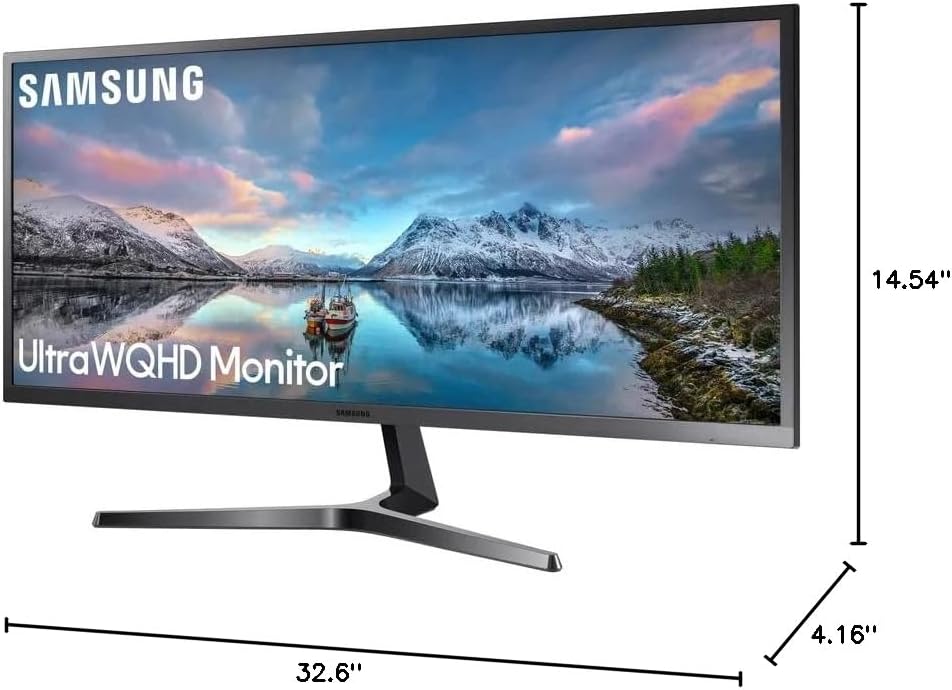
Image source: Bing (Web (fair-use with source credit))
The depth with stand is the number that surprises most people. A stand that’s 10 inches deep needs a desk that’s at least 24 inches deep to give you a comfortable viewing distance. If your desk is only 20 inches deep, you’ll want to consider a monitor arm.
An arm can push the screen further back and free up desk space.
The VESA mount pattern on most 34-inch ultrawides is 100×100 mm. That’s the standard for monitor arms and wall mounts. If you’re planning to use a mount, check the VESA compatibility and the weight capacity.
The official VESA Mounting Interface Standard confirms the 100×100 mm pattern for displays of this size.
Curved vs. Flat: How the Curve Changes the Footprint
Most 34-inch ultrawides come with a curved panel. The curve radius is usually 1500R, 1800R, or 1900R. The number indicates the radius of the curve in millimeters.
A 1500R curve means the screen would form a circle with a 1.5-meter radius. A tighter curve (lower number) wraps around you more.
The curve doesn’t change the horizontal width of the screen. The glass still spans the same 31.3 inches. But the curve affects the depth.
A curved screen bulges toward you in the center. The stand is usually set back to accommodate that bulge. So the overall depth from the wall to the front of the screen might be slightly less than a flat panel of the same width.
The edges of the screen are pulled closer to you, which can reduce head turning.
Flat 34-inch ultrawides exist, but they’re rare. A flat panel needs a deeper desk because the entire screen is at the same distance from your eyes. A curved panel can feel more immersive and reduce eye strain.
If you’re setting up a home office, you might also think about the rest of your gear. A reliable laptop is key, and our roundup of the best laptop for working from home can help you find a good match.
The curve also affects wall mounting. If you mount a curved monitor on the wall, the edges will stick out further than the center. You need to account for that extra depth.
A monitor arm with a long reach is often a better solution. It lets you position the screen at the right height and distance.
Desk Depth Requirements Most People Overlook
The stand is the hidden space hog. A 34-inch ultrawide with a typical stand needs 9.5 to 11.5 inches of depth from the wall to the front of the screen. That’s just the stand.
You also need room for the screen to tilt and for your hands to sit comfortably in front of it.
A desk that’s 24 inches deep is the practical minimum. That gives you about 12 to 14 inches of space in front of the screen for your keyboard and mouse. If your desk is only 20 inches deep, the screen will feel like it’s in your face.
You’ll end up leaning back to see the whole thing, which can cause neck strain over time.
If you’re tight on depth, a monitor arm is the best fix. An arm clamps to the back of the desk and lets you push the screen further back. Some arms even let you pull the screen forward when you need it.
This can recover several inches of usable desk space. If you’re using a hutch or a shelf, measure the vertical clearance too. The screen height with stand can be over 21 inches at its tallest setting.
You might need to remove a shelf to make room.
For those who want to ditch the stand entirely, a VESA mount is the way to go. The 100×100 mm pattern is standard. Just make sure your mount can handle the weight, which is usually 20 to 26 pounds with the stand removed.
If you’ve ever dealt with a wobbly TV stand, you know how important a solid mount is. Our guide on Samsung TV stand legs replacement covers similar stability concerns for large displays.
How a 34-Inch Ultrawide Compares to Dual Monitors and Other Sizes
A single 34-inch ultrawide gives you the same horizontal pixels as two 24-inch 1080p monitors side by side. But the experience is very different. You get a seamless image with no bezel gap in the middle.
That’s a big deal for video editing, coding, and trading. You lose the ability to snap full-screen apps to each display independently, but most operating systems have workarounds.
In terms of desk footprint, a 34-inch ultrawide is often smaller than a dual 27-inch setup. Two 27-inch monitors with stands can take up over 40 inches of width and 12 inches of depth. The ultrawide is about 32 inches wide and 10 inches deep.
You save space and reduce cable clutter. You also cut down on power draw. A typical 34-inch ultrawide uses 40 to 60 watts, while two 27-inch monitors can pull 80 to 120 watts combined.
That difference shows up on your monthly electricity bill. If you’re curious about what your gear costs to run, our article on home electronics energy costs breaks it down.
Compared to a 32-inch 4K monitor, the ultrawide is wider but shorter. The 32-inch 4K gives you more vertical space, which is better for reading documents and web pages. The ultrawide wins for multitasking with side-by-side windows.
If you’re coming from a 27-inch monitor, the ultrawide will feel massive. It’s like going from a single-lane road to a two-lane highway.
Common Measuring Mistakes That Lead to a Monitor That Doesn’t Fit
The most common mistake is measuring only the width. You check that your desk is 36 inches wide and think you’re fine. Then the monitor arrives and the stand is too deep.
You end up with the screen hanging off the front edge. Always measure depth first, then width.
Another mistake is forgetting about the curve. A curved screen bulges toward you in the center. If you’re mounting it close to a wall, the edges might hit the wall before the stand is flush.
Leave at least an inch of clearance behind the stand for the curve. If you’re using a monitor arm, make sure the arm’s reach is long enough to clear the wall.
People also overlook the VESA mount clearance. The mounting holes are usually recessed. You need to account for the thickness of the mount and the bolts.
If you’re mounting inside a hutch, measure the depth from the back panel to the front edge. Don’t forget the power and video cables. A DisplayPort cable with a 90-degree connector can add two inches of depth behind the monitor.
Finally, check the shipping box size. A 34-inch ultrawide box is often around 38 inches long and 20 inches wide. Make sure it’ll fit through your doorways and up your stairs.
If you’re buying during a sale, don’t rush the measurements. Our piece on the best month to buy a TV explains when monitors also drop in price, so you can plan ahead.
Quick Reference: Popular 34-Inch Models and Their Real Footprints
Here’s a look at some popular 34-inch ultrawides and their exact dimensions. These numbers come from manufacturer spec sheets and can vary slightly by revision.
| Model | Screen Width | Depth with Stand | Height with Stand | Weight with Stand |
|---|---|---|---|---|
| LG 34WN80C-B | 31.9 in | 9.4 in | 19.0 in (at lowest) | 19.4 lbs |
| Dell S3422DWG | 31.9 in | 9.6 in | 19.0 in (at lowest) | 22.5 lbs |
| Samsung Odyssey G5 (C34G55T) | 31.9 in | 10.8 in | 19.6 in (at lowest) | 23.4 lbs |
| Gigabyte G34WQC A | 31.9 in | 9.6 in | 19.0 in (at lowest) | 21.6 lbs |
| BenQ EX3410R | 31.9 in | 10.2 in | 19.6 in (at lowest) | 22.9 lbs |
All of these have a 21:9 aspect ratio and a curved panel. The screen width is consistently around 31.9 inches. The depth with stand ranges from 9.4 to 10.8 inches.
The height is adjustable, but the lowest setting is around 19 inches. If you’re adding a soundbar or a webcam, factor in that extra height.
If you’re pairing the monitor with external speakers, a set of Bluetooth speakers with solid bass can free up desk space compared to bulky bookshelf speakers. Just make sure they fit under the screen without blocking the display.
How to Test the Fit With a Paper Template (No Math Required)
You don’t need to be a math whiz to see if a 34-inch ultrawide will fit. Grab a roll of painter’s tape or a few sheets of newspaper. Tape together a rectangle that’s 32 inches wide and 14 inches tall.
That’s the screen area. Place it on your desk where the monitor would go.
Now add the stand. Measure 10 inches back from the front edge of the paper. That’s where the back of the stand will sit.
If your desk is against a wall, check that the stand won’t press against any baseboards or outlets. Sit in your chair and look at the paper. Does it feel too close?
Too far? Adjust the template until it feels right.
If you’re planning to use a monitor arm, tape a second template that’s 32 inches wide but only 2 inches deep. That’s the arm’s footprint. See how much desk space you save.
You can also test where your speakers or a power strip will go. A little planning now prevents a return later.
Frequently Asked Questions
How far should I sit from a 34-inch ultrawide?
A viewing distance of 24 to 30 inches works well for most people. A curved 1500R panel can be a bit closer, around 20 to 24 inches. If you sit further than 36 inches, the edges of the screen may feel too far away.
Adjust based on your comfort and the curve radius.
Can I wall-mount a 34-inch ultrawide?
Yes, most 34-inch ultrawides have a 100×100 mm VESA mount pattern. A curved screen will bulge toward you, so make sure your mount has enough depth. A full-motion arm is often better than a fixed bracket.
It lets you pull the screen forward and tilt it as needed.
Will a 34-inch ultrawide fit on a 30-inch wide desk?
It will fit, but it’ll be tight. The screen is about 32 inches wide with the bezel. A 30-inch desk leaves no room on the sides.
You might block speakers or a lamp. A 36-inch or wider desk is a safer choice. If space is limited, a monitor arm can help center the screen.
Is a 34-inch ultrawide too big for gaming?
Many gamers love the immersive feel of a 34-inch ultrawide. The 21:9 aspect ratio gives you a wider field of view in racing and simulation games. Some competitive shooters still prefer 27-inch 16:9 panels for faster target tracking.
It comes down to personal preference and the games you play.
How much desk depth do I need for a monitor arm?
A monitor arm typically needs 8 to 10 inches of depth from the back edge of the desk. The clamp takes up about 2 inches. The arm itself can extend 15 to 20 inches.
Make sure your desk is deep enough to let the screen sit at a comfortable distance. A 24-inch deep desk is a good starting point.
What’s the difference between 1500R and 1900R curve?
1500R means the curve has a 1.5-meter radius. 1900R is a gentler curve with a 1.9-meter radius. A tighter curve (1500R) wraps around you more and can feel more immersive. A gentler curve (1900R) is closer to flat and may be better for color-critical work.
Both reduce head turning compared to a flat panel.