Does Smart Thing App Need Wi-Fi for Device Search? Find Out Now!
Are you wondering if the Smart Thing app needs Wi-Fi to find your devices? It’s a common question that can save you time and frustration.
Imagine trying to connect your smart gadgets, but the app won’t detect them. What if the answer is simpler than you think? Keep reading, and you’ll discover exactly how the Smart Thing app works when it comes to searching for devices—and what you can do to make it easier.
This could change the way you manage your smart home.
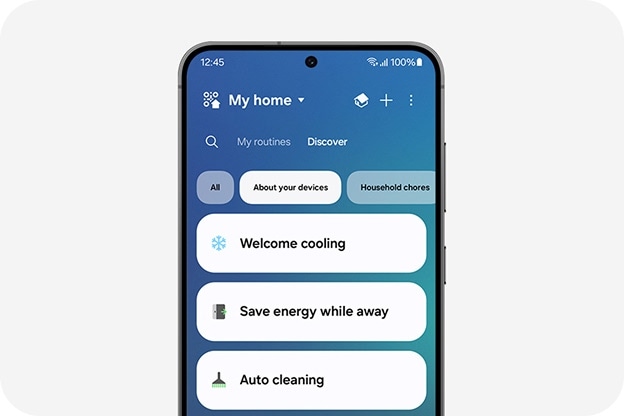
Credit: www.samsung.com
How Smartthings App Connects To Devices
The SmartThings app connects to devices by creating a communication link. This link allows the app to find, control, and manage smart devices. It uses different technologies to discover devices quickly and securely. Understanding how the app connects helps users know if Wi-Fi is necessary or if there are other options.
Role Of Wi-fi In Device Discovery
Wi-Fi plays a key role in finding devices on your home network. The app scans the Wi-Fi network for compatible smart devices. Devices connected to the same Wi-Fi can be discovered and controlled easily. This makes setup faster and allows remote control from anywhere. Wi-Fi provides a stable and fast connection, which helps the app communicate with multiple devices at once.
Devices like smart bulbs, cameras, and plugs often require Wi-Fi. The app uses the network to send commands and receive status updates. Without Wi-Fi, some devices may not appear in the app or work properly.
Alternative Connection Methods
SmartThings also supports other ways to connect with devices without Wi-Fi. Bluetooth is one common alternative. It allows direct communication between the phone and device. Bluetooth works well for initial setup or when Wi-Fi is unavailable.
Zigbee and Z-Wave are wireless protocols used by many SmartThings devices. These create a mesh network independent of Wi-Fi. Devices communicate with each other and the SmartThings Hub. The hub then connects to the app via the internet.
- Bluetooth offers short-range connection without Wi-Fi
- Zigbee and Z-Wave enable device communication through the hub
- Some devices use cellular or proprietary networks for connection
These alternatives allow the app to discover and control devices in different situations. They provide flexibility and ensure smart devices remain accessible without relying solely on Wi-Fi.
Wi-fi Requirements For Device Search
Understanding the Wi-Fi requirements for device search in the SmartThings app helps users connect their smart devices smoothly. This knowledge ensures the app works properly during setup and daily use. The app interacts with devices differently, depending on Wi-Fi availability and device type.
When Wi-fi Is Necessary
The SmartThings app often needs Wi-Fi to find and connect to devices. Most smart devices connect through the home Wi-Fi network. The app scans the network to detect compatible devices. This process requires a stable Wi-Fi connection.
Wi-Fi is essential when devices use cloud services or remote control. It enables the app to communicate with devices anywhere. Without Wi-Fi, some devices may not appear during the search.
Searching Devices Without Wi-fi
Some devices allow searching without Wi-Fi by using Bluetooth or other protocols. The SmartThings app can detect devices nearby through Bluetooth. This method works for initial setup or quick connections.
Devices that support local connections can be added without internet access. The app uses direct signals to find and pair with devices. This method is useful in places with weak or no Wi-Fi.
Remember, searching without Wi-Fi limits control options. Some advanced features may not work until a Wi-Fi connection is available.
Using Bluetooth With Smartthings
Using Bluetooth with SmartThings allows the app to find devices nearby without relying on Wi-Fi. Bluetooth works by scanning for signals from compatible devices within a short range. This makes it useful for quick device detection when Wi-Fi is unavailable or unstable.
SmartThings uses Bluetooth to discover and connect to smart gadgets such as sensors, locks, and lights. The app can detect these devices as long as they are within the Bluetooth signal range. This feature helps users manage their smart home devices smoothly without needing constant internet access.
Bluetooth Device Detection
SmartThings scans for Bluetooth devices within close proximity. Devices must have Bluetooth enabled and be in pairing mode. The app shows a list of available devices for easy connection.
Bluetooth detection works best indoors where signals are less likely to be blocked. It uses low energy Bluetooth to save battery on both the phone and smart devices. This method is fast and secure for discovering compatible gadgets.
Limitations Of Bluetooth Search
Bluetooth has a limited range, usually up to 30 feet. Walls and furniture can reduce signal strength. Devices outside this range will not appear in the app.
Bluetooth can only detect nearby devices. It cannot find devices connected to another network or far away. The search may miss devices if they are not in pairing mode or have Bluetooth turned off.
Unlike Wi-Fi, Bluetooth cannot control devices over long distances. Users may need to be close to the device for setup and management. This limits Bluetooth’s use for larger homes or outdoor areas.
Impact Of Network Settings
Network settings play a key role in how the Smart Thing app searches for devices. The app relies on certain network conditions to discover and connect to smart devices. Changes or limits in these settings can affect the app’s performance and device detection. Understanding these factors helps ensure smooth operation.
Router Compatibility
Not all routers support the protocols needed for Smart Thing device discovery. The app often uses Wi-Fi and local network features that some older routers lack. Dual-band routers, supporting both 2.4 GHz and 5 GHz, tend to work better.
Routers with guest networks may isolate devices, stopping the app from finding them. Ensuring the router allows communication between devices on the same network is important. Firmware updates on routers can also improve compatibility and fix bugs.
Firewall And Security Settings
Firewalls can block the signals the app uses to find devices. Strict firewall rules may prevent local network scanning or block ports needed for communication. Adjusting firewall settings to allow Smart Thing traffic can solve this issue.
Some security software or router firewalls label the app’s traffic as suspicious. This may lead to blocking or delays in device discovery. Whitelisting the app or disabling certain security features temporarily helps in troubleshooting.
Troubleshooting Device Search Issues
Running into problems while trying to search for your devices on the Smart Thing App can be frustrating. Often, these issues stem from connectivity hiccups or simple setup oversights. Understanding common connection problems and knowing how to boost your device detection can save you time and stress.
Common Connection Problems
One frequent issue is weak or unstable Wi-Fi signals. If your phone or smart device struggles to stay connected, the app may fail to find your device. Another common problem is interference from other wireless gadgets or thick walls blocking signals.
Sometimes, your devices might be on different network bands—like your phone on 5GHz Wi-Fi and the smart device on 2.4GHz. This mismatch can prevent the app from detecting devices. Also, outdated app versions or firmware can cause compatibility problems.
Steps To Improve Device Detection
- Check your Wi-Fi connection:Ensure your phone and smart devices are on the same network band, preferably 2.4GHz, which is widely supported by smart devices.
- Restart your router and devices:Power cycling can clear network glitches that block device discovery.
- Update your Smart Thing App and device firmware:Running the latest versions helps avoid bugs and improves compatibility.
- Reduce interference:Move devices closer to the router or away from other electronics that might interfere with the signal.
- Enable location services:The app may require location permissions to scan for devices effectively.
Have you noticed your device appears only after moving closer to your router? That’s a clear sign your Wi-Fi signal strength affects detection. Taking these practical steps can turn your frustrating experience into a smooth setup process.

Credit: apps.apple.com
Tips For Optimizing Smartthings Experience
Optimizing your SmartThings app improves how well it works with your devices. A smooth connection makes device search faster and more reliable. Small actions can boost your experience and reduce problems. Follow simple tips to keep your SmartThings app running at its best.
Best Practices For Connectivity
- Keep your phone close to your SmartThings hub or devices.
- Use a stable Wi-Fi network with strong signal strength.
- Avoid interference from other electronic devices near your hub.
- Restart your router and SmartThings hub occasionally to refresh connections.
- Switch to 5 GHz Wi-Fi if your router supports dual bands for faster speeds.
Keeping The App Updated
- Regularly check for SmartThings app updates in your app store.
- Install updates promptly to access new features and fixes.
- Enable automatic updates for convenience and security.
- Clear the app cache if it starts to lag or behave oddly.
- Restart the app after updates to ensure smooth operation.

Credit: www.samsung.com
Frequently Asked Questions
Does Smartthings App Require Wi-fi For Device Search?
Yes, the SmartThings app typically requires Wi-Fi to search for compatible devices. Wi-Fi enables the app to connect to the internet, allowing it to discover and communicate with smart devices within the network. This connection ensures seamless integration and control over your smart home devices.
Can Smartthings App Work Offline?
The SmartThings app offers limited functionality offline. While basic controls may work, device search and cloud-dependent features require internet access. For optimal performance and full access to app features, a stable Wi-Fi connection is recommended. Offline usage may restrict some advanced capabilities of the app.
What Happens If Wi-fi Is Disconnected?
If Wi-Fi is disconnected, the SmartThings app might lose its ability to search for devices. Some local controls might still function, but cloud-based services will be inaccessible. Reconnecting to Wi-Fi restores full app functionality and allows device discovery and remote control features.
Is Bluetooth An Alternative For Device Search?
Bluetooth can be used as an alternative for device search in some cases. However, its range is limited compared to Wi-Fi. For extensive device discovery and control, Wi-Fi is more effective. Bluetooth may provide a temporary solution but lacks the comprehensive capabilities of a Wi-Fi connection.
Conclusion
The Smart Thing app usually needs Wi-Fi to find devices. Wi-Fi helps the app connect quickly and easily. Without Wi-Fi, the app might not search well. Some devices may work with Bluetooth, but it is limited. For best results, keep your phone and devices on the same Wi-Fi.
This keeps your smart home running smoothly. Understanding this helps you use the app better. Simple steps make smart living easier every day.