Ultrawide Monitors for Office Work: Are They Worth It?
You're wondering if an ultrawide monitor can handle your daily office tasks without adding friction. The short answer is yes, but the real story depends on what you do all day and how you like to work. Many professionals switch to an ultrawide and never look back, while others miss the familiar snap of dual screens.
Our research shows that ultrawide models with a 34-inch or 38-inch panel at 3440×1440 resolution hit a sweet spot for most office workflows. Per VESA standards, that pixel density delivers sharp text and comfortable viewing at a typical desk depth of 24 to 30 inches. The key is matching the screen's strengths to your specific tasks, which we'll break down right now.

Image source: Web (Bing) / storage.googleapis.com (Web image (fair-use with source credit))
Quick Answer
Yes, you can use an ultrawide monitor for office work. It replaces a dual monitor setup with one seamless screen. Spreadsheets, documents, and video calls all fit comfortably.
The right size and resolution matter more than the label. A 34-inch 3440×1440 model handles most office jobs well.
Can You Use an Ultrawide Monitor for Office Work? The Honest Answer
An ultrawide monitor works for office work when your workflow benefits from a continuous horizontal canvas. Think of a writer keeping research on one side and a draft on the other. A developer can view code, a terminal, and a browser preview all at once.
The lack of a bezel gap in the middle makes reading across panels feel natural.
However, if your day is built around full-screen applications like a single spreadsheet or a design tool that needs maximum vertical space, a 16:9 monitor might serve you better. The aspect ratio of 21:9 gives you width but sacrifices height compared to a standard 27-inch 1440p screen. That trade-off is manageable for most people, but it's real.
The honest truth is that an ultrawide is a tool, not a universal upgrade. It shines for multitaskers and anyone who hates cable clutter. It feels less ideal for workers who rely on strict window snapping to a grid or who share their screen constantly on video calls.
We'll cover those nuances as we go.
What Makes Ultrawide Different for Office Work
An ultrawide monitor stretches to a 21:9 or 32:9 aspect ratio instead of the usual 16:9. That extra width is the whole point. You gain roughly 33% more horizontal screen area compared to a standard widescreen of the same diagonal size.
This matters when you want two full-size windows side-by-side without squinting.
The most common office ultrawide resolution is 3440×1440, also called WQHD. This delivers about 109 pixels per inch on a 34-inch panel. Text looks crisp, and you won't strain your eyes during a full workday.
Higher-end models push to 3840×1600 or even 5120×2160 for those who want retina-level sharpness. On the super ultrawide side, a 49-inch 5120×1440 screen essentially gives you two 27-inch monitors fused together.
Curvature is another defining trait. Most ultrawides curve at 1800R or 1500R. This bends the screen slightly toward you so the edges stay at a comfortable focal distance.
On a flat panel that wide, your eyes would constantly refocus as you scan across. The curve reduces that effort, which helps during long sessions of reading or data entry.
Connectivity often leans toward USB-C with power delivery. A single cable from your laptop can drive the display, charge your machine, and connect peripherals through the monitor's built-in hub. That simplifies a desk setup dramatically.
If you're using a reliable work laptop, this one-cable approach keeps your workspace clean and mobile.
Benefits of Using an Ultrawide for Office Work
The biggest win is a seamless multitasking surface. Without a physical gap down the middle, dragging windows across the screen feels fluid. You can keep email open on the left, your main work in the center, and a reference doc on the right.
This layout mirrors how your eyes naturally scan a physical desk.
Cable clutter drops significantly. One power cord, one video cable, and maybe a USB hub connection replace the tangle of two monitors. For a home office or a minimalist desk setup, that simplicity is a daily relief.
You also free up space for notebooks, a second device like a portable monitor, or just breathing room.
Ultrawides excel at timeline-based tasks. Video editors see more of their project without zooming. Audio producers fit more tracks on screen.
Financial traders watch multiple data streams at once. Even a project manager can keep a Gantt chart, a task board, and a chat window visible simultaneously.
The immersive focus factor is real. When you stretch a single application across the width, distractions from other windows fade. Writing a report or analyzing a dataset becomes more absorbing.
Many users report that they feel less fragmented because they're not constantly toggling between full-screen apps.
Eye comfort improves with proper curvature and modern panel tech. Blue light filters and flicker-free backlights are standard on most office-oriented ultrawides. TÜV Rheinland certifications on models from Dell, LG, and BenQ confirm reduced blue light output and no perceptible flicker.
That helps during eight-hour days.
Drawbacks and Limitations You Should Know
Screen sharing on video calls is a genuine pain point. When you share your entire screen on Zoom or Teams, participants see a stretched 21:9 image that looks tiny on their 16:9 displays. You either share a single application window or accept that your colleagues will see black bars.
That's a workflow adjustment you'll need to plan for.
Neck strain can creep in if the screen is too wide for your viewing distance. A 34-inch model works fine at 24 to 30 inches desk depth. A 49-inch super ultrawide demands more head turning unless you sit farther back.
Without an adjustable arm to pull the screen closer, you might find yourself craning your neck toward the edges.
Window management becomes a necessity rather than an option. Out of the box, Windows and macOS don't always snap windows into efficient zones on a wide canvas. Without third-party tools like Microsoft PowerToys FancyZones or DisplayFusion, you'll waste time manually resizing windows.
That's an extra setup step and a learning curve.
Vertical space is limited compared to a 16:9 monitor of similar diagonal size. A 34-inch ultrawide at 3440×1440 offers only 1440 pixels of height. A 27-inch 1440p standard monitor gives you the same height but in a taller aspect ratio.
If you work with long spreadsheets or code files that scroll vertically, you'll see fewer rows at once.
Legacy software and some full-screen applications don't always respect the ultrawide resolution. Older programs might display with black bars on the sides or stretch awkwardly. Most modern office suites handle it fine, but niche industry software could need compatibility checks before you commit.
Price is another factor. A decent office ultrawide starts around $350 and climbs past $1,000 for premium panels with USB-C hubs and high color accuracy. Two budget 27-inch 1440p monitors can cost less combined.
The value comes from the seamless experience, not raw specs per dollar.
Ultrawide vs. Dual Monitors: Which Setup Wins for Office Work
This is the core comparison most office workers face. Both setups can boost productivity, but they solve different problems.
An ultrawide gives you one continuous workspace. There's no bezel interrupting your mouse flow. You can center your primary task and flank it with references.
For tasks that benefit from a wide, unbroken view, the ultrawide wins hands down.
Dual monitors offer more flexibility in arranging content. You can angle each screen independently, which helps with ergonomics. One screen can stay in landscape while the other rotates to portrait for long documents or code.
That versatility is hard to beat.
Here's a side-by-side look at how they compare across key factors.
| Factor | Ultrawide Monitor | Dual Monitors |
|---|---|---|
| Screen continuity | Seamless, no bezel gap | Visible gap between panels |
| Cable management | Typically one video cable, one power | Two video cables, two power cords |
| Desk space | One stand, less clutter | Two stands, more footprint |
| Ergonomic adjustment | Height/tilt/swivel on one unit | Each screen angles independently |
| Vertical screen real estate | Limited to panel height (1440px typical) | Can rotate one to portrait for extra height |
| Screen sharing ease | Requires window sharing or shows black bars | Can share one screen cleanly |
| Window snapping | Needs third-party tools for best results | Built-in OS snap works well on each screen |
| Cost | $350–$1,500+ | $200–$600 for two budget panels |
| Setup complexity | Single input, simple | Dual inputs, more cable routing |
Your workflow decides the winner. If you constantly reference multiple sources and hate the center gap, an ultrawide is likely the better fit. If you need a dedicated full-screen for meetings and a separate workspace, dual monitors keep things clean.
Some professionals even combine a single high-resolution 32-inch 4K display with a small secondary screen for notifications, finding that a better balance than either extreme.
If you decide on an ultrawide, pairing it with a laptop that has solid USB-C output ensures a clean connection. A machine from the best laptops for work and gaming list often includes the necessary ports and graphics muscle. For those who still want a secondary display on the side, a portable monitor adds that flexibility without committing to a full dual-arm setup.
The decision isn't permanent. Many workers start with dual monitors, merge to an ultrawide, and then occasionally add a small vertical screen later. Your needs will shape the right setup, and there's no single answer that fits everyone.
Who Should Use an Ultrawide Monitor for Office Work
Multitaskers who juggle several applications at once will feel right at home. If your typical morning involves email, a project management tool, a spreadsheet, and a browser all open simultaneously, the ultrawide keeps everything visible. You stop toggling and start scanning, which saves mental energy over a full day.
Creative professionals benefit from the wide canvas. Video editors see more of their timeline without constant scrolling. Photographers can keep a full image preview beside their editing panels.
Audio engineers fit more tracks and mixer channels on screen. The continuous width mirrors how these tools naturally spread out.
Data-heavy roles are a strong fit. Financial analysts tracking multiple tickers, researchers comparing documents side-by-side, and software developers running code, terminals, and previews all gain from the extra horizontal space. If your work involves reading across wide tables or long timelines, the ultrawide reduces scrolling and zooming.
Remote workers who value a clean desk setup often prefer a single ultrawide over dual monitors. One cable to your laptop, one power cord, and a tidy workspace. If you're working from a smaller home office or a shared space, that simplicity adds up.
Pairing it with a solid work laptop keeps the whole setup portable and neat.
Who Should Stick with Dual Monitors or a Standard Screen
If your workflow is built around full-screen applications, an ultrawide might frustrate you. Accountants working in massive spreadsheets often need vertical rows more than horizontal width. A 16:9 or 16:10 monitor in portrait mode shows more data per screen.
The ultrawide's limited height becomes a real constraint here.
Frequent presenters and meeting hosts should think twice. Sharing a 21:9 screen on a video call means your audience sees a compressed, letterboxed view unless you share a single window. If you present multiple times a day, dual monitors let you share one screen while keeping notes on the other.
That workflow is harder to replicate on a single ultrawide.
Workers on a tight budget might get more value from two affordable 27-inch monitors. You can often buy two decent 1400p panels for the price of one premium ultrawide. If raw screen real estate matters more than aesthetics, dual monitors deliver more pixels per dollar.
You also gain the flexibility to rotate one screen to portrait.
People with limited desk depth should measure carefully. A 34-inch ultrawide needs at least 24 inches of desk depth for comfortable viewing. A 49-inch super ultrawide wants 30 inches or more.
If your desk is shallow or pushed against a wall, dual smaller screens might fit better without forcing you to sit too close.
Window Management: The Secret to Ultrawide Productivity
An ultrawide without good window management is just a wide mess of floating windows. The built-in snapping in Windows 11 and macOS Stage Manager helps, but they're designed for standard aspect ratios. You need custom zones to truly unlock the screen's potential.
Microsoft PowerToys FancyZones is the go-to free tool for Windows users. It lets you define a grid of zones that match your workflow. You might set up a three-column layout for email, main work, and chat.
Or a center-heavy layout with a wide primary zone and narrow side panels. Once configured, you drag windows into zones and they snap perfectly every time.
DisplayFusion offers similar functionality with more advanced features. It supports custom window positions, taskbar splitting across zones, and multi-monitor profiles. For power users who want granular control, it's worth the small investment.
Both tools solve the same problem: making the ultrawide's width work for you instead of against you.
macOS users can rely on Stage Manager or third-party apps like Magnet or Rectangle. These let you snap windows to halves, thirds, or custom fractions of the screen. The key is consistency.
Pick a layout that matches your daily tasks and stick with it. Muscle memory builds fast, and soon you'll arrange windows without thinking.
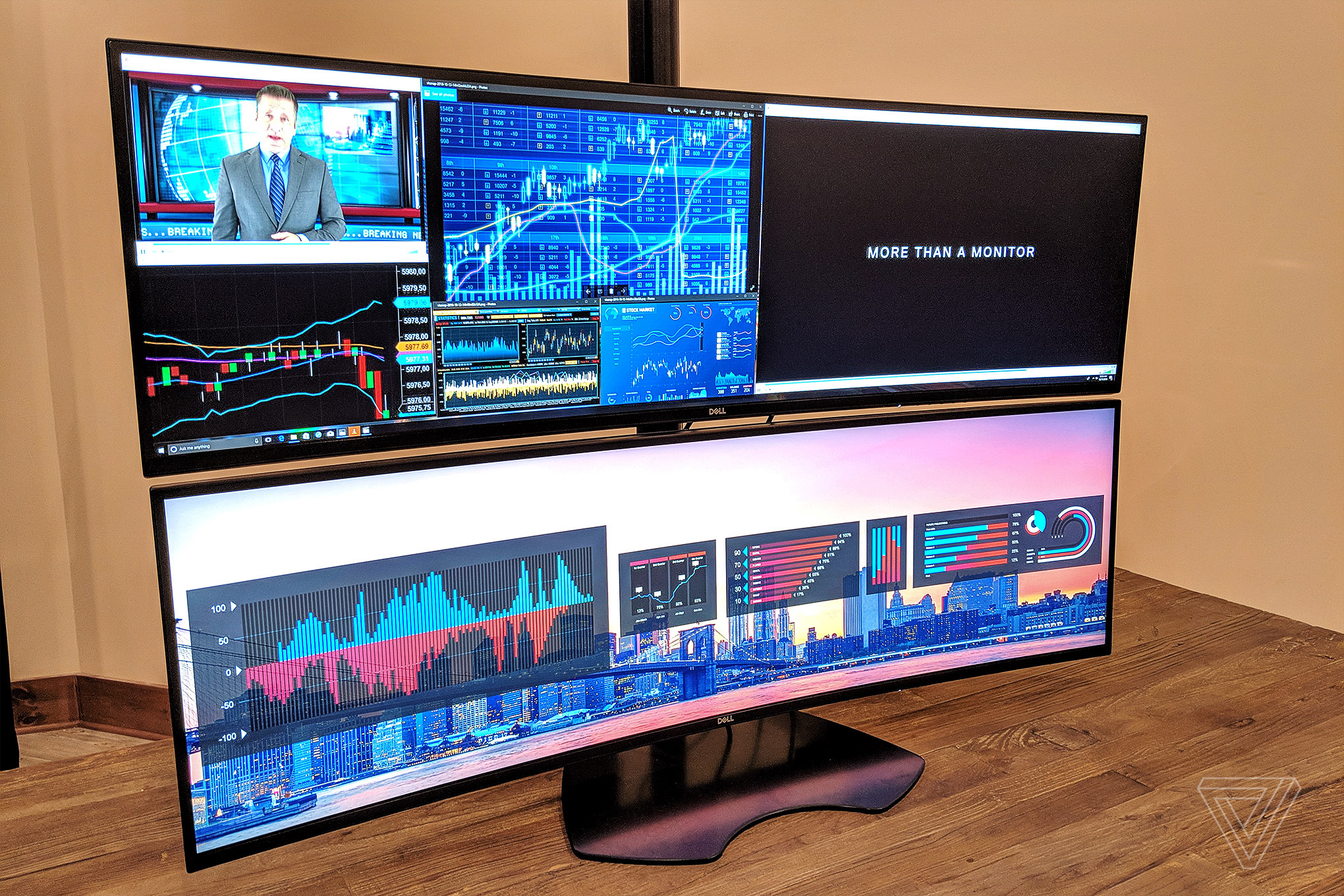
The image above shows how a well-organized ultrawide can display multiple applications in clearly defined zones. Notice how each window has a dedicated space without overlapping. That's the goal.
Once you set up your zones, the ultrawide stops feeling overwhelming and starts feeling like a command center.
Setup and Ergonomics: Getting Your Ultrawide Right
Positioning matters more with an ultrawide than with a standard monitor. The center of the screen should sit at or slightly below eye level. Your eyes should naturally land on the middle third of the panel when looking straight ahead.
This reduces neck strain during long sessions.
Viewing distance is critical. For a 34-inch model, aim for 24 to 30 inches between your eyes and the screen. A 38-inch or 40-inch panel wants 30 to 36 inches.
If you sit too close, you'll constantly turn your head to see the edges. Too far and you'll lose detail. Measure your desk depth before buying.
A monitor arm is almost essential for ultrawides. The included stands often lack height adjustment and eat up desk space. A VESA-compatible arm lets you pull the screen closer, push it back, and tilt it to the exact angle you need.
For a 34-inch panel weighing 15 to 20 pounds, make sure the arm is rated for the weight.
Cable management gets easier with a single ultrawide, but don't neglect it. Route your USB-C or DisplayPort cable through the arm's built-in channels. If you're using a docking station, mount it under the desk to keep cables off the surface.
A clean setup helps you focus and makes the whole system feel more professional.
Popular Office Ultrawide Monitors Compared
The market offers solid options across different budgets and needs. Here's a look at models that consistently rank well for office use.
| Model | Size | Resolution | Panel | Key Features | Price Range |
|---|---|---|---|---|---|
| Dell U3423WE | 34" | 3440×1440 | IPS Black | USB-C 90W, KVM, IPS Black contrast | $900–$1,100 |
| LG 34WN80C-B | 34" | 3440×1440 | IPS | USB-C 60W, sRGB 99%, curved | $400–$500 |
| Samsung S34A650U | 34" | 3440×1440 | VA | USB-C 90W, 100Hz, built-in KVM | $450–$550 |
| BenQ PD3420Q | 34" | 3440×1440 | IPS | USB-C 65W, color accuracy, AQCOLOR | $700–$800 |
| Dell U4025QW | 40" | 5120×2160 | IPS Black | USB-C 140W, 5K2K, Thunderbolt 4 | $1,600–$2,000 |
The Dell U3423WE stands out for office workers who need a built-in KVM switch. You can connect a laptop and a desktop to the same monitor and toggle between them with a button press. The IPS Black panel offers deeper contrast than standard IPS, which helps with text readability.
The LG 34WN80C-B is a budget-friendly entry point. It covers 99% sRGB and includes USB-C with 60W power delivery. For a single-cable laptop setup without breaking the bank, it's hard to beat.
The curve is gentle at 1900R, which works well for office tasks.
Samsung's S34A650U adds a 120Hz refresh rate, which makes scrolling and mouse movement feel smoother. The built-in KVM is a bonus for users switching between machines. The VA panel offers better contrast than IPS, though viewing angles are slightly narrower.
BenQ's PD3420Q targets creative professionals who need color accuracy. It ships factory-calibrated with Delta E under 3. If your office work involves photo editing or design, this panel ensures what you see matches the final output.
The Dell U4025QW is the premium option. At 40 inches and 5120×2160 resolution, it delivers sharp text and massive workspace. The 140W USB-C charging can power demanding laptops.
It's overkill for basic office tasks, but for power users who want one screen to rule them all, it delivers.
How Much Do Ultrawide Monitors Cost for Office Work
Budget options start around $350 for a 34-inch 3440×1440 VA panel. Mid-range IPS models with USB-C land between $500 and $800. Premium options with 5K2K resolution and Thunderbolt push past $1,500.
Sales events can drop prices by 20-30%, so timing matters.
Screen Sharing and Video Conferencing on an Ultrawide
Always share a single application window, not the full screen. Zoom and Teams will compress a 21:9 display into a letterboxed mess otherwise. Set your camera to crop tightly so colleagues don't see the full width.
It takes a few extra clicks but keeps your presentation clean.
Common Mistakes When Switching to an Ultrawide
Sitting too close causes neck strain. Skipping window management software wastes the screen's potential. Buying a 49-inch for a shallow desk guarantees eye fatigue.
Forgetting to check your laptop's output resolution before purchasing leads to blurry scaling. These are all fixable with a little planning.
Frequently Asked Questions
Is an ultrawide better than two monitors for productivity?
It depends on your workflow. Ultrawides excel at continuous multitasking. Dual monitors offer more flexible ergonomics and easier screen sharing.
Choose based on whether you prioritize a seamless canvas or independent screen control.
What size ultrawide is best for office work?
34 inches at 3440×1440 fits most desks and workflows. Step up to 38 or 40 inches if you want more vertical space and sit a bit farther back. Measure your desk depth before deciding.
Do ultrawide monitors work well with laptops?
Yes, especially with USB-C connectivity. One cable drives the display, charges your laptop, and connects peripherals. Verify your laptop's USB-C port supports DisplayPort alt mode for best results.
Final Verdict: Should You Switch to an Ultrawide for Office Work
Switch to an ultrawide if you multitask heavily, value a clean desk, and work with wide timelines or multiple documents. Stick with dual monitors if you present often, need vertical space, or work within a tight budget. The right choice matches your daily habits, not just the specs on a box.