How Do Ultrawide Monitors Affect Performance?
If you're wondering how do ultrawide monitors affect performance, you're not alone. The internet is full of conflicting advice, and it's easy to feel overwhelmed. Some people swear an ultrawide will destroy your frame rates, while others claim it makes zero difference.
The truth sits right in the middle, and it comes down to a simple technical reality that most gloss over.
A 34-inch ultrawide at 3440 x 1440 packs 4.9 million pixels, about 33% more than a standard 27-inch 1440p screen. That extra load is exactly what can tank your frame rates if your graphics card isn't up to the task. Let's break down the real culprit so you can make a smart decision without the guesswork.
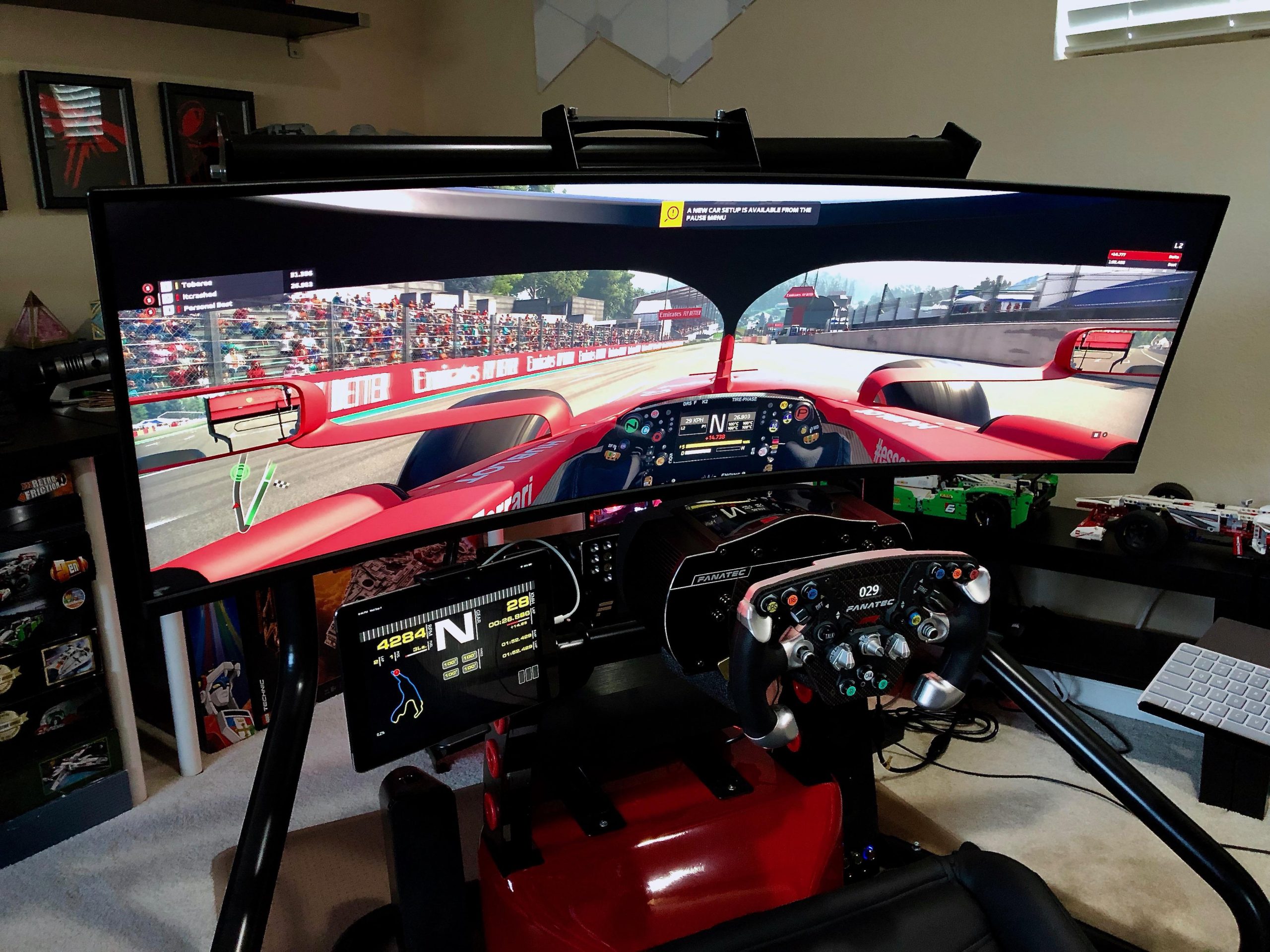
Image source: Web (Bing) / storage.googleapis.com (Web image (fair-use with source credit))
Quick Answer
Ultrawide monitors affect performance by increasing the total pixel count your GPU must render. The aspect ratio itself doesn't slow your PC; the resolution does. A 3440×1440 ultrawide pushes 33% more pixels than a standard 2560×1440 screen, which can lower frame rates in games.
Productivity tasks see no performance hit. The real impact depends on your GPU's power relative to the monitor's resolution.
The Real Culprit: Pixels, Not Shape
The shape of your monitor has almost nothing to do with performance. A 21:9 ultrawide and a 32:9 super ultrawide are just wider canvases. What actually taxes your graphics card is the total number of pixels it has to light up every single second.
That number is dictated by the monitor's native resolution, not its aspect ratio.
Think of it like painting a wall. A wider wall doesn't make you slower if it's the same height. But a taller wall, or a wall that's both wider and taller, requires more paint and more time.
Your GPU faces the same math. When you jump from a standard 2560 x 1440 display to a 3440 x 1440 ultrawide, you're asking it to render 1.33 million more pixels per frame. That's a 33% increase in workload, and it's the single biggest factor in any performance drop you'll see.
This is why a 34-inch ultrawide at 2560 x 1080 can actually be easier on your GPU than a 27-inch 2560 x 1440 monitor. The 1080p ultrawide has roughly 2.8 million pixels, while the 1440p standard has 3.7 million. Your graphics card does less work on the lower-resolution ultrawide, even though the physical screen is larger.
Aspect ratio is just the frame. Pixel count is the workload.
How Ultrawide Resolution Actually Loads Your GPU
Every frame your GPU renders is a grid of pixels. The more pixels in that grid, the more calculations your graphics card must complete before pushing the image to your monitor. This is called fill rate demand, and it scales almost linearly with pixel count.
According to NVIDIA's graphics pipeline documentation, the raster operations pipeline processes pixels in parallel, but a 33% increase in total pixels still translates to a near-proportional increase in workload when the GPU is the bottleneck.
That means if your current setup runs a game at 80 frames per second on a 1440p standard monitor, dropping that same game onto a 1440p ultrawide could land you around 60 FPS with identical settings. You're not losing performance because the screen is wider. You're losing it because your GPU is now pushing a third more visual data per frame.
The same logic applies to any GPU-intensive task, like 3D rendering or real-time video effects.
For everyday work, this load is negligible. Spreadsheets, code editors, and web pages don't push your GPU hard enough for the extra pixels to matter. But the moment you fire up a modern game or a GPU-accelerated creative app, that pixel tax becomes very real.
Understanding this distinction is the key to predicting how an ultrawide will behave in your specific setup.
Gaming vs. Productivity: Two Completely Different Stories
The performance impact of an ultrawide monitor splits cleanly into two categories. In gaming, the GPU is under constant, heavy load. That's where you'll feel the pixel count difference most.
In productivity, the GPU is mostly idling, so the extra pixels cost you nothing in speed. Your experience will depend entirely on which of these two worlds you live in most.
If you're a gamer, the resolution jump matters. A 3440 x 1440 ultrawide demands significantly more from your graphics card than a standard 1440p screen. You'll likely need to adjust in-game settings, drop from Ultra to High, or lean on upscaling technologies like DLSS or FSR to maintain a smooth frame rate.
The trade-off is a massively wider field of view that makes racing sims, flight sims, and open-world games feel incredibly immersive. You gain situational awareness, but you pay for it in raw GPU horsepower.
Productivity is a different beast entirely. Writing emails, managing spreadsheets, coding, or editing documents barely registers on a modern GPU. Even a mid-range card can drive a 3440 x 1440 desktop at its native refresh rate without breaking a sweat.
The performance gain here is all about workflow efficiency. You can place three windows side by side without bezel gaps, keep an eye on Slack while drafting a report, or edit a timeline with a full-length preview. If your machine handles both professional tasks and gaming well, you already know the value of a display that pulls double duty.
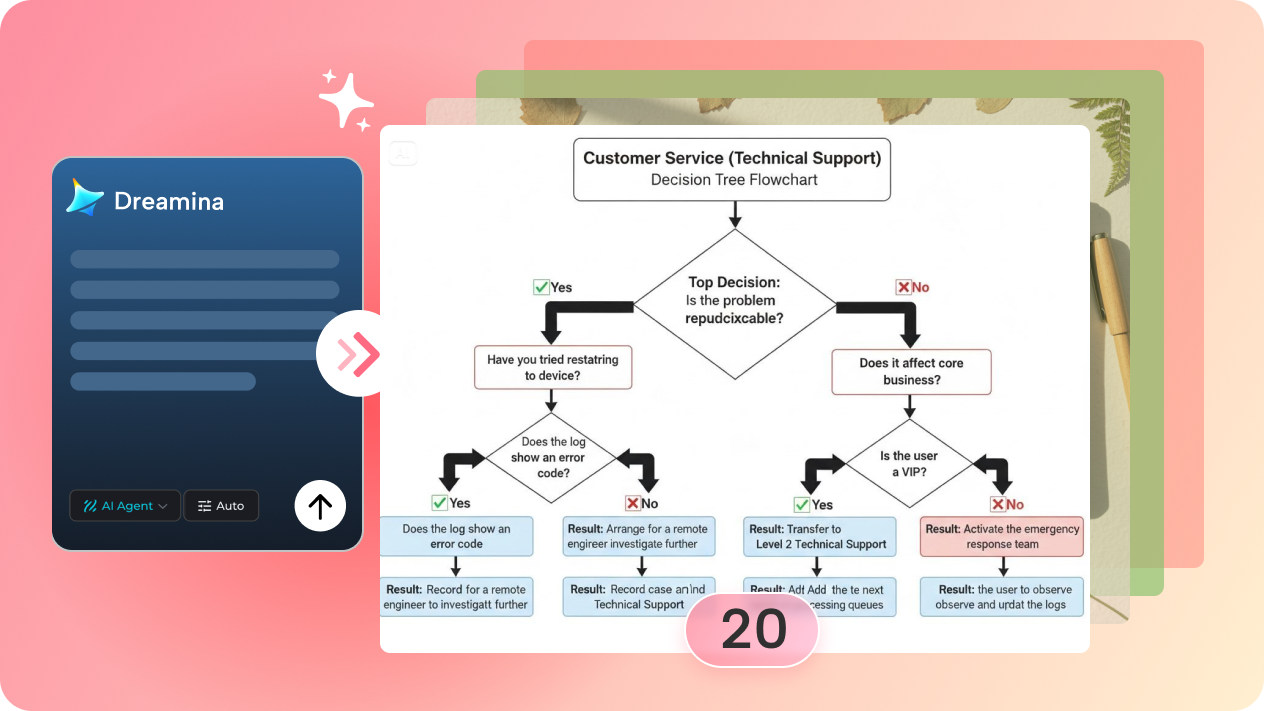
Image source: Bing (Web (fair-use with source credit))
Your Decision Tree: Will an Ultrawide Work for You?
Instead of guessing, walk through your actual setup. The answer changes based on what you do and what hardware you own. This decision tree will tell you exactly which ultrawide resolution makes sense for your situation, and which ones to avoid.
Step 1: What Are You Actually Doing?
If your monitor is mostly for work, browsing, and light media, stop worrying. An ultrawide will not slow you down. Buy the resolution that fits your budget and desk space, and enjoy the screen real estate.
The performance conversation only starts when gaming or GPU-heavy creative work enters the picture. If that's you, move to the next step.
Step 2: What GPU Are You Running?
Pull up your graphics card model. This is the single most important factor. A mid-range card like an RTX 4060 or RX 7600 will struggle with 3440 x 1440 in demanding titles.
An upper mid-range card like an RTX 4070 or RX 7800 XT can handle it well with some settings tweaks. High-end cards like an RTX 4080, RTX 4090, or RX 7900 XTX will chew through that resolution without issue and can even step up to super ultrawide 5120 x 1440.
If you're using integrated graphics or a very old dedicated card, a 2560 x 1080 ultrawide is your safest bet. It gives you the wide-screen experience without overwhelming your hardware. If your GPU can't quite drive an ultrawide the way you'd like, a portable monitor might be a better fit for now.
Step 3: Which Resolution Matches Your Hardware?
Now pair your GPU tier with the right ultrawide resolution. A common mistake is buying a 34-inch 3440 x 1440 monitor and pairing it with a card that's only comfortable at 2560 x 1440 standard. That mismatch forces you to choose between blurry upscaling or choppy frame rates.
Match the pixel count to what your GPU can actually handle, not just the physical size you want on your desk.
The GPU-to-Resolution Cheat Sheet
Use this cheat sheet as a starting point. It reflects aggregate review data and current GPU tiers as of 2026. Your exact frame rates will vary by game and settings, but these pairings will keep you in a smooth performance range without constant tweaking.
| GPU Tier | Example Cards | Recommended Ultrawide Resolution | Expected Experience |
|---|---|---|---|
| Entry-Level / Older Mid-Range | RTX 3060, RX 6600, RTX 4060 (with DLSS) | 2560 x 1080 (WFHD) | Smooth 60+ FPS in most games at Medium to High settings. |
| Mid-Range | RTX 4060 Ti, RX 7700 XT | 3440 x 1440 (WQHD) with upscaling | Playable 60 FPS with DLSS/FSR, or lower settings. |
| Upper Mid-Range | RTX 4070, RX 7800 XT | 3440 x 1440 (WQHD) | Solid 60-100+ FPS at High settings, often without upscaling. |
| High-End | RTX 4080, RTX 4090, RX 7900 XTX | 3440 x 1440 at high refresh, or 5120 x 1440 (DQHD) | Excellent performance at maximum settings, high refresh rates. |
If you're running a solid work-from-home setup with integrated graphics, a 2560 x 1080 ultrawide will feel snappy and responsive. If you're a serious gamer with a high-end card, you can push a 3440 x 1440 panel to its limits. And if you're worried about the ongoing electricity cost of a power-hungry GPU, remember that higher resolutions do increase power draw under load, so factor that into your long-term budget.
Common Mistakes That Tank Your Frame Rates
Most performance problems aren't the monitor's fault. They come from mismatched expectations and overlooked settings. The biggest mistake is buying a 3440 x 1440 ultrawide and expecting it to perform like a standard 1440p screen.
Your GPU doesn't care about the marketing on the box. It cares about the pixel count. If you pair that monitor with a card designed for standard 1440p, you're setting yourself up for disappointment.
Another frequent error is running the monitor at a non-native resolution. If your GPU can't handle 3440 x 1440, you might be tempted to drop to 2560 x 1440 and let the monitor scale it up. That creates a blurry, soft image because the pixels don't map one-to-one.
You're better off lowering in-game rendering resolution or using upscaling technologies like DLSS or FSR, which are designed to handle this gracefully.
Ignoring your display cable is a surprisingly common oversight. A 3440 x 1440 monitor at 144Hz needs DisplayPort 1.4 or HDMI 2.1 to run at full spec. Plug it into an old HDMI 1.4 port and you'll be stuck at 50Hz or 60Hz, which makes everything feel sluggish.
Always check your GPU's output ports and use the cable that came with the monitor, or a certified high-bandwidth replacement.
How to Optimize In-Game Settings for Ultrawide Gaming
When you move to an ultrawide, you don't need to sacrifice visual quality across the board. Start by enabling DLSS or FSR if your GPU supports it. These upscaling technologies render the game at a lower resolution and use AI or spatial algorithms to reconstruct a sharp image at your monitor's native resolution.
The performance gain is often 30-40% with minimal visible quality loss, which almost entirely offsets the ultrawide pixel tax.
Next, identify the settings that cost the most performance for the least visual payoff. Shadows, ambient occlusion, and volumetric fog are usually the heaviest hitters. Dropping shadows from Ultra to High often recovers 10-15 FPS without making the game look bad.
Texture quality is usually worth keeping at maximum if you have enough VRAM, because it affects clarity more than frame rate. Anti-aliasing can often be lowered too, since the higher pixel density of an ultrawide naturally smooths out jagged edges.
Finally, cap your frame rate just below your monitor's refresh rate. If you have a 144Hz ultrawide, capping at 141 FPS with G-Sync or FreeSync enabled eliminates screen tearing and reduces GPU load. This prevents your graphics card from working harder than it needs to, which keeps temperatures and fan noise down.
Most games have this setting built in, and tools like NVIDIA's Frame View can help you verify that your cap is holding steady.
Real-World Benchmarks: What FPS Drop Should You Expect?
The raw math says a 33% pixel increase should cost you roughly 25-30% in frame rates, assuming the GPU is the limiting factor. In practice, the drop varies by game and how graphically demanding it is. In a well-optimized competitive title like Counter-Strike 2, the difference might be smaller because the engine isn't maxing out your GPU in the first place.
In a heavy single-player game like Cyberpunk 2077, you'll feel that pixel tax much more acutely.
Consider a concrete example. A system running an RTX 4070 might average 95 FPS at 2560 x 1440 in a demanding AAA title at High settings. Move that same game to a 3440 x 1440 ultrawide and the average could drop to around 65-70 FPS.
That's a noticeable difference, but still very playable. If that same system used DLSS Quality mode on the ultrawide, it might recover 80-85 FPS, essentially matching the standard 1440p experience while delivering the wider field of view.
The key takeaway is that the performance cost is predictable and manageable. It's not a mysterious slowdown. It's a direct trade-off between resolution and frame rate that you can plan for.
If you know your current FPS at standard 1440p, you can estimate your ultrawide performance with reasonable accuracy and decide whether the trade-off is worth it for your favorite games.
Ultrawide vs. Dual Monitors: Performance and Workflow
A single ultrawide is not the same as two standard monitors, and the difference shows up in both performance and workflow. Running dual 27-inch 1440p monitors means your GPU is driving roughly 7.4 million pixels total, nearly 50% more than a single 3440 x 1440 ultrawide. That extra load is real, especially in gaming where you might be spanning a single display across both screens.
For pure productivity, the difference is negligible, but the GPU workload comparison favors the single ultrawide.
Workflow-wise, an ultrawide eliminates the bezel gap right in the center of your vision. With dual monitors, that thick black bar sits exactly where your primary focus lives. You can arrange windows around it, but it's always there.
An ultrawide gives you one continuous canvas, which is cleaner for timeline-based work like video editing or audio production. You also deal with one set of cables, one power connection, and one stand, which keeps your desk tidier.
The main advantage of dual monitors is flexibility. You can angle each screen independently, which some people find more comfortable for long work sessions. You can also mix and match, pairing a high-refresh gaming monitor with a color-accurate productivity display.
If you're using a laptop as your primary machine, dual monitors might integrate more cleanly with your existing setup. But for most people who want a single, streamlined solution, the ultrawide wins on both desk space and simplicity.
Frequently Asked Questions
Does an ultrawide monitor lower my FPS?
Yes, if you're gaming. A 3440 x 1440 ultrawide pushes 33% more pixels than a standard 2560 x 1440 screen, which typically costs 25-30% in frame rates. The exact drop depends on your GPU and the game.
For non-gaming tasks like web browsing or office work, there is no measurable FPS drop because the GPU is barely working.
Can my graphics card run an ultrawide monitor?
It depends on your card and what you want to do. Check the pixel count against what your GPU currently handles comfortably. If you're gaming at 2560 x 1440 with a mid-range card, stepping up to 3440 x 1440 will likely require lowering settings or using DLSS/FSR.
For productivity, almost any modern GPU can drive an ultrawide without issue.
Is 3440 x 1440 much harder to run than 2560 x 1440?
It's about 33% more pixels, which translates to a proportional increase in GPU workload. That's a significant jump, but not a massive one. A card that handles standard 1440p well will still run ultrawide 1440p, just not at the same frame rates or settings.
With upscaling tech, the gap narrows considerably.
Do I need two monitors for productivity?
No. A single 34-inch ultrawide offers roughly the same screen real estate as two 24-inch monitors side by side, without the bezel gap in the middle. Many people find a single ultrawide cleaner and more efficient for multitasking.
Dual monitors are better if you need to angle screens independently or want to mix different panel types.
Will an ultrawide work with my laptop?
It depends on your laptop's output capabilities. You need a GPU that can handle the resolution and a port that supports it, such as DisplayPort over USB-C or HDMI 2.0 and above. Many modern laptops can drive a 3440 x 1440 ultrawide for productivity, but gaming performance will depend on the laptop's GPU tier.
Final Verdict: Should You Make the Switch?
If your GPU can handle the pixel count, an ultrawide is one of the best upgrades you can make. For productivity, there's virtually no downside. The extra screen real estate streamlines your workflow in ways that dual monitors can't quite match.
For gaming, the performance cost is real but predictable, and the immersive benefit is hard to give up once you've experienced it. The key is matching your monitor choice to what your graphics card can actually drive, not what you wish it could drive.
The smartest move is to treat this like any other hardware pairing. Your monitor and GPU are a team. Buy a resolution that plays to your card's strengths.
If you're running a high-end GPU, a 3440 x 1440 ultrawide will feel right at home. If you're on a mid-range card, a 2560 x 1080 ultrawide or sticking with a standard 1440p screen might serve you better for now. When you're ready to upgrade, you'll know exactly what to look for.
A display technology upgrade is only as good as the hardware driving it, and understanding that relationship puts you ahead of most buyers.
At the end of the day, the shape of the screen isn't what slows you down. The pixels are. Once you stop blaming the ultrawide and start counting the pixels, the whole decision becomes a lot clearer.