How to Start System in Maintenance Mode Linux: Easy Guide
Have you ever needed to fix a critical issue on your Linux system without distractions from other running services? Starting your system in maintenance mode can be the key to safely troubleshoot and repair problems.
In this guide, you’ll learn exactly how to boot your Linux system into maintenance mode step-by-step. By the end, you’ll have the confidence to handle system issues quickly and keep your setup running smoothly. Ready to take control and master this essential Linux skill?
Let’s dive in.
Why Use Maintenance Mode
Maintenance mode is a special state for Linux systems. It lets you work on the system without interruptions. This mode stops most services and users from logging in. It gives you full control to fix problems safely.
Using maintenance mode helps avoid accidental damage. It isolates the system so you can focus on repairs. The system runs with minimal processes, reducing risks during updates or fixes.
Benefits Of Maintenance Mode
- Allows safe system repairs without interference.
- Prevents users from accessing the system during fixes.
- Reduces the chance of data loss or corruption.
- Stops unnecessary services to free system resources.
- Helps diagnose hardware or software problems easily.
Common Use Cases
- Fixing broken system files or configurations.
- Performing system updates or kernel upgrades.
- Recovering lost passwords or user accounts.
- Running disk checks and repairing file systems.
- Removing malware or unwanted software safely.
Credit: duythinbmt.medium.com
Preparing For Maintenance Mode
Before switching your Linux system to maintenance mode, proper preparation is crucial. This ensures that your data stays safe and users remain informed about the downtime. Taking a few careful steps now can save you from unexpected problems later.
Backup Important Data
Backing up your important data is non-negotiable. Maintenance mode often involves system changes that can risk data loss or corruption.
You can use tools like rsync, tar, or even simple copy commands to create backups. Store these backups on a different drive or a remote server for extra safety.
Think about the last time you missed a backup and lost hours of work. Could that have been avoided? Make sure you have a recent snapshot of your critical files before proceeding.
Notify Users
Letting users know about upcoming maintenance avoids confusion and frustration. It also helps them plan their work around the downtime.
Send clear, concise messages via email, chat, or system notifications. Include the expected start time, duration, and reasons for the maintenance.
Imagine users trying to access the system and wondering why it’s offline. Wouldn’t a quick heads-up improve their experience? You control the narrative by communicating upfront.
Accessing Maintenance Mode
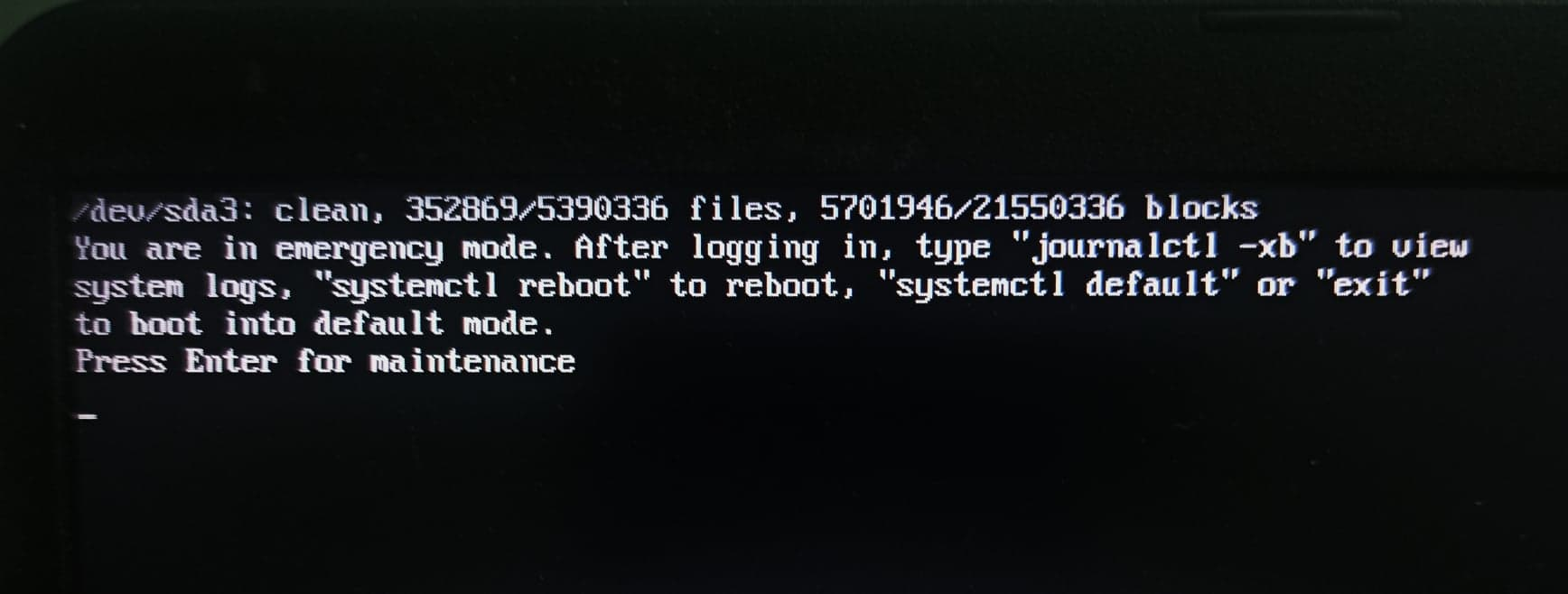
Accessing maintenance mode in Linux is essential for troubleshooting and system repair. This mode limits system functions and allows direct control over critical processes. It helps fix boot issues, reset passwords, and repair file systems.
Several ways exist to start a Linux system in maintenance mode. Each method provides different access levels and tools. Choosing the right one depends on your needs and system setup.
Using Grub Bootloader
The GRUB bootloader controls the startup process. It allows editing boot parameters to enter maintenance mode.
- Restart the system and wait for the GRUB menu to appear.
- Select the Linux kernel entry you want to boot.
- Press
eto edit the selected entry. - Find the line starting with
linuxorlinux16. - Add
singleorsystemd.unit=rescue.targetat the end of this line. - Press
Ctrl + XorF10to boot with these options.
The system boots into a limited environment for maintenance tasks.
Single User Mode
Single user mode is a minimal environment with root access. It disables network services and multi-user features.
- Access the GRUB menu and edit the boot entry.
- Append
singleor1to the kernel parameters. - Boot the system with these parameters.
- You will reach a root shell prompt without a password prompt.
- Perform necessary repairs or changes.
- Type
exitorrebootto leave single user mode.
Rescue Mode
Rescue mode provides tools to recover damaged systems. It is often used from installation media or rescue disks.
- Boot from a Linux installation or rescue disk.
- Select the Rescue a broken systemoption from the menu.
- Follow prompts to mount your existing system partitions.
- Access a shell with root privileges.
- Use the shell to repair files, fix configurations, or reinstall bootloaders.
- Reboot to exit rescue mode after repairs.
Credit: medium.com
Performing Tasks In Maintenance Mode
Performing tasks in maintenance mode gives you direct control over your Linux system when normal operations are disrupted. This mode is essential for fixing issues without interference from running services or users. It’s a powerful way to troubleshoot and maintain your system safely.
Filesystem Checks
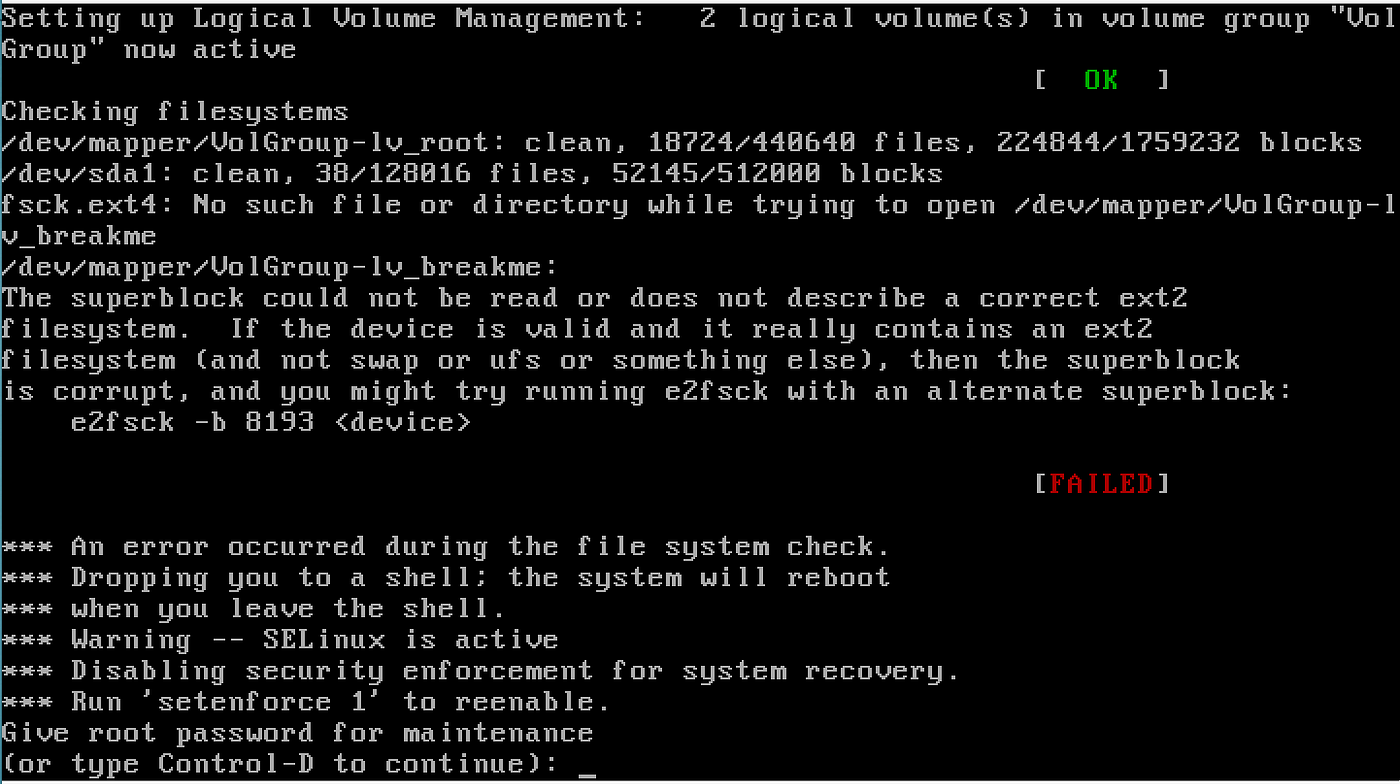
One of the first tasks in maintenance mode is checking the filesystem for errors. You can use commands like fsckto scan and repair corrupted filesystems. Running these checks prevents data loss and ensures the integrity of your storage devices.
Remember to unmount the filesystem before running fsckto avoid further damage. If the root filesystem needs checking, booting into maintenance mode lets you do this safely. Have you ever ignored minor disk errors, only to face bigger problems later?
Repairing Configurations
Maintenance mode allows you to fix broken or misconfigured system files without interference. You can edit configuration files using text editors like nanoor vi. This is the time to correct errors in network settings, user permissions, or startup scripts.
For example, if your system fails to boot normally due to a faulty /etc/fstab, you can repair it here. Always back up configuration files before making changes. What system setting have you found hardest to fix outside maintenance mode?
Updating System Packages
Updating packages in maintenance mode can be safer since no other processes compete for resources. Use your package manager, such as aptor yum, to install critical updates or security patches. This helps keep your system stable and secure after repairs.
Sometimes, updates can fix bugs that caused your system to fail in the first place. Be sure to check for package dependencies before proceeding. How often do you update your system to prevent unexpected failures?
Exiting Maintenance Mode
Exiting maintenance mode in Linux is a crucial step after you’ve completed your system repairs or updates. Leaving the system in this state can prevent normal operations and access. Knowing how to safely exit maintenance mode ensures your system returns to full functionality without unexpected issues.
Rebooting The System
Once you finish troubleshooting or updating your Linux system in maintenance mode, rebooting is the fastest way to exit. Use the rebootcommand to restart the system cleanly.
Before rebooting, make sure you have saved all changes and closed any active processes. If you skip this, the system might not boot properly or could lose important data.
Try this command in the terminal:
rebootAfter executing, your system will restart and should boot into the normal runlevel, allowing regular user access and services to start.
Verifying System Status
After rebooting, verifying the system status helps confirm that everything is working as expected. You can check if the system exited maintenance mode and if all services are running smoothly.
Run the following commands to inspect the current state:
systemctl status– shows the overall system statussystemctl is-system-running– returns the current system state, such as “running”uptime– displays how long the system has been running since reboot
Have you ever rebooted a system only to find it stuck or in maintenance again? These checks help you catch problems early and avoid downtime.
Credit: www.stefanroth.net
Troubleshooting Tips
Starting a Linux system in maintenance mode can help fix serious problems. Troubleshooting in this mode requires careful steps. Issues can arise that stop the system from booting properly. Knowing common problems and recovery methods saves time and effort.
Common Issues In Maintenance Mode
- Incorrect password prevents access to root shell.
- File system errors cause read-only mode.
- Missing or corrupted system files block startup.
- Hardware failures disrupt normal boot processes.
- Network services may not start automatically.
These issues stop the system from running normally. Identifying the exact problem is key to fixing it quickly.
Recovery Strategies
- Use
fsckto check and repair file systems. - Remount file systems with write permission using
mount -o remount,rw /. - Reset forgotten passwords via single-user mode.
- Check system logs in
/var/logfor error details. - Restore missing files from backups or installation media.
- Disable problematic services causing boot failure.
Applying these strategies helps regain system control. Always back up data before performing repairs. Regular maintenance reduces chances of boot issues.
Frequently Asked Questions
What Is Maintenance Mode In Linux System?
Maintenance mode is a minimal state used for system repairs. It boots Linux with limited services, allowing safe troubleshooting and updates without normal multi-user processes running.
How To Enter Maintenance Mode On Linux?
To enter maintenance mode, reboot the system and edit the boot parameters. Add “single” or “rescue” to the kernel line in GRUB, then boot to access root shell.
Why Start Linux In Maintenance Mode?
Maintenance mode helps fix system issues like file corruption or misconfigurations. It prevents normal services from starting, ensuring a safe environment for repairs.
Can I Perform Updates In Maintenance Mode?
Yes, maintenance mode allows you to safely update system files and packages. Limited services reduce conflicts, making updates and repairs more reliable.
Conclusion
Starting Linux in maintenance mode helps fix many system problems. It gives you control to repair files and settings. Remember to follow each step carefully for best results. Maintenance mode keeps your data safe while you work. Practice this process on a test system first.
With patience, you can solve issues without extra help. Keep this guide handy for future reference. Maintenance mode is a useful skill for any Linux user.