Ultrawide vs Dual Monitors: Which Setup Is Better?
You're trying to figure out whether one big sweeping screen or two separate displays will actually make your day better. The honest answer is that neither setup is universally superior, but one of them will fit the way you work, game, or create far more naturally. The right choice comes down to how you split your attention, how much desk you realistically have, and what you need your windows to do.
The core tension is simple: a single ultrawide panel gives you an unbroken canvas, while a dual-monitor array gives you hard edges and flexible arrangement. Manufacturer specifications for a typical 34 inch 3440×1440 ultrawide show 4.9 million pixels. Two 27 inch 2560×1440 monitors deliver 7.4 million pixels.
That gap matters, but so does the invisible seam right down the middle of a dual setup.
Quick Answer
An ultrawide monitor is not automatically better than dual monitors. An ultrawide removes the center bezel and simplifies cable routing. Dual monitors give you more total pixels and independent screen tilting.
The better setup depends on whether you value a seamless view or raw flexibility. Most single-PC productivity users lean toward an ultrawide. Multi-device power users often prefer dual screens.

Image source: Bing (Web (fair-use with source credit))
The Real Difference Between an Ultrawide and Dual Monitors
The distinction is not just size. It is how your workspace is divided and how your brain processes information across that space. An ultrawide monitor is a single panel, usually 34 to 49 inches diagonally, with a 21:9 or 32:9 aspect ratio.
A dual-monitor setup uses two independent screens, each typically a standard 16:9 rectangle, mounted side by side.
An ultrawide gives you one continuous desktop. There is no gap between your code editor and your browser preview. There is no break in a timeline that stretches across the panel.
A dual setup gives you two distinct zones that your operating system treats as separate displays. You can color-calibrate one for photo editing and use the other for email. You can run one in portrait and one in landscape.
You can feed one from a laptop and the other from a desktop using a built-in KVM switch.
The real-world impact is about attention and physical arrangement. With an ultrawide, you turn your head less but you rely heavily on software window management. With dual monitors, you get natural separation by bezel, but you also get a chunk of dead space right where your primary focus often sits.
Aggregate reviews from professional creators often highlight that an ultrawide feels calmer for deep focus work. Dual screens are praised for keeping communication apps permanently visible while leaving the primary screen clean.
What an Ultrawide Monitor Actually Gives You
An ultrawide replaces the gap with pixels. That is its single biggest advantage, and it changes the way you use the screen. A 34 inch 3440×1440 panel is essentially three 21:9 windows side by side without any frame breaking them up.
A 49 inch 5120×1440 super ultrawide is essentially two 27 inch 1440p panels fused together, but with no center bezel.
This continuity is a genuine productivity boost for specific workflows. Video editors see their timeline stretch across the full width without interruption. Traders keep order books, charts, and news feeds in one unbroken arc.
Writers keep research on one side and a full-screen draft on the other. The experience feels less like managing screens and more like looking across a physical desk.
Cable management is much simpler. One panel means one power brick, one video cable, and one USB uplink if you use a USB-C ultrawide. Many premium models handle 90W power delivery over a single USB-C connection, which is especially useful if you're connecting a laptop.
This cuts desktop clutter noticeably compared to a dual setup that needs two power cables, two display cables, and possibly a separate USB hub for peripherals.
Curvature is common on ultrawides, and it is not a gimmick. A 1500R or 1800R curve on a 34 to 49 inch panel reduces the viewing distance variation between the center and the edges. That means less eye movement and a more uniform focus plane.
A flat ultrawide at 49 inches can leave the far edges feeling slightly washed out or distorted from a normal sitting distance. Curvature helps, and manufacturer specifications typically list the radius, where a smaller number means a tighter curve.
The downsides are real. A single ultrawide is one panel, so if it develops a dead pixel or backlight bleed, your entire workspace is affected. You also lose the ability to orient one screen vertically for reading long documents while keeping another horizontally for your main task, unless you add a secondary monitor.
And for hardcore multitaskers, the total pixel count of a 34 inch ultrawide still falls short of two 27 inch QHD panels.
What a Dual-Monitor Setup Actually Gives You
Two independent monitors give you hard separation, which is a feature some people rely on. That physical bezel creates a mental boundary between tasks. Your communication apps live on one screen and your actual work lives on the other.
You do not have to toggle between windows as often because each application can live on a dedicated display.
Flexibility is the other strength. You can run one screen in portrait mode and the other in landscape. Portrait mode is genuinely useful for reading long PDFs, viewing code, or scrolling through social media dashboards.
You can mix panel types too, pairing a high-refresh IPS panel for gaming with a color-accurate IPS for creative work. You can angle each monitor independently to reduce glare or to create a slight cockpit feel around your chair.
Total pixel count is higher with two standard monitors. Two 27 inch 2560×1440 panels give you 7.4 million pixels. A 34 inch 3440×1440 ultrawide gives you 4.9 million.
That is roughly 50% more real estate with the dual setup. If your work involves monitoring many live data feeds simultaneously, that extra space is not trivial.
Cost can be lower for entry-level dual setups. Two decent 24 inch 1080p monitors can cost less than a single premium 34 inch ultrawide. But the gap narrows as you move up to 27 inch QHD panels with good color accuracy, where a matched pair often costs roughly the same as a comparable ultrawide.
Power consumption is slightly higher with two screens, which our research on typical office setups shows adds a modest amount to a monthly electricity bill. For a closer look at what always-on electronics cost, you can read our guide on how much home electronics cost a month.
The center bezel is the most complained-about drawback. That gap interrupts cross-screen dragging and can break immersion in games and video. Some people get used to it quickly, but for editing timelines or large spreadlines, it is a permanent annoyance.
Color and brightness mismatch between two panels is another frequent frustration, especially if the monitors are from different batches or brands. You may need to calibrate both to get a consistent look, which adds setup time.
Side-by-Side: Ultrawide vs Dual Monitors at a Glance
This table lays out the practical differences so you can scan the trade-offs quickly.
| Factor | Ultrawide Monitor | Dual-Monitor Setup |
|---|---|---|
| Center gap | None, seamless image | Visible bezel interruption |
| Total pixels (typical) | 4.9M (34" QHD) or 7.4M (49" super) | 7.4M (two 27" QHD) |
| Cable clutter | Low, often single USB-C | Higher, two video + two power cables |
| Orientation flexibility | Landscape only (unless rotated) | Mix portrait and landscape |
| Panel uniformity | Perfect, single panel | Can vary between two units |
| Desk depth needed | 24 to 30 inches for large curves | Similar, but less curve pressure |
| Built-in KVM availability | Common on premium models | Rare, usually requires external KVM |
| Gaming immersion | Excellent, wide field of good | Bezel breaks the view |
| Software window zones | Requires third-party tools for snapping | OS snapping per screen is enough |
| Failure impact | Entire workspace down | One screen still works if the other fails |
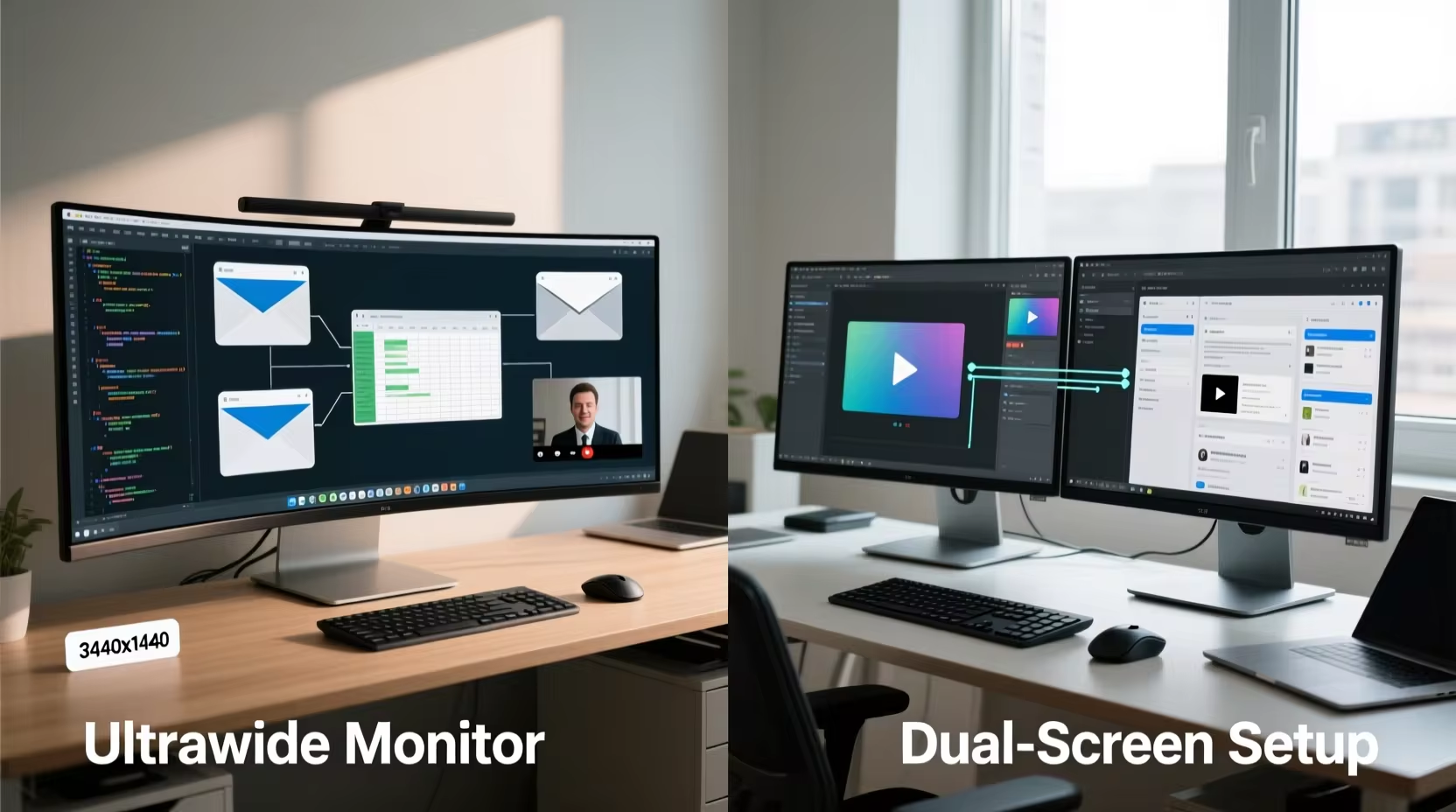
Image source: Bing (Web (fair-use with source credit))
Which Setup Wins for Specific Tasks
The right answer shifts depending on what you actually do all day. Here is how each setup performs across common use cases.
Coding and Software Development
Both setups work, but the experience is different. An ultrawide gives you a terminal, editor, and browser in one continuous line without a gap. Many developers find that comforting because they never have to shift focus across a bezel.
Dual monitors let you dedicate one screen entirely to reference material or logs while the other stays for the IDE. If you pair one screen vertically, reading long files becomes easier.
If you're working from a laptop frequently, an ultrawide with USB-C docking simplifies your setup. For a deeper look at portable screen options that complement a main display, see our roundup of the best portable monitor for laptops.
Video Editing and Content Creation
Ultrawides are extremely popular in editing timelines. The continuous view of a timeline is a genuine workflow improvement. Super ultrawides at 49 inches are even better for this.
Color-critical work, however, often favors a dual setup where one screen is a dedicated reference-grade panel and the other is for tools and bins. Uniformity across a single ultrawide is a plus, but top-tier dual-reference setups still win for final color grading.
Trading and Financial Analysis
This is where the super ultrawide and dual setups go head to head. A 49 inch 5120×1440 panel gives you enough width to tile multiple charts and order books without a bezel cutting through the middle. Dual monitors give you more raw pixels and the ability to stack charts vertically.
Many traders prefer a super ultrawide paired with one vertical secondary screen, which gives the best of both worlds.
Immersive Gaming and Simulation
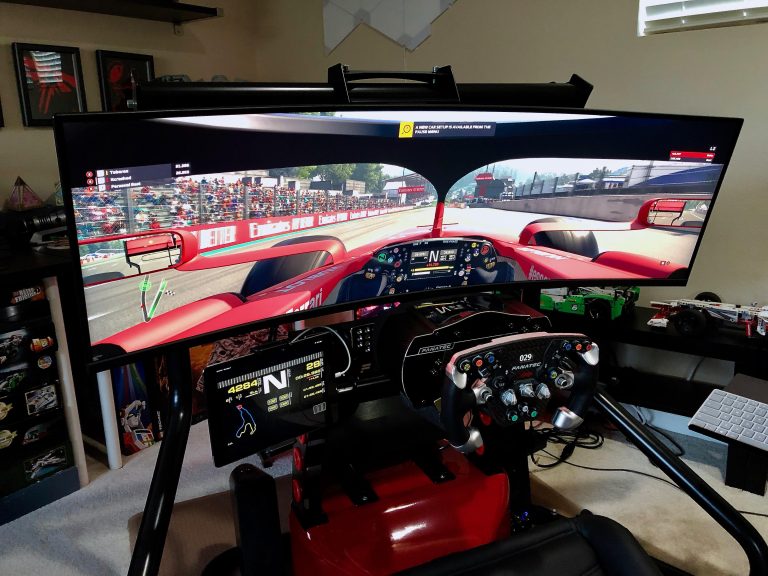
Ultrawides dominate here. The 21:9 field of view in supported games is more immersive than a standard 16:9 screen, and there is no center gap breaking the image. Racing sims and flight sims particularly benefit from the expanded peripheral view.
Dual monitors leave a black strip of bezel right in the center of your vision, which is a dealbreaker for immersion in most games.
General Productivity and Remote Work
For email, spreadsheets, documents, and video calls, both setups are perfectly usable. Dual monitors let you keep a call full screen on one display while taking notes or referencing materials on the other. An ultrawide does the same thing with software snapping, but the bezel-free view can feel less cluttered.
If your workday revolves around video calls and multitasking across many small windows, a dual setup often feels more natural.
If you're balancing work and gaming on the same machine, you might also want to check our guide on the best laptops for work and gaming to understand what kind of GPU drives these high-resolution panels.
The Hidden Costs and Desk Real Estate
The price tag on the box is only part of the story. A 34 inch ultrawide typically costs between $500 and $1200 as of 2026, depending on panel technology and features. A matched pair of 27 inch QHD monitors with good color accuracy often lands in the $400 to $700 range.
But the real cost difference shows up in the accessories and the desk space you need.
A large curved ultrawide needs serious desk depth. A 34 inch curved panel wants at least 24 inches of depth to sit at a comfortable viewing distance. A 49 inch super ultrawide pushes that to 30 inches or more.
If your desk is shallow, the screen will feel like it's wrapping around your face, which causes eye strain over long sessions. Dual monitors on a shared stand can be pulled closer individually because each panel is smaller, which gives you more flexibility in tight spaces.
Monitor arms add cost but solve problems. A good dual-monitor arm runs $80 to $200 and frees up desk space while letting you position each screen precisely. A heavy-duty ultrawide arm costs $100 to $300 because the panel is heavier and bulkier.
VESA mount compatibility is standard on most premium monitors, but budget models sometimes skip it, so check the specs before you buy.
Power consumption is slightly higher with two screens. Two 27 inch QHD monitors typically draw 40 to 60 watts under normal use. A 34 inch ultrawide draws 35 to 55 watts.
The difference is small, but it adds up if your displays run ten hours a day. For a broader look at what always-on electronics cost, our research on monthly home electronics expenses breaks down typical household draws.
GPU requirements matter more than people expect. Driving a 3440×1440 ultrawide at high refresh rates needs a decent graphics card. Two 2560×1440 monitors push even more pixels.
If you're gaming or doing 3D work, make sure your GPU can handle the total pixel count before you commit. Integrated graphics can struggle with either setup at high resolutions.
Common Mistakes People Make When Choosing
The biggest mistake is buying based on specs alone without thinking about how you actually work. A 49 inch super ultrawide looks impressive in photos, but if you mostly write documents and answer email, it is overkill. You will end up with a massive screen that makes you turn your head too much for simple tasks.
Ignoring the center bezel problem is another common error. People assume they will get used to the gap between two monitors, and some do. But for tasks that involve dragging windows across both screens or viewing wide timelines, that bezel is a permanent annoyance.
If you edit video or work with wide spreadsheets, test a dual setup in person before you commit.
Underestimating desk space is a frequent regret. A 34 inch ultrawide on a shallow desk forces you to sit too close, which causes eye fatigue. Two monitors on a small desk can leave no room for a keyboard and mouse at a comfortable height.
Measure your desk depth and width before you buy, and account for the stand footprint, not just the panel size.
Forgetting about software window management is a mistake that frustrates new ultrawide owners. Windows and macOS have basic snapping tools, but a 34 inch panel without third-party software feels chaotic. Tools like Microsoft PowerToys FancyZones, Magnet, or DisplayFusion are almost essential for making an ultrawide productive.
Without them, you will waste time manually resizing windows.
Assuming all ultrawides are good for gaming is another trap. Some budget ultrawides have slow response times and limited refresh rates. If gaming is a priority, check the panel's response time, refresh rate, and adaptive sync compatibility.
A 60Hz ultrawide is fine for office work, but it will feel sluggish in fast-paced games.
Expert Tips to Make Either Setup Work Better
Calibrate your panels, especially in a dual setup. Two monitors from the same brand and model can look different out of the box. A basic colorimeter or even the built-in calibration tools in Windows and macOS can reduce the mismatch.
For creative work, this step is not optional.
Use window management software on an ultrawide. FancyZones in Microsoft PowerToys lets you create custom snap zones that match your workflow. You can set up a three-column layout for coding or a center-focused layout for writing.
This turns a massive panel into organized workspaces instead of one chaotic screen.
Angle dual monitors slightly inward. A subtle V-shape reduces neck strain and makes both screens easier to see without turning your head. A 15 to 20 degree angle on each side is usually enough.
This small adjustment makes a big difference over a full workday.
Consider a hybrid setup if you can. An ultrawide as the primary display with a small vertical secondary monitor gives you the best of both worlds. The ultrawide handles your main work, and the vertical screen holds chat, email, or reference material.
This is a popular configuration among developers and traders.
Cable management matters more than you think. A single USB-C ultrawide with power delivery can turn your desk into a one-cable setup with a laptop. For dual monitors, a monitor arm with built-in cable routing and a desk-mounted power strip keep things tidy.
Our guide to securing smart home devices has broader tips on managing cables and power for multiple electronics.
Check your GPU ports before buying. Some ultrawides require DisplayPort 1.4 or HDMI 2.1 for full resolution and refresh rate. Running two high-resolution monitors may need multiple DisplayPort outputs or a docking station.
Verify that your computer has the right ports and cables to drive your chosen setup at its full potential.
The Verdict: Which One Should You Buy?
Choose an ultrawide if you want a seamless, immersive workspace and you mostly use one computer. It is the better choice for video editing, immersive gaming, and anyone who hates the center bezel gap. A 34 inch QHD ultrawide is the sweet spot for most people.
It gives you plenty of width without overwhelming a standard desk.
Choose dual monitors if you need maximum flexibility, more total pixels, or the ability to mix orientations. It is the better choice for multi-device workflows, portrait-mode reading, and anyone who wants to dedicate one screen to communication while keeping the other clean. Two 27 inch QHD panels give you more raw space than a 34 inch ultrawide at a similar price.
Consider a hybrid setup if your budget allows. An ultrawide paired with a vertical secondary monitor covers almost every workflow. This is what many professionals end up with after trying both pure configurations.
If you're still unsure, think about your most common task. If it involves a timeline, a wide field of view, or a single full-screen application, go ultrawide. If it involves juggling multiple apps, reading long documents, or switching between two computers, go dual.
Neither choice is wrong, but one will fit your daily routine more naturally.
Frequently Asked Questions
Is an ultrawide worth it over two monitors?
It depends on your workflow. An ultrawide removes the center bezel and simplifies cables, which many people prefer for focused work. Two monitors give you more total pixels and flexible orientation.
If you value a seamless view, an ultrawide is worth it. If you need raw space and flexibility, dual monitors are better.
Can I use an ultrawide for gaming and work?
Yes, many ultrawides handle both well. Look for a model with at least 120Hz refresh rate and adaptive sync for gaming. For work, a 34 inch QHD panel gives you plenty of width for multitasking.
Some premium models even include a built-in KVM switch so you can toggle between a work laptop and a gaming PC.
Do ultrawides work well with laptops?
They work very well, especially models with USB-C power delivery. A single USB-C cable can carry video, data, and power to a laptop. This turns a large ultrawide into a docking station.
Check that the monitor provides enough wattage for your laptop, typically 65W to 100W.
What size desk do I need for a 34 inch ultrawide?
You need at least 24 inches of desk depth for comfortable viewing. A width of 48 inches or more gives room for the stand and peripherals. If your desk is shallower than 24 inches, the screen will feel too close and cause eye strain over time.
Is a 49 inch ultrawide too big for office work?
For some people, yes. A 49 inch super ultrawide is essentially two 27 inch monitors fused together. It is excellent for editing timelines and monitoring many data feeds.
But for simple document work and email, it can feel overwhelming. You will turn your head more, which can cause neck fatigue.
How do I manage windows on an ultrawide without losing productivity?
Use window management software like Microsoft PowerToys FancyZones, Magnet, or DisplayFusion. These tools let you create custom snap zones so windows fill specific sections of the screen. Without them, a large ultrawide feels chaotic.
With them, it becomes an organized workspace.