Ultrawide vs Super Ultrawide: Key Differences Explained
When you're trying to understand what is the difference between ultrawide and super ultrawide monitor, the answer comes down to two numbers: 21:9 versus 32:9. That aspect ratio gap changes everything about how you work, game, and even how your desk needs to be set up. Most people start with a standard 16:9 panel and wonder if they should go wider.
The real question is how wide you actually need to go.
A 34-inch ultrawide gives you 3440×1440 pixels across roughly 31 inches of screen width. Step up to a 49-inch super ultrawide and you're looking at 5120×1440 pixels stretched across nearly 47 inches. That's about 50% more horizontal real estate without adding a second monitor or a center bezel.
The trade-offs involve desk depth, GPU power, and how far you're willing to turn your head.

Image source: Bing (Web (fair-use with source credit))
Quick Answer
Ultrawide monitors use a 21:9 aspect ratio. Super ultrawide monitors use 32:9. The super ultrawide is essentially two 27-inch 1440p displays side by side.
Ultrawides typically come in 34-inch and 38-inch sizes. Super ultrawides start at 49 inches and go up to 57 inches.
The Core Difference: Ultrawide vs Super Ultrawide at a Glance
The distinction boils down to aspect ratio and physical footprint. An ultrawide stretches a standard 16:9 display wider. A super ultrawide doubles that width, creating a panel that replaces a dual-monitor setup entirely.
| Feature | Ultrawide | Super Ultrawide |
|---|---|---|
| Aspect Ratio | 21:9 | 32:9 |
| Typical Size | 34" or 38" | 49" or 57" |
| Resolution | 3440×1440 or 3840×1600 | 5120×1440 or 7680×2160 |
| Panel Width | ~31 inches | ~47 inches |
| Best For | Gaming + moderate multitasking | Immersive sims + heavy multitasking |
| GPU Demand | Moderate | High to Very High |
| Price Range | $300-$800 | $800-$2,500+ |
Ultrawides fit on a standard desk with about 24 to 30 inches of depth. Super ultrawides need 35 to 48 inches of desk depth to sit at a comfortable viewing distance. The larger panel also demands more from your graphics card, especially at higher refresh rates.
What Is an Ultrawide Monitor?
An ultrawide monitor uses a 21:9 aspect ratio, which is roughly 33% wider than a standard 16:9 display. The most common size is 34 inches, though 38-inch models have gained traction. These panels typically run at 3440×1440 resolution, also known as WQHD or QWQHD.
The 34-inch form factor hits a sweet spot for most users. It gives you enough horizontal space to place two windows side by side without feeling cramped. You can have a document open on the left and a browser on the right, or a game taking up the center with chat windows flanking it.
Curvature on ultrawides usually ranges from 1800R to 1500R. The "R" stands for radius in millimeters, so a 1500R curve means the screen would form a circle with a 1.5-meter radius. This gentle curve helps keep the edges of the screen at a more uniform distance from your eyes.
Panel types vary. IPS panels offer the best color accuracy and viewing angles. VA panels provide deeper contrast ratios, which helps in darker rooms.
Some newer models use QD-OLED technology for perfect blacks and vibrant colors, though these come at a premium.
For productivity, a 34-inch ultrawide is a significant upgrade from a single 27-inch display. It's not quite the same as having two separate monitors, but it eliminates the center bezel that splits a dual setup. If you're considering a portable secondary display for a laptop, you might also look at the best portable monitor for laptops as a complementary option.
What Is a Super Ultrawide Monitor?
A super ultrawide monitor uses a 32:9 aspect ratio, effectively combining two 16:9 displays into one seamless panel. The dominant size is 49 inches, though 57-inch models with dual 4K resolution have entered the market as of 2026.
The 49-inch super ultrawide typically runs at 5120×1440 resolution. This is exactly double the horizontal pixels of a standard 1440p display. The pixel density works out to roughly 108 PPI, similar to a 27-inch 1440p monitor.
Text remains sharp, and you don't need display scaling in most applications.
Curvature is more aggressive on super ultrawides. Most 49-inch models use 1000R or 1800R curves. The tighter 1000R curve wraps the screen around you more dramatically.
This helps reduce the head-turning needed to see the far edges of the panel.
The 57-inch class pushes things further. These panels run at 7680×2160, which is essentially two 4K displays stitched together. They require DisplayPort 2.1 or HDMI 2.1 to run at full resolution and refresh rate.
The pixel density jumps to around 140 PPI, making text incredibly crisp.
Super ultrawides often include built-in KVM switches and Picture-by-Picture mode. PBP lets you connect two computers and treat the panel as two separate displays. This is useful if you work with both a desktop and a laptop.
You can have your work machine on one side and personal machine on the other, all on a single screen.
Side-by-Side: 21:9 vs 32:9 Aspect Ratio Breakdown
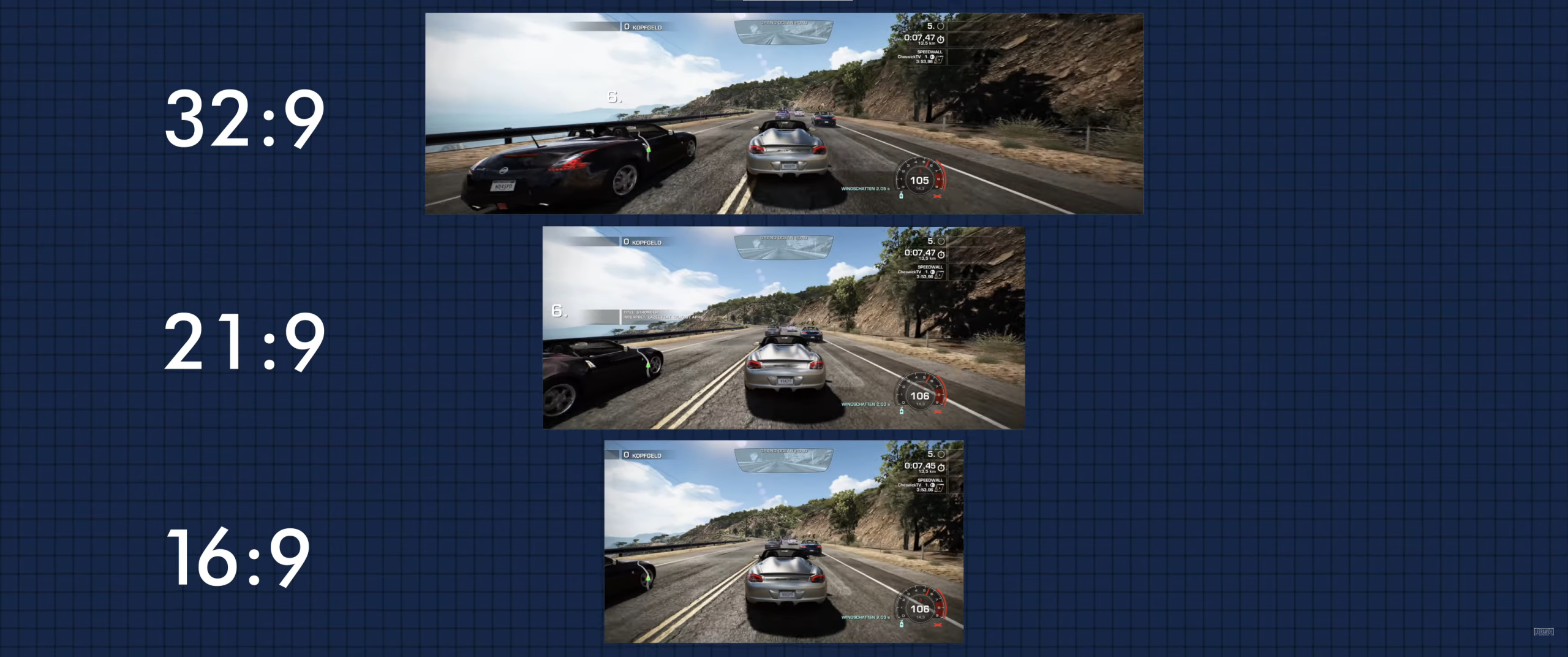
Image source: Bing (Web (fair-use with source credit))
The aspect ratio difference is the core of this comparison. A 21:9 display is 33% wider than 16:9. A 32:9 display is 33% wider than 21:9, making it roughly 78% wider than a standard display.
To visualize this, imagine a standard 27-inch 16:9 monitor. Now place another identical monitor directly to its right, removing the bezels. That's roughly what a 34-inch ultrawide gives you in terms of usable width.
Now add a third monitor to that array. That's the territory a 49-inch super ultrawide occupies.
The height remains similar across all three formats. A 34-inch ultrawide and a 49-inch super ultrawide both have roughly the same vertical screen area as a 27-inch 16:9 monitor. The difference is entirely in horizontal space.
This has practical implications for window management. On a 21:9 display, you can comfortably run two windows side by side. On a 32:9 display, you can run three or four windows without overlap.
Some users treat a super ultrawide as a triple-monitor replacement, dedicating the center to their main task and using the sides for reference materials, communication apps, or system monitors.
The aspect ratio also affects gaming field of view. In supported titles, a 21:9 display gives you a wider view than 16:9. A 32:9 display widens that further, sometimes to the point of seeing content that wasn't designed to be visible.
Some competitive games restrict the field of view on super ultrawides to prevent unfair advantages.
The Immersion and Productivity Trade-Off
Immersion and productivity pull in opposite directions when choosing between these formats. A 34-inch ultrawide provides a noticeable upgrade in both areas without overwhelming your space. A 49-inch super ultrawide delivers maximum immersion but demands more from your setup.
For gaming, the super ultrawide creates a wraparound effect that's hard to replicate with smaller panels. Racing sims and flight sims benefit enormously from the expanded peripheral vision. First-person shooters can feel more engaging, though some players find the extreme width distracting during competitive play.
Productivity gains are real but come with caveats. The extra width lets you keep more applications visible at once. Video editors can spread out their timeline.
Coders can view multiple files side by side. Traders can monitor more charts simultaneously. However, the sheer width can lead to excessive head turning if you sit too close.
Ergonomics become critical with super ultrawides. The recommended viewing distance is 3 to 4 feet, compared to 2 to 3 feet for an ultrawide. If your desk is only 24 inches deep, a 49-inch panel will force you to turn your head constantly.
This can cause neck strain over long sessions.
GPU requirements scale with the pixel count. A 3440×1440 ultrawide pushes about 4.9 million pixels. A 5120×1440 super ultrawide pushes 7.4 million pixels.
That's 50% more work for your graphics card. At high refresh rates, you'll want at least an RTX 4070 or RX 7800 XT for the super ultrawide. For the ultrawide, an RTX 3060 or RX 6700 XT handles most titles well.
If you're building a system around one of these displays, you might also consider the best laptops for work and gaming to ensure your entire setup can drive the panel effectively. The total cost of ownership includes not just the monitor but also the hardware needed to run it.
Desk setup matters more than people realize. A super ultrawide on a shallow desk forces you to sit too close. This defeats the purpose of the curve and makes the edges harder to see.
Measure your desk depth before committing. You want at least 30 inches for a 34-inch ultrawide and 40 inches or more for a 49-inch super ultrawide.
The price difference is substantial. A good 34-inch ultrawide starts around $300. A quality 49-inch super ultrawide starts around $800 and can exceed $2,000 for premium models.
Factor in the potential need for a stronger GPU and a monitor arm rated for the weight. Some super ultrawides weigh over 25 pounds without the stand, which exceeds the capacity of many basic arms.
For those working from home, the best laptop for working from home might be a better starting point if you're not ready for a full desktop monitor upgrade. A portable setup can still benefit from an external display when you're at your desk.
The decision ultimately comes down to your primary use case. If you game casually and want more screen space for work, the ultrawide is the safer bet. If you're a sim enthusiast or a power user who needs maximum horizontal space, the super ultrawide delivers an experience that's hard to match with smaller panels.
Gaming: Which One Actually Performs Better
The ultrawide wins for most gamers because of compatibility and value. A 34-inch 3440×1440 panel at 144Hz or 165Hz runs smoothly on a midrange GPU. Most modern games support 21:9 natively, giving you a wider field of view without fuss.
You get the immersion benefit without breaking the bank or your graphics card.
Super ultrawides deliver unmatched immersion in supported titles. Racing sims like Assetto Corsa Competizione and iRacing wrap around your peripheral vision. Flight sims like Microsoft Flight Simulator feel more natural with the expanded view.
RPGs and open-world games gain a cinematic quality that's hard to replicate on narrower panels.
Game support for 32:9 is improving but still inconsistent. Some titles stretch the image. Others crop the top and bottom.
A few competitive games, including Valorant and some Call of Duty modes, lock the field of view to 16:9 or 21:9. You'll see black bars or a restricted view on a super ultrawide in these cases.
Performance requirements scale significantly. Moving from 2560×1440 to 5120×1440 increases pixel count by 125%. Aggregate benchmarks show 30 to 40% lower frame rates at the same settings.
You need a stronger GPU to maintain high refresh rates on a super ultrawide.
Competitive players often prefer the ultrawide. The narrower width keeps all action within a comfortable head-turn range. You don't need to move your eyes as far to check minimaps or peripheral elements.
For esports titles running at 240Hz or 360Hz, the ultrawide is easier to drive at those frame rates.
Multitasking and Workflow: Real-World Screen Space
The super ultrawide replaces a dual-monitor setup without the center bezel. You get the equivalent of two 27-inch 1440p displays side by side. This matters for tasks that benefit from a single, uninterrupted canvas.
Video editors can view a full timeline without scrolling. Spreadsheet users can see dozens of columns at once.
Ultrawides handle two windows comfortably and three with some compromise. You can run a main application in the center and two smaller windows on the sides. Many users pair a 34-inch ultrawide with a secondary portrait monitor for documents or chat.
This hybrid setup offers flexibility that a single super ultrawide cannot match.
Software tools help manage the extra space. Microsoft PowerToys FancyZones lets you create custom window layouts. DisplayFusion and UltraMon offer similar functionality.
Without these tools, you'll waste time manually resizing windows on a super ultrawide.
Picture-by-Picture mode on super ultrawides is a hidden gem. You can connect two computers and view them simultaneously. This is useful for developers testing across systems, or for anyone who works with both a personal and work machine.
The panel acts as two independent displays with a single cable run to each.
Video editing sees the biggest productivity jump. Applications like DaVinci Resolve and Premiere Pro spread timelines across the full width. You can see more tracks and clips without zooming out.
Color grading panels and source monitors fit on the sides. A super ultrawide can replace a reference monitor setup for casual grading work.
Desk Space, Ergonomics, and Neck Strain Concerns
Desk depth is the most overlooked factor. A 49-inch super ultrawide requires 35 to 48 inches of desk depth for comfortable viewing. If your desk is 30 inches deep, the edges of the screen will be too close to your eyes.
This forces excessive head turning and can cause neck strain within hours.
The 34-inch ultrawide fits desks as shallow as 24 inches. You can sit at a normal viewing distance without the edges feeling overwhelming. This makes it suitable for smaller home offices and apartment setups.
If space is tight, the ultrawide is the practical choice.
Monitor arms become necessary with super ultrawides. Most stands take up significant desk real estate. A good arm rated for 25 pounds or more lets you position the panel at the correct height and depth.
Some super ultrawides use VESA 200×200 or 400×400 patterns, so check compatibility before buying an arm.
Curvature affects viewing comfort differently. A 1000R curve on a 49-inch panel matches the natural curvature of the human eye. This reduces distortion at the edges.
However, the aggressive curve can make straight lines appear bowed when doing design work. A 1800R curve on a 34-inch panel is gentler and less noticeable for productivity tasks.
Neck strain is real with super ultrawides. Research from ISO 9241-307 on display ergonomics recommends keeping the entire screen within 60 degrees of your central vision. On a 49-inch panel, this means sitting back further than most desks allow.
If you can't sit back, you'll turn your head frequently, which causes fatigue.
Height adjustment matters more than you think. The top of the screen should be at or slightly below eye level. Super ultrawides are tall, roughly 14 inches for a 49-inch model.
Without height adjustment, you'll be looking upward, which strains the neck over time.
Hardware Demands: GPU Requirements and Price Differences
The pixel count difference drives GPU requirements. A 3440×1440 ultrawide pushes 4.9 million pixels. A 5120×1440 super ultrawide pushes 7.4 million.
The 50% increase means your graphics card works 50% harder at the same settings. This translates to lower frame rates or the need for a more powerful GPU.
| Resolution | GPU for 60Hz | GPU for 120Hz+ |
|---|---|---|
| 3440×1440 (UW) | RTX 3060 / RX 6700 XT | RTX 4070 / RX 7800 XT |
| 5120×1440 (SUW) | RTX 4070 / RX 7800 XT | RTX 4080 / RX 7900 XTX |
| 7680×2160 (57" SUW) | RTX 4080 / RX 7900 XTX | RTX 4090 / RX 7900 XTX |
These are general guidelines. Demanding titles like Cyberpunk 2077 with ray tracing need higher-tier cards. Esports titles like CS2 run well on weaker hardware.
Display inputs matter. Super ultrawides at high refresh rates need DisplayPort 1.4 with DSC or DisplayPort 2.1. HDMI 2.1 handles 5120×1440 at 120Hz with DSC.
Older GPUs without these standards will struggle to run the panel at full resolution and refresh rate.
Power consumption increases with size. A 49-inch super ultrawide draws 60 to 120 watts under load. A 34-inch ultrawide typically draws 40 to 70 watts.
This is worth considering if you're running multiple peripherals from a single circuit or UPS.
The total cost includes more than the monitor. Factor in a potential GPU upgrade, a sturdy monitor arm, and possibly a deeper desk. A $1,000 super ultrawide paired with a $600 GPU upgrade costs $1,600 total.
A $500 ultrawide running on existing hardware costs $500 total.
Cable management gets more complex. Super ultrawides often need two DisplayPort cables for full bandwidth, or a single high-quality USB-C cable with DP alt mode. Longer, thicker cables cost more and are harder to route cleanly.
Which Setup Fits Your Situation
You should choose the ultrawide if you have a standard desk under 30 inches deep. It fits without rearranging your entire setup. You game casually and want a noticeable upgrade from 16:9.
Your GPU is midrange and you don't want to upgrade it soon. You need more screen space for work but don't run more than two or three windows side by side.
You should choose the super ultrawide if you have a deep desk or a wall-mount setup. You play racing sims, flight sims, or open-world games that support 32:9. You're a power user who needs four or more windows visible simultaneously.
You want to replace a dual-monitor setup with a single panel. You have or plan to buy a high-end GPU.
You should consider a dual-monitor setup instead if you need maximum flexibility. Two separate monitors can be angled independently. You can mix sizes and orientations.
One can be portrait while the other is landscape. This is harder to achieve with a single super ultrawide.
You should consider a large 4K display if you prioritize pixel density over width. A 32-inch 4K panel gives you sharp text and plenty of space for most tasks. You lose the immersion of the curve but gain simplicity.
This is a good middle ground for users who find ultrawides too wide but 4K too narrow.
Your existing hardware matters. If you're running a laptop with integrated graphics, neither format will work well for gaming. Check the best business smartphones for productivity-focused users if you're building a mobile-first workflow.
The monitor choice should match the rest of your setup, not exist in isolation.
Common Mistakes When Choosing Between Them
Ignoring desk depth is the top mistake. Super ultrawides need 35+ inches to sit comfortably. Underestimating GPU requirements is another.
A midrange card won't push 5120×1440 at high refresh. Assuming all games support 32:9 is wrong. Buying a cheap arm for a 25-pound panel causes sag.
Pairing with a surge protector protects your investment.
FAQs: Ultrawide vs Super Ultrawide
Can I use a super ultrawide for console gaming?
No. Consoles output 16:9. You'll see black bars.
Check HDMI.org for supported resolutions.
Is text sharp enough on a 49-inch super ultrawide?
Yes. At 108 PPI, it matches a 27-inch 1440p display. No scaling needed.
The Bottom Line: Which One Should You Actually Buy
Get a 34-inch ultrawide for standard desks and midrange GPUs. It handles gaming and productivity well. Choose a 49-inch super ultrawide only with a deep desk, high-end GPU, and specific needs like sim racing.
The super ultrawide is a luxury, not a necessity.