Are Ultrawide Monitors Good for Multitasking?
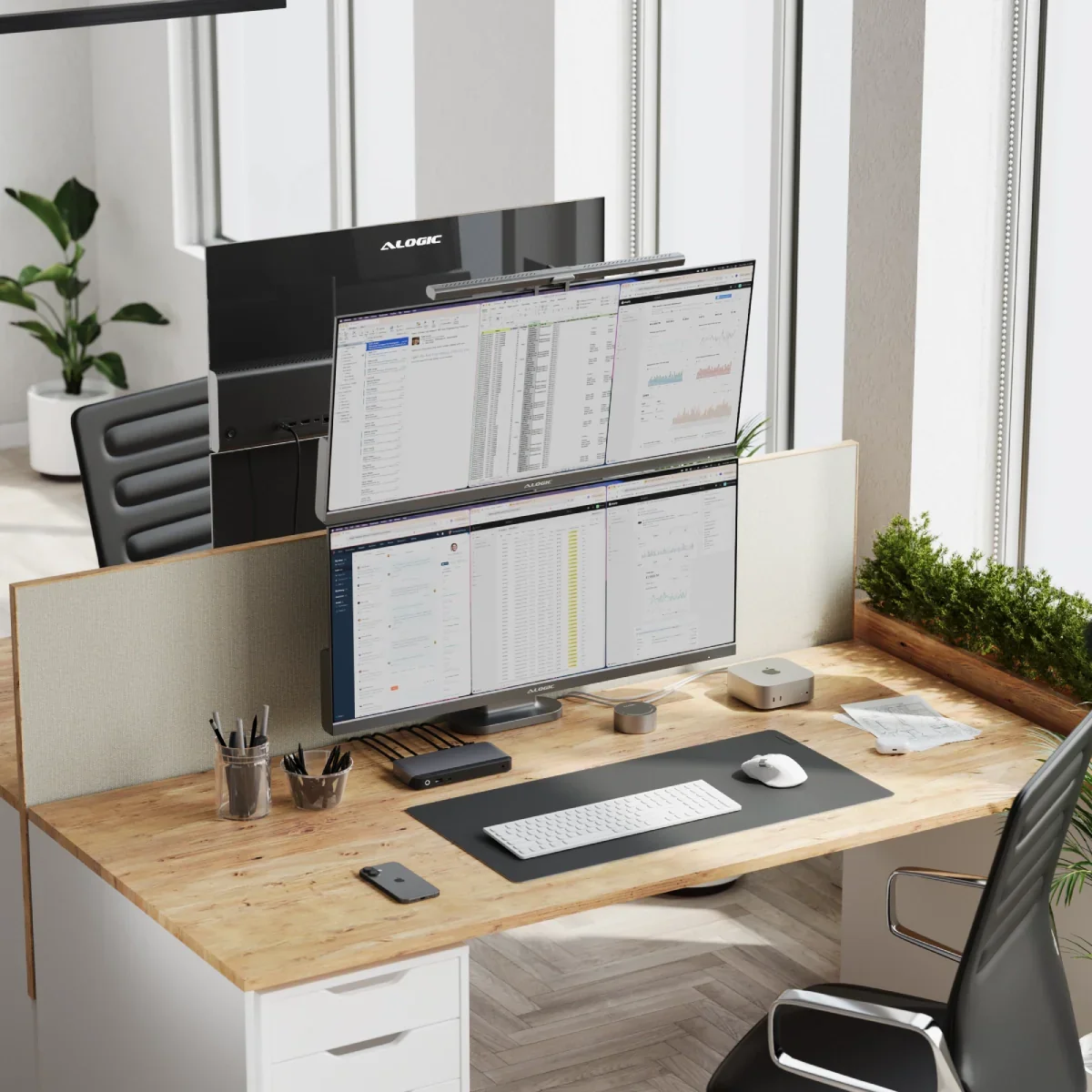
Image source: Web (Bing) / ca.alogic.co (Web image (fair-use with source credit))
You're staring at a screen cluttered with overlapping windows. You alt-tab between a spreadsheet, a browser, and a chat app. It's slow, it's messy, and it kills your focus.
The question "is ultrawide monitor good for multitasking" comes up because you need a better way to see everything at once without the hassle of multiple displays.
The short answer is yes, but with caveats. An ultrawide monitor replaces the gap between two screens with one continuous stretch of pixels. A typical 34-inch 21:9 panel gives you the same width as two 27-inch monitors minus the bezel.
That extra space lets you snap three or four windows side by side without constantly resizing them. We'll break down exactly when that works and when it doesn't.
Quick Answer
An ultrawide monitor is excellent for multitasking if you need a seamless, bezel-free workspace. It lets you run multiple full-width windows without the distraction of a gap in the middle. You'll gain a cleaner desk and simpler cable management.
However, it won't give you more vertical space than a standard 16:9 screen. For tasks that demand tall documents or long spreadsheets, a different setup might serve you better.
So, Are Ultrawides Actually Good for Multitasking?
Yes, for most people asking "is ultrawide monitor good for multitasking," the answer leans heavily toward yes. The key is understanding what "multitasking" means in your daily workflow. If you're juggling communication apps, reference material, and a main work window, an ultrawide shines.
You can place your email on the left, a browser in the center, and a notes app on the right. All three stay visible at once.
The experience feels different from dual monitors. With two screens, you have a physical break in the middle. Your eyes travel across a black gap.
An ultrawide removes that interruption. It's one canvas, so dragging windows between sections feels fluid. This setup reduces the mental load of managing separate displays.
You only have one monitor to calibrate, one power cable, and one set of settings to tweak.
But it's not a universal upgrade. Some applications don't play nicely with 21:9 or 32:9 aspect ratios. Older software might stretch awkwardly or leave black bars.
Video content shot in 16:9 will have pillars on the sides unless you crop or accept the borders. Gaming is a mixed bag. Many modern titles support ultrawide resolutions natively, but some competitive games lock the field of view or UI elements.
You'll need to check your specific titles.
The real win comes from window management. Windows 11 and macOS have built-in snapping tools that let you divide the screen into zones. Third-party apps like Microsoft PowerToys FancyZones take this further.
You can create custom layouts that match your exact workflow. For example, a developer might set up a three-column layout: code editor, terminal, and documentation. A trader might use a four-quadrant grid for charts, news, order books, and chat.
The ultrawide canvas makes these layouts practical without overlapping windows.
The Multitasking Problem Most Setups Don't Solve
The core issue with multitasking on a single standard monitor is screen real estate. A 27-inch 16:9 display gives you about 81 square inches of usable space. That's enough for one large window or two cramped ones.
When you try to run three apps, everything becomes a tiny sliver. You end up alt-tabbing constantly, which fragments your attention and slows you down.
Dual monitors solve the space problem but introduce new friction. The bezel gap disrupts horizontal workflows. If you're editing a wide spreadsheet or a timeline in video editing, the center break is jarring.
You can't drag a single window across both screens without it disappearing behind the plastic. Cable clutter also multiplies. Two monitors mean two power cables, two video cables, and often two sets of drivers to manage.
Desk space shrinks, and the setup looks messy.
Ergonomics matter too. OSHA's guidelines for computer workstations recommend that the top of the screen be at or slightly below eye level. With dual monitors, you're often forced to angle them inward, which can cause neck strain if not positioned correctly.
A single ultrawide, especially a curved one, can wrap your field of view more naturally. The curve brings the edges closer to your eyes, reducing the need to turn your head sharply. This can cut down on fatigue during long sessions.
Power consumption is another hidden cost. Running two 27-inch monitors might draw 40 to 60 watts each, totaling 80 to 120 watts. A single 34-inch ultrawide typically uses 35 to 55 watts under normal load.
Over a year, that difference adds up. If you're tracking your household energy use, as we discuss in our guide on how much home electronics cost a month, the savings are noticeable. You're also reducing the number of devices that could fail.
One monitor means one point of failure, but it also means one warranty to manage and one set of firmware updates.
What an Ultrawide Monitor Actually Gives You
An ultrawide monitor is defined by its aspect ratio. The most common is 21:9, which is roughly twice as wide as it is tall. A 34-inch 21:9 panel has a resolution of 3440×1440, known as WQHD.
That's about 4.9 million pixels. A 4K 16:9 monitor has 8.3 million pixels, so the ultrawide actually has fewer total pixels. The difference is in shape, not raw count.
You get a wide, uninterrupted field of view.
Super ultrawides push this further with a 32:9 aspect ratio. A 49-inch 32:9 display like the Samsung Odyssey G9 has a resolution of 5120×1440. That's essentially two 27-inch 1440p monitors stitched together without a bezel.
These are niche but powerful for specific workflows. Video editors can see an entire timeline without scrolling. Traders can watch multiple data streams at once.
The trade-off is desk depth. A 49-inch screen needs about 30 inches of depth to view comfortably.
Panel technology affects the experience. IPS panels offer wide viewing angles and accurate colors, making them ideal for creative work. VA panels have higher contrast ratios, which helps in dark rooms but can suffer from color shift at angles.
OLED ultrawides are emerging, delivering perfect blacks and instant response times. They're stunning for media consumption but come with a premium price and potential burn-in risk for static UI elements.
Connectivity is a big deal for multitaskers. Many ultrawides now include USB-C with power delivery. A single cable from your laptop can carry video, data, and charging up to 100 watts.
This turns the monitor into a docking station. You plug in once and your laptop is charged, your peripherals are connected, and your external display is live. It's a cleaner setup than a mess of dongles.
Some models even have built-in KVM switches, letting you toggle between a desktop PC and a laptop with a button press.
For laptop users who need portability, a portable monitor can supplement an ultrawide when you're on the road. But at your desk, the ultrawide becomes the hub. You can connect a laptop via USB-C and a desktop via DisplayPort simultaneously.
Picture-by-Picture mode splits the screen into two independent inputs. That means you can have your work laptop on the left and your personal desktop on the right, both visible at the same time. It's a powerful way to separate contexts without switching inputs.
Ultrawide vs. Dual Monitors vs. Other Setups: Side-by-Side
Choosing the right multitasking setup depends on your priorities. Here's a breakdown of the most common configurations.
| Setup | Best For | Key Advantage | Main Drawback |
|---|---|---|---|
| Single 34" 21:9 Ultrawide | General productivity, immersive gaming | Seamless workspace, clean desk | Less vertical space than 4K |
| Dual 27" 16:9 Monitors | Tasks needing full-height windows on both screens | Maximum flexibility, independent inputs | Bezel gap, cable clutter |
| 38" 21:9 Ultrawide | Creative pros needing extra vertical pixels | More height than 34", still wide | Higher price, larger footprint |
| 49" 32:9 Super Ultrawide | Extreme multitasking, simulation gaming | Replaces dual monitors entirely | Requires deep desk, GPU power |
| 32" 4K 16:9 Monitor | Detail-oriented work, color-critical tasks | High pixel density, sharp text | Limited horizontal space for side-by-side windows |
The ultrawide wins on simplicity. One monitor, one stand, one set of cables. The dual monitor setup wins on flexibility.
You can angle each screen independently, rotate one to portrait mode, and mix different panel types. If you often work with two full-page documents side by side, dual monitors might feel more natural. Each screen can display a complete A4 page without scaling.
Gaming preferences split the difference. An ultrawide offers a wider field of view in supported games, which is immersive. But competitive players sometimes prefer a high-refresh-rate 16:9 monitor for faster response and higher frame rates.
If you're choosing a laptop for both work and gaming, our roundup of laptops for work and gaming covers models that drive an ultrawide smoothly.
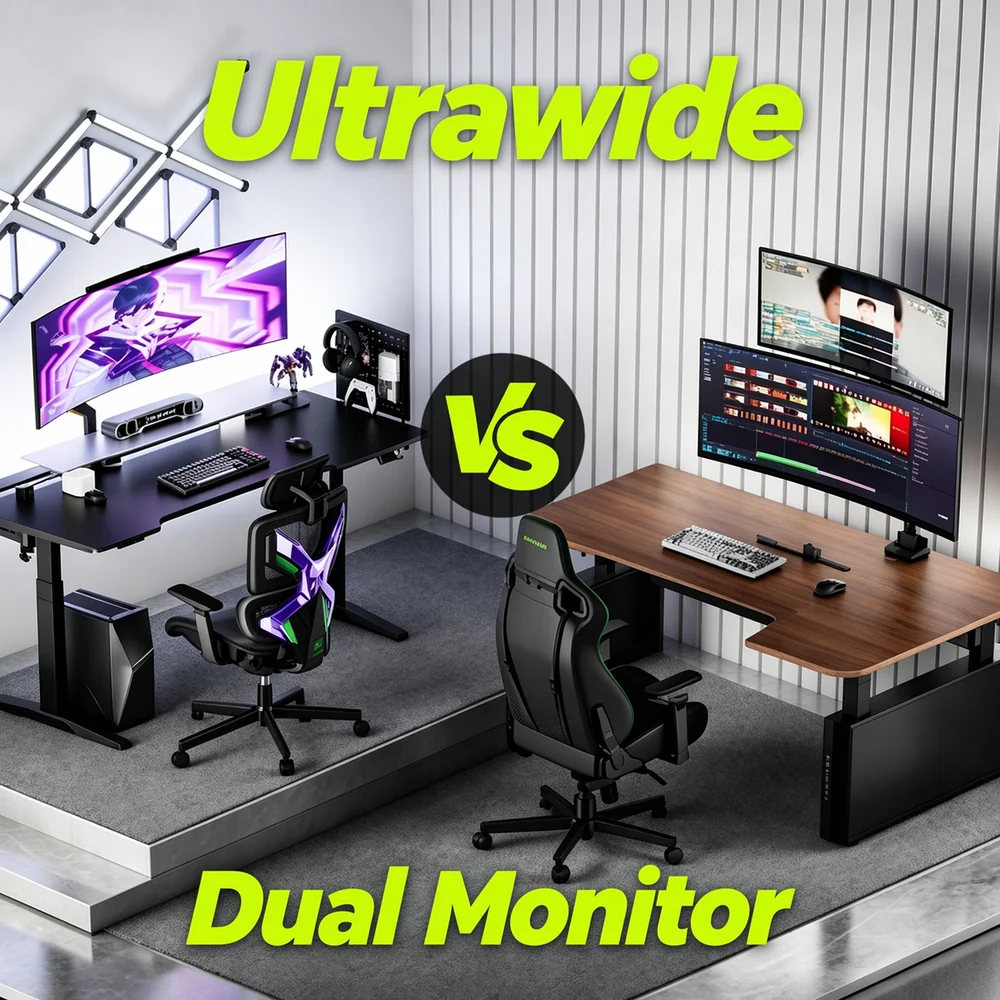
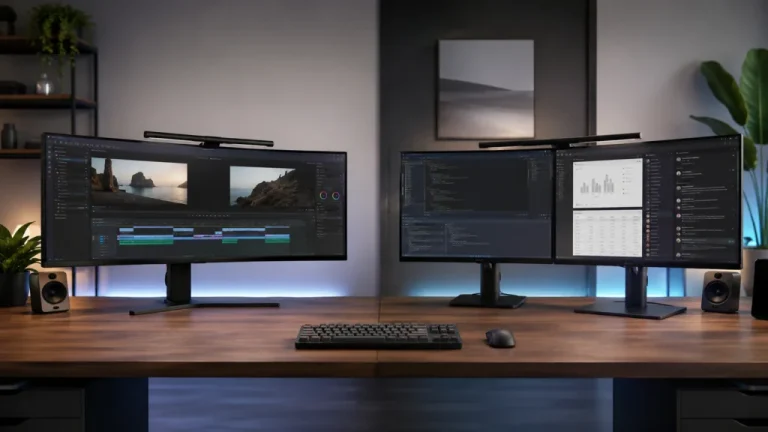
Image source: Web (Bing) / humanex.uk (Web image (fair-use with source credit))
The image above shows a physical comparison. Notice how the dual monitor setup has a visible gap in the center. The ultrawide presents a single, unbroken canvas.
For tasks that span horizontally, like timeline editing or wide spreadsheets, that gap is a real obstacle. But if you need to maximize vertical space for reading long documents, a single 4K 32-inch monitor might be a better fit. It gives you the same width as a 27-inch 1440p screen but with more pixels, so text is sharper.
You can still snap two windows side by side, though they'll be narrower than on an ultrawide.
Who Benefits Most from an Ultrawide Setup
Not everyone needs an ultrawide. The people who benefit most have workflows that are inherently wide. Software developers often work with a code editor, a terminal, and a browser open simultaneously.
An ultrawide lets them see all three without overlap. Video editors can view a full timeline, preview window, and asset bin at once. Financial analysts can monitor multiple charts and news feeds without switching windows.
Remote workers and home office users gain a lot too. If you're on video calls while referencing documents, you can place the call window on one side and your notes on the other. The ultrawide becomes a command center for your workday.
Pair it with a solid laptop for working from home that supports USB-C output, and you have a clean, single-cable docking solution.
Creative professionals like graphic designers and photographers benefit from the wide canvas. They can have a large central workspace with toolbars and panels on the sides. Color accuracy is critical here, so an IPS or OLED ultrawide with good gamut coverage is worth the investment.
The extra width reduces the need to constantly show and hide panels, which speeds up iterative work.
Traders and data analysts are another group. They often need to watch multiple data streams, order books, and news tickers. A super ultrawide or a 38-inch panel can replace a wall of monitors.
The lack of bezels means no data is hidden behind a plastic strip. For these users, the productivity gain directly translates to better decision-making.
However, if your work is primarily vertical, think long legal documents, coding with many lines, or scrolling through social media feeds, a standard 16:9 or 16:10 monitor might serve you better. You'll get more height per pixel. Some users solve this by adding a small secondary monitor in portrait mode next to an ultrawide.
That hybrid approach gives you the best of both worlds. A portable monitor can even serve as that secondary screen when needed, then get stowed away.
Students and researchers who read a lot of PDFs and articles might find an ultrawide overkill. They'd be better served by a high-resolution 4K display that renders text crisply. The ultrawide's strength is horizontal space, not vertical density.
So before you buy, honestly assess whether your daily tasks stretch wide or tall. That answer will guide you to the right tool.
Key Features That Actually Matter for Productivity
Not all ultrawides are built for work. Some prioritize gaming specs that won't help your workflow. Focus on these features instead.
Resolution and pixel density determine how sharp text looks. A 34-inch panel at 3440×1440 gives you about 110 pixels per inch. That's comfortable for most people at normal viewing distances.
Step down to 2560×1080 on the same size screen, and text looks fuzzy. For a 49-inch super ultrawide, 5120×1440 is the minimum. Anything lower and you'll notice the pixels.
Panel type affects your daily experience. IPS panels offer consistent colors and wide viewing angles. They're the safe choice for office work.
VA panels deliver deeper blacks but can shift colors when you look at the edges. OLED is stunning but expensive. It also carries a risk of burn-in if you leave static elements like taskbars on screen for hours.
Curvature matters more than you'd think. A 1000R curve matches the natural shape of your eye. It reduces distortion at the edges.
Flat ultrawides work fine for design work where straight lines matter. But for general multitasking, a curved panel feels more comfortable over long sessions.
Connectivity can make or break your setup. USB-C with power delivery lets you connect a laptop with one cable. Look for at least 65 watts of charging power.
Some monitors offer 90 or 100 watts, which is enough to run larger laptops. A built-in USB hub is handy for peripherals. You can plug your keyboard and mouse directly into the monitor.
Ergonomic adjustments are non-negotiable. You need height, tilt, and swivel controls. The top of the screen should sit at eye level.
If the stand doesn't offer enough range, plan for a monitor arm. VESA mounting is standard on most ultrawides. A good arm frees up desk space and lets you position the screen exactly where you want it.
Common Mistakes That Frustrate New Ultrawide Users
The biggest mistake is treating an ultrawide like a bigger standard monitor. You'll end up with one giant window in the center and wasted space on the sides. That defeats the purpose.
You need to actively manage your screen real estate.
Ignoring window management tools is a common pitfall. Windows 11's built-in snapping is decent but limited. Without third-party software, you'll struggle to create efficient layouts.
Microsoft PowerToys FancyZones is free and powerful. DisplayFusion and Magnet are paid alternatives with more features. Set up your zones on day one.
Choosing the wrong resolution causes eye strain. Running a 34-inch panel at 2560×1080 makes everything look soft. You'll squint at text and lean closer to the screen.
Always match the resolution to the panel's native spec. If you need larger UI elements, use scaling instead of dropping the resolution.
Overlooking desk depth leads to discomfort. A 34-inch ultrawide needs about 24 to 30 inches of desk depth. A 49-inch super ultrawide wants 30 to 36 inches.
If your desk is too shallow, you'll sit too close and crane your neck. Measure before you buy.
Forgetting about GPU demands can bottleneck your system. Driving 3440×1440 at 144Hz requires more graphics power than a standard 1080p display. Integrated graphics might handle office tasks fine.
But if you plan to game or do video work, check that your graphics card can push those pixels. Manufacturer specs for the Samsung Odyssey and similar panels list the required connections and capabilities.
Neglecting the single point of failure is a real risk. If your ultrawide dies, your whole workspace goes dark. With dual monitors, you still have one screen to work on.
Keep a backup plan. A spare monitor or even a large TV can save you during a critical deadline.
How to Set Up an Ultrawide for Real Multitasking
Start with physical placement. Center the monitor directly in front of you. The curve should wrap naturally around your field of view.
Adjust the height so the top third of the screen is at eye level. This reduces neck strain during long sessions.
Next, configure your operating system. In Windows 11, go to Settings > System > Display. Set the resolution to the panel's native spec.
Adjust scaling if text looks too small. 125% or 150% scaling is common on 34-inch 1440p displays. On macOS, hold Option while clicking Scaled in Display settings to see all available resolutions.
Now set up your window zones. Install PowerToys and open FancyZones. Create a layout that matches your workflow.
A three-column grid is a solid starting point. You can always customize later. Assign apps to specific zones if you want them to snap automatically.
Configure your inputs if you use multiple devices. Connect your desktop via DisplayPort and your laptop via USB-C. Enable Picture-by-Picture if you need both visible at once.
Some monitors let you assign a specific input to each half of the screen. This is useful for separating work and personal machines.
Calibrate the display for your environment. Most ultrawides ship with decent factory calibration. But if color accuracy matters, consider a hardware calibrator.
For general office work, the sRGB mode is usually sufficient. It prevents oversaturated colors that can cause eye fatigue.
Finally, organize your cables. A single USB-C cable handles video, data, and power for a laptop. Use the monitor's built-in USB hub for peripherals.
Route cables through your monitor arm or desk grommet. A clean setup reduces visual clutter and helps you focus.
What You'll Actually Pay: Pricing Tiers and Specs
Ultrawide pricing spans a wide range. Here's what to expect at each tier.
Budget tier ($250-$400): You'll find 34-inch 3440×1440 IPS panels with 60Hz or 75Hz refresh rates. These handle office work fine. Look for models with USB-C connectivity and adjustable stands.
Brands like LG and Dell offer reliable options here. You won't get HDR or high refresh rates, but you'll get the screen real estate.
Mid-range ($400-$700): This is the sweet spot for most people. You get 100Hz to 144Hz refresh rates, better color accuracy, and improved stands. Some models include USB-C with 90W power delivery.
Local dimming for HDR starts appearing. The Dell U3423WE and LG 34WN80C are popular choices in this range.
Premium tier ($700-$1,200): Expect 175Hz to 240Hz refresh rates, OLED or QD-OLED panels, and advanced features. HDR performance improves significantly. Curvature is often more aggressive.
These monitors target both productivity and gaming. The Samsung Odyssey OLED G8 and Alienware AW3423DWF live here.
Super ultrawide tier ($1,000-$1,500+): 49-inch 32:9 panels command a premium. You're paying for the equivalent of two 27-inch monitors without a bezel. High refresh rates and deep curves are standard.
The Samsung Odyssey G9 series dominates this category. These are niche products for power users who need maximum horizontal space.
Factor in the total cost of ownership. A monitor arm adds $50 to $150. A USB-C cable capable of full bandwidth costs $20 to $40.
Calibration tools run $100 to $300 if you need them. And don't forget the electricity cost difference we discussed earlier. Over three to five years, a more efficient panel can pay for itself.
Frequent Questions About Ultrawide Multitasking
Can I use an ultrawide monitor for gaming and work?
Yes, many ultrawides handle both well. Look for a model with adaptive sync and a refresh rate of at least 100Hz. You'll get smooth gaming and crisp text for productivity.
Just check that your favorite games support 21:9 or 32:9 resolutions. Some older titles don't.
Do ultrawide monitors work with laptops?
Absolutely. USB-C connectivity makes this simple. One cable carries video, data, and power.
Your laptop charges while driving the external display. Make sure your laptop's USB-C port supports DisplayPort Alt Mode. Most modern business and gaming laptops do.
Is a curved ultrawide better than a flat one for work?
For most people, yes. The curve reduces eye strain by keeping the edges at a consistent distance. It also minimizes color shift on VA panels.
Flat panels are better for design work where straight lines must appear truly straight. But for general multitasking, curvature wins.
How do I manage windows without losing my mind?
Use Microsoft PowerToys FancyZones. It's free and lets you create custom snap zones. You can define exactly where windows go when you drag them.
It takes ten minutes to set up and saves hours of frustration. DisplayFusion is a paid alternative with more automation features.
Will an ultrawide replace my dual monitor setup?
It depends on your workflow. If you rely on having two completely separate screens with different inputs, dual monitors might still be better. But if you want a cleaner desk and seamless window placement, an ultrawide is a direct replacement.
Many users switch and never look back.
What size ultrawide should I buy?
34 inches is the most popular starting point. It fits on most desks and offers a clear upgrade from a single 27-inch monitor. Go to 38 inches if you want more vertical space.
Choose 49 inches only if you have a deep desk and genuinely need the width. Measure your desk depth before deciding.
Which Setup Wins for Your Specific Workflow
Choose based on what you actually do all day.
Go ultrawide if you edit video, write code, manage spreadsheets with many columns, or juggle communication apps alongside a main workspace. The seamless canvas removes friction from horizontal workflows. A 34-inch 3440×1440 IPS panel handles most of these tasks beautifully.
Stick with dual monitors if you regularly work with two full-height documents, need to rotate one screen to portrait, or rely on completely separate inputs for work and personal machines. The flexibility is hard to beat.
Consider a super ultrawide if you're a trader, streamer, or simulation enthusiast who needs maximum horizontal space. Just make sure your desk is deep enough.
Pick a 4K 16:9 display if your work is vertically oriented, like reading long documents or writing code with many lines. The extra vertical pixels serve you better than width.
The right answer depends on your daily habits, not specs on a box. Match the screen shape to how you actually work.