Are Ultrawide Monitors Compatible with PS5?
If you've been wondering are ultrawide monitors compatible with ps5, the short answer is yes, but not in the way most people hope. The console will output a picture, and your monitor will display it. The catch is that the PS5 doesn't output a 21:9 or 32:9 signal.
It sends a standard 16:9 image, which means you'll either see black bars on the sides or a stretched, distorted picture if you force the monitor to fill the screen.
This isn't a dealbreaker for everyone, but it does change the value proposition. You're buying a premium ultrawide panel and only using the middle portion of it for console gaming. The PS5's video output tops out at 4K 120Hz over HDMI 2.1, and it supports HDR10 and Variable Refresh Rate, but none of those features magically create an ultrawide image.
Understanding how the signal works, and what your monitor can actually do with it, is the key to deciding whether this setup makes sense for you.
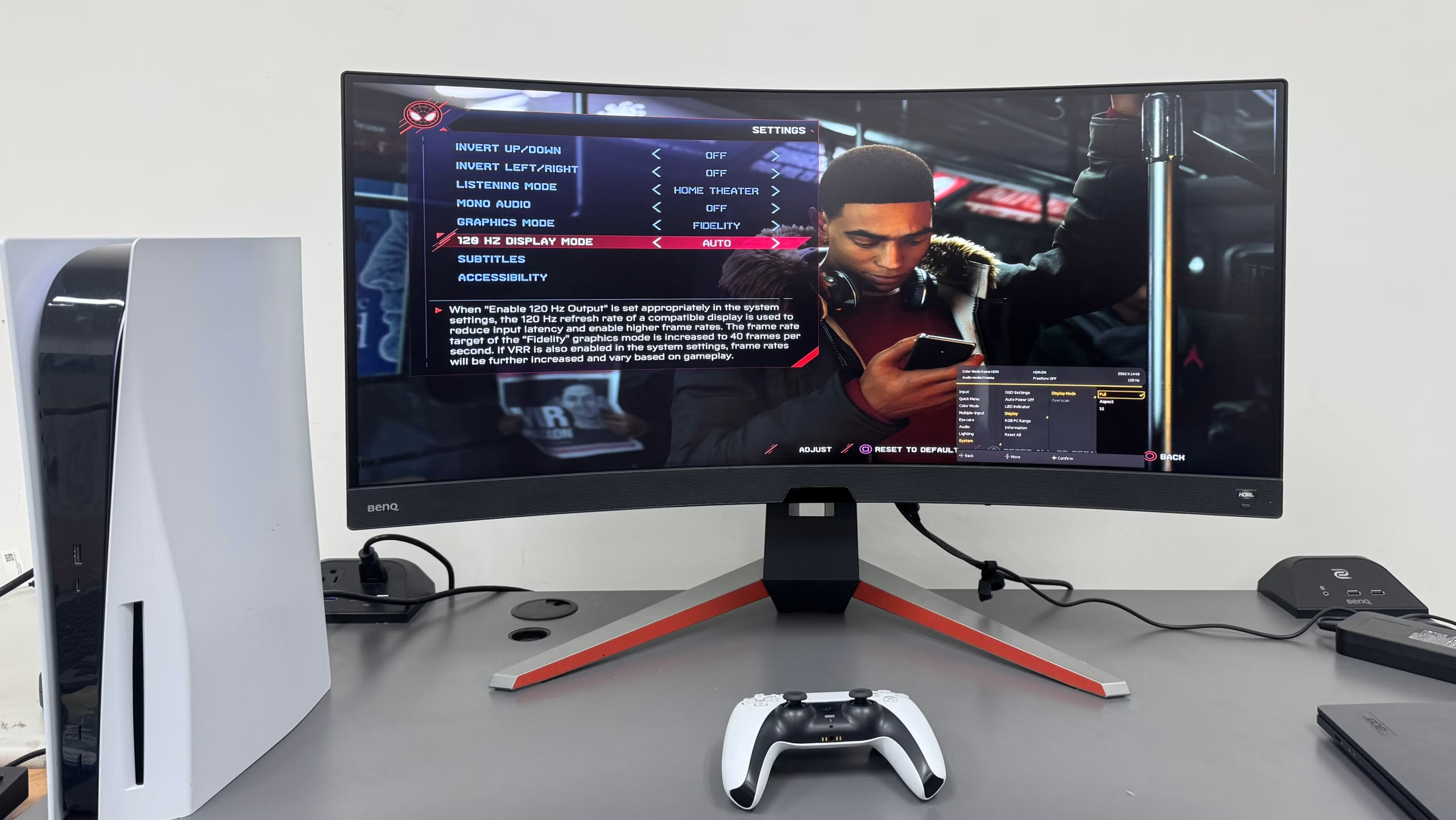
Image source: Bing (Web (fair-use with source credit))
Quick Answer
Yes, ultrawide monitors are compatible with the PS5. The console connects via HDMI and outputs a 16:9 signal. You will see black bars on the left and right sides of the screen during gameplay.
The PS5 does not support 21:9 or 32:9 aspect ratios natively. You can force a full-screen stretch, but it distorts the image and may disable VRR.
The Black Bar Reality: What PS5 Actually Outputs to an Ultrawide
Here's the fundamental issue. The PS5 outputs a 16:9 signal. Every game, every menu, every streaming app is rendered in 16:9.
When that signal hits a 21:9 ultrawide monitor, the monitor has two choices: display the image as-is with black bars on the sides (pillarboxing), or stretch the image to fill the entire panel.
Sony has never added ultrawide support to the PS5's system software. As of 2026, there's no setting, no hidden toggle, and no firmware update that changes this. The console simply doesn't know how to render a 21:9 frame.
This is different from PC gaming, where your graphics card can output whatever resolution and aspect ratio the game supports.

Image source: Bing (Web (fair-use with source credit))
The black bars aren't a defect. They're the correct way to display a 16:9 image on a wider panel without distortion. Think of it like watching a 4:3 DVD on an old widescreen TV.
The picture is accurate, you're just not using the full width of the screen.
For some people, this is perfectly fine. If you're coming from a 27-inch 16:9 monitor, a 34-inch ultrawide with black bars still gives you a larger vertical image. The game appears bigger, just not wider.
For others, the unused screen real estate feels like wasted money, especially if the monitor was purchased specifically for the immersive ultrawide experience.
Your Monitor's HDMI Version Changes Everything
Not all ultrawide monitors handle the PS5's signal the same way. The biggest factor is the HDMI version built into the monitor, which determines what resolutions and refresh rates you can actually get.
HDMI 2.0, found on many older or budget ultrawides, maxes out at 18 Gbps of bandwidth. That's enough for 3440×1440 at 100Hz with 8-bit color, or 120Hz if you accept chroma subsampling (which can cause subtle color fringing). It's also enough for 4K at 60Hz.
What it can't do is 4K 120Hz or 3440×1440 at 144Hz without compression.
HDMI 2.1, found on newer premium ultrawides, bumps the bandwidth to 48 Gbps. That's enough for 4K 120Hz, 1440p 240Hz, and 3440×1440 at up to 165Hz or higher depending on the panel. If you want to take advantage of the PS5's 120Hz mode in supported games, HDMI 2.1 is the safer bet, especially at higher resolutions.
Here's a quick breakdown of what you can expect:
| Monitor HDMI Version | Max PS5 Output (3440×1440) | Max PS5 Output (2560×1080) | VRR Support |
|---|---|---|---|
| HDMI 2.0 | 100Hz (8-bit) / 120Hz (4:2:2) | 120Hz (8-bit) | Varies by monitor |
| HDMI 2.1 | 144Hz+ (8-bit) | 120Hz+ (8-bit) | Varies by monitor |
VRR over HDMI is another wrinkle. The PS5 supports HDMI Forum VRR, but your monitor needs to specifically support VRR over HDMI, not just DisplayPort Adaptive-Sync or FreeSync. Many ultrawide monitors advertise VRR but only implement it over HDMI 2.1, or only within certain refresh rate ranges.
Check your monitor's manual for "HDMI VRR" or "VRR over HDMI" specifically.
If you're using the monitor for both PC and console, you might also want to look at options like the best portable monitor for laptops for a secondary display, though that's a different use case entirely.
If You Already Own an Ultrawide: The Setup Path
If you already have an ultrawide on your desk and you're adding a PS5 to the setup, the good news is that you don't need to buy anything new. The console will work with what you have. The question is whether you'll be happy with the result.
First, check your monitor's spec sheet. Look for the HDMI version, the maximum resolution and refresh rate over HDMI, and whether VRR is supported over HDMI. This information is usually in the manual or on the manufacturer's product page.
Don't rely on the marketing headline that says "144Hz gaming monitor." That might be over DisplayPort only.
Next, decide how you want to handle the aspect ratio. You have two real options:
Option 1: Native 16:9 with black bars. Set your monitor's aspect ratio to "Original," "1:1," or "Aspect" (the exact name varies by brand). This displays the PS5's signal without any stretching. The image is correct, and you get the full benefit of your monitor's color accuracy and refresh rate.
The downside is the black bars.
Option 2: Stretched full-screen. Set the monitor to "Full" or "Wide" mode. This stretches the 16:9 image to fill the 21:9 panel. Everything looks wider and fatter.
Circles become ovals. Characters look squat. Some people don't mind this, especially in fast-paced games where they're not scrutinizing the geometry.
But it also often disables VRR and can introduce additional input lag depending on the monitor's scalar.
There's no third option. The PS5 doesn't output 21:9, so you can't get a native ultrawide image without external hardware that modifies the signal, and that introduces latency and potential compatibility issues.
If you're using the ultrawide for work and gaming, you might find that the black bars are less annoying than you expected. During a workday, you're using the full panel for documents, browsers, and spreadsheets. When you switch to the PS5 input, the bars are a minor trade-off for not having to swap monitors.
If You're Buying a Monitor for PS5: The Better Choice
If you don't already own an ultrawide and you're shopping specifically for the PS5, an ultrawide is rarely the best choice. You're paying a premium for screen width you won't use in games.
A 27-inch or 32-inch 16:9 monitor at 1440p 120Hz or 4K 120Hz gives you a native, full-screen image with no compromises. You get the full benefit of the PS5's output, including 120Hz mode and VRR, without black bars or stretching. These monitors are also generally cheaper than equivalent ultrawides because 16:9 panels are more common and less expensive to manufacture.
The exception is if you're a hybrid user. If you work from home and want one monitor for productivity and console gaming, an ultrawide makes more sense. You get the wide desktop for work, and you accept the black bars for gaming.
In that scenario, prioritize an ultrawide with HDMI 2.1, good VRR support, and a high refresh rate so you're not sacrificing the PC experience either.
If your primary goal is a clean desk setup for both work and play, you might also consider how the PS5 fits into your broader home electronics cost and energy usage, though that's a separate calculation.
Step-by-Step: Configuring PS5 for Ultrawide Without Stretching
Getting the PS5 set up on an ultrawide is straightforward, but a few settings make the difference between a clean picture and a frustrating mess.
Step 1: Use the right cable. For HDMI 2.1 monitors, use the Ultra High Speed HDMI cable that came with the PS5, or a certified replacement. For HDMI 2.0 monitors, a High Speed HDMI cable is sufficient for 1440p 60Hz or 1080p 120Hz. Don't use a cheap cable that came with an old device.
Step 2: Set the PS5 resolution. Go to Settings > Screen and Video > Video Output > Resolution. Set it to Automatic and let the PS5 detect your monitor's capabilities. If you get a black screen, boot the PS5 in Safe Mode (hold the power button for seven seconds until you hear a second beep) and select a lower resolution like 1080p.
Step 3: Enable 120Hz output. In the same menu, set Enable 120Hz Output to Automatic. The PS5 will then output 120Hz in supported games. Not all games support it, and some render at lower internal resolutions to hit 120fps, but the option will be there.
Step 4: Turn on VRR. Go to Settings > Screen and Video > Video Output > VRR and set it to Automatic. This only works if your monitor supports HDMI VRR. If the option is grayed out, your monitor either doesn't support it or the PS5 doesn't detect it.
Step 5: Configure the monitor's aspect ratio. This is the critical step. Open your monitor's on-screen display (OSD) menu and find the aspect ratio or screen size setting. Set it to "Original," "1:1," "Aspect," or similar.
Avoid "Full," "Wide," or "Stretch." The exact name varies by brand. LG calls it "Original," Samsung calls it "Screen Fit," Dell calls it "Aspect Ratio: 1:1."
Step 6: Enable Game Mode. Most monitors have a Game Mode or Low Input Lag setting. Turn it on. This bypasses unnecessary image processing and reduces input lag, which matters for responsive gameplay.
Step 7: Test with a 120fps game. Load a game that supports 120fps, like Call of Duty, Rocket League, or Ratchet and Clank: Rift Apart. If the PS5's 120Hz indicator appears in the top-right corner of the screen (you can enable this in Settings > Screen and Video > Video Output > 120Hz Output > Show 120Hz Indicator), you're getting the full refresh rate.
If you run into issues like no signal, flickering, or a black screen after changing settings, boot into Safe Mode and reset the video output. It's a common hiccup when the PS5 and monitor negotiate an incompatible resolution or refresh rate.
Mistakes That Ruin the Experience
Forcing the monitor to stretch the image is the single most common mistake, and it does more harm than most people realize. When you select "Full" or "Wide" mode, the monitor's scalar stretches the 16:9 frame horizontally to fill the 21:9 panel. Everything looks wider and shorter.
But beyond the obvious visual distortion, many monitors disable VRR and ALLM (Auto Low Latency Mode) when using a non-native aspect ratio. You lose the smooth variable refresh rate and the automatic game mode switching. Input lag can also increase because the scalar is doing extra processing.
Assuming 1440p 120Hz works over HDMI 2.0 is another trap. HDMI 2.0 has enough bandwidth for 3440×1440 at 100Hz with full 8-bit color, or 120Hz if you accept 4:2:2 chroma subsampling. Chroma subsampling compresses color information, which can cause subtle fringing on text and fine details.
It's not a dealbreaker for gaming, but it's not the same as a full 4:4:4 signal. If you want 3440×1440 at 120Hz without compromise, you need HDMI 2.1.
Ignoring Safe Mode when things go wrong is a frustration people create for themselves. If you set a resolution or refresh rate that your monitor doesn't support, you'll get a black screen. Panic sets in.
The fix is simple: hold the PS5's power button for seven seconds until you hear a second beep, and the console boots into Safe Mode at a low resolution. From there, you can reset the video output. It's a standard troubleshooting step, but many people don't know it exists until they're staring at a blank screen.
Expecting HDR to look like a TV is another disappointment. Most ultrawide monitors have mediocre HDR implementations. They might accept an HDR10 signal, but without proper local dimming and peak brightness, the image looks washed out or dim.
True HDR requires at least DisplayHDR 600 certification with full-array local dimming, and most ultrawides stop at DisplayHDR 400 or 600 with edge-lit dimming. The PS5's HDR output is excellent, but the monitor needs to do it justice.
Ultrawide vs. 16:9 Gaming Monitor: The Honest Comparison
Choosing between an ultrawide and a standard 16:9 gaming monitor for the PS5 comes down to what you value more: screen real estate for productivity or a native, full-screen console experience.
A 16:9 1440p 120Hz monitor gives you exactly what the PS5 outputs. No black bars, no stretching, no compromises. Every pixel of the panel is used for the game image.
These monitors are also typically $100 to $200 cheaper than a comparable ultrawide with the same panel quality and refresh rate. If the PS5 is your primary gaming device and you're buying a monitor specifically for it, this is the rational choice.
An ultrawide, on the other hand, gives you a wider desktop for work, more immersive PC gaming (if you also game on PC), and a larger vertical image for console gaming even with black bars. A 34-inch ultrawide with black bars still shows a 27-inch 16:9 image in the center, which is larger than most people's standard monitor. The trade-off is that you're paying for screen width you won't use in PS5 games, and you're accepting the aesthetic of black bars.
Here's how they stack up for PS5 use:
| Factor | Ultrawide (21:9) | 16:9 Gaming Monitor |
|---|---|---|
| Native PS5 image | No, black bars | Yes, full screen |
| 120Hz support | Yes, if HDMI 2.1 | Yes, if HDMI 2.1 |
| VRR compatibility | Varies by monitor | Varies by monitor |
| HDR performance | Usually mediocre | Varies, often better |
| Price (similar quality) | Higher | Lower |
| Best for | Hybrid PC/console users | Dedicated console gamers |
If you're a pure console gamer, the 16:9 monitor wins. If you're a hybrid user who wants one monitor for everything, the ultrawide is a reasonable compromise.
Who Should Actually Use an Ultrawide with PS5
The ideal ultrawide-plus-PS5 user is someone who already owns the ultrawide for PC gaming or work. They're not buying it specifically for the console. They understand that black bars are part of the deal, and they're fine with that trade-off for the convenience of a single monitor on their desk.
Sim racing fans often ask about ultrawide support, hoping for a wider field of view in games like Gran Turismo 7. The reality is that the PS5 doesn't output 21:9, so you won't get a wider FOV. You'll get the same 16:9 image you'd see on any other monitor, just with black bars.
For sim racing on PC, ultrawides are fantastic. For console racing, they offer no advantage over a 16:9 panel.
Media consumers who watch a lot of movies and streaming content might find the ultrawide more appealing. Many films are shot in 2.39:1, which is even wider than 21:9. On an ultrawide, these films fill nearly the entire screen with minimal letterboxing.
The PS5's streaming apps work fine, and you get a better movie-watching experience than on a 16:9 monitor, even if gaming is compromised.
People who simply don't mind black bars are the quiet majority. They see them as a minor inconvenience, not a dealbreaker. They value the larger vertical image and the clean desk setup more than they dislike the unused screen space.
If you're in this camp, an ultrawide works perfectly well with the PS5.
Pro Tips for 120Hz, VRR, and HDR on Ultrawide
Forcing 1440p output on the PS5 can improve 120Hz compatibility. The PS5 added native 1440p support in a September 2022 system update. If your ultrawide is a 3440×1440 panel, the PS5 will output at 1440p and let the monitor scale it.
Some monitors handle this better than others, but it's generally more reliable than forcing 1080p and dealing with a softer image.
Enabling VRR and ALLM correctly requires checking both the PS5 and the monitor. On the PS5, set VRR to Automatic. On the monitor, look for a setting called "VRR," "FreeSync over HDMI," "Adaptive-Sync," or "HDMI VRR." Turn it on.
ALLM is usually automatic when the monitor detects a console signal, but some monitors have a "Game Mode" that needs to be enabled manually for the lowest input lag.
HDR calibration on an ultrawide is trickier than on a TV. The PS5 has an "Adjust HDR" tool in Settings > Screen and Video > Video Output > Adjust HDR. Follow the on-screen instructions, but keep your monitor's peak brightness in mind.
If your monitor peaks at 400 nits, don't try to calibrate for 1000 nits. Set the HDR brightness to a level where highlights look bright but not blown out, and shadows retain detail. It won't match a good TV, but it's better than leaving HDR on with a poorly calibrated image.
If you're using the monitor for both PC and console, consider setting up separate input profiles. Many monitors let you save different settings for each input. You can have one profile optimized for PC gaming with full chroma and VRR, and another for the PS5 with the correct aspect ratio and HDR settings.
Switching inputs automatically applies the right profile.
The Final Decision Flowchart
If you already own an ultrawide, use it with the PS5. Set the aspect ratio to "Original" or "1:1," enable VRR if your monitor supports it, and accept the black bars. You don't need to buy anything new, and the experience is perfectly playable.
If you're buying a new monitor and the PS5 is your main gaming device, get a 16:9 1440p 120Hz or 4K 120Hz monitor with HDMI 2.1. You'll get a native, full-screen image, better value for money, and fewer compatibility headaches. Look for VRR support and decent HDR if your budget allows.
If you're a hybrid PC and console user who wants one monitor for everything, an ultrawide with HDMI 2.1 is a solid compromise. Prioritize VRR over HDMI, a high refresh rate, and good color accuracy. Accept that PS5 gaming will have black bars, but enjoy the full panel for PC gaming and productivity.
The one scenario where an ultrawide is the wrong choice is if you're buying it specifically for an immersive, full-screen PS5 gaming experience. The console doesn't support ultrawide output, and no amount of settings tweaking will change that. For that use case, a 16:9 monitor or a 4K TV is the better investment.
Frequently Asked Questions
Can the PS5 output 21:9 to an ultrawide monitor?
No. The PS5 outputs a 16:9 signal. The monitor displays that signal with black bars on the sides or stretches it to fill the screen.
There is no native 21:9 output option in the PS5's system software.
Will forcing full-screen stretch damage my monitor?
No, it won't cause physical damage. It will distort the image, and it may disable VRR and increase input lag. The monitor's scalar is designed to handle different aspect ratios, but the visual quality suffers.
Does VRR work on ultrawide monitors with the PS5?
It depends on the monitor. The PS5 supports HDMI Forum VRR, but your monitor must specifically support VRR over HDMI. Check the manual for "HDMI VRR" or "VRR over HDMI." Many monitors only support Adaptive-Sync or FreeSync over DisplayPort.
Is 120Hz worth it on an ultrawide with the PS5?
If your monitor has HDMI 2.1 and supports 120Hz at your desired resolution, yes. You'll get smoother gameplay in supported games. If your monitor is HDMI 2.0 only, you may be limited to 100Hz or need chroma subsampling for 120Hz, which is less ideal.
Should I buy an ultrawide if I only play on PS5?
Probably not. A 16:9 monitor gives you a native, full-screen image without black bars, and it's usually cheaper. Ultrawides make more sense if you also use the monitor for PC gaming or work productivity.
Does HDR look good on ultrawide monitors with the PS5?
Usually not. Most ultrawides have limited peak brightness and lack proper local dimming. The PS5 outputs excellent HDR, but the monitor needs to do it justice.
For the best HDR experience, a good 4K TV is a better choice.