How to Do System Maintenance on Mac: Ultimate Guide for Speed
Is your Mac running slower than usual? Do you notice apps freezing or your system taking longer to start up?
If your answer is yes, it’s time to take control and give your Mac the care it needs. Regular system maintenance isn’t just for experts—it’s something you can easily do to keep your Mac fast, secure, and running smoothly. You’ll discover simple, effective steps that will help you boost your Mac’s performance and extend its life.
Ready to unlock your Mac’s full potential? Let’s dive in.
Importance Of System Maintenance
System maintenance on your Mac isn’t just a technical chore—it’s essential for keeping your device running smoothly and efficiently. Without regular care, your Mac can slow down, encounter errors, or even lose important data. Taking the time to maintain your system helps you avoid frustration and saves you from unexpected downtime.
Protecting Your Data And Privacy
Regular system maintenance helps safeguard your personal information. Cleaning out unnecessary files and updating software reduces security risks. Have you ever wondered how a simple update can block hackers from accessing your Mac?
Backing up data during maintenance ensures your files stay safe, even if something goes wrong. This habit can save you from losing important documents or cherished photos.
Boosting Performance And Speed
Over time, your Mac accumulates cache files, logs, and unused apps that slow it down. Removing these cluttering files can make your system feel like new again. You might notice faster startups and smoother app launches after just a few maintenance steps.
Think about how much more productive you could be if your Mac stopped freezing or lagging during critical tasks. Simple maintenance can make that possible.
Extending The Lifespan Of Your Mac
Taking care of your Mac regularly helps prevent hardware stress and software conflicts. This means your device can serve you well for years longer. Would you prefer to spend money on upgrades or on a brand-new Mac sooner than necessary?
Routine checks can identify problems early, allowing you to fix issues before they cause permanent damage.
Saving Time And Money
Ignoring system maintenance can lead to costly repairs or the need for professional help. A well-maintained Mac reduces the chances of unexpected failures. How often have you lost time waiting for slow processes or troubleshooting errors?
Investing a little time now can prevent bigger headaches later, making your daily work or leisure more enjoyable.
Regular Software Updates
Regular software updates are essential to keep your Mac running smoothly and securely. They not only fix bugs but also improve performance and add new features. Ignoring updates can leave your system vulnerable and slow.
Keeping Macos Updated
Your Mac’s operating system is the foundation of everything you do. Apple frequently releases macOS updates that patch security holes and enhance system stability.
To check for updates, click the Apple menu and select System Preferences, then Software Update. If an update is available, install it promptly to avoid issues later.
Have you ever postponed an update only to face unexpected crashes or slowdowns? Regularly updating macOS can prevent these headaches and keep your Mac feeling fresh.
Updating Installed Applications
Applications you install also receive updates to fix bugs and add features. Keeping them current ensures compatibility with your macOS and improves security.
Open the App Storeand go to the Updatestab to see if any apps need updating. For apps outside the App Store, check their built-in update options or visit the developer’s website.
Consider enabling automatic updates for apps you use frequently. This saves time and makes sure you’re always running the best version available.
Managing Startup Programs
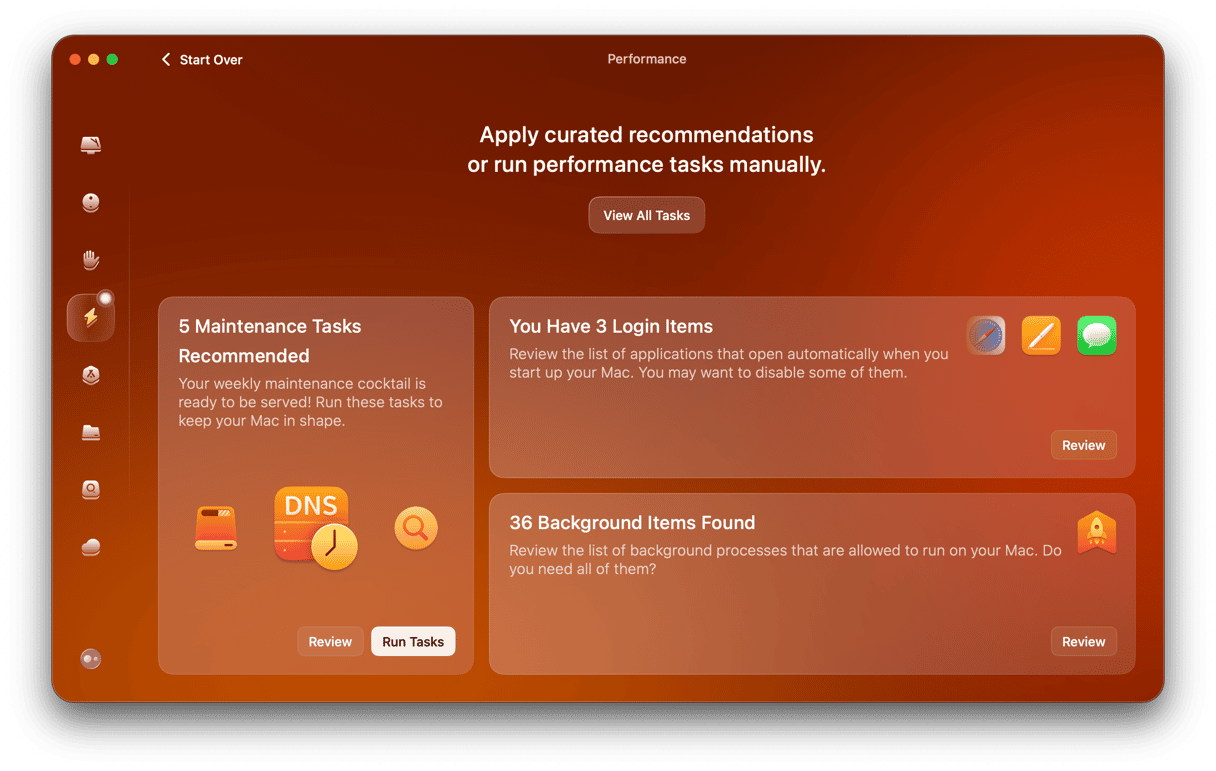
Managing startup programs on your Mac helps it run faster and smoother. Many apps start automatically when you turn on your Mac. Some use a lot of memory and slow down your computer. Controlling these programs improves boot time and overall performance.
Identifying Resource-heavy Apps
Check which apps use the most resources at startup. Open Activity Monitor from the Utilities folder. Click the CPU tab to see apps using high processing power. Look for apps that consume much memory or energy. These apps can delay your Mac’s startup and slow other tasks.
Also, review apps listed in your startup settings. Some apps run in the background without your knowledge. Removing unnecessary apps from startup helps free up resources.
Optimizing Startup Items
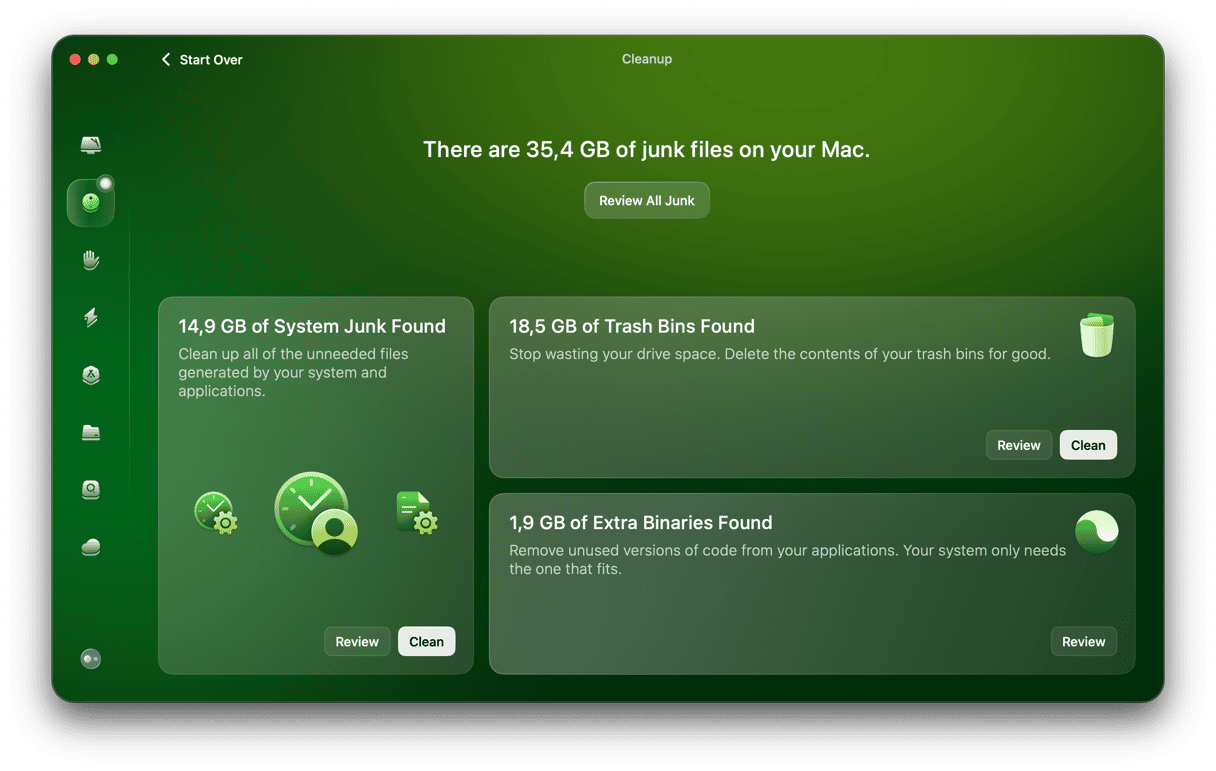
Open System Settings and go to Users & Groups. Select your user account and click Login Items. This list shows apps that open automatically at startup. To remove an app, select it and click the minus (-) button. To add an app, click the plus (+) button and choose the app.
Focus on keeping only essential apps in startup. Too many apps can cause delays and slow performance. Regularly review this list to maintain a clean and fast startup process.
Credit: macpaw.com
Cleaning Up Storage Space
Cleaning up storage space on your Mac keeps it running smoothly. Over time, files build up and slow down your system. Removing unneeded data frees space and improves performance.
Focus on deleting files that no longer serve a purpose. Use built-in tools to find and clear storage efficiently. This process helps maintain your Mac’s health and speed.
Removing Unnecessary Files
Start by deleting old documents, downloads, and duplicate files. Check your Desktop and Downloads folder for clutter. Empty the Trash after removing files to free space.
Clear cache and log files stored by apps. These files can take up significant space over time. Look for large files and move them to an external drive if needed.
- Delete unused applications
- Remove old email attachments
- Clear browser cache and history
Utilizing Built-in Storage Tools
Apple provides tools to help manage your storage easily. Click the Apple menu, then select About This Mac. Choose the Storage tab, and click Manage.
Use the Recommendations section for quick actions. Options include storing files in iCloud and optimizing storage. You can also review large files and delete them directly.
- Enable “Optimize Storage” to remove watched movies
- Turn on “Empty Trash Automatically” to clear deleted files after 30 days
- Store files and photos in iCloud for extra space
Optimizing System Performance
Optimizing system performance is essential for keeping your Mac fast and responsive. It helps prevent slowdowns and crashes. Regular checks and tweaks improve how your Mac handles tasks. This section focuses on key ways to monitor and enhance your Mac’s performance.
Monitoring System Resources
Keep an eye on your Mac’s resource use to spot problems early. Use the Activity Monitor app to see CPU, memory, disk, and network activity. High CPU or memory use can slow your system down. Look for apps or processes using too many resources. Quit or restart those tasks to free up power. Also, check for background apps running without need. Managing these can boost overall speed and stability.
Enhancing Memory Usage
Memory, or RAM, affects how many apps you can run smoothly. Close apps not in use to free up memory. Clear cache files and temporary data regularly. This helps avoid memory overload and keeps your system running clean. Consider reducing startup programs to save memory at launch. If your Mac still feels slow, upgrading RAM might help. Efficient memory use ensures faster app switching and less lag.
Credit: macpaw.com
Securing Your Mac
Securing your Mac is a crucial part of system maintenance that protects your personal data and keeps your device running smoothly. Many users overlook basic security settings, but these simple steps can prevent unauthorized access and potential threats. Have you ever wondered if your Mac’s security settings are truly protecting you?
Ensuring Firewall Is Enabled
The firewall acts as a shield, blocking unwanted connections from the internet or other networks. To check if your firewall is on, go to System Preferences > Security & Privacy > Firewall. If it’s off, click Turn On Firewallto activate it immediately.
Enabling the firewall doesn’t slow down your Mac, but it strengthens your defense against hackers and malicious software. You can also customize firewall settings to allow or block specific apps. Have you checked which apps have network access on your Mac?
Using Strong Passwords
Your password is the first line of defense for your Mac and online accounts. Avoid simple passwords like “123456” or “password.” Instead, use a mix of uppercase letters, lowercase letters, numbers, and symbols.
Consider using a password manager to generate and store complex passwords securely. This saves you from memorizing multiple passwords and reduces the risk of reuse. When was the last time you updated your Mac’s login password?
- Use at least 12 characters.
- Include a combination of letters, numbers, and special characters.
- Change passwords regularly, especially if you suspect a breach.
By focusing on these key security steps, you make it much harder for attackers to access your Mac. What simple action can you take right now to boost your Mac’s security?
Regular Backups
Regular backups are essential for protecting your Mac’s data. They ensure that your files, photos, and important documents are safe, even if your system crashes or gets damaged. Do you know where your last backup is? If not, it might be time to set up a reliable backup routine.
Using Time Machine
Time Machine is a built-in backup feature on your Mac that makes backing up simple and automatic. Connect an external hard drive, and Time Machine will save hourly, daily, and weekly backups without any extra effort from you.
It’s easy to restore files or even your entire system from these backups. Have you tried restoring a file using Time Machine before? It’s surprisingly straightforward and can save you a lot of stress.
Exploring Cloud Backup Options
Cloud backups offer an extra layer of protection by storing your data online. Services like iCloud, Google Drive, and Dropbox keep your files safe even if your physical devices fail.
Cloud storage also allows you to access your files from any device, anywhere. Think about how often you need a file but aren’t near your Mac. Would cloud backup make your life easier?
- iCloud:Seamlessly integrates with macOS and offers 5GB free storage, with easy upgrades.
- Google Drive:Provides 15GB free, works well if you use Google apps.
- Dropbox:Known for quick syncing and sharing features, with 2GB free space.
Choosing a cloud service depends on your storage needs and how you use your Mac daily. Combining Time Machine with cloud backups can give you peace of mind and full control over your data safety.
Exploring Third-party Tools
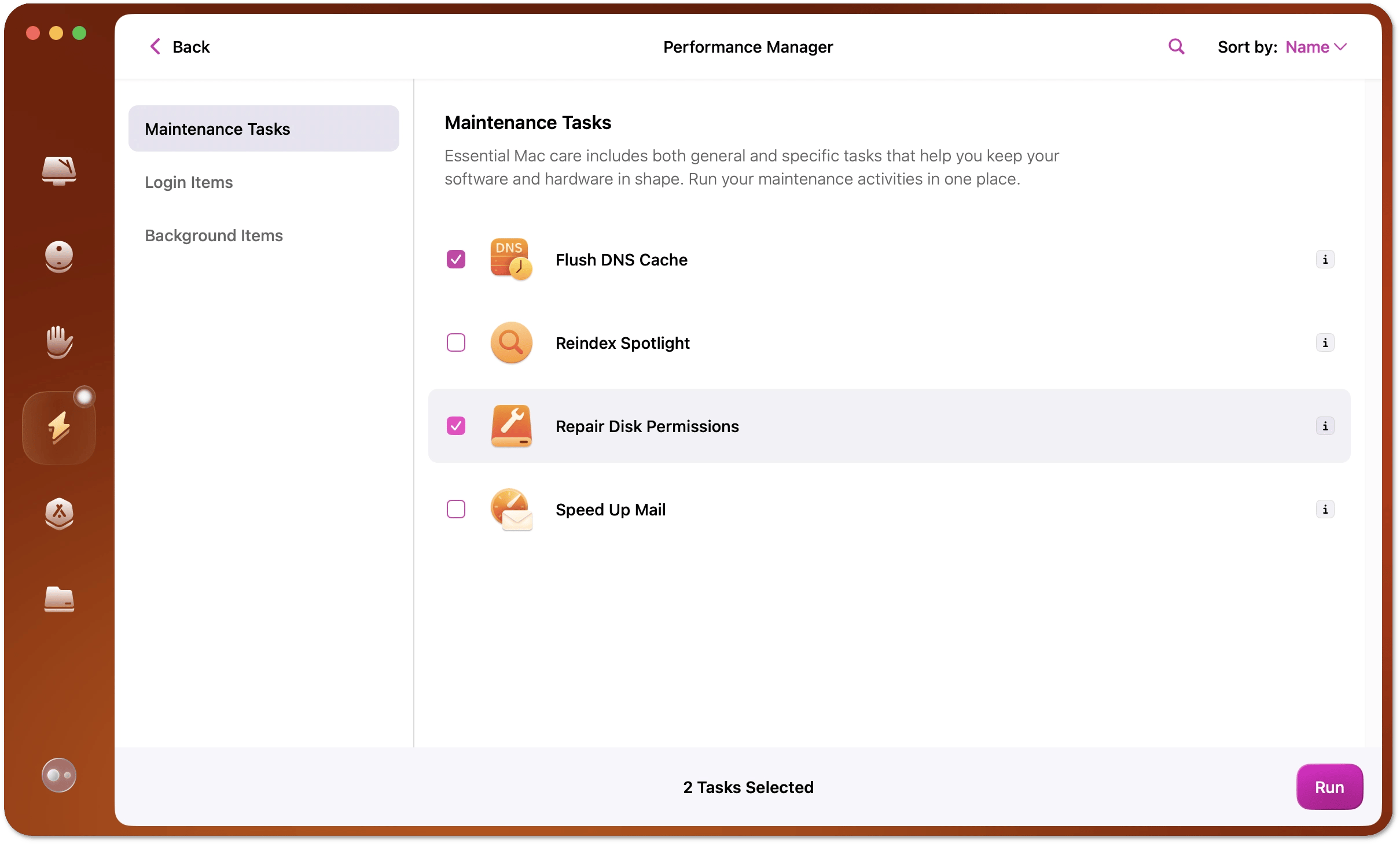
Third-party tools offer extra help for system maintenance on Mac. They handle tasks like cleaning junk files, optimizing performance, and managing startup items. These tools save time and make maintenance easier.
Many applications come with simple interfaces and automated features. They scan your Mac quickly and suggest actions to improve speed and free up space. Using trusted tools reduces the risk of deleting important files by mistake.
Popular Maintenance Applications
- CleanMyMac X:Cleans junk files, removes malware, and manages apps.
- OnyX:Performs system checks, cleans caches, and rebuilds databases.
- CCleaner for Mac:Deletes unnecessary files and manages browser history.
- DaisyDisk:Visualizes disk usage to find large files easily.
- Disk Drill:Focuses on data recovery and disk health monitoring.
Evaluating Their Benefits
- Save time with automated cleaning and optimization tasks.
- Improve Mac speed by freeing up disk space.
- Protect important files with safe deletion options.
- Monitor disk health to avoid future problems.
- Get easy-to-understand reports and suggestions.
Troubleshooting Common Issues
Troubleshooting common issues on a Mac helps keep it running smoothly. Identifying problems early prevents bigger headaches later. Simple fixes often solve performance and stability concerns.
Dealing With Slow Performance
Slow Macs often have cluttered hard drives or too many apps running. Check storage space and clear out unneeded files. Restart the Mac to refresh system resources. Close apps running in the background to free up memory.
Use Activity Monitor to find apps that use too much CPU or memory. Quit or uninstall apps causing problems. Resetting the System Management Controller (SMC) can improve hardware performance. Also, update macOS and apps to their latest versions.
Resolving Application Crashes
Apps crash due to bugs, corrupted files, or conflicts. Force quit the app and restart it to fix minor glitches. If crashes continue, check for app updates in the App Store. Delete app preferences by removing related files in the Library folder.
Reinstall the app if problems persist. Safe Mode can help isolate software conflicts by loading only essential system files. Review crash reports in Console to understand errors. Keep your Mac’s software up-to-date to avoid compatibility issues.
Credit: macpaw.com
Frequently Asked Questions
How Often Should I Perform System Maintenance On Mac?
Perform system maintenance on your Mac at least once a month. Regular checks keep your Mac running smoothly and prevent issues. This includes updating software, clearing cache, and checking disk health. Frequent maintenance enhances performance and prolongs your Mac’s lifespan.
What Are The Key Steps For Mac System Maintenance?
Key steps include updating macOS, clearing cache files, managing startup items, and running Disk Utility. Also, uninstall unused apps and back up important data. These steps improve speed, free up space, and fix minor errors, ensuring optimal Mac performance.
Can I Automate System Maintenance On Mac?
Yes, you can automate system maintenance using built-in tools and third-party apps. Tools like macOS’s built-in optimization features and apps like CleanMyMac simplify routine tasks. Automation saves time and keeps your Mac in peak condition without manual effort.
Does System Maintenance Improve Mac Performance?
Yes, system maintenance removes junk files, fixes errors, and optimizes resources. This reduces slowdowns and crashes. Regular upkeep ensures faster startup, smoother operation, and longer battery life. Proper maintenance is key to keeping your Mac running efficiently.
Conclusion
Regular system maintenance keeps your Mac running fast and smooth. Clean up files and update software often. Check your storage and remove apps you don’t use. Back up important data to stay safe. Small steps can prevent big problems later.
Keep your Mac healthy with simple care routines. Your device will thank you with better speed and reliability. Try these tips today and enjoy a well-maintained Mac.