Are Ultrawide Monitors Worth It for Programming?
You’re staring at a single screen, alt-tabbing between your IDE, a browser, a terminal, and a dozen documentation tabs. The constant context switching is killing your flow. So you wonder, is ultrawide monitor good for programming?
The answer isn’t a simple yes or no. It hinges on how you actually work, not just what you code.
As of 2026, a 34-inch 3440×1440 ultrawide offers roughly 4.9 million pixels. That’s 33% more screen area than a standard 27-inch 1440p display. But raw pixels don’t tell the whole story.
The real question is whether your workflow can use that width without creating new headaches. Let’s break down the conditions that matter.
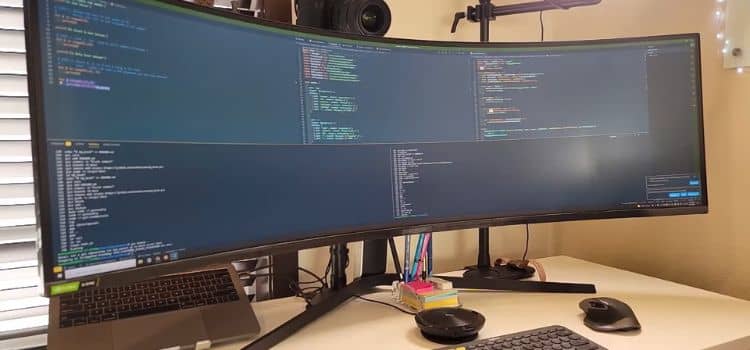
Image source: Web (Bing) / simpleprogrammer.com (Web image (fair-use with source credit))
The Real Question: Does Your Coding Workflow Actually Need an Ultrawide?
Most programmers assume more screen space is always better. That’s not true. An ultrawide shines when you need to see multiple wide windows side by side.
It frustrates you when you need vertical space or when your tools don’t scale well. The decision tree starts with your daily tasks. If you spend hours in a single full-screen IDE, a 16:9 monitor might serve you better.
If you juggle a local server, a browser, and a database client simultaneously, the extra width becomes a genuine productivity boost.
Quick Answer: It Depends on How You Code (Not Just What You Code)
An ultrawide monitor is good for programming if you multitask across wide windows. It’s a poor choice if you need vertical space or use floating window management without tools. Your IDE, terminal, and browser must all fit comfortably.
The right panel type and desk depth matter as much as the aspect ratio.
Condition 1: What’s Your Primary Development Workflow?
Your coding style dictates whether an ultrawide feels like a superpower or a waste of money. Let’s map common workflows to the ultrawide experience.
Full-Stack Web Dev: Browser, IDE, Terminal, and Docs All at Once
Full-stack developers live in a multi-window world. You need your code editor, a browser with dev tools, a terminal running a local server, and maybe an API documentation page. A 34-inch 21:9 ultrawide lets you place three windows side by side without overlap.
You can see your React component, the browser preview, and the terminal output simultaneously. This reduces alt-tabbing and keeps your mental model intact. If you also use a portable secondary display for chat or email, the ultrawide becomes your command center.
Data Science & ML: Notebooks, DataFrames, and Visualizations Side by Side
Data scientists often work with wide Jupyter notebooks, pandas DataFrames, and matplotlib plots. A 3440×1440 ultrawide can show a notebook on the left and a full-width DataFrame or visualization on the right. You avoid the constant scrolling that plagues 16:9 screens.
However, if your notebooks are long and narrow, you might miss the vertical space of a 4K display. A 40-inch 5120×2160 ultrawide gives you both width and height, but it demands a deep desk and a powerful GPU.
DevOps & SRE: Dashboards, Logs, and Terminals Without Tearing Your Hair Out
DevOps engineers monitor Grafana dashboards, tail logs, and SSH into multiple servers. An ultrawide lets you tile four terminal windows and a dashboard without squinting. The 32:9 super ultrawide, like a 49-inch 5120×1440, replaces a dual-monitor setup with a single seamless canvas.
You can see an entire deployment pipeline at a glance. Just be aware that some monitoring tools don’t scale well to extreme widths, leaving wasted space on the edges.
Game Dev & UI/UX: Engine, Code, and Preview in One Glance
Game developers and UI designers need to see their engine, code, and a live preview simultaneously. A 34-inch ultrawide can hold the Unity editor, Visual Studio, and the game view side byUX designers benefit from seeing Figma, a browser, and a code editor at the same time. The key is pixel density.
A 34-inch 3440×1440 screen gives you about 109 pixels per inch. Text looks sharp enough for long coding sessions. If you need sharper text, a 40-inch 5K2K panel pushes that to around 140 PPI.
Condition 2: How Do You Manage Windows? (This Changes Everything)
The single biggest factor in your ultrawide experience is window management. Without the right tools, you’ll waste time dragging and resizing windows. With them, the ultrawide becomes a productivity beast.
Tiling Window Manager Users: Ultrawide Is a Superpower
If you use a tiling window manager like i3, yabai, or Amethyst, an ultrawide is a dream. You can define a layout with three equal columns, a main stack, and a side pane. Your IDE takes the center, the terminal sits on the right, and a browser occupies the left.
Keyboard shortcuts snap everything into place instantly. No mouse fiddling. No gaps.
The ultrawide’s width becomes a grid of perfectly organized workspaces. If you’re on Linux or macOS, a tiling WM is the best way to harness that space.
Floating Window Users: You’ll Need FancyZones or Magnet to Survive
Windows and macOS default to floating windows. Dragging them to the edges gives you half-screen snaps, but that’s not enough for an ultrawide. You need a tool like Microsoft PowerToys FancyZones, Magnet, or Rectangle.
FancyZones lets you create custom snap zones, like three equal columns or a 60/40 split. Once you set it up, you can throw windows into zones with a keyboard shortcut. Without this, you’ll end up with windows stretched across the entire screen, wasting the real estate you paid for.

Image source: Bing (Web (fair-use with source credit))
macOS vs. Windows vs. Linux: The Window Management Gap
macOS has improved with Stage Manager and native snapping, but it still lags behind. Third-party tools like Magnet or Rectangle are almost essential. Windows 11 added snap layouts, but FancyZones offers far more control.
Linux users with a tiling WM have the best experience out of the box. If you’re on macOS and unwilling to install window management software, an ultrawide might frustrate you. If you’re on Windows and open to PowerToys, you’ll unlock the monitor’s full potential.
Condition 3: What’s Your Desk Depth and Physical Setup?
An ultrawide is physically large. A 34-inch model is about 31 inches wide. A 49-inch super ultrawide spans over 45 inches.
Your desk must accommodate that width and allow you to sit far enough back.
Shallow Desks (Under 24 Inches): You’ll Get Neck Pain
If your desk is less than 24 inches deep, a 34-inch ultrawide will force you to turn your head constantly. The edges of the screen will be in your peripheral vision, causing eye strain and neck fatigue. A 27-inch 4K monitor or a dual 24-inch setup is safer.
You can always add a budget-friendly large screen later if you upgrade your desk.
Deep Desks (30+ Inches): You Can Handle a 49-Inch Super Ultrawide
A desk depth of 30 inches or more lets you sit 28 to 32 inches from the screen. That’s the sweet spot for a 34-inch ultrawide. For a 49-inch super ultrawide, you’ll want at least 36 inches of depth.
The curve of the monitor helps bring the edges into your field of view. A 1000R curve matches the natural curvature of your eyes, reducing head movement. If your desk is deep enough, the super ultrawide replaces dual monitors without the bezel gap.
Monitor Arm vs. Stand: Why You’ll Want an Arm
Most ultrawides come with a basic stand that eats up desk space. A VESA monitor arm frees up room and lets you position the screen at the perfect height and distance. Look for an arm rated for the monitor’s weight, which can be over 20 pounds for a 49-inch model.
An arm also makes it easy to swivel the screen for a quick collaboration or to push it aside when you need desk space. If you’re using a capable work laptop with a single USB-C cable, an arm with cable management keeps your setup clean.
Condition 4: What’s Your GPU and Port Situation?
An ultrawide is only as good as the system driving it. The resolution and refresh rate you choose dictate what hardware you need.
Laptop with USB-C/Thunderbolt: Single-Cable Dream
Most modern ultrawides support USB-C with DisplayPort Alt Mode and up to 100 watts of power delivery. You can run video, data, and charging over one cable. This is a game-changer for laptop users.
You plug in, and your external keyboard, mouse, and monitor wake up instantly. Thunderbolt 3 or 4 ensures enough bandwidth for 3440×1440 at 60Hz, but higher resolutions may require a reduced refresh rate. Check your laptop’s specs.
Some cheaper USB-C ports only support data, not video. If you rely on a single cable for docking, verify that your machine supports it. A laptop that handles both work and creative tasks often pairs beautifully with an ultrawide, letting you juggle intensive workloads without a tangle of wires.
Desktop GPU: Can It Push 5120×1440 at 120Hz?
A 34-inch 3440×1440 panel at 60Hz is easy on any GPU from the last decade. Step up to 100Hz or 120Hz, and you’ll want at least a mid-range card like an NVIDIA RTX 3060 or AMD RX 6600 XT. A 49-inch 5120×1440 at 120Hz is essentially two 27-inch 1440p screens stitched together.
That’s a lot of pixels. Driving it at high refresh rates for smooth desktop scrolling and occasional gaming demands a more powerful GPU. If you’re mostly writing code, integrated graphics can handle 3440×1440 at 60Hz.
But if you animate UI or play a quick game during lunch, a discrete GPU gives you headroom. Also, check that your graphics card has the right outputs. DisplayPort 1.4 is common.
HDMI 2.0 caps at 5120×1440 at 50Hz, which feels sluggish.
KVM Switch Needs: Work Laptop + Personal Machine
Many developers juggle a work laptop and a personal desktop. Some ultrawides include a built-in KVM switch. You connect both computers to the monitor, plug your keyboard and mouse into the monitor’s USB hub, and toggle between them with a button.
The monitor’s Picture-by-Picture mode can even show both inputs side by side. This avoids a separate KVM box and extra cables. Look for a monitor that supports dual-input KVM with USB-C on one side and DisplayPort plus USB-B on the other.
It’s a small feature that saves a daily hassle. If you’re curious about how many smart devices are active in a modern setup, an ultrawide with KVM can simplify your desk dramatically.
The Decision Branches: Which Ultrawide (If Any) Fits You?
Now you’ve walked through the conditions. Let’s map them to concrete choices.
Branch 1: You Need Maximum Horizontal Space → 34" or 38" 21:9
A 34-inch 21:9 panel is the most popular sweet spot. It’s wide enough for three side-by-side windows, fits on most desks, and costs between $400 and $800. A 38-inch 3840×1600 gives you more vertical pixels, which is lovely for long code files.
You’ll pay a premium, often $900 to $1,200. Both sizes work well with a single USB-C cable from a laptop. If your workflow is about seeing a lot of horizontal information, like wide spreadsheets or multiple terminals, this is the branch for you.
Branch 2: You Want to Replace Dual Monitors → 49" Super Ultrawide
A 49-inch 32:9 monitor replaces two 27-inch 1440p screens without the bezel in the middle. It’s ideal if you currently use a dual-monitor setup and crave a seamless canvas. You’ll need a deep desk and a strong GPU.
Prices range from $800 for a basic 60Hz model to $1,500 or more for a 120Hz curved panel. This is the branch for DevOps engineers, financial traders, and anyone who lives in a multi-pane world.
Branch 3: You Prioritize Pixel Density and Color → 40" 5K2K
A 40-inch 5120×2160 monitor offers a massive 21:9 canvas with razor-sharp text, around 140 pixels per inch. It’s like having a 4K display stretched wide. This suits UI/UX designers, front-end developers who care about pixel-perfect rendering, and anyone who wants a future-proof screen.
These monitors often cost $1,200 to $1,800 and require a top-tier USB-C or Thunderbolt connection. They also demand a deep desk and a capable GPU. If you’re weighing how much extra power a new display adds, know that a 5K2K panel can draw 60 to 80 watts under load.
Branch 4: You’re on a Budget or Have a Small Desk → Stick with Dual 27" 4K
If your desk is shallow or your wallet is thin, two 27-inch 4K monitors are a fantastic alternative. You get more total pixels, true 4K sharpness on each screen, and the flexibility to position them at an angle. The bezel gap is the only downside.
This setup often costs less than a premium ultrawide and gives you redundancy. One screen dies, you keep working.
Common Mistakes Programmers Make with Ultrawides
Avoid these pitfalls, and your ultrawide experience will be smooth from day one.
Buying a VA Panel for Color-Critical Work
VA panels offer deep contrast but suffer from color shift and black smearing at the edges. For coding, it might not matter. But if you do any UI design, photo editing, or video work, an IPS or OLED panel is safer.
An IPS display gives you consistent colors across the entire screen and wider viewing angles. You’ll pay more, but your eyes and your design accuracy will thank you. For pure programming, a VA panel with a sharp curve can still be fine, as long as you’re aware of its limitations.
Ignoring Scaling Issues on Windows
High-resolution ultrawides often require display scaling to make text readable. At 34 inches and 3440×1440, 100% scaling is comfortable for most people. At 40 inches and 5120×2160, you’ll likely need 150% scaling.
Windows scaling has improved, but some older apps still look blurry. If you rely on legacy development tools, test them first. macOS handles scaling better with its Retina-like modes, but you can still hit snags with X11 forwarding or cross-platform frameworks. Plan to spend an afternoon tweaking font sizes and DPI settings.
Sitting Too Close to a 49-Inch Screen
A super ultrawide is physically huge. If you sit closer than 28 inches, you’ll constantly turn your head, and the edges will feel distorted. The curvature helps, but it can’t defeat physics.
A viewing distance of 30 to 36 inches is ideal. That means a desk at least 30 inches deep. If your current setup is shallower, a 34-inch model is a safer bet.
Remember that long-term comfort matters more than sheer screen real estate. You can always move your chair back and add a monitor arm to fine-tune the position.
Forgetting About the Single Point of Failure
A single 49-inch monitor is a huge canvas. When it goes dark, your entire workspace disappears. With dual monitors, one failure still leaves you functional.
If uptime is critical, consider a dual-monitor setup or keep a spare display on hand. Also, check the warranty. Most premium ultrawides come with a 3-year coverage, but backlight bleed or dead pixels can be a headache to RMA.
Buying from a retailer with a good return policy adds a safety net.
The Verdict: Is an Ultrawide Good for Programming? Your Decision Guide
After all these conditions, the answer crystallizes.
Yes, If You…
You live in a multi-window environment, you use a tiling window manager or snap zones, your desk is deep enough, and your GPU can drive the resolution. An ultrawide will reduce context switching, keep your flow intact, and make your setup look clean. Full-stack web developers, data scientists, and DevOps engineers tend to benefit the most.
No, If You…
You mostly work in a single full-screen IDE, you need a lot of vertical space for long files, your desk is shallow, or your budget is tight. A 27-inch 4K monitor or a pair of 24-inch 1080p screens will serve you better without the ergonomic trade-offs.
The Sweet Spot Setup for Most Developers
A 34-inch 3440×1440 IPS ultrawide, paired with a VESA arm and a tiling window manager or FancyZones, hits the sweet spot for the majority of coders. It’s wide enough to replace a dual-monitor setup, sharp enough for crisp text, and deep enough to keep three windows in view. Add a vertical monitor on the side for documentation or chat, and you’ve got a powerhouse rig.
Frequently Asked Questions
Is a 34-inch ultrawide good for coding?
Yes, a 34-inch 21:9 ultrawide is excellent for coding. It lets you view your editor, terminal, and browser side by side. The 3440×1440 resolution provides enough pixel density for sharp text at 100% scaling.
It’s wide enough to replace two 24-inch monitors without the bezel gap.
Do ultrawide monitors cause eye strain?
Ultrawides can cause eye strain if you sit too close or use a very wide panel on a shallow desk. A 49-inch screen forces more head movement. Stick to a 34-inch model if your desk is under 30 inches deep.
Use a monitor arm to set the top of the screen at eye level, and enable flicker-free backlighting.
Can I use an ultrawide for gaming and programming?
Absolutely. Many ultrawides combine a high refresh rate, like 120Hz or 144Hz, with adaptive sync. This makes gaming smooth while still giving you ample space for coding.
Look for a model with a fast IPS or OLED panel if you split your time evenly.
What size monitor is best for programming?
The ideal size depends on your desk and resolution. A 27-inch 1440p or 4K screen is great for focused work. A 34-inch ultrawide suits multitaskers.
A 49-inch super ultrawide works best on deep desks for those who need to see many windows at once.
How much desk depth do I need for a 34-inch ultrawide?
You need at least 24 inches of desk depth for a 34-inch ultrawide. A depth of 28 to 30 inches is more comfortable. This lets you sit far enough back to take in the whole screen without excessive head turning.
A monitor arm can help you push the screen back if your desk is shallow.