How Long Does Windows 8 System Maintenance Take? Quick Answers!
Have you ever stared at your screen, wondering how long Windows 8 system maintenance will keep you waiting? You’re not alone.
When your computer slows down or starts acting up, the last thing you want is to be stuck watching a maintenance process drag on forever. Understanding how long this routine task takes can save you time, reduce frustration, and help you plan your work better.
You’ll discover the factors that affect maintenance time and what you can expect during the process—so you’re never left guessing again. Keep reading to get the clear answers you need.
Factors Affecting Maintenance Duration
Understanding what influences the time Windows 8 system maintenance takes can help you manage your computer better. Maintenance duration is not fixed; it varies widely depending on several key factors. Knowing these can save you frustration and help you plan your work around these maintenance windows.
Hardware Specifications
Your computer’s hardware plays a huge role in how quickly maintenance tasks finish. Faster processors and more RAM mean your system can handle maintenance checks and updates more efficiently. On the other hand, older or lower-spec machines often slow down the process significantly.
Think about your hard drive type too—an SSD completes tasks faster than a traditional HDD. If you’ve noticed sluggish updates before, your hardware might be the bottleneck.
Software Configuration
The programs and settings on your Windows 8 system affect maintenance time as well. Systems overloaded with unnecessary software or cluttered with temporary files take longer to scan and clean. Security software, like antivirus programs, can also extend the duration by scanning files during maintenance.
Have you ever disabled certain startup programs and seen maintenance speed up? That’s a practical way to reduce delays caused by software conflicts or heavy background processes.
Frequency Of Maintenance
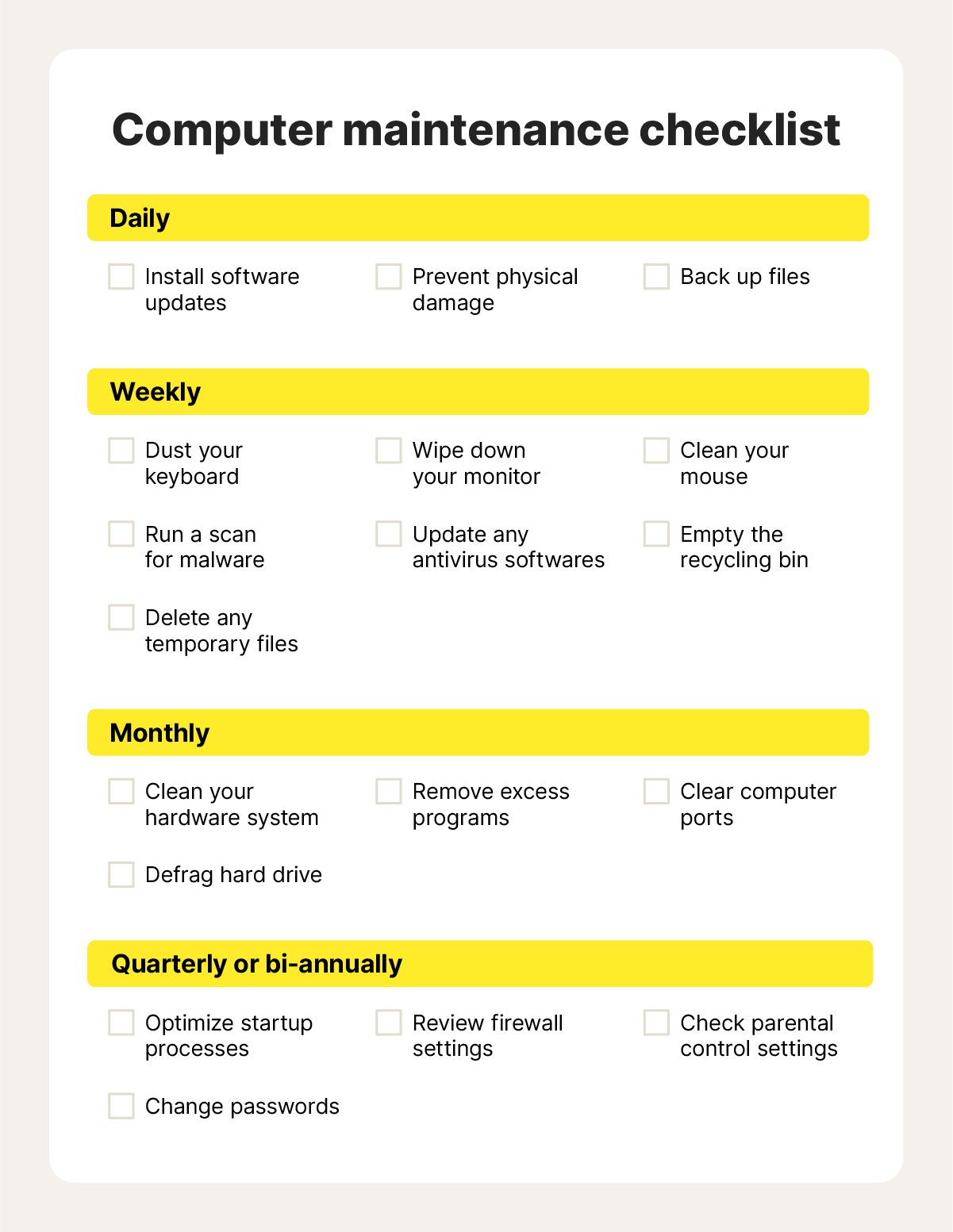
How often you run system maintenance directly impacts how long each session lasts. If maintenance is skipped or done irregularly, more issues accumulate, leading to longer processing times. Regular maintenance keeps your system in better shape and keeps the duration shorter.
Consider setting reminders for weekly or bi-weekly maintenance to avoid long waits. What’s your current maintenance routine, and could adjusting it save you time?
Credit: us.norton.com
Typical Maintenance Tasks
Windows 8 system maintenance involves several key tasks to keep your computer running smoothly. These tasks help remove clutter, update software, and protect against threats. Each task takes a different amount of time depending on your system’s condition and settings.
Disk Cleanup
Disk Cleanup removes unnecessary files that slow down your computer. It deletes temporary files, system cache, and recycle bin contents. This process usually takes a few minutes but can take longer if the disk is very full. Regular cleanup helps free space and improve speed.
System Updates
System Updates install important patches and security fixes from Microsoft. The duration depends on the number and size of updates available. Some updates take only a few minutes, while others may require 20 to 30 minutes. Restarting the computer is often needed to finish the process.
Antivirus Scans
Antivirus Scans check your system for viruses and malware. Quick scans usually take 5 to 10 minutes, but full scans can last 30 minutes or more. The scan time depends on your hard drive size and the number of files. Regular scanning keeps your system safe from threats.
Estimated Time For Each Task
System maintenance in Windows 8 involves several key tasks. Each task takes a different amount of time. Knowing the estimated duration helps plan your work better. Here is a breakdown of the time each task usually takes.
Duration Of Disk Cleanup
Disk Cleanup removes unnecessary files from your computer. This task usually takes between 5 to 15 minutes. The exact time depends on how many files need to be deleted. Larger drives or drives with many files take longer. It runs faster on newer, faster hard drives or SSDs.
Time For System Updates
System updates vary in time based on the update size. Small updates can finish in 10 to 20 minutes. Major updates or service packs might take 30 minutes or more. The speed of your internet and computer affects the time. Updates also include restarts, which add extra minutes.
Length Of Antivirus Scans
Antivirus scans check for malware and viruses on your PC. Quick scans usually last 5 to 10 minutes. Full scans take longer, around 30 to 60 minutes. The scan time depends on the number of files and system speed. Running scans during maintenance keeps your system safe.

Credit: medium.com
Tips To Speed Up Maintenance
System maintenance on Windows 8 can sometimes feel slow. Speeding up this process saves time and reduces frustration. Simple changes to hardware, software, and habits can make a big difference. These tips help your system run smoother and finish maintenance faster.
Optimizing Hardware
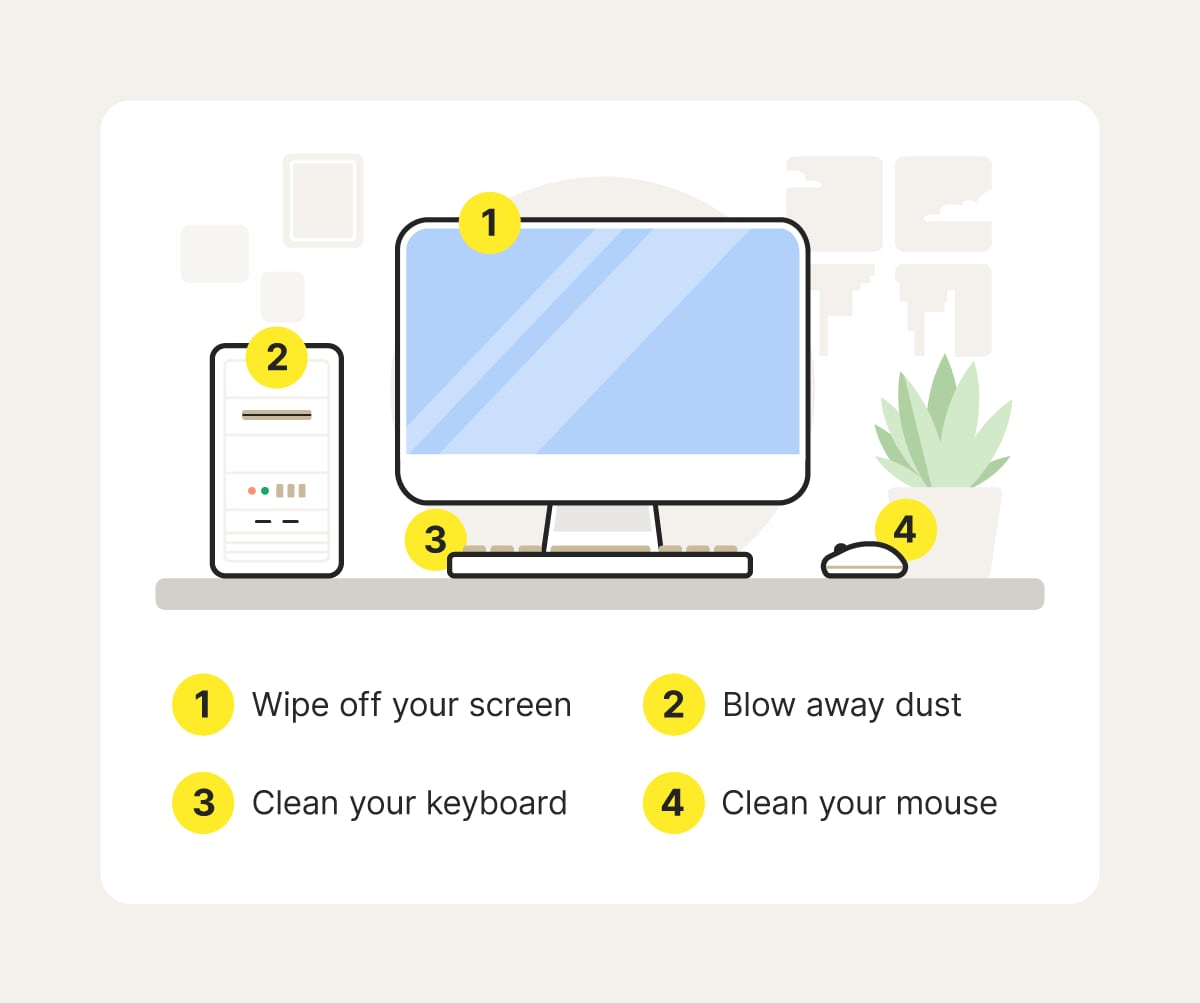
Fast hardware improves maintenance speed. Use a solid-state drive (SSD) instead of a traditional hard drive. SSDs access data much quicker. Increasing your RAM also helps Windows handle tasks better. Keep your computer clean from dust to avoid overheating, which slows performance. Regularly check hardware health to prevent failures during maintenance.
Efficient Software Use
Close unnecessary programs before starting maintenance. Running many apps slows down the process. Disable auto-start apps that consume resources. Use built-in Windows tools like Disk Cleanup to remove junk files. Keep your system updated for better performance. Avoid heavy software during maintenance periods to reduce load.
Regular Maintenance Schedule
Set a fixed time for system maintenance weekly or monthly. Regular checks prevent large backlogs of updates and scans. Smaller, frequent maintenance tasks finish faster than long, rare ones. Schedule maintenance during low-use hours to avoid interruptions. Consistency helps your system stay healthy and responsive.
Tools To Automate Maintenance
Windows 8 needs regular maintenance to run smoothly. Automating this process saves time and effort. Tools designed for this help keep your system clean and fast. They perform tasks like disk cleanup, updates, and error checking automatically. This section covers the best tools to automate Windows 8 maintenance.
Built-in Windows Tools
Windows 8 includes several built-in tools for automatic maintenance. These tools run quietly in the background without disturbing users.
- Task Scheduler:Runs maintenance tasks at set times or when the PC is idle.
- Automatic Maintenance:Combines updates, security scans, and system diagnostics daily.
- Disk Cleanup:Removes temporary files and system junk automatically on schedule.
- Windows Update:Downloads and installs updates without manual input.
These tools require little setup and help keep your system healthy. They reduce the need for manual checks and fixes.
Third-party Applications
Third-party apps offer extra features for system maintenance automation. They often provide easier control over tasks and schedules.
- CCleaner:Cleans junk files and manages startup programs automatically.
- Advanced SystemCare:Offers one-click maintenance including cleanup and optimization.
- Glary Utilities:Provides scheduled scans and fixes for errors and privacy issues.
- IObit Uninstaller:Automates removal of unwanted programs and leftovers.
These tools simplify maintenance for users who want more control. They can speed up the process and improve system performance.
Common Issues And Solutions
Windows 8 system maintenance can sometimes take longer than expected due to various common issues. Understanding these problems and knowing how to address them can save you time and frustration. Let’s look at some frequent obstacles and practical solutions to help your maintenance run smoothly.
Troubleshooting Slow Maintenance
Slow system maintenance often results from background processes consuming too many resources. Check your Task Manager to identify which apps or services are hogging CPU or disk usage during maintenance.
You might find unnecessary programs running that can be paused or stopped temporarily. Also, clearing out temporary files and disabling startup programs you don’t need can speed up the process.
Have you noticed your hard drive is nearly full? Low disk space can drastically slow down maintenance tasks. Freeing up space by deleting old files or moving data to an external drive can help.
Resolving Update Errors
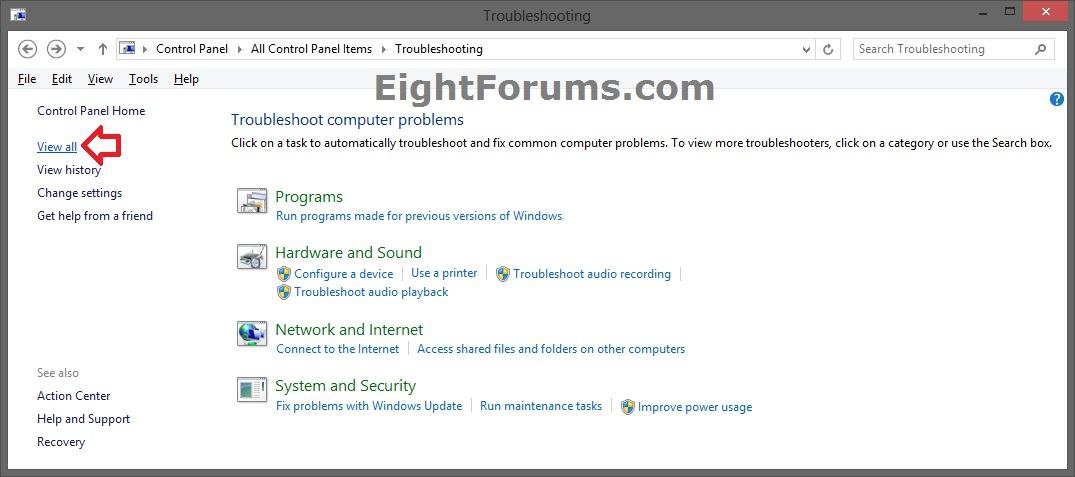
Update errors are a common cause of maintenance delays. They often occur due to corrupted files or interrupted downloads. Running the Windows Update Troubleshooter can detect and fix many of these problems automatically.
If errors persist, manually resetting the Windows Update components might be necessary. This involves stopping update services, deleting temporary update files, and restarting the services.
Keeping your system’s date and time settings accurate is a simple fix often overlooked. Incorrect settings can prevent updates from installing correctly.
Fixing Antivirus Scan Delays
Antivirus scans can slow down system maintenance, especially if the software is outdated or scanning too many files at once. Try updating your antivirus definitions regularly to ensure efficient scanning.
Adjusting scan schedules to run during off-hours can prevent conflicts with maintenance tasks. You can also exclude certain large or trusted folders from scans to reduce scanning time.
If your antivirus consistently causes delays, consider switching to a lighter security solution or temporarily disabling real-time scanning during maintenance—just remember to turn it back on afterward.
Credit: www.eightforums.com
Frequently Asked Questions
How Long Does Windows 8 System Maintenance Usually Take?
Windows 8 system maintenance typically takes between 10 to 30 minutes. The exact time depends on your PC’s speed and the tasks being performed. Regular maintenance runs faster, while the first or infrequent runs may take longer due to accumulated updates and system checks.
Why Is Windows 8 Maintenance Sometimes Slow?
Windows 8 maintenance can be slow due to background processes, large disk cleanup, or system updates. Insufficient hardware resources, like low RAM or slow HDD, also affect speed. Running multiple programs simultaneously can further delay the process.
Can I Speed Up Windows 8 System Maintenance?
Yes, you can speed up maintenance by closing all applications before it starts. Regularly updating your system and cleaning temporary files helps too. Upgrading hardware like switching to an SSD can significantly reduce maintenance time.
What Tasks Are Included In Windows 8 Maintenance?
Windows 8 maintenance includes disk cleanup, system diagnostics, security scanning, and software updates. It optimizes system performance by fixing errors and removing unnecessary files. These tasks help keep your PC running smoothly and securely.
Conclusion
System maintenance on Windows 8 usually takes between 10 to 30 minutes. It depends on your computer’s speed and the amount of data. Sometimes, it may take longer if updates or repairs are needed. Regular maintenance helps keep your system running smoothly.
Patience is key during this process. Running maintenance often can reduce future delays. Keep your computer plugged in and avoid interruptions. This simple step improves performance and security. Overall, understanding the time helps you plan better. Maintenance is a small effort for a healthier PC.