How to Turn on Electronics With Google Home: Easy Smart Guide
Imagine walking into your home, and with just a simple voice command, the lights flicker on, your favorite playlist starts, and the TV is ready for your binge-watching session. Sounds like a scene from a sci-fi movie, right?
But it’s not. It’s the convenience of Google Home transforming your space into a smart haven. You might wonder how you can take control of your electronics with just your voice. This guide is your key to unlocking that magic.
Discover how easily you can turn on electronics with Google Home and elevate your daily routine. Dive in and see how this small device can redefine the way you interact with your world.
Set Up Google Home
Setting up Google Home is the first step to control your electronics with voice commands. The process is simple and takes only a few minutes. A proper setup ensures smooth communication between your devices and Google Home.
Download The Google Home App
Start by downloading the Google Home app on your smartphone or tablet. It is available on both the App Store and Google Play. The app is free and essential to manage your Google Home device.
Connect To Wi-fi
After installing the app, connect your Google Home device to your home Wi-Fi network. A strong Wi-Fi connection is important for fast response times. Follow the app instructions to select your network and enter the password.
Link Google Account
Next, link your Google account to the Google Home app. This allows personalized settings and access to your preferences. The app will guide you through signing in and granting the necessary permissions.

Credit: www.reddit.com
Prepare Your Electronics
Getting your electronics ready for Google Home control is the first crucial step. Without proper preparation, you might find yourself stuck with devices that just won’t respond. Let’s break down what you need to do to make your gadgets work smoothly with your voice commands.
Check Smart Compatibility
Not all electronics are designed to work with Google Home. You need to verify if your device supports smart home integration or has a compatible app. Look for labels like “Works with Google Assistant” on the packaging or product description.
Sometimes, older models can still be controlled if you connect them through other smart devices. Have you checked the manuals or manufacturer’s website for compatibility details? This step saves you frustration later.
Use Smart Plugs Or Switches
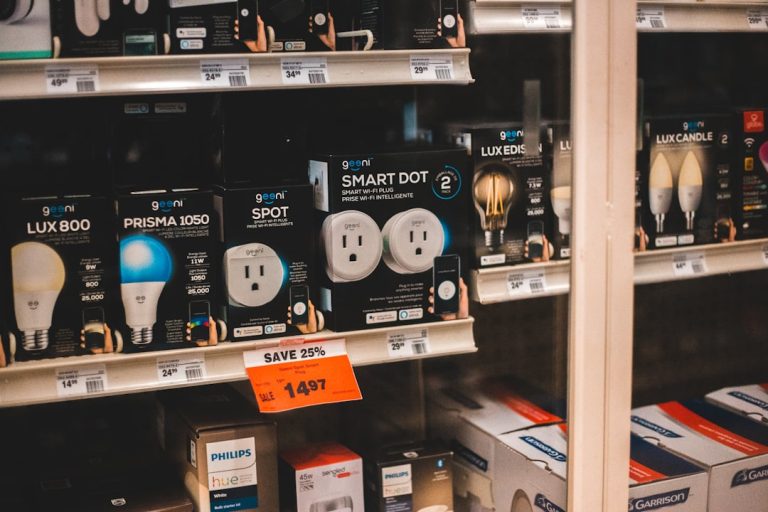
If your electronics aren’t smart by themselves, smart plugs or switches can bridge the gap. These simple devices allow you to control any appliance plugged into them via Google Home.
Smart plugs are perfect for lamps, fans, or coffee makers. Switches work well for wall-mounted lights and ceiling fans. Choosing the right one depends on how you want to control your device.
Connect Devices To Power
Every smart or non-smart device needs a reliable power source to respond to your commands. Make sure your electronics are plugged in and switched on, either directly or through a smart plug.
Check the placement of cords and outlets to avoid accidental unplugging. In my experience, labeling cords can help you remember which device goes where, especially in crowded entertainment centers.
Link Devices To Google Home
Linking devices to Google Home lets you control your electronics with voice commands. It makes managing your smart home simple and fast. Setting up these connections is the first step to smart living. Follow these clear instructions to connect your devices and enjoy hands-free control.
Add Devices In The App
Open the Google Home app on your phone. Tap the plus (+) icon to add new devices. Select “Set up device” and choose “New devices.” The app scans for compatible devices nearby. Pick your device from the list and follow the on-screen steps to connect it. Make sure your phone and device use the same Wi-Fi network for easy setup.
Authorize Device Access
After adding a device, you must grant permission for Google Home to control it. The app asks for access to your device’s settings. Tap “Allow” or “Authorize” to continue. This step links your Google account with the device. It ensures Google Home can send commands and receive status updates. Without authorization, the device won’t respond to your voice commands.
Assign Devices To Rooms
Organize your smart devices by assigning them to rooms. In the app, select the device and tap “Room.” Choose the room where the device is located, like “Living Room” or “Kitchen.” This helps Google Home understand your commands better. For example, saying “Turn off the lights in the kitchen” works perfectly. Room assignment keeps your smart home organized and easy to control.

Credit: m.youtube.com
Create Voice Commands
Creating voice commands for your Google Home is the key to hands-free control over your electronics. It makes your daily routines smoother and lets you focus on what matters while your devices respond instantly. Understanding how to set up and customize these commands ensures your smart home works exactly the way you want.
Use Default Commands
Google Home comes with built-in commands that work right out of the box. You can say things like “Hey Google, turn on the living room lights”or “Hey Google, power on the TV”. These commands are simple and cover many common devices.
Try using these first to see how responsive your devices are. This helps you get comfortable with voice control before moving to more advanced setups.
Set Up Custom Routines
Custom routines let you combine multiple actions into a single command. For example, saying “Hey Google, movie time”could dim the lights, turn on the TV, and start your sound system all at once.
To set one up, open the Google Home app, navigate to Routines, and create a new one by adding specific actions and a voice trigger. This personalization saves you from repeating commands and tailors your home to your lifestyle.
Test Voice Activation
Testing your commands is important to ensure everything works smoothly. Speak your commands clearly and observe if the devices respond as expected. If something doesn’t work, check device names and connectivity in the app.
Ask yourself: Does the command feel natural? Is the response quick? Testing helps you refine the experience so your smart home feels truly intuitive.
Troubleshoot Common Issues
Having trouble turning on your electronics with Google Home can be frustrating. Often, the issues are simple to fix but easy to overlook. Let’s look at some common troubleshooting steps that can get your devices responding again.
Check Device Connectivity
Your smart device needs a stable connection to both power and Wi-Fi to work properly with Google Home. Make sure your electronics are plugged in and the Wi-Fi signal is strong enough. If your device is far from the router, try moving it closer or using a Wi-Fi extender.
Also, verify that your Google Home and the device you want to control are on the same Wi-Fi network. Different networks can prevent communication between them. Have you checked your router’s settings recently to see if any restrictions might be blocking devices?
Update Firmware And App
Outdated firmware on your smart devices or an old version of the Google Home app can cause issues. Check the manufacturer’s app or website for firmware updates and install them. These updates often fix bugs and improve compatibility with Google Home.
Don’t forget to update the Google Home app on your phone as well. App updates can include important fixes for voice commands and device control. You might be surprised how a simple update resolves persistent problems.
Reset Google Home
If nothing else works, resetting your Google Home can clear glitches and restore normal function. Hold down the reset button on your device or use the Google Home app to perform a factory reset. Keep in mind, you’ll need to set up your Google Home again afterward.
Resetting isn’t a quick fix but can be very effective when your device is unresponsive. Have you ever felt stuck only to find that a reset was exactly what your device needed? It’s a good last step before reaching out for more technical help.

Credit: lifehacker.com
Frequently Asked Questions
How Do I Connect Devices To Google Home?
To connect devices, open the Google Home app. Tap “Add,” then “Set up device. ” Follow instructions to link smart electronics easily.
Can Google Home Control Non-smart Electronics?
Yes, with smart plugs or smart switches, Google Home can control non-smart devices by turning their power on or off remotely.
What Voice Commands Turn On Electronics With Google Home?
Use commands like “Hey Google, turn on the TV” or “Hey Google, power up the lamp. ” Clear device names improve accuracy.
Do I Need Wi-fi For Google Home Device Control?
Yes, Wi-Fi is essential. Google Home and connected devices require internet to communicate and execute commands smoothly.
Conclusion
Turning on electronics with Google Home makes life easier. Just connect your devices and use simple voice commands. No need to press buttons or search for remotes. This smart way saves time and adds convenience every day. Try setting up your favorite gadgets today.
Enjoy hands-free control and a smoother routine. Small steps lead to big changes in your home. Simple, fast, and helpful. That’s the power of Google Home.