How Do You Control Smart Devices With Personal Assistant Devices: Ultimate Guide
Imagine walking into your home and having the lights turn on, your favorite music start playing, and the thermostat adjust to the perfect temperature—all without lifting a finger. You can make this happen with personal assistant devices controlling your smart gadgets.
But how exactly do you get these devices to work together seamlessly? If you’ve ever wondered how to take full control of your smart home using just your voice or simple commands, this guide is for you. Keep reading to discover easy steps and insider tips that will turn your home into a smart, responsive space tailored just for you.
Credit: www.xda-developers.com
Choosing A Personal Assistant
Choosing the right personal assistant device is essential for smooth control of your smart home. Different devices offer various features, and not all work well with every smart gadget. Understanding the options can help you pick one that fits your needs perfectly.
Popular Options
Many personal assistant devices are available today. Amazon Alexa, Google Assistant, and Apple Siri are the most common. Each has its strengths and works with different ecosystems. Alexa often supports a wide range of smart devices. Google Assistant excels in answering questions and integrates well with Android phones. Siri works best if you use Apple products.
Compatibility With Smart Devices
Check which smart devices your assistant supports before buying. Some assistants work with many brands, while others have limits. For example, Alexa connects with many lights, locks, and cameras. Google Assistant supports devices that use Google Home or Nest. Siri mainly controls HomeKit-compatible products. A compatible assistant ensures easy setup and fewer connection issues.
Voice Recognition Features
Good voice recognition makes controlling devices easier. Look for assistants that recognize different voices. This feature allows personalized responses for each family member. Some assistants can understand commands even in noisy rooms. Fast and accurate recognition reduces frustration. It helps keep your smart home running smoothly with simple voice commands.

Credit: www.understood.org
Setting Up Your Assistant
Setting up your personal assistant is the first step to controlling smart devices easily. This process connects your assistant to the internet and your smart home gadgets. A few simple steps get you ready to use voice commands and automation. Let’s explore how to start.
Creating An Account
Begin by creating an account on your assistant’s app or website. Use a valid email address and a strong password. This account stores your settings and preferences. It also keeps your devices linked securely. Follow the prompts to verify your email or phone number.
Connecting To Wi-fi
Next, connect your assistant to a Wi-Fi network. Choose a stable and fast connection for best performance. Open the app and select your home Wi-Fi from the list. Enter the password carefully to avoid errors. Once connected, your assistant can communicate with your devices online.
Linking Smart Devices
Finally, link your smart devices to the assistant app. Most devices support popular assistants like Alexa, Google Assistant, or Siri. Add each device by selecting its brand and model in the app. Follow instructions to authorize access and sync controls. After linking, you can control devices using voice commands.
Configuring Smart Devices
Configuring your smart devices is the key to making your personal assistant truly useful. Without proper setup, your devices won’t respond as expected, which can be frustrating. Taking control of the configuration lets you tailor how your smart home works and feels.
Device Pairing Methods
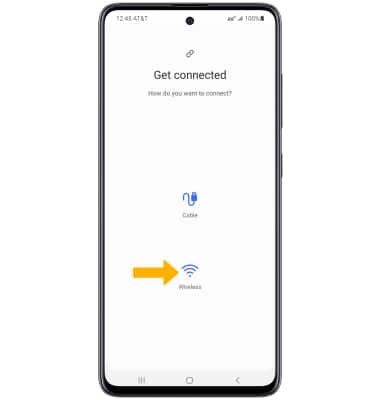
Pairing your smart devices with a personal assistant usually starts with connecting them to the same Wi-Fi network. Most devices use Bluetooth or Wi-Fi for this initial handshake. Some devices also support QR code scanning, which speeds up the process by automatically entering network details.
When pairing, look for prompts on both your personal assistant app and the smart device itself. You might need to press a physical button or hold your phone near the device for NFC pairing. If you encounter connection issues, restarting devices or resetting network settings often helps.
Updating Firmware
Firmware updates keep your smart devices running smoothly and add new features. Your personal assistant app usually notifies you when updates are available. Ignoring these updates can cause devices to lag or stop responding.
Check for updates regularly, especially if your device behaves oddly. Some devices update automatically, but manual updates ensure you’re running the latest version. This step can fix bugs and improve security, so don’t skip it.
Customizing Settings
Once paired and updated, you can customize your device settings through the personal assistant app. Adjust voice commands, notification preferences, and device behavior to suit your routine. For instance, setting specific routines like “Good Morning” can adjust lighting and play news simultaneously.
Think about what matters most to you. Do you want your thermostat to adjust based on your location? Would you prefer your smart lights to turn off after a certain time? Personalizing these settings enhances your daily experience and makes your smart home truly smart.
Using Voice Commands
Using voice commands is the easiest way to control smart devices through personal assistant devices. Just speak clearly, and the assistant does the rest. This hands-free control saves time and adds convenience to everyday tasks. Voice commands work with many devices like lights, thermostats, and speakers. Learning simple commands helps you get started quickly.
Basic Commands
Basic commands let you turn devices on or off and check their status. Try saying:
- “Turn on the living room light.”
- “Set the thermostat to 72 degrees.”
- “Is the front door locked?”
These commands are short and easy to remember. Most assistants recognize common words like “turn on,” “turn off,” “set,” and “check.”
Advanced Controls
Advanced controls allow more detailed device management. You can create routines or adjust settings precisely. Examples include:
- “Dim the bedroom lights to 50%.”
- “Play jazz music in the kitchen.”
- “Start the robot vacuum at 3 PM.”
- “Set the sprinkler schedule for 7 AM every day.”
These commands use specific instructions to customize your smart home experience.
Troubleshooting Common Issues
Sometimes, voice commands may not work as expected. Try these tips:
- Speak clearly and at a moderate pace.
- Check if the device is connected to Wi-Fi.
- Make sure the personal assistant device is powered on.
- Update the assistant’s app and device firmware regularly.
- Restart the assistant or smart device if unresponsive.
Following these steps often fixes common problems quickly.
Automating With Routines
Automating with routines lets you streamline your daily tasks by linking multiple smart device actions into a single command. Instead of controlling each device separately, you trigger several actions with one phrase or at a specific time. This saves you time and adds convenience to your smart home experience.
Creating Custom Routines
Start by choosing the actions you want to automate. You can combine turning on lights, adjusting thermostats, playing music, or even sending reminders in one routine. For example, saying “Good morning” could turn on your bedroom lights, start the coffee maker, and read out your daily calendar.
Most personal assistant apps have a simple interface for building these routines. You just select the trigger phrase or condition, then add the devices and actions to follow. Have you thought about what small tasks you repeat every day that could be bundled together?
Scheduling Actions
You don’t have to rely solely on voice commands. Scheduling lets your devices act automatically at set times or based on triggers like sunrise or sunset. For instance, you can program your porch light to turn on every evening at dusk or have your smart speaker play relaxing music at bedtime.
Scheduling routines ensures your home responds to your lifestyle even when you’re busy or away. Do you find yourself wishing certain tasks just happened without you needing to remember?
Managing Routine Preferences
Once you create routines, you can customize how and when they run. Adjust settings to include or exclude specific devices, change the order of actions, or tweak triggers for better timing. This flexibility lets you refine your smart home setup as your needs change.
Also, review your routines regularly. You might discover some actions are no longer useful or could be improved. How often do you revisit your smart device settings to make sure they still fit your daily habits?
Ensuring Security And Privacy
Controlling smart devices through personal assistant devices brings convenience. Yet, it also raises important security and privacy concerns. Protecting your data and managing access carefully keeps your smart home safe.
Understanding how to secure your smart system helps prevent unauthorized use and data breaches. Simple steps can make a big difference in maintaining privacy and control.
Managing Permissions
Set clear permissions for each smart device linked to your assistant. Limit access only to trusted users. Remove permissions for devices or people no longer in use.
Use the device’s app to review and adjust settings regularly. Control which apps can access your personal information and smart gadgets.
Securing Voice Data
Voice commands are stored on cloud servers. Protect this data by changing privacy settings in your assistant’s app. Opt to delete voice recordings regularly.
Disable features that save voice history if not needed. Use strong passwords for accounts linked to voice assistants to prevent hacking.
Best Practices For Safety
- Keep your devices’ software updated to fix security issues.
- Use strong, unique passwords for your smart home accounts.
- Enable two-factor authentication for extra protection.
- Turn off the microphone or assistant when not in use.
- Be cautious about sharing sensitive information near smart assistants.
Expanding Your Smart Home
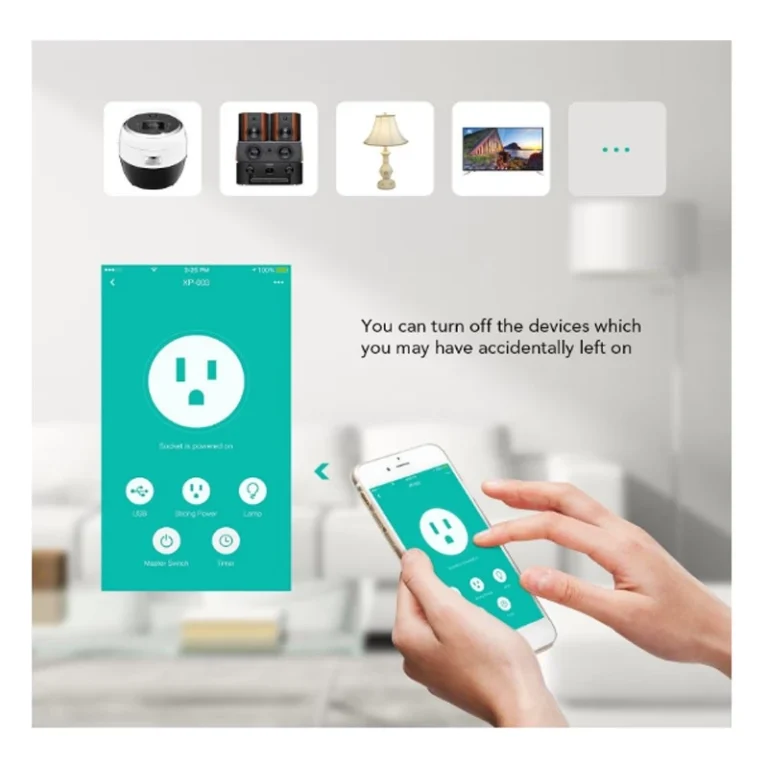
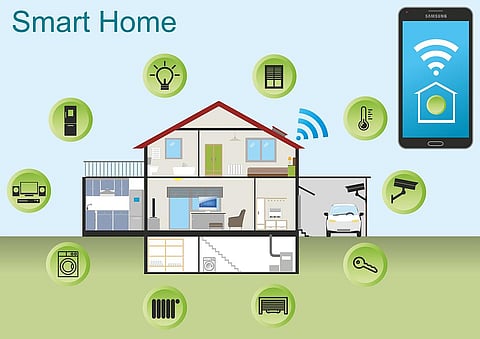
Expanding your smart home creates new ways to improve comfort and convenience. Connecting more devices lets you control lights, locks, and more with voice commands. Personal assistant devices act as the central hub for managing your smart home.
Adding devices is simple. You can include smart bulbs, thermostats, cameras, and sensors. Each new device increases control and automation possibilities. Personal assistants help organize and operate all gadgets from one place.
Adding New Devices
Start by choosing devices compatible with your personal assistant. Follow the app instructions to connect each device. Use voice commands to name and control the new gadgets. Testing the devices ensures they respond correctly to your assistant.
Integrating Third-party Services
Many personal assistants support third-party apps and services. These add extra functions like music, reminders, and smart home routines. Linking services creates seamless interaction across different platforms. You can control multiple brands through one assistant device.
Future Trends
Smart homes will become more intuitive and automated. Artificial intelligence will learn your habits and adjust settings automatically. More devices will support voice control and smart routines. Integration with health and energy systems will improve home efficiency and safety.
Credit: www.newindianexpress.com
Frequently Asked Questions
How Do Personal Assistants Control Smart Devices?
Personal assistants use voice commands to communicate with smart devices. They send instructions via Wi-Fi or Bluetooth, enabling hands-free control and automation of tasks.
Which Smart Devices Work With Personal Assistants?
Common compatible devices include smart lights, thermostats, security cameras, and speakers. Most brands support major assistants like Alexa, Google Assistant, and Siri.
How Secure Is Controlling Devices With Personal Assistants?
Security depends on device encryption, network safety, and user settings. Always update devices and use strong passwords to protect your smart home environment.
Can I Control Multiple Smart Devices Simultaneously?
Yes, personal assistants allow grouping devices for simultaneous control. For example, you can turn off all smart lights in a room with one command.
Conclusion
Controlling smart devices with personal assistants is simple and convenient. Speak commands. Watch your devices respond instantly. It adds comfort to daily routines. Managing your home becomes effortless. No complex steps involved. Just voice instructions. Want lights on? Just ask.
Need music? Use your voice. Smart assistants simplify tasks. They enhance your smart home experience. Explore different features. Find what suits your needs best. Enjoy a more connected lifestyle. Voice control is the future. Embrace it.